How to Create a LinkedIn Carousel From Notes
Turn rough notes, bullets, call summaries, or unfinished ideas into a clear LinkedIn carousel with prompts, examples, and a publishing checklist.

You do not need a polished article to create a good LinkedIn carousel. Many of the best carousel ideas start as messy notes: bullet points from a client call, a lesson from a project, a draft LinkedIn post, a podcast outline, or a list of mistakes you keep seeing. The useful move is to give the notes enough structure that the carousel has one reader, one promise, and one clear sequence.
The short version: to create a LinkedIn carousel from notes, organize the notes around one audience, one goal, one tone, and one set of points. Paste them into SlideDrift’s text input, add a short instruction if needed, generate the carousel, review the deck, edit unclear slides, and export as a PDF for LinkedIn. SlideDrift’s docs describe this workflow for pasted text, notes, outlines, drafts, and rough ideas. SlideDrift create from text
If you already have the notes ready, open SlideDrift Create and paste the structured version into the create box. If the notes came from a longer article or newsletter, the blog-to-carousel angle finder can help choose one focused angle before you generate the deck.
Key takeaways
- Notes work best when the source is private, unfinished, scattered, or easier to summarize safely than share as a public URL.
- Before generating, define the audience, goal, tone, carousel type, key points, and anything the deck must include.
- Split unrelated notes into separate carousel ideas so the deck has one promise and one clear sequence.
- Review the generated story before polishing the design, then export the finished carousel as a PDF for LinkedIn.
When notes are better than a URL
A URL is useful when the idea is already published. Notes are better when the idea is still private, unfinished, or scattered.
Use notes when:
- You have bullet points but no article.
- You took notes from a client call.
- You have a draft LinkedIn post that is too long.
- You want to turn a presentation outline into a carousel.
- You want to create thought leadership from personal experience.
- The original source is private, gated, or confidential.
- The public URL contains too much irrelevant content.
SlideDrift’s docs specifically say text input is useful when your source is not a public URL, including drafts, notes, call summaries, outlines, or ideas that only exist in your own workspace. SlideDrift create from text
Notes-to-carousel source fit
| Source situation | Best next step |
|---|---|
| Messy bullet points from one idea | Add audience, goal, tone, and points, then generate one focused deck. |
| Call notes with private details | Remove names, metrics, and confidential context before using the notes. |
| Several unrelated thoughts in one notebook | Split them into separate carousel ideas before generating. |
| A published article with a clear URL | Use the URL workflow instead, or paste a safe excerpt if the page is hard to extract. |
The notes-to-carousel formula
Before pasting notes into SlideDrift, structure them like this:
Audience:
[Who the carousel is for]

Goal:
[What the reader should understand or do]

Tone:
[Direct, practical, contrarian, beginner-friendly, expert, etc.]

Carousel type:
[Checklist, mistakes, framework, story, case study, hot take]

Points:
- [Point 1]
- [Point 2]
- [Point 3]
- [Point 4]

Must include:
[Any examples, phrases, data, or caveats that matter]This does not need to be perfect. It just needs to give the AI enough direction to avoid generic output.

A little structure gives the generator a clearer direction.
Example: messy notes into structured input
Messy notes:
clients always ask for content strategy
they think strategy means topics
actually it is decisions
what not to post
audience
angle
proof
cadence
maybe carousel for consultantsBetter input:
Audience:
Independent consultants

Goal:
Explain why content strategy is not just a list of topics

Tone:
Practical and slightly contrarian

Carousel type:
Framework

Points:
- Most people think content strategy means picking topics
- Real strategy is deciding audience, angle, proof, cadence, and constraints
- Strategy also means deciding what not to post
- A weak strategy creates random content
- A strong strategy creates repeatable positioning

Must include:
End with a simple 5-part strategy checklistThe second version will usually create a cleaner carousel because it tells the tool what to optimize for.
Use one job per carousel
Do not put five unrelated ideas into one generation. SlideDrift’s docs advise splitting notes into separate generations when they cover several topics because one focused source usually creates a cleaner carousel. SlideDrift create from text
Bad source:
Notes about sales calls, hiring, pricing, onboarding, LinkedIn content, and product strategy.Better source:
Carousel idea: 5 pricing mistakes consultants make on discovery calls.A carousel should feel like a short argument, not a notebook dump.
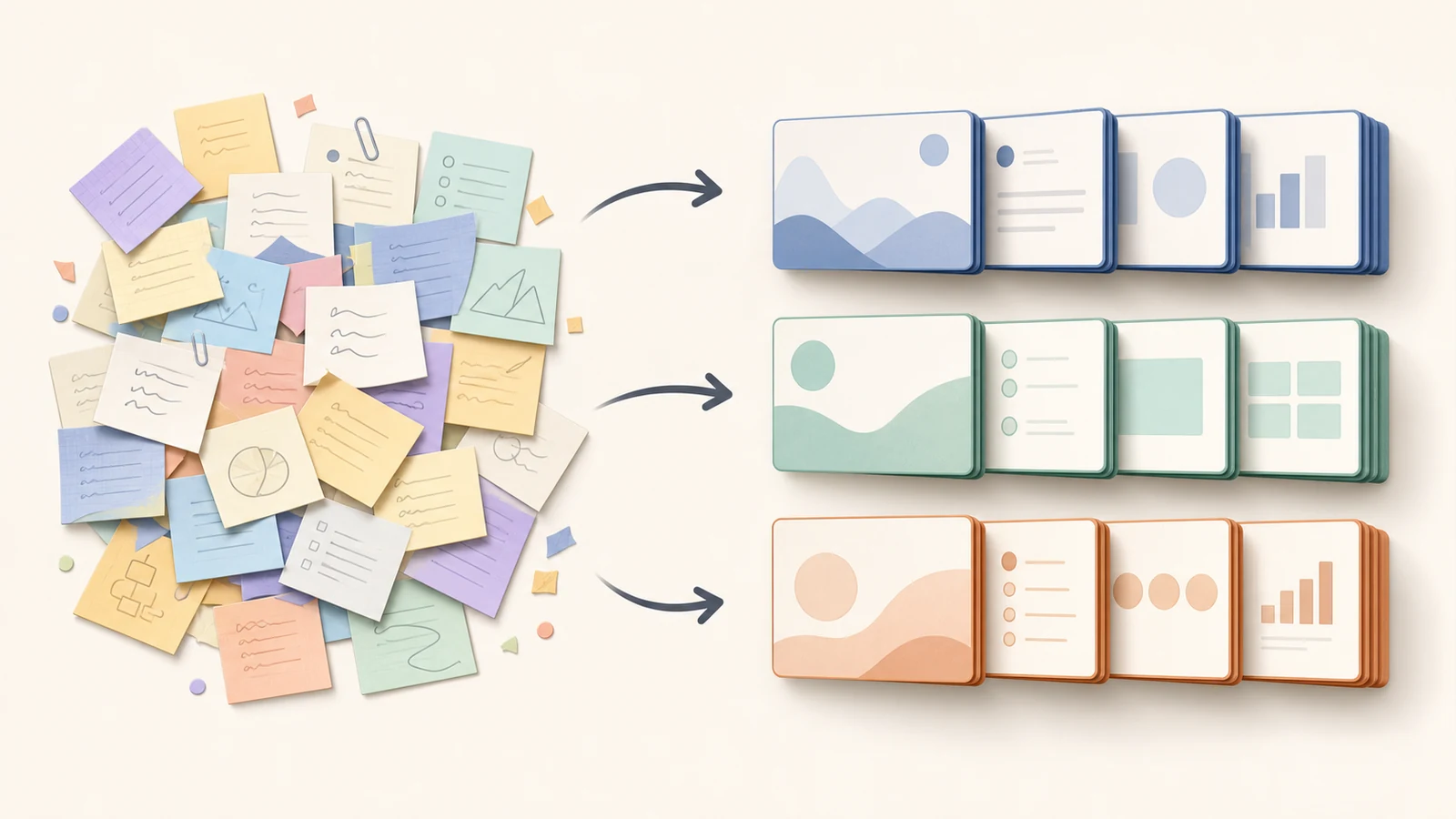
Separate unrelated ideas before generating the carousel.
Choose a carousel type before generating
Different note sets need different structures.
| Notes type | Best carousel type | Example title |
|---|---|---|
| List of mistakes | Mistakes carousel | “5 mistakes that make onboarding harder” |
| Process notes | Step-by-step guide | “How to prepare for a client strategy call” |
| Opinion notes | Hot take | “Your content problem is not consistency” |
| Client lesson | Case study | “What changed after we rebuilt the first email” |
| Repeated advice | Checklist | “The pre-launch checklist I use every time” |
| Teaching notes | Framework | “The 4-part positioning audit” |
Adding the carousel type gives the generated deck a clearer spine.
If the first slide is the weak spot, borrow a formula from the LinkedIn carousel hook examples. If your notes are from a consulting workflow, the consultant carousel ideas can help you choose a format before generating.
The 6-step workflow in SlideDrift
1. Open the Create page
Go to SlideDrift’s create page. The page allows users to paste a URL or write content, and then generate a LinkedIn carousel. SlideDrift create
2. Paste the structured notes
Paste your notes into the input box. Add the audience, goal, tone, and points if they are not already obvious.
3. Add a short instruction
Use one or two lines:
Turn these notes into an 8-slide LinkedIn carousel for B2B consultants.
Keep it practical and avoid motivational language.SlideDrift’s best-practices guidance recommends adding a short instruction when starting from notes or a rough idea, especially when you want a specific audience, tone, or outcome. SlideDrift llms full
4. Generate the carousel
The first generation should give you a usable draft. Treat it like a strong outline, not a final asset.
5. Review the story before the design
Check the message first:
- Does the first slide make a specific promise?
- Does every slide move the idea forward?
- Is the sequence logical?
- Is there repetition?
- Are claims accurate?
- Does the final slide give the reader something useful?
SlideDrift’s editor docs recommend checking the opening slide, slide order, unclear copy, repeated points, and design only after the message works. SlideDrift llms full
6. Export as PDF
When the deck is ready, export as PDF for LinkedIn. SlideDrift’s PDF export guide describes opening the carousel in the editor, choosing Export, selecting PDF, choosing pages, and downloading the file. SlideDrift export PDF
What to do if the first draft is too generic
Generic notes create generic slides. If the first draft feels bland, improve the input.
Add:
- A sharper audience.
- A real example.
- A specific pain point.
- A stronger opinion.
- A practical constraint.
- A final takeaway.
- A preferred carousel type.
Before:
Write a carousel about productivity.After:
Create a 7-slide carousel for freelance consultants about why productivity advice fails when your calendar is full of client calls. Include a simple rule for protecting deep work without ignoring clients.The second version gives the model a point of view.
Notes-to-carousel examples
Example 1: Consultant carousel
Audience:
Independent consultants

Goal:
Teach them how to avoid vague project proposals

Tone:
Direct and useful

Points:
- Vague proposals cause scope creep
- The problem is usually not the price; it is undefined outcomes
- Every proposal needs outcome, scope, timeline, assumptions, and exclusions
- The exclusions section prevents awkward conversations laterPossible carousel title:
“Your proposal is not too expensive. It is too vague.”
Example 2: Founder carousel
Audience:
Early-stage SaaS founders

Goal:
Explain why churn starts during onboarding

Tone:
Practical

Points:
- Users do not leave only because of product gaps
- They leave when they do not reach one meaningful win quickly
- First session should be designed around one outcome
- Follow-up emails should help users complete that outcomePossible carousel title:
“Churn starts before users understand your product.”
Example 3: Coach carousel
Audience:
Career coaches

Goal:
Explain how to turn client wins into thought leadership

Tone:
Warm but practical

Points:
- Do not share private client details
- Extract the pattern
- Turn the pattern into a lesson
- Show the question, decision, and resultPossible carousel title:
“How to share client lessons without sharing client details.”
Privacy reminder
Do not paste private customer data, confidential documents, passwords, API keys, medical records, legal records, financial records, or private transcripts into any AI tool. SlideDrift’s privacy and data docs warn users to avoid uploading sensitive information and to only use content they are allowed to process and share. SlideDrift llms full
For sensitive situations, write a safe summary first. Remove names, identifying details, private facts, and anything that should not appear in source material.
Final checklist
Notes-to-carousel pre-publish checklist
- The source notes have one audience, one goal, one tone, and one carousel type.
- The notes include at least one concrete example or specific point of view.
- Sensitive names, private details, and confidential facts have been removed before generation.
- The first slide makes a specific promise instead of describing the topic broadly.
- The slide order moves the reader through one clear argument, lesson, or process.
- Repeated ideas are removed before export.
- The final slide gives a useful takeaway, checklist, question, or CTA.
- The exported PDF looks correct before upload.
Before upload, also check the practical publishing details in the LinkedIn carousel checklist and confirm your export size with the LinkedIn carousel size guide.
Final recommendation
Use notes when the idea is not yet polished enough for an article. Structure the notes just enough for SlideDrift to understand the audience, goal, tone, and key points. Then generate, review, edit, and export the carousel as a PDF for LinkedIn.
FAQ
Can I create a LinkedIn carousel from rough notes?
Yes. SlideDrift can create editable LinkedIn carousels from pasted text, notes, outlines, drafts, call summaries, or rough ideas.
How should I format notes before generating a carousel?
Use a simple structure: audience, goal, tone, carousel type, points, and must-include details. This gives the generated carousel more direction.
What if my notes cover several ideas?
Split them into separate carousels. One focused source usually creates a clearer carousel than one overloaded note set.
Can I paste private client notes into SlideDrift?
Do not paste private, sensitive, confidential, legal, medical, or financial information. Use a safe anonymized summary instead.
Create a carousel from notes
Ready to make one? Start with a URL, notes, or a short outline in SlideDrift, then export the finished carousel as a PDF for LinkedIn.