LinkedIn Carousel First Slide Examples: 40 Openers That Work
40 LinkedIn carousel first-slide examples for consultants, founders, agencies and coaches, plus eight formulas and a five-check test for weak openers.

The first slide of a LinkedIn carousel has one job: make the right reader want slide two. It does that by naming who the carousel is for, or the situation they're in, and promising a specific payoff, such as a checklist, a fix or a set of warning signs. "Marketing tips" only labels a topic, while "7 signs your content strategy is built around topics nobody searches for" makes a promise.
Below are eight formulas to start from, 40 example openers grouped by who's posting, three before-and-after rewrites, and five checks to run on your own draft before you design anything.
Eight first-slide formulas
Pick the formula that matches what your slides deliver, then fill the brackets with your reader and their problem.
- Mistake: "The mistake that makes [outcome] harder."
- Checklist: "Save this before you [task]."
- Framework: "A simple framework for [problem]."
- Signs: "[Number] signs [hidden problem] is happening."
- Teardown: "Why [example] works better than it looks."
- Before/after: "Before you [action], fix this first."
- Contrarian: "You don't need [common advice]. You need [better advice]."
- Case pattern: "What [number] client projects taught me about [topic]."
Keep any number honest. "7 signs" needs seven signs in the deck, and "[number] client projects" needs a real count. The LinkedIn carousel hook examples have more opening patterns.
40 first-slide examples
These lines were written for this article to adapt. They aren't real posts, and none comes with results. Swap in your own reader, numbers and material, and drop any line your slides can't back up.
For consultants
- "7 signs your strategy project is really an alignment problem"
- "The client kickoff checklist I wish I had used earlier"
- "Why good recommendations still get ignored"
- "A simple diagnostic for messy stakeholder meetings"
- "The mistake that makes consulting decks too hard to act on"
For founders
- "5 product lessons I learned from users who almost churned"
- "The onboarding problem hiding inside your sales handoff"
- "Before you hire marketing, fix this positioning gap"
- "A founder's checklist for turning customer calls into content"
- "Why your best product insight is probably buried in support tickets"
For agencies
- "The 7-slide case study structure clients actually approve"
- "Why your client carousel looks polished but says nothing"
- "A simple approval workflow for multi-brand LinkedIn content"
- "5 ways to turn one campaign into a month of LinkedIn posts"
- "The agency checklist before exporting a LinkedIn carousel"
For coaches
- "The difference between advice and a useful coaching framework"
- "5 questions clients ask before they admit the real problem"
- "A simple carousel structure for teaching one mindset shift"
- "3 questions for clients who keep restarting the same goal"
- "The coaching post format that turns reflection into action"
For regulated professionals
Check your profession's rules on advice, confidentiality and advertising before you post.
- "How to teach without giving personalized advice"
- "A safer way to explain common client mistakes"
- "5 educational carousel ideas that avoid sensitive details"
- "Before posting a case example, check these 7 things"
- "The compliance-aware way to share professional lessons"
For thought leadership
- "The framework I use when a trend feels overhyped"
- "Why most thought leadership sounds the same"
- "A better way to explain what you changed your mind about"
- "The difference between a hot take and a useful point of view"
- "How to turn one strong opinion into a useful carousel"
For templates and resources
- "Save this LinkedIn carousel checklist before you export"
- "A 9-slide structure for explaining any complex idea"
- "Steal this framework for your next case study carousel"
- "The simple decision tree for choosing a post format"
- "A reusable CTA list for professional LinkedIn carousels"
For troubleshooting
- "Why your carousel gets views but no saves"
- "The first-slide mistake that kills swipes"
- "5 reasons your LinkedIn carousel feels generic"
- "How to fix a carousel that says too much"
- "The editing checklist for AI-generated carousel drafts"
How to fix a weak first slide
Most weak first slides are topic labels. Add the reader, the situation and the payoff, and the label becomes a promise:
| Weak | Stronger | What changed |
|---|---|---|
| "LinkedIn tips for consultants" | "7 LinkedIn carousel ideas consultants can create from client-safe lessons" | A count, a format and a constraint the reader cares about |
| "How to grow your business" | "The 5-slide framework for explaining why prospects aren't converting" | One named problem and a defined payoff |
| "Content strategy" | "A simple way to turn one article into four LinkedIn posts" | A concrete task with a visible result |
Worked example: test the line before you design
Suppose your source is a consultant's notes about projects that stalled after a strong kickoff, and the first draft of the opener is "Better client projects." Run it through five yes-or-no checks. The line is ready when every answer is yes.
Worked example
From a topic label to a first-slide promise
Draft: "Better client projects"
- Reader: Would the intended reader recognize the post as theirs? No. Any professional could be the audience.
- Situation: Does it name a moment or problem? No.
- Payoff: Does it promise something the reader can use? No.
- Specific: Could it only have come from these notes? No. Almost anyone could post it unchanged.
- Slide-two bridge: Does it raise an obvious next question? No.
Rewrite: "5 warning signs your consulting project has lost stakeholder alignment"
Every answer is now yes. The reader is a consultant, the situation is a project losing alignment, the payoff is five warning signs, the line comes straight from the notes, and slide two can show the first sign.
Slide plan: the promise → sign 1 → sign 2 → sign 3 → sign 4 → sign 5 → one next step.
Before you keep the rewrite, count the signs in the notes: if they hold three, the line says three. The checks tell you the promise is clear and the deck can keep it. They don't predict results, so compare openers in LinkedIn's post analytics, which LinkedIn notes are estimates.
Make it in SlideDrift
If the topic is clear but the opener still reads like a label, try the free LinkedIn Hook Generator. Say what the carousel is about, add who it's for if you like, and choose Write 10 hooks. You can filter the list by style (Best, Direct or Curious), and Make this carousel opens Create with the hook you picked as the cover and title. Visitors get three free runs a day without an account.
If you already have notes, paste them into Create with a short instruction on top that names the first slide you want:
SlideDrift brief
Write a LinkedIn carousel for independent consultants.
First slide: "5 warning signs your consulting project has lost stakeholder alignment"
Give each warning sign its own slide, using only what my notes support. End with one next step.

[Paste your notes here]The slide count comes from Preferences, not from the text in the box, and its default of 7 fits a cover, five signs and a closing slide. To see the opener before SlideDrift designs anything, turn on Review outline before generating in Preferences; the outline lets you edit each slide's title, including slide 1's. If your opener follows the mistake, framework, checklist or contrarian formula, pick the matching shape in the Story menu (Mistakes, Framework, Checklist or Hot Take) so the slides behind it follow the same pattern.
After generation, read slide 1 again in the editor and fix the headline if it has slipped back into a label. LinkedIn's guidance on AI-assisted posts asks you to review, edit and approve what you publish, and says generic posts get less distribution. The guide to reviewing AI-generated LinkedIn content covers the rest of the deck.
Make a carousel from your notes
Paste your notes with your first-slide line on top. SlideDrift drafts the slides; you check the opener, edit, then export the PDF for LinkedIn.
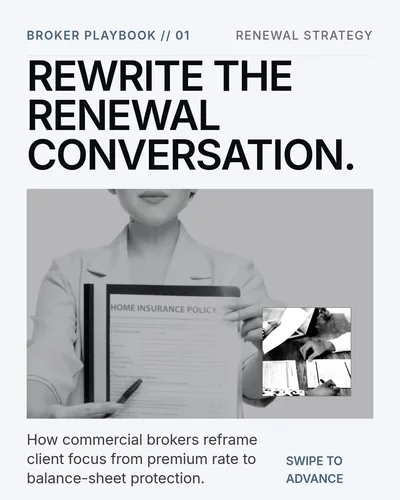
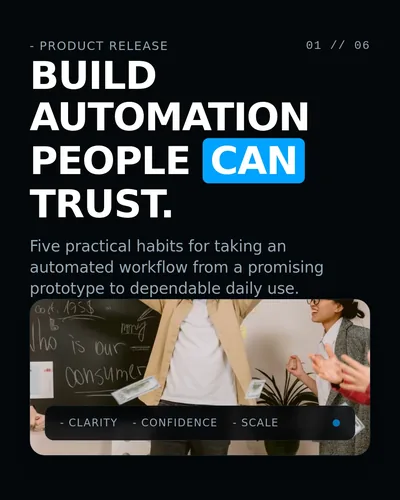
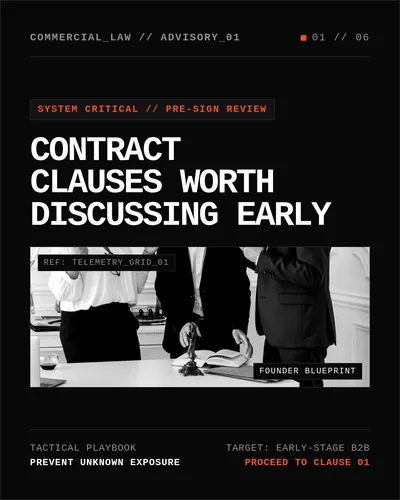
Before you upload
Download the PDF (in the editor, choose Share, then Export, then Download PDF), open it, and check slide 1 one last time:
- Does it promise exactly what the slides deliver, with any number matching the deck?
- Can you read it at a glance, at phone size?
- Is it free of hype and of claims the slides can't support?
When you upload the PDF as a document post, LinkedIn also prompts you for a document title. LinkedIn's help page on document titles says it should be clear, concise and accurately describe the content, the same standard your first slide should meet. Settle the opener before you post: LinkedIn's document upload guide says you can edit the post's description afterward, but not the document. The LinkedIn carousel checklist covers the other checks, and the CTA examples help with the last slide.
FAQ
What should the first slide of a LinkedIn carousel include?
A specific promise, the reader or situation it's for, and nothing the rest of the deck can't back up. One short line is usually enough.
How long should the first slide be?
Short enough to understand at a glance in the feed. Save the nuance for the slides that follow.
Can the first slide ask a question?
Yes, if the question is specific and tied to a problem your reader has, such as "Has your consulting project lost stakeholder alignment?" A generic question gives the reader nothing to recognize.
Is the first slide the same as the document title?
No. LinkedIn asks for the document title separately when you upload, and says it should be clear, concise and accurate. You can reuse your first-slide line if it describes the whole document.
How can SlideDrift help with the first slide?
The free LinkedIn Hook Generator writes ten hooks for a topic, and Make this carousel opens Create with the one you pick as the cover. In Create, you can put your first-slide line in the instruction, review the outline before generating, and edit the headline in the editor before you export.