

Troubleshooting
Fix common issues with creating, editing, exporting, and sharing carousels.
Use this page when something does not work as expected.
A page cannot load your work
A failed load shows a message and a retry action on Templates, Graphics, Schedule, Analytics, AI Connections, and supported post pickers. Choose Try again rather than treating the page as an empty library. If a template opened from a link cannot load in Create, retry it there; Generate waits until the template is available.
If For you cannot load your ideas, refresh for your own niche’s ideas. Suggestions from other niches do not mean your own feed is empty.
An email sign-in code does not arrive
Check the email address and spam folder. Use send a new code after the countdown, then enter the newest code within ten minutes. Choose Use a different email if the address was wrong. If Google sign-in fails, follow the recovery message or use email sign-in.
If the page says there have been too many code requests or attempts, wait an hour before trying again. If it says the code has expired or had too many guesses, request a new code when allowed.
To end all your account sessions, choose Edit profile from the account menu to open Account settings and choose Sign out everywhere. This includes the browser you are using.
A URL does not generate well
Try copying the important text from the page and using Create from text or notes.
Some pages block extraction, require login, or load content in a way that is hard to read automatically.
The carousel is too generic
Add more direction to your source:
- Who the carousel is for.
- What the reader should learn.
- What tone you want.
- Which points matter most.
See Improve generation results.
Generation stops before finishing
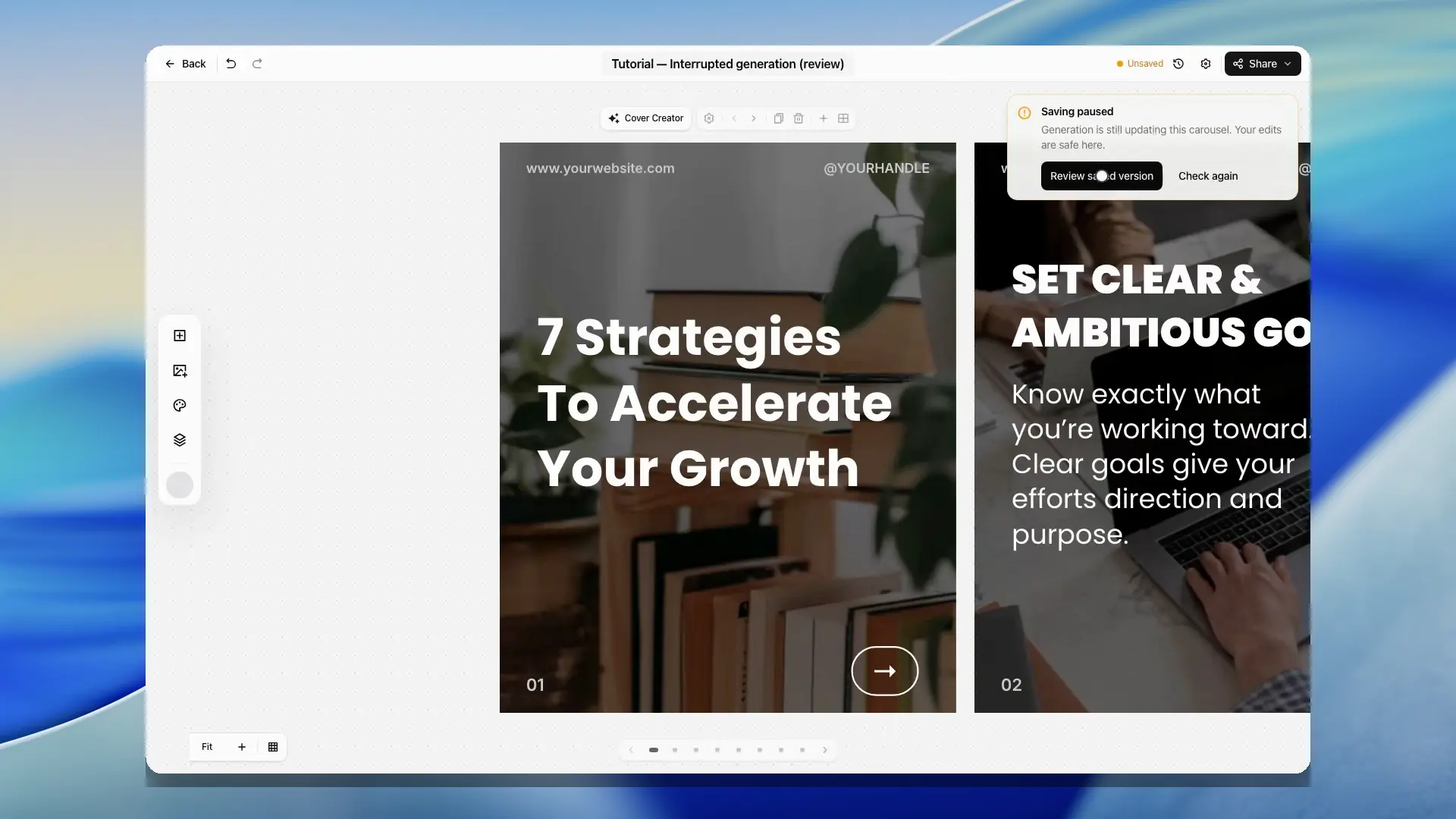
If generation fails or the connection ends before it finishes, the editor keeps the failure visible and offers recovery from the saved source. Retry from the same carousel when offered. Review or save any local edits first if retry is blocked. Placeholder slides are not finished content; do not export them as a completed deck.
If a returning guest needs an extra security check, complete the check when SlideDrift asks for it and let the generation continue. Do not open several new generations for the same idea while one is still waiting or finishing.
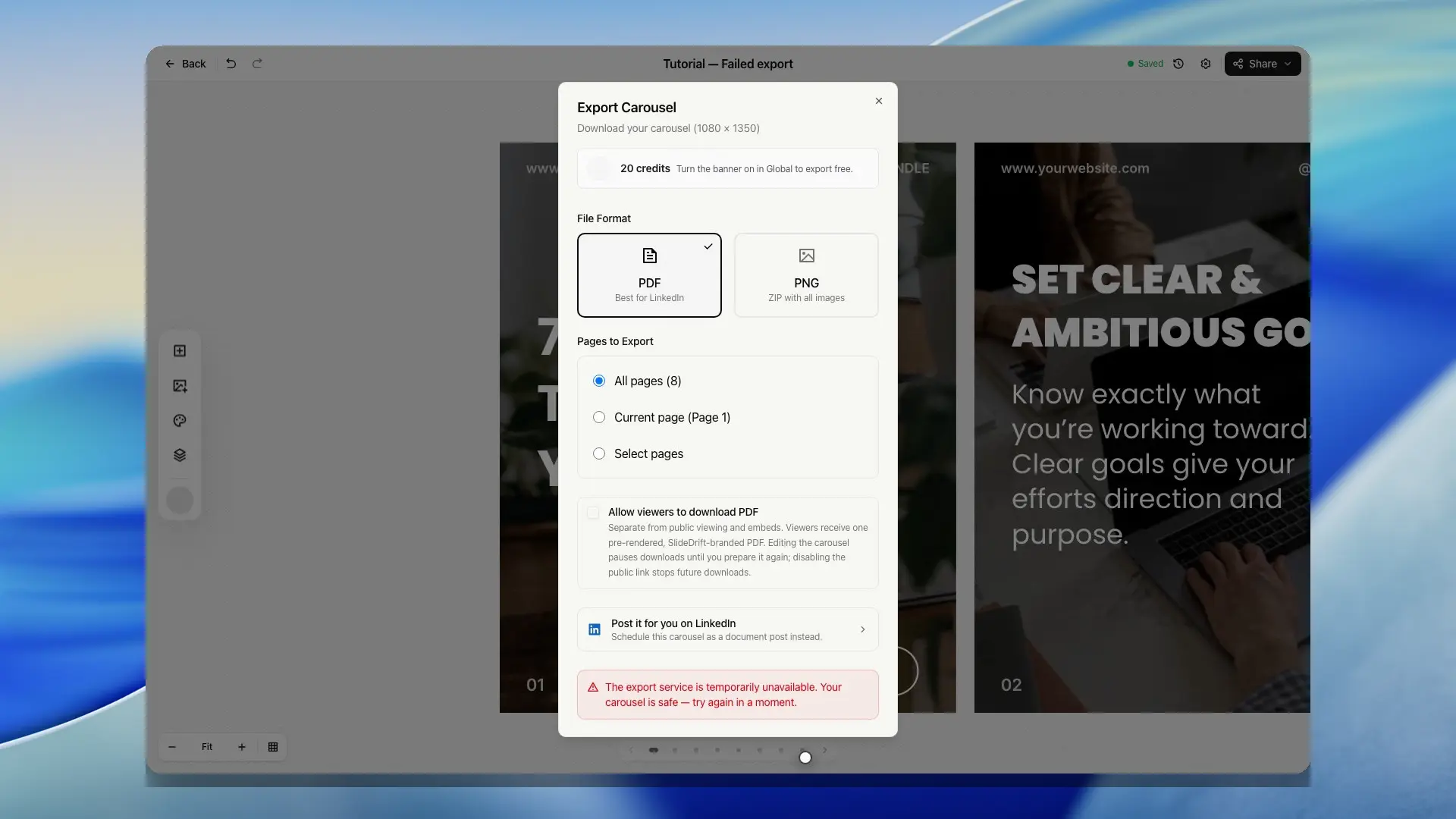
Export fails
Check that:
- You are signed in.
- The carousel still exists.
- The deck has slides.
- You have completed any required verification.
- The export service is available.
In development mode, export is not available.
If the export fails before a file or share link is delivered, SlideDrift should not count that attempt against the delivered export allowance.
An export shows earlier carousel settings
Save your latest changes in the editor, then export again. A new export uses the saved carousel settings, including supported header, footer, and branding choices. A file you already downloaded does not update itself.
A share link shows the wrong content
Open the carousel in the editor, make sure the latest version is saved, and generate the share link again.
If an embed shows old content, refresh the share link from Export and replace the iframe code on the destination page if needed.
The editor says a newer version is saved
Keep the tab open. Your current edits are still visible, but autosave is paused so SlideDrift does not overwrite the newer saved version by accident.
Choose Open latest in new tab to compare the saved version against the edits in your current tab. If the message appeared after another tab saved changes, use Keep this tab's version only when you are sure the current tab should replace the newer saved copy. If the message appeared while generation was still running, wait for generation to finish and choose Check again.
If the editor offers Restore edits, it found a local recovery copy from this browser session. Restore it when navigation interrupted autosave, then save again after reviewing the deck.
Credits look wrong
Open the credits page and review recent activity. Credit usage is recorded by action type. If usage cannot load, SlideDrift shows that credits are unavailable rather than showing zero. Retry before deciding that you have run out.
If a plan limit blocks an action, check Credits and billing for the current limits on brand profiles, LinkedIn accounts, saved custom templates, exports, and paid actions.
LinkedIn scheduling is unavailable
Check that you are signed in, on a plan that includes LinkedIn scheduling, and using a connected LinkedIn profile or Company Page within your plan limit.
If Publish now is disabled, SlideDrift should explain when posting is not enabled for the selected account type in the current environment. Use scheduling or draft saving when those actions are available.
If a post shows Retrying, LinkedIn had a temporary problem and SlideDrift tries again automatically. Choose Try now to publish it straight away. Reconnect LinkedIn only when the post is marked failed with a connection issue; the post row then offers Reconnect.
Company Pages require a Pro or Agency plan. If no pages appear after connecting LinkedIn, confirm your LinkedIn user has admin access to the page you want to schedule from.
You still need help
Open Support to browse common help paths or email support.
When emailing, include your account email, the carousel or page where the issue happened, what you expected to happen, and any error message or export file issue.