

LinkedIn scheduling
Connect LinkedIn accounts and draft, schedule, or publish carousel, image, multi-image, video, poll, and text posts.
SlideDrift can connect LinkedIn accounts and publish carousel, single-image, multi-image, video, poll, or text posts.
Use this when you want to keep the post, caption, target account, and posting time together instead of tracking the work elsewhere.
Connect LinkedIn
- Open Schedule under Publish in the app menu, or choose Post it on LinkedIn in the export dialog.
- Choose Connect profile for a personal LinkedIn profile, or Add Company Page if your plan includes Company Pages.
- Complete the LinkedIn authorization screen.
- Return to SlideDrift and confirm the account appears in the Schedule page or export dialog.
Connecting a profile and a Company Page now asks for the same LinkedIn permissions, so connecting one does not cancel the other connection. Older connections may need Reconnect once to grant the current permissions. Reconnect each account SlideDrift flags before scheduling with it.
LinkedIn scheduling requires a paid plan. Starter includes 1 connected personal profile. Pro includes 3 total LinkedIn accounts, and Agency includes 10 total LinkedIn accounts. Pro and Agency can use those account slots for personal profiles and LinkedIn Company Pages.
If your plan limit is reached, disconnect an extra account or upgrade before scheduling with another profile or Company Page. Company Pages require a Pro or Agency plan and can only be connected when LinkedIn returns pages where your LinkedIn user has admin access.
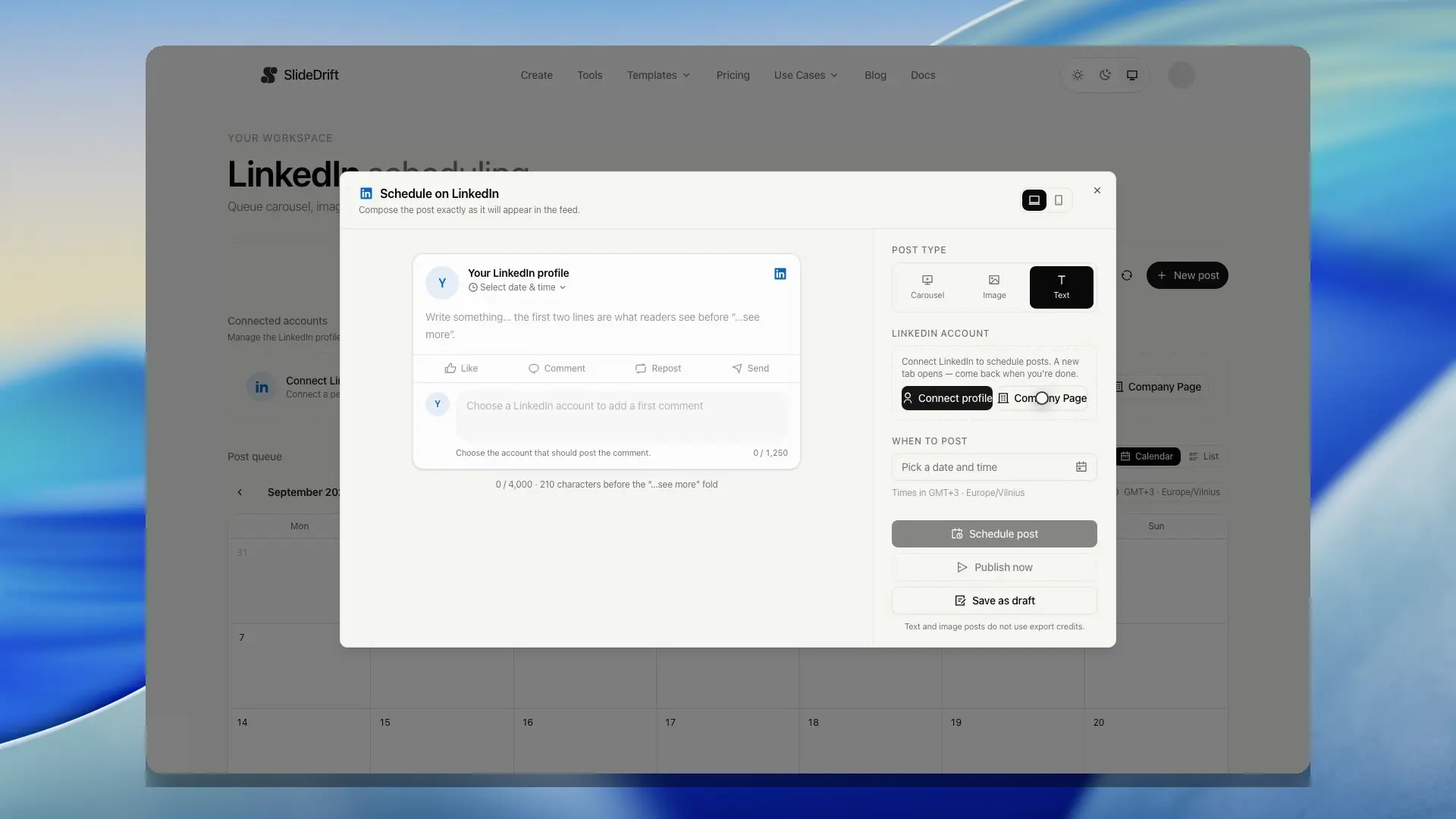
Before removing a connected account, move any posts you do not want to run to Drafts. Posts left scheduled for that account will fail at their publish time unless you reconnect it first. Removing the account also cancels its unpublished repeats.
Create a post from Schedule
- Open Schedule and choose New post, or select an empty time in the calendar to start a post at that time. The post opens on its own page, with its details in the panel on the right (under the post on smaller screens).
- In the details, choose Carousel, Image, Images, Video, Poll, or Text.
- Just below, choose one of your newest carousels (or All carousels to search all of them by title), add an image, add 2 to 20 images, upload a video, or set up the poll. A text post needs only its text. Change, next to the carousel in the post, takes you back to this choice.
- Write the post text in the preview, then choose the connected LinkedIn profile or Company Page.
- Pick the scheduled time and review the desktop or mobile feed preview.
- Optionally, add comments, reshares, or triggers under After it posts, and other accounts, repeats, or a colour tag under More options.
- Select Schedule post, Publish now, or Save as draft. Once it's saved, the post opens on its own page. Posts to several accounts take you back to Schedule.
Select a post in the calendar or the list to open it on its own page. On wide screens its details sit in the panel on the right, with Client approval as the panel's second tab; on smaller screens they sit with the post. The arrows at the top step to the previous and next post, and the menu next to them has Duplicate, Copy to another account, Repeat, Client approval, and Cancel post.
If you leave a post page with unsaved writing, return to that post or New post in the same browser tab. When SlideDrift finds a recovery copy, choose Restore writing to recover the caption and first comment, or Keep current writing to discard the copy. For a new post, the post type is also restored. Media, later comments, and other settings are not part of this writing recovery; review them and save the draft. Recovery depends on browser storage and is cleared when you save or explicitly discard the writing.
Cancel post removes the post from Schedule and prevents publication. A cancelled draft cannot be restored. Use Save as draft when you want to keep the work.
When you schedule from a carousel in the editor, Carousel is already selected with that carousel, and you can still switch to another type. Switching keeps what you added to each type, and only the type you post goes out.
Image posts accept JPG, PNG, GIF, or WebP images. Add useful image alt text before saving or publishing; SlideDrift requires it so the post has a description for people using screen readers. Text posts need post copy but no media.
Add an image to an image post
There are three ways to add the image:
- Upload: select the upload area to choose a file, or drop a file onto it.
- Paste: copy an image or screenshot, then press Cmd+V (Mac) or Ctrl+V (Windows) while you are creating an image post. When the cursor is in the caption and you paste copied text, SlideDrift pastes the text as usual.
- Choose from library: pick an image that is already in your SlideDrift media library, such as one you uploaded earlier, or drop a new one into the library window. The library shows only your own images.
SlideDrift prepares new images in your browser before uploading them. Photos and screenshots larger than 2,048 pixels on the longest side are scaled down, and large files are compressed, so a photo up to 40 MB can still be used. Images are never enlarged. Transparent images stay PNG. Other images may be saved as JPG, and WebP images are converted because LinkedIn does not accept WebP. GIFs are uploaded as they are so the animation keeps working, and must be 10 MB or smaller. The composer shows upload progress, and how much a large image was reduced.
New uploads and pasted images are saved to your media library and count toward your storage. When a file name describes the picture, SlideDrift offers it as alt text; pasted images start with empty alt text, so describe the image yourself.
Text, image, multi-image, video, and poll posts do not use credits. Scheduling a carousel is free; it uses 20 credits when it publishes, or none when it carries the SlideDrift banner.
Poll and multi-image posts
A Poll asks one question of up to 140 characters, with 2 to 4 options of up to 30 characters each. Choose how long it stays open: 1 day, 3 days, 1 week, or 2 weeks. A poll also needs post text, which LinkedIn shows above it. LinkedIn lets the poll's author see who voted and how; for a Company Page, every Page admin can see this.
An Images post shows 2 to 20 images together, in the order you set. Upload them, drop them onto the upload box, or choose them from your image library, then drag them into the order you want. JPG, PNG, GIF, and WebP images work. Alt text is optional: choose Alt on an image to describe it for people using screen readers. The post text is optional.
Once the post is saved, its poll or images are fixed. You can still change the post text, account, and time. To use a different poll or images, create a new post.
Video posts
Choose Video to post a video you made. SlideDrift doesn't create or edit videos.
- Upload one MP4 file of 3 seconds to 30 minutes and up to 500 MB, or pick one you uploaded earlier from Your videos. The file goes straight from your browser to SlideDrift's storage. The composer shows the upload's progress, and you can cancel it.
- Thumbnail (optional): the image LinkedIn shows before the video plays. Upload one or choose it from your image library, in the same shape as the video. SlideDrift sends LinkedIn a JPG or PNG of up to 2 MB and converts other images. Without a thumbnail, LinkedIn picks a frame.
- Captions (optional): an .srt file. LinkedIn takes English captions only.
- The post text is optional.
Videos are saved in your media library and count toward your storage, like images. A video stays there after its post publishes or is cancelled, until you delete it: open Your videos and delete the ones you no longer need. A video or thumbnail that a draft, scheduled, or failed post still uses can't be deleted.
When the post is due, SlideDrift uploads the video to LinkedIn and waits while LinkedIn processes it, which can take a few minutes for a long video. If LinkedIn doesn't accept the thumbnail or captions, the video still posts without them. If LinkedIn can't process the video itself, the post fails with LinkedIn's reason; upload a corrected video in a new post.
Once the post is saved, its video, thumbnail, and captions are fixed. You can still change the post text, account, and time.
Post to several accounts
With two or more connected LinkedIn accounts (Pro or Agency), the composer shows Also post to under More options. One draft then becomes one post for each account you choose.
- Choose the first account in the account picker, then open More options and tick the other profiles or Company Pages.
- The text in the preview is shared by every account. To tailor it, open that account's tab under Text for each account and choose Write different text for this account. Use the shared text removes it again.
- To space the posts out, open an account's tab and pick its Posting time, from Same time up to 4 hours after the first post.
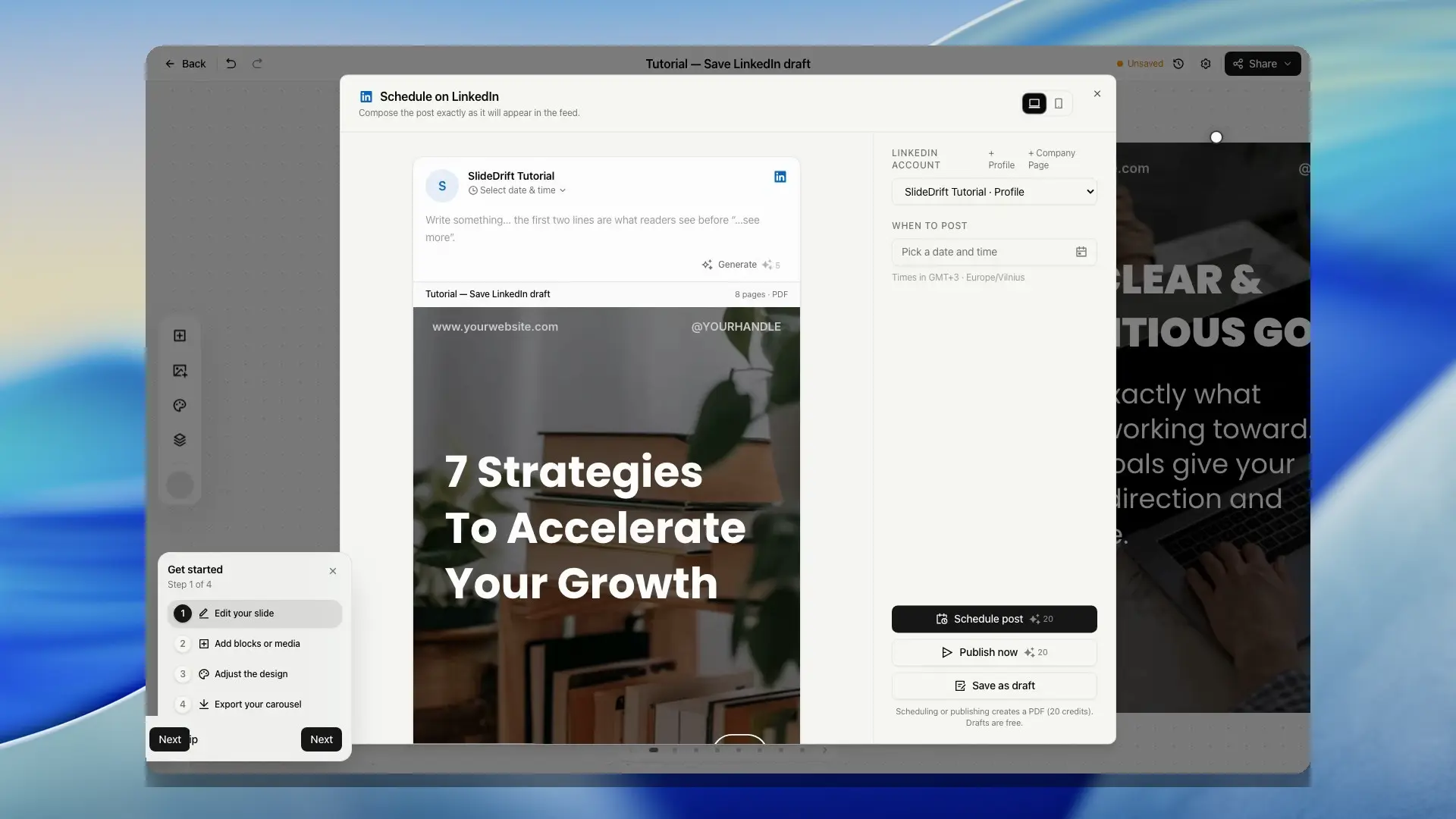
- Select Schedule post or Save as draft. Publish now posts to one account only.
Polls, multi-image, and video posts go to one account at a time. In a post to several accounts, each account posts its own comment right after the post goes live, so Comment as, comments that go up later, reshares, and triggers are available only when you post to one account.
SlideDrift checks every account before it creates anything. If one account needs reconnecting, is not covered by your plan, or cannot add the comment, no post is created and the message names that account.
Each post is separate once it is created. It has its own row on the Schedule page, marked with how many accounts the draft went to, for example 3 accounts, and you edit, retry, or cancel it on its own. A carousel sent to three accounts uses 20 credits for each post LinkedIn publishes, 60 in total, the same as scheduling it three times. Carousels with the SlideDrift banner stay free.
To reuse a selection, choose Save these accounts as a set and name it. Saved sets appear above the account list in the composer on this browser.
Schedule a carousel from the editor
- Open the carousel in the editor.
- Click Schedule in the editor toolbar, or open Export and choose Post it on LinkedIn.
- Choose the connected LinkedIn profile or Company Page.
- Pick the scheduled time.
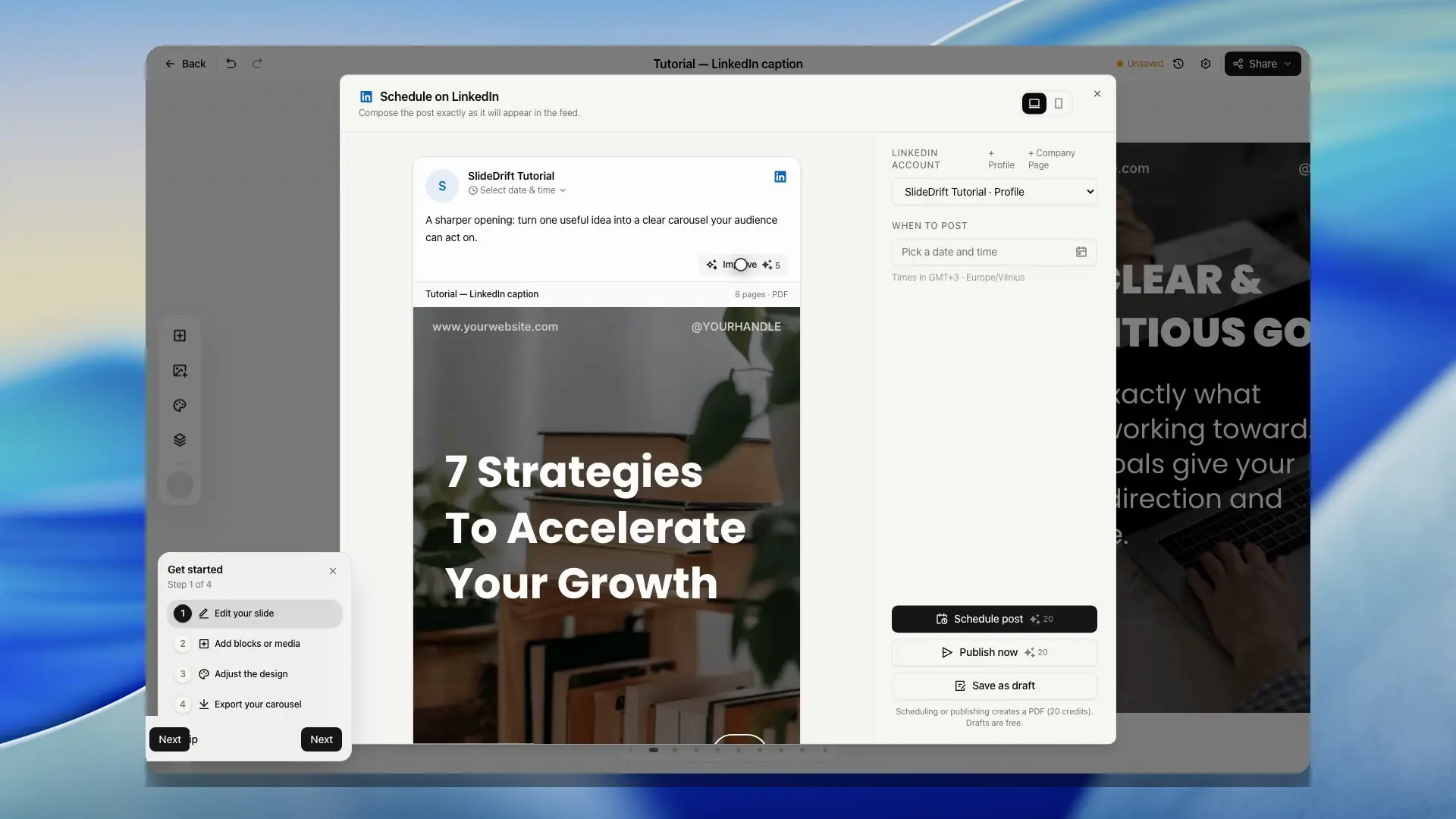
- Write the LinkedIn caption.
- Add optional comments under the preview with Add a comment.
- Review the desktop or mobile feed preview.
- Click Schedule post.
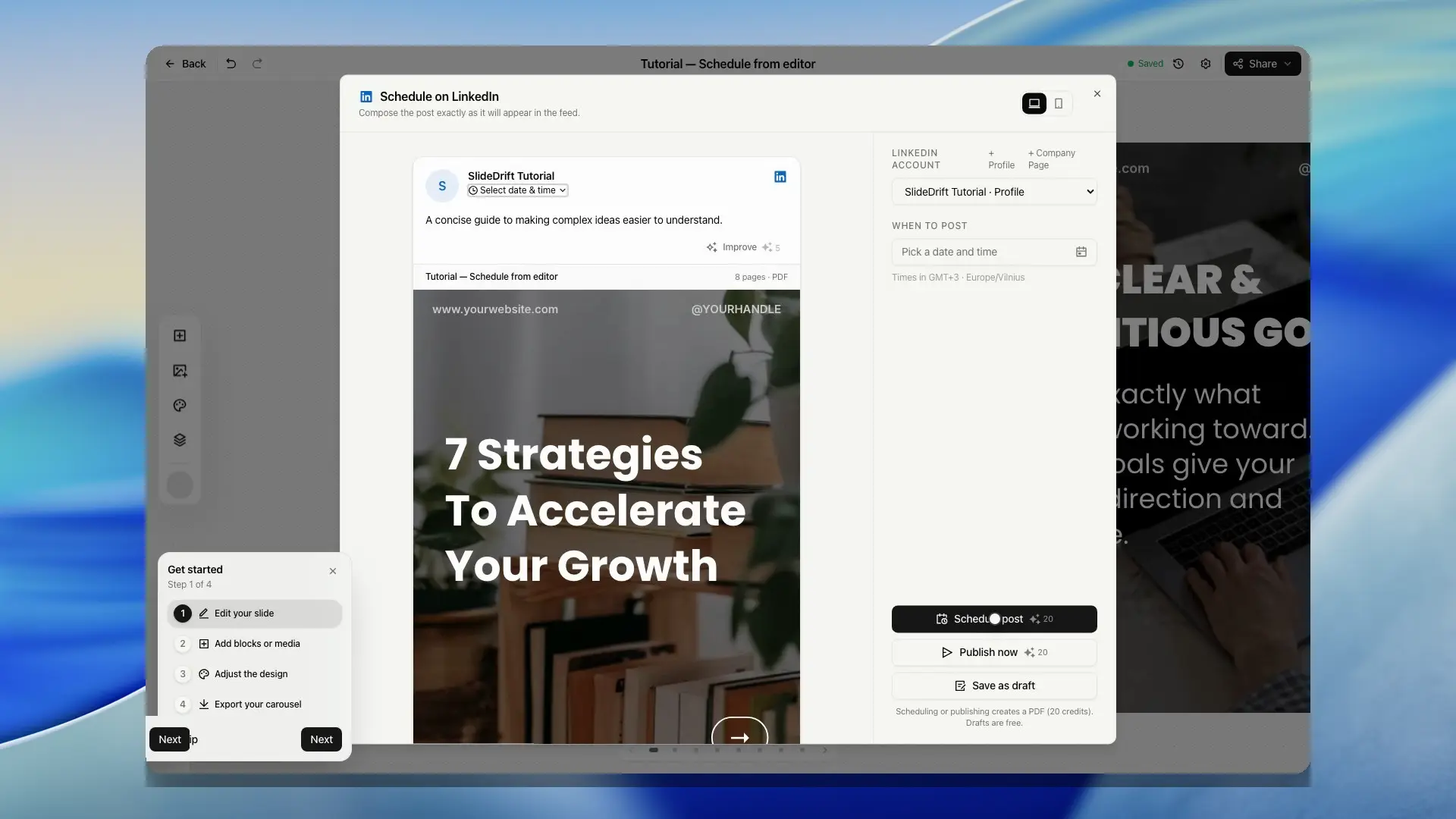
Scheduling a carousel is free. When the post is due, SlideDrift turns the carousel's latest saved slides into a PDF for LinkedIn and uses 20 credits, or none when the carousel carries the SlideDrift banner. You are charged once, only after LinkedIn accepts the post. The LinkedIn account and carousel must both belong to you.
If you edit the carousel after scheduling it, your saved changes are what go out. While a carousel is scheduled, the editor toolbar shows when it publishes.
SlideDrift will not schedule a carousel when your remaining credits cannot cover it together with your other carousels due before your credits renew. If you run out of credits before a post is due, SlideDrift does not publish or charge it, and the post moves to Issues so you can add credits and retry.
When the composer is available for your account, you can also save the post as a draft or use Publish now instead of choosing a future time. Publish now starts right away. The composer shows each step, from preparing your slides and uploading to LinkedIn to the post going live, then links to the live post. You can close it at any time: SlideDrift tells you when the post is live or needs your attention, and the Schedule page shows it as Publishing until it finishes.
Publish now is available only when LinkedIn posting is enabled for the selected account type in the current environment. If it is not available, SlideDrift disables the action and explains that LinkedIn posting is not enabled yet.
If LinkedIn has a temporary problem while publishing, SlideDrift keeps the post in the queue and retries automatically instead of marking it failed immediately. The post shows Retrying with its next attempt, and Try now publishes it straight away. Issues that need your action, such as a rejected connection, an image that cannot be loaded, or not enough credits, appear as failed at once so you can fix them directly.
If you are not ready to pick a time, save the post as a draft. Drafts keep the carousel, target account, and caption work together so you can return later from the Schedule page.
Choose a posting time
Click the posting time in the composer to open the time picker. Suggested time is a general suggestion, not a time calculated from your audience’s activity. When a LinkedIn profile or Company Page is selected, the picker starts with Next free slot: the earliest of that account's preferred times that has no other post for the same account within an hour of it. Scheduled posts, posts that are publishing, and drafts with a time all count. Cancelled and failed posts do not. When you edit a post, its own time does not count against it. If none of the preferred times in the next four weeks is free, the picker says so and you can pick a time yourself.
The picker also offers Suggested time, the next few of your preferred times, and Select a custom date. All times use the time zone shown under the picker.
To change preferred times, choose Set preferred times:
- This account gives the selected profile or Company Page its own times.
- All accounts changes your default times. An account without its own times uses these.
- Use defaults removes the selected account's own times.
If daylight saving skips your chosen time, SlideDrift moves it forward by the clock change. If the time occurs twice, it uses the first occurrence. The picker explains adjustments, and repeats follow the same rule; review their dates before saving.
Preferred times and the time zone are saved in this browser, so they don't carry over to another browser or device.
Write the caption
The scheduling composer shows the post inside a LinkedIn-style preview so you can see the first visible lines before the "see more" fold and check the selected carousel or image.
Choose Suggest text under the caption to have SlideDrift draft it, or Improve once you've written something. On a carousel post it works from the slides, and on a poll or image post from the poll or the image descriptions; on a video or text post, write a few words first. Each suggestion uses 5 credits, and choosing it again gives another version. Review the result before scheduling or publishing.
Format the caption
LinkedIn posts have no text formatting of their own, so the toolbar under the caption uses special Unicode letters that look bold or italic in the feed.
- Bold, Italic, and Bold italic restyle the selected text, or the word at the cursor. Press the same button again to turn the text back to plain. You can also press Cmd+B or Cmd+I (Ctrl+B or Ctrl+I on Windows).
- The emoji button adds an emoji at the cursor.
- Undo and Redo step back and forward through your caption changes, including formatting, emoji, and assisted captions. Cmd+Z undoes and Shift+Cmd+Z redoes (Ctrl+Z and Ctrl+Shift+Z on Windows).
Use styled letters for a few words, not whole paragraphs. They count as two characters each toward the 3,000-character limit, and so do most emoji. Screen readers and LinkedIn search may not read styled letters as normal words.
Tag companies
The @ button in the toolbar (Tag a company) adds @ and a company's name to the caption. When the post goes out, LinkedIn shows the name as a link to the company's Page, and the composer lists the names the caption tags.
- Your Pages lists the Company Pages you've connected to SlideDrift.
- To tag another company, paste its LinkedIn link, such as
linkedin.com/company/name, under Tag another company and choose Find, then choose the company to add it. It's saved under Companies you've tagged, so you can tag it again in later posts, and@with its name links wherever you type it. Choose the cross beside a company to forget it. You can keep up to 50 companies. - Looking a company up needs one of your Company Pages connected to SlideDrift, because LinkedIn only lets Page admins look companies up.
- You can also type
@and the name yourself. It must match the name on LinkedIn exactly, including capital letters, or it posts as plain text. If you rename your own Page on LinkedIn, reconnect it in SlideDrift. - If one of your Pages has the same name as a company you tag,
@with that name links to your Page. - A company whose name uses characters such as brackets,
#, or@can't be tagged, and its name posts as plain text. - LinkedIn doesn't let apps tag people. Add them on LinkedIn once the post is live.
Check links
When the caption contains a link, the composer checks how it is written without opening it. It flags links that look broken, such as htps:// or a web address with no ending like .com. Links post as clickable text. LinkedIn doesn't add a link preview card to posts that SlideDrift publishes.
Unsaved changes
If you close the composer after editing the caption or comments without saving, SlideDrift asks before discarding your changes. Your browser also warns you if you try to close or reload the tab while those edits are unsaved.
Add a signature
A signature is a saved sign-off, such as a follow line or your usual hashtags, that goes at the end of the caption.
- Under the character count, select Save a signature the first time, or Manage signatures from the signature menu later.
- Give each signature a name and its text. You can save up to 10, each up to 1,000 characters.
- Turn on Add to new posts for one signature to add it automatically whenever you start a new post in the composer. This is off until you choose one.
- In the composer, open the signature menu and select a signature to add it to the end of the caption.
Each signature in the menu shows how many characters it adds and what the caption count would become. Selecting another signature replaces the one already at the end. A signature that is already in the caption, at the end or above a line such as a P.S., is not added again. Remove signature takes it off the end.
SlideDrift never shortens your caption to fit a signature. If adding it would take the caption over LinkedIn's 3,000-character limit, the signature is not added and the menu shows how many characters to cut first.
If you edit a signature while it is at the end of the caption you are writing, the caption gets the new text too. Posts you have already saved keep the text they were saved with.
Caption assist rewrites the text above your signature and keeps the signature at the end. If the new caption would be too long with it, SlideDrift leaves the signature off and tells you how many characters to cut before you add it again.
Signatures are saved in the browser you use for SlideDrift. They do not follow you to another browser or device.
Add comments
Under the post preview, choose Add a comment, or choose Add a step and then Comment under After it posts, to prepare up to four comments of up to 1,250 characters each. Each one goes up as a separate comment on your post, from the account and at the time you pick. They only go out if the post does.
After it posts lists every comment, reshare, and trigger in the order they happen, each with the account it comes from. Select a comment there to jump to it under the post.
- Timing: Right after it posts, 15 minutes, 1 hour, 3 hours, or 1 day after the post goes live, or Custom for any number of minutes from 5 minutes to 30 days. One comment can go up right after the post and up to three later. A new comment starts at Right after it posts when no other comment uses it.
- Suggest text under a comment drafts it from the post, and Improve rewrites what you wrote, for 5 credits each.
- Comment as: the account that publishes the post, or another of your connected LinkedIn profiles or Company Pages, for example your Company Page commenting on your personal post an hour after it goes live. Accounts that can't comment stay in the menu with the reason, such as Reconnect it to allow comments. Company Pages need a Pro or Agency plan.
The comment right after the post goes up as soon as LinkedIn accepts the post. The timing of the others starts when LinkedIn accepts the post, not when you scheduled it, and they never go out before the comment right after it. SlideDrift checks for due comments every few minutes, so one can arrive a few minutes after its time.
The account for the comment right after the post is set when you first save the post, and the composer shows it locked after that. To use a different account for that comment, give it a later time or create a new post. The other comments can change account while the post is a draft, scheduled, or failed.
If an account needs reconnecting or lacks comment access, the composer names it and shows a Reconnect link. SlideDrift checks each account again just before it comments. If the account was disconnected, expired, lost comment access, or is no longer included in your plan, SlideDrift doesn't switch to another account: the post still publishes, and that comment shows as failed with the reason. Reconnect the account or change your plan, then retry the comment.
The Schedule page lists the comments under their post, such as Comment right after it posts and Comment 1 hour after, with the account each comes from and whether it went up. Retry a failed comment right after the post from the post menu, or a later one with Retry next to it. If LinkedIn may have received a comment but did not return a clear result, open the published post and check LinkedIn before trying again.
Reshare from your other accounts
If you have connected more than one LinkedIn profile or Company Page, choose Add a step under After it posts, then one of your other accounts under Reshare from. The reshare starts 1 hour after the post goes live. Select it in the list to change the time to 15 minutes, 3 hours, 1 day, or a custom delay, to add optional text of its own (Suggest text drafts it for 5 credits), or to remove it. The account that publishes the post can't also reshare it.
Each reshare uses that account's own LinkedIn connection. SlideDrift checks the account when you save and again just before it reshares. If the account was disconnected, needs reconnecting, lacks posting access, or is no longer included in your plan, the reshare fails with the reason, and no other account reshares in its place.
Reshare or comment when a post gains traction
For a Company Page post, choose Add a step and then Gaining traction under After it posts. Enter a number of likes or impressions, then choose what happens when the post reaches it: another of your connected accounts reshares the post, with optional text of its own, or the Page adds a comment. Suggest text drafts either one for 5 credits. A post can have up to three triggers, and each one runs once.
SlideDrift checks the Page's numbers 2, 6, and 24 hours after the post goes live, and acts the first time the post has reached your number. The last check is at 48 hours: if the post hasn't reached the number by then, the trigger ends and the Schedule page says so. The earlier checks only compare the numbers, and SlideDrift doesn't keep them. They share a daily limit, so on a busy day a post may only be checked at 48 hours.
Triggers work on Company Page posts only. SlideDrift reads a profile post's numbers only when you ask for them, and never keeps them, so it can't watch a profile post. LinkedIn also shares a Page's results only with its super admins, so connect the Page as a super admin for its triggers to run.
A post can have up to three comments that go up later, counting the ones you add in the composer and promo comments. An account can reshare a post once, either as a reshare or by a trigger. When a trigger acts, its reshare or comment runs like any other: SlideDrift checks the account again first, and the reason shows if it fails.
Track comments, reshares, and triggers
The Schedule page lists each comment, reshare, and trigger under its post: when it goes out, and whether it went out or failed with the reason. A reshare or comment added by a trigger shows the number it reached. Choose Retry next to a failed one to send it again, or Remove to drop it. If LinkedIn may have received it but did not confirm it, check LinkedIn instead. SlideDrift does not send it again.
You can change comments, reshares, and triggers in the composer while the post is a draft, scheduled, or failed. To stop a later comment, reshare, or trigger that hasn't gone out yet, even after the post is live, choose Cancel next to it. They only go out if the post goes live: cancelling the post cancels them, and a failed post holds them until you try it again and it publishes.
Use the Schedule page
The Schedule page shows connected LinkedIn accounts, recent carousels, and the post queue for all supported post types.

Use the calendar view to see scheduled, publishing, published, and failed posts by date. Use the list view when you want to filter upcoming posts, drafts, published posts, or issues.
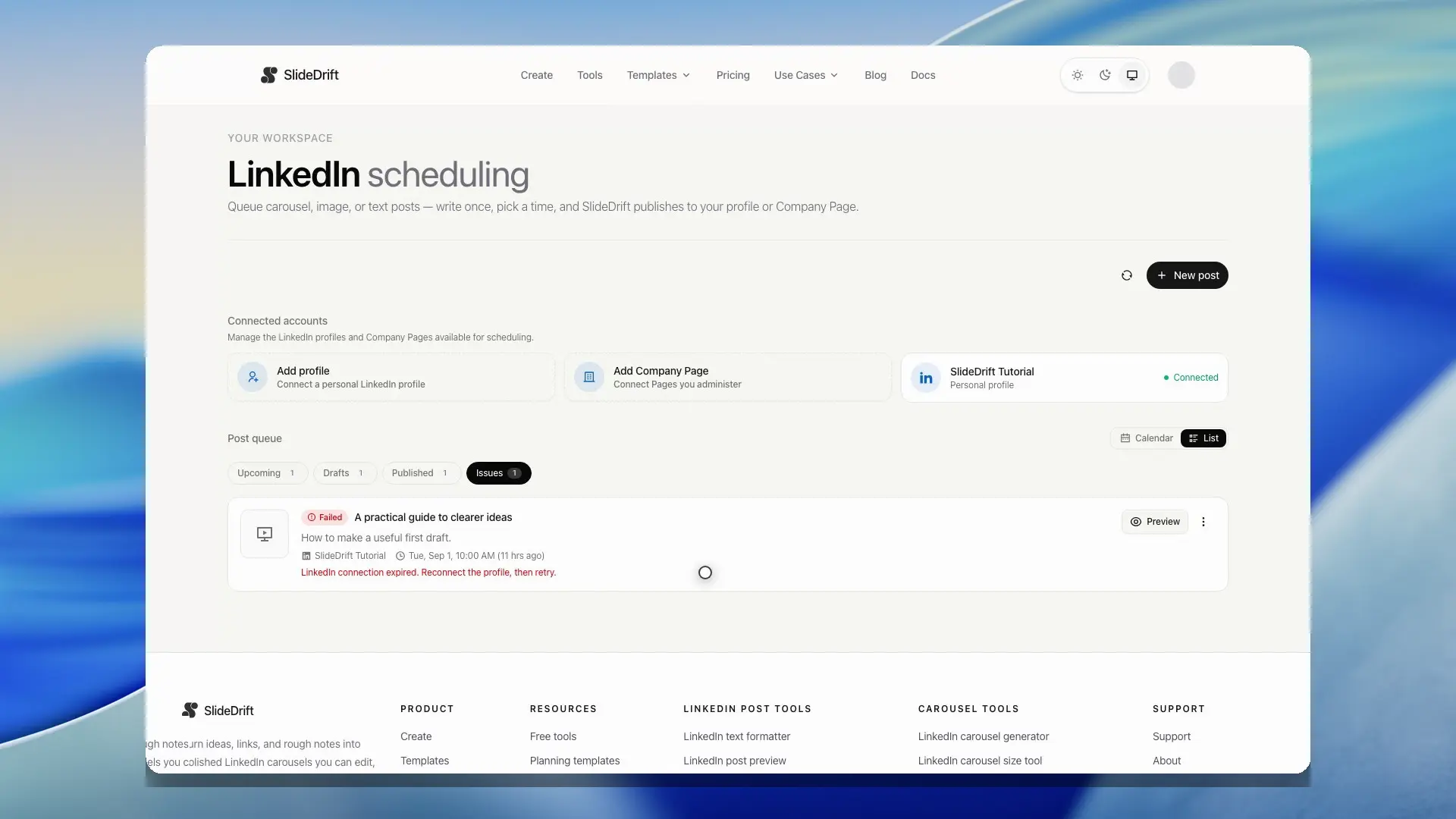
You can create carousel, image, multi-image, video, poll, or text drafts, choose a connected account, write the post, and pick a time later. Drafts are useful when you want to prepare the post now and finish the final scheduling step later.
In the Drafts list, use Preview to inspect the carousel without leaving the queue. Choose Edit carousel when the deck itself needs changes before you schedule it.
Published carousel rows show the credits publishing used, for example Published · 20 credits. Image, multi-image, video, poll, and text rows keep their own post-type preview and details in the same queue.
After a post is published, use View on LinkedIn to open the live LinkedIn post from the queue.
To post something again, open the menu on a scheduled, published, or failed post and choose Duplicate. SlideDrift adds a new draft with the same account, caption, comment right after it posts, and carousel, image, images, video, or poll, with no time set. A comment right after it posts set to come from another of your accounts keeps that account while it is still connected; otherwise the copy's comment comes from the posting account. Comments that go up later, reshares, and triggers are not copied. Pick a time in Drafts when you are ready. The copy is a new post: a carousel copy publishes the latest saved version of the carousel and is charged when it publishes, the same way as any other scheduled carousel. If the original account is no longer connected, the draft has no account and no comment. Choose an account and add the comment again before you schedule it.
Repeat a post
To post a scheduled post again later, open its menu and choose Repeat…, or open the post and choose Set up repeats under More options. Choose how often, from every week to every 12 weeks, and how many repeats, up to six. Each repeat goes out at the same time of day in your timezone.
LinkedIn can turn down a post that matches an earlier one word for word, so each repeat gets its own wording, starting from the original caption. The window shows every date in a row, with a mark on each repeat that still needs new wording. Select a repeat to change its wording in a preview of the post. SlideDrift won't save a repeat worded the same as the original or another repeat, even if only capitals, spacing, or bold letters differ. For a carousel, Rewrite drafts new wording with the caption assistant and uses 5 credits each time.
Each repeat is a new scheduled post on the same account, with the same carousel, image, images, or poll and the same comment right after it posts. It shows Repeat 1 of 3 in the queue, and the original shows how often it repeats. Edit or cancel a repeat on its own like any other post. A carousel repeat publishes the latest saved version of the carousel and is charged when it publishes, the same way as any other scheduled carousel. Comments that go up later and reshares are not repeated.
To stop, open the menu on the original or any repeat and choose Stop repeats. Every repeat that hasn't gone out is cancelled; posts already on LinkedIn stay. Cancelling the original, or removing its LinkedIn account from SlideDrift, also cancels its repeats that haven't gone out. A post can have one set of repeats at a time.
Colour tags
Tag a post with a colour to group it, for example by campaign or topic. Open the menu on a post and choose Tag, or pick a colour under More options > Tag when you write or edit a post. There are six colours, and a post has one tag at a time. Published posts can be tagged too, and repeats and duplicates keep the original's tag.
To name the colours, for example "Launch" or "Hiring", choose Tag and then Rename tags…. Leave a name empty to keep the colour's own name.
Tagged posts show their tag in the list and a coloured edge in the calendar. Once a post has a tag, use the tag menu above the queue to show only posts with one tag, in both the list and the calendar.
Month, Week, and Day views
The calendar has Month, Week, and Day views. Month shows the whole month at a glance. Week and Day show each day hour by hour, in the timezone shown next to the dates. On a phone, the calendar opens on Day.
Use the note button on a day to add a private reminder, such as a launch, webinar, or deadline. Month shows notes under the date; Week and Day show them in the all-day row. Select a note to edit or delete it. You can keep up to three notes on one day, with up to 120 characters in each. Only you can see these notes, and they are never sent to LinkedIn.
To move a post in Week or Day view, drag it to a new time. Times snap to 15 minutes. In Month view, drag it to another day. It keeps its time, so a post at 9:05 on Tuesday moves to 9:05 on Thursday. On a touch screen, press and hold the post, then drag it.
From the keyboard, focus the post's move handle and press Space or Enter to pick it up. The arrow keys move it by 15 minutes or one day in Week and Day, and by one day or one week in Month. Press Space or Enter again to drop it. Escape cancels the move.
- You can move scheduled posts and drafts that already have a time. A moved draft stays a draft.
- Published posts, posts that are publishing, and failed posts stay where they are. Open a failed post to fix and reschedule it.
- You can't drop a post on a time that has already passed. In Month view, that includes today once the post's time has gone by.
- SlideDrift runs the same checks as editing the post. If the move can't be saved, for example because the account needs reconnecting or there aren't enough credits that month, the post goes back to its original time and a message explains why.
When you have more than one connected account, use the account menu to show only one profile or Company Page. The calendar view, date, and account filter are kept in the page address, so you can bookmark a view. If you bookmark the calendar while it shows today, the bookmark always opens on the current day, week, or month.
Send a post for client approval
Open a draft, scheduled post, or failed post: on wide screens Client approval is the second tab of the panel beside it, and on smaller screens the Client approval bar on the post opens it. Choose Make a review link, then Copy and send it to the reviewer. One link can hold up to 20 posts: choose Add posts in the menu to put more drafts or scheduled posts in the same link, for example next week's posts. The link works for 14 days, and the reviewer does not need a SlideDrift account. In the same menu, Email it opens your email app with the link ready, and See what they see opens the review page.
The review page lists the posts in the link with their dates and shows each one as it will appear on LinkedIn: its caption, comment right after it posts, account, time, carousel or other media, poll, and video details when present. The reviewer approves each post or requests changes. On a carousel they can pick a slide, and their comment says which slide it is about ("Slide 3: ..."). Their name is optional and remembered in their browser. SlideDrift shows each answer beside the post, where choosing a comment's slide shows that slide, on the post in Schedule and in the notification centre; email delivery is also used when it is available.
Each answer keeps its own thread: choose Reply under it to answer there, or write in the box at the bottom to start a new message. The reviewer sees your messages on the review page, with your profile name. They can reply under any answer or message, or add a comment without approving or asking for changes. Either of you can add up to 4 images to a message, such as a screenshot or a marked-up slide (JPG, PNG or WebP, up to 10 MB each); select an image to see it full size. Images count towards your storage and are not listed in your media library. A post's conversation holds up to 300 messages, and it closes once the post goes out.
Turn on Only post once it's approved when the post must not publish before the current version is approved. The post keeps its time and goes out then if your client has approved it. Editing the post after approval marks the new version as needing approval again, and the post keeps its time. If its time comes before the approval, it is not published and you get a notice; once they approve it, choose a new time. Publish now also needs the approval first. You can make a new link for the same posts, take a post out of the link, or turn the link off at any time.
Review notifications and results
The notification bell reports recent publishing outcomes, failed or unconfirmed posts and comments, client approval answers and comments, and LinkedIn connections that need attention. Read state is kept in the current browser, so another browser or device can show a different unread count.
Published posts show their numbers in their Schedule row. A Company Page post shows the impressions, likes, comments and engagement kept by its 48-hour check, and a newer post says when they arrive. If none were kept, Get numbers reads them from LinkedIn. Choose Details to see all of a post's numbers beside the post. Open Analytics in the sidebar (it was called Results) to see how a connected account's posts did over 7 days, 30 days, 90 days or 12 months: totals with the change on the period before, a chart with one bar per post, your top posts, how carousels compare with your other posts, and a table of every post. Choose a total to chart and rank by it, including the engagement rate (likes, comments, reposts and clicks for each impression), and open a post to see all its numbers beside the post itself. Company Page posts receive stored numbers from the 48-hour check, including impressions, reach, reactions, comments, shares, and clicks where LinkedIn provides them. Profile results are fetched only when you open a post and are not stored for the dashboard totals.
Engagement rate is likes, comments, reposts, and clicks divided by impressions, multiplied by 100. It includes only posts with all five counts. These are interactions rather than unique people, so the rate can exceed 100%, especially with few impressions. If Analytics cannot load, use its retry action.
Company Page results require a Page connection made by a super admin. LinkedIn makes stored Page results available for up to 12 months. Newer posts can remain pending until their 48-hour check is complete.
Recover a failed post
When LinkedIn cannot publish a post, the Schedule page moves it to Issues, says what went wrong on the post row and offers the fix: Reconnect for a connection LinkedIn rejected or that expired, Add credits when credits ran short, Edit post when LinkedIn rejects the post itself, Open carousel when one of its images can't be loaded, or Try again, which publishes it straight away. A post that did not publish is never charged. To change the account, content, media, or time first, open the post menu and choose Edit & retry.
Publishing stops after five unsuccessful automatic attempts. Open the failed post, check its account and media, and use the recovery action shown.
When LinkedIn rejects a connection, SlideDrift stops using it at once instead of retrying: publishing and scheduling from that profile or Company Page ask you to reconnect first. From 14 days before a connection expires, when the reminder emails start, its card on the Schedule page also offers Reconnect.
If LinkedIn rejects the post itself, SlideDrift moves it to Issues right away instead of retrying, because LinkedIn would reject the same post again. Check the caption, media, and account, then try again.
If there were not enough credits when the post was due, nothing was charged. Add credits, then choose Try again.
If a Company Page no longer appears after reconnecting, confirm that your LinkedIn user still has Page admin access and that the connection has the required Community Management permission before trying again.
Review before scheduling
Before clicking Schedule post or Publish now:
- Confirm the selected LinkedIn profile or Company Page.
- Check the timezone and posting time.
- Read the caption in the feed-style preview.
- Check any comments with their timing and account, any reshares with their timing, and any triggers with their numbers.
- Preview the carousel slides, check each image and its alt text, play the video, or read the poll question and options.
- Confirm the selected pages are the pages you want to publish.
- Save as a draft if any part still needs review.
Things to check
- Make sure the carousel is saved before scheduling a carousel post.
- Save your final edits before the post is due; the latest saved slides are what publish.
- Check the image and its alt text before scheduling an image post.
- Keep captions under the shown character limit.
- Fix any link the composer flags before scheduling.
- Check the selected timezone before picking a time.
- Reconnect LinkedIn if the account appears disconnected.
- Confirm the selected Company Page if your workspace has multiple connected LinkedIn accounts.
- Do not schedule private, confidential, or sensitive carousel content.
- Use a draft instead of scheduling when the caption, target account, or final carousel still needs approval.