

Images and media
Add, replace, upload, search, or generate images inside the editor.
Use the media tools when a carousel needs stronger visuals.
SlideDrift includes a media picker that can be opened from image-related controls in the editor.
Add or replace an image
- Select the image area or image element you want to change.
- Open the media picker.
- Choose an uploaded image, search result, or generated image when available.
- Apply the image and review the slide.
For templates that expose editable image targets, selecting an image opens focused image controls in the properties panel. From there you can replace the image, remove it when supported, adjust overlay strength, or toggle grayscale when those controls are available for that image.
For standard slides with a main slide image or accent image, select the image on the canvas to open focused image controls in the properties panel. You can replace it from the media picker, change the supported size setting, or remove it from the slide.
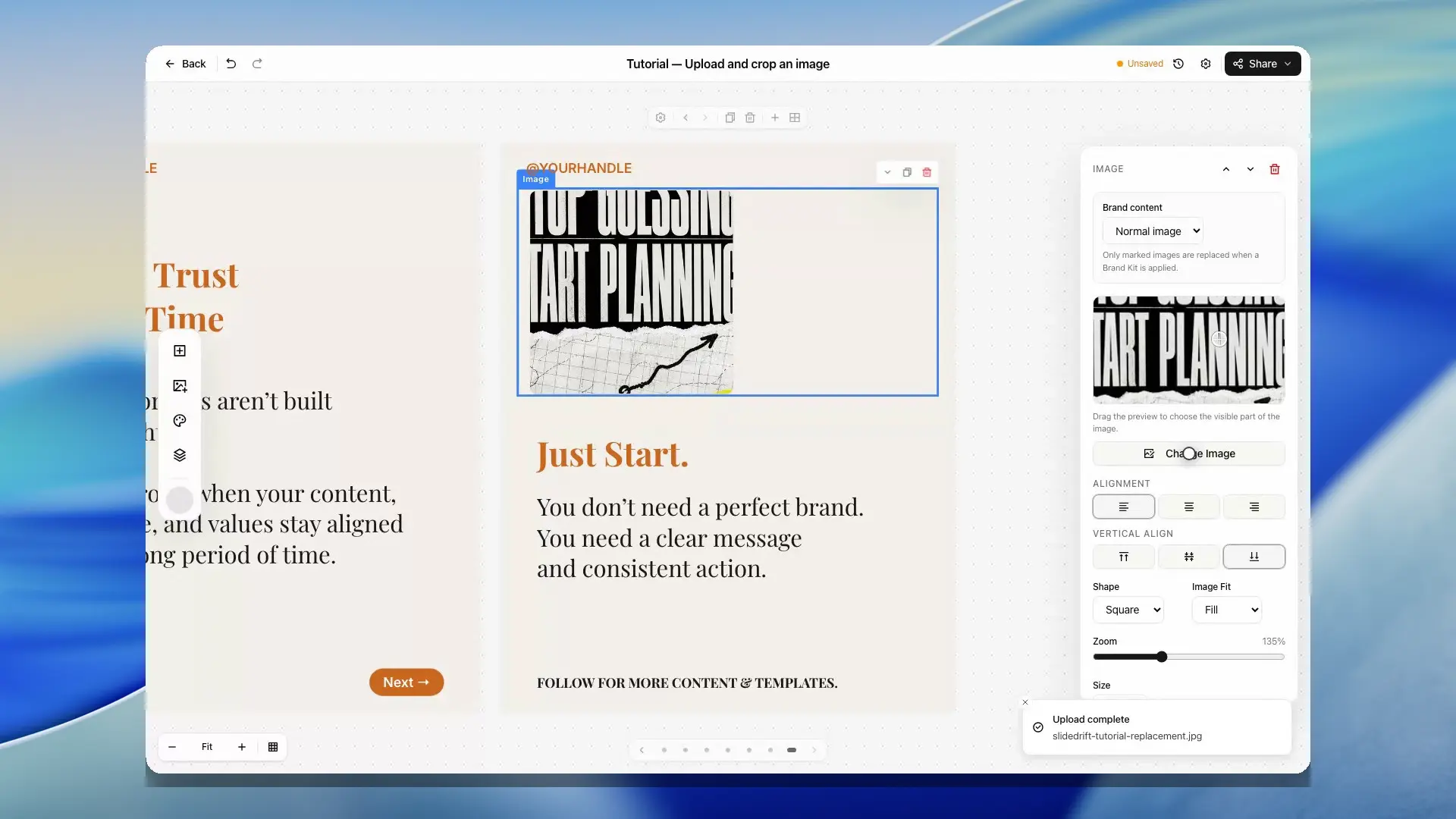
When a remix slide has multiple editable images, the properties panel lists detected slide images so you can swap or adjust the right image target. Background images can also be replaced from the image controls when the current slide exposes that target.
Image styling can inherit deck-level settings when available, while selected image elements can still use their own radius and shadow choices.
Upload images
Signed-in users can upload images for use in carousels. Uploads are stored as media assets and can be reused where the media picker is available.
Avoid uploading private, sensitive, or confidential images.
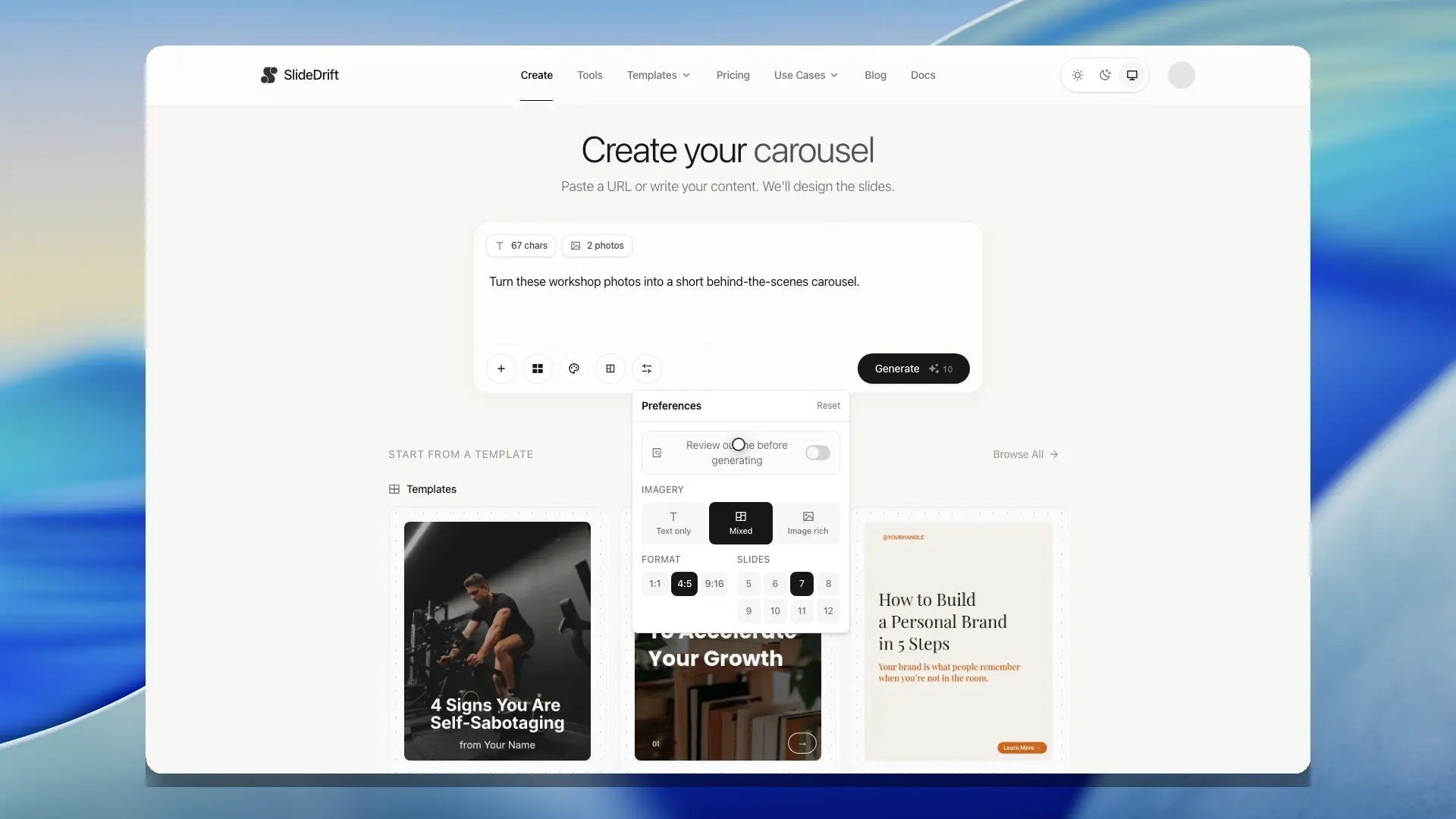
You can also select and arrange source images on Create before generation. This gives SlideDrift an approved image set to consider while designing the new deck.
AI images
To make a new picture from a description, open Media in the editor's left toolbar, choose Generate, then Create an image.
- Under Model, choose Standard (5 credits, square 1:1 images) or Pro (40 credits, with 1:1, 4:5, 9:16 and 16:9 shapes and an optional Reference Image).
- Describe the image you want.
- Choose the Aspect Ratio that best matches the slide area.
- Select Generate Image. The button shows the cost before you generate.
- Review the result, then select Insert into Slide.
AI images need an account. On the Free plan you can make three Standard images a day; Pro images need a paid plan or a trial. If a generation fails, you aren't charged. Each generated image is saved to your Library tab, so you can reuse it without generating it again. Review the result before using it in a finished deck.
To restyle a photo you already have instead, choose Restyle an image. See Use Photo Styles.
Image-led remix decks
Remix designs can use source imagery when the source includes usable images. If the source does not have enough strong imagery, SlideDrift may use curated stock imagery so image-led layouts do not turn into empty placeholder panels.
When reviewing a remix deck, check the image crop, focal point, overlay strength, and grayscale setting on image-heavy slides before exporting. Replace images that look generic, off-topic, or too tightly cropped for the slide message.
Images in standard template generation
When a standard template includes image areas, a newly generated carousel uses usable source images when they are available. If the source does not provide suitable images, SlideDrift looks for relevant stock imagery and can use a neutral fallback when no stock result is available.
The generated carousel does not copy the template author's image assets into the new deck as a fallback. The template still provides the visual structure, while the new carousel receives imagery intended for its own source and topic.
Practical review checklist
- Make sure each important image supports the slide's main idea.
- Replace weak placeholder-style imagery before exporting.
- Check that text remains readable over image overlays.
- Avoid uploading private, sensitive, or confidential images.
- Reopen the export or share preview after large image changes so you can catch crop or loading issues.