Create from a PDF
Process a PDF once, then use or reuse it as the source for a standard or Remix Style carousel.
Use a PDF source when the material you want to turn into a carousel is stored in a document rather than on a public webpage.
PDF sources are available on paid plans. SlideDrift extracts the document text and supported visuals before generation, then saves the processed source to your account so you can reuse it without paying the PDF processing charge again.
Process a new PDF
- Start from the homepage composer or open Create, then open the source menu and choose PDF source.
- Select a PDF from your device.
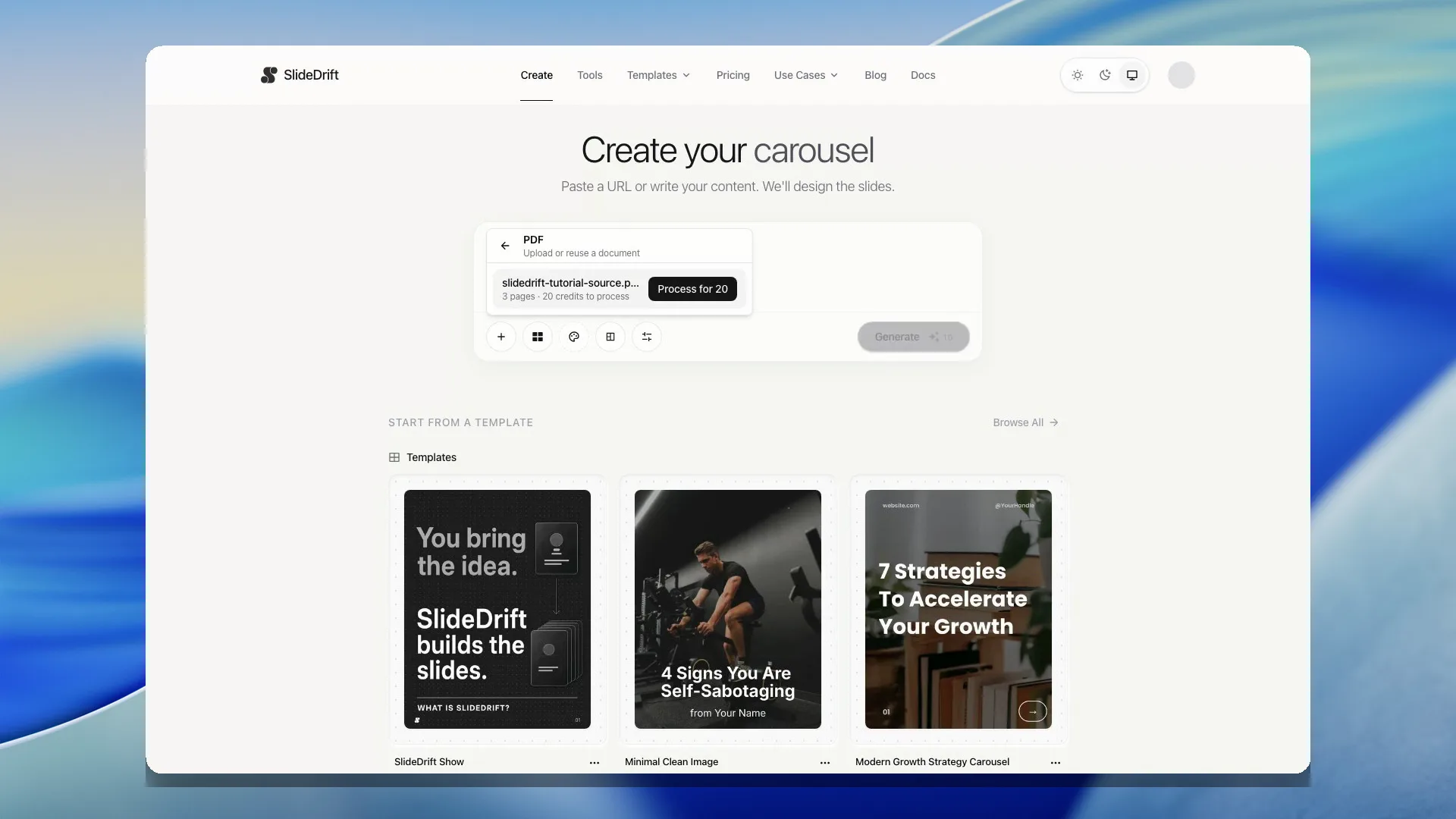
- Review the page count and processing cost.
- Choose Use for [credit cost] to process and save the document.
- Add an instruction for the carousel, choose any template or brand options, and generate.
- Review the result in the editor.
PDF processing costs 2 credits per page, with a 20-credit minimum. Carousel generation is charged separately, and SlideDrift shows both actions before charging them.
Reuse a processed PDF
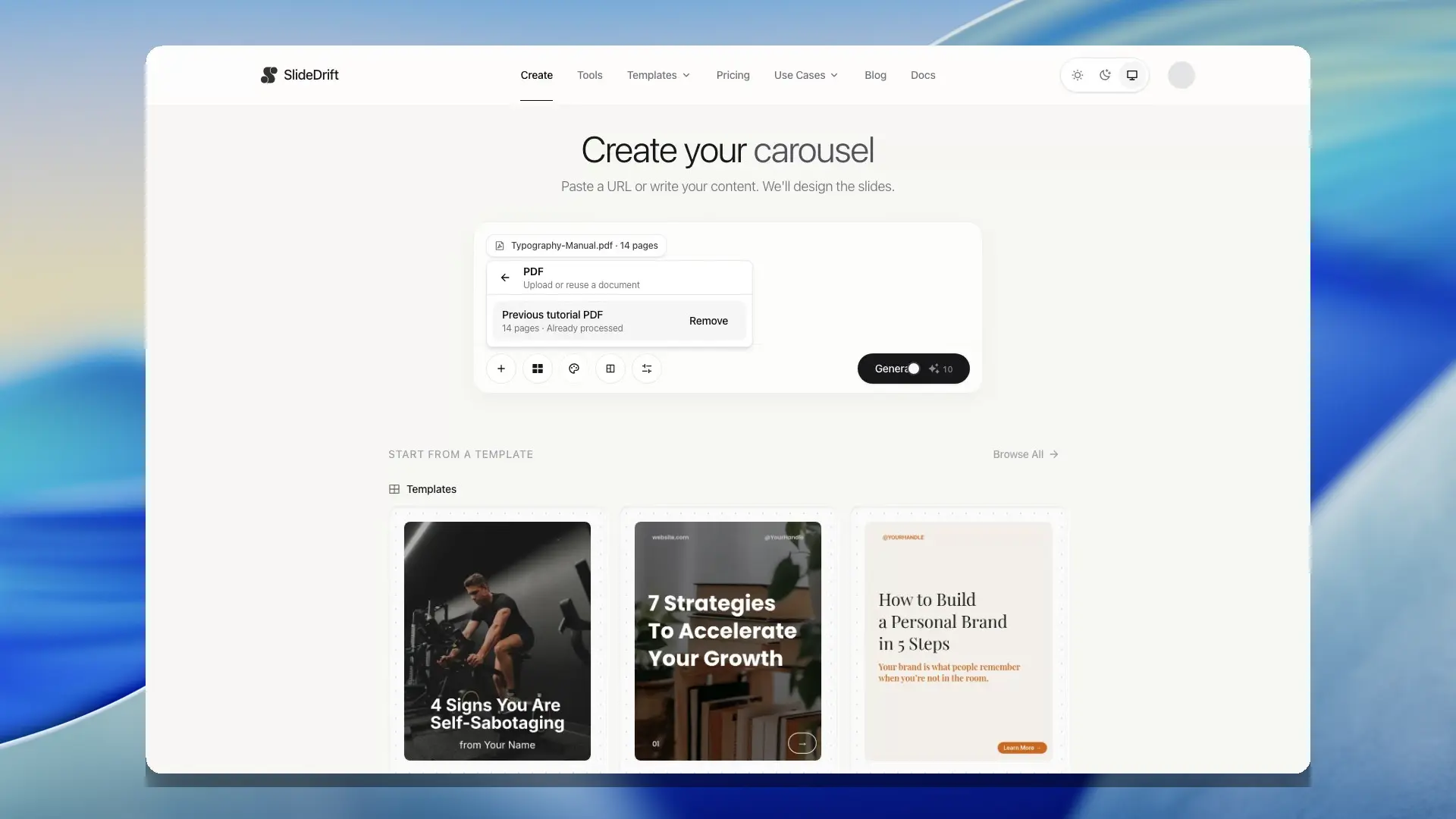
Open Saved PDFs in the PDF source area, then choose a document you processed earlier. Reusing the saved source has no additional PDF processing charge, although the new carousel still uses the normal generation credits.
You can search the saved PDF library by title or filename. Delete a saved source when you no longer need it; using that document again later will require another upload and processing charge.
Standard and Remix Style generation
A processed PDF can ground a standard carousel or a Remix Style carousel. SlideDrift uses the extracted document as the source and can pass supported document visuals into the generation flow.
For important documents, check the finished deck against the original PDF before exporting. Extraction helps ground the draft, but it does not replace a factual review.
Limits and privacy
- PDF sources require a signed-in paid account.
- A PDF can be up to 50 MB and 100 pages. Split a longer document and upload the part you need.
- Password-protected PDFs are not supported.
- The file must fit within your account storage limit.
- Only upload documents you are allowed to process and store.
Avoid confidential, regulated, or sensitive documents. See Privacy and data for the general source-safety guidance.