Edit slides
Edit text, add slides, duplicate slides, delete slides, and reorder your carousel.
Use the editor to turn the generated draft into a finished carousel.
Move through slides
Use the slide navigator to select the slide you want to edit. Review the deck from first slide to last so the story flows naturally.
For longer carousels, open Slide overview from the canvas controls. The overview shows the deck as a grid so you can jump to a slide or move slides earlier and later without scrolling through the canvas.
Edit text
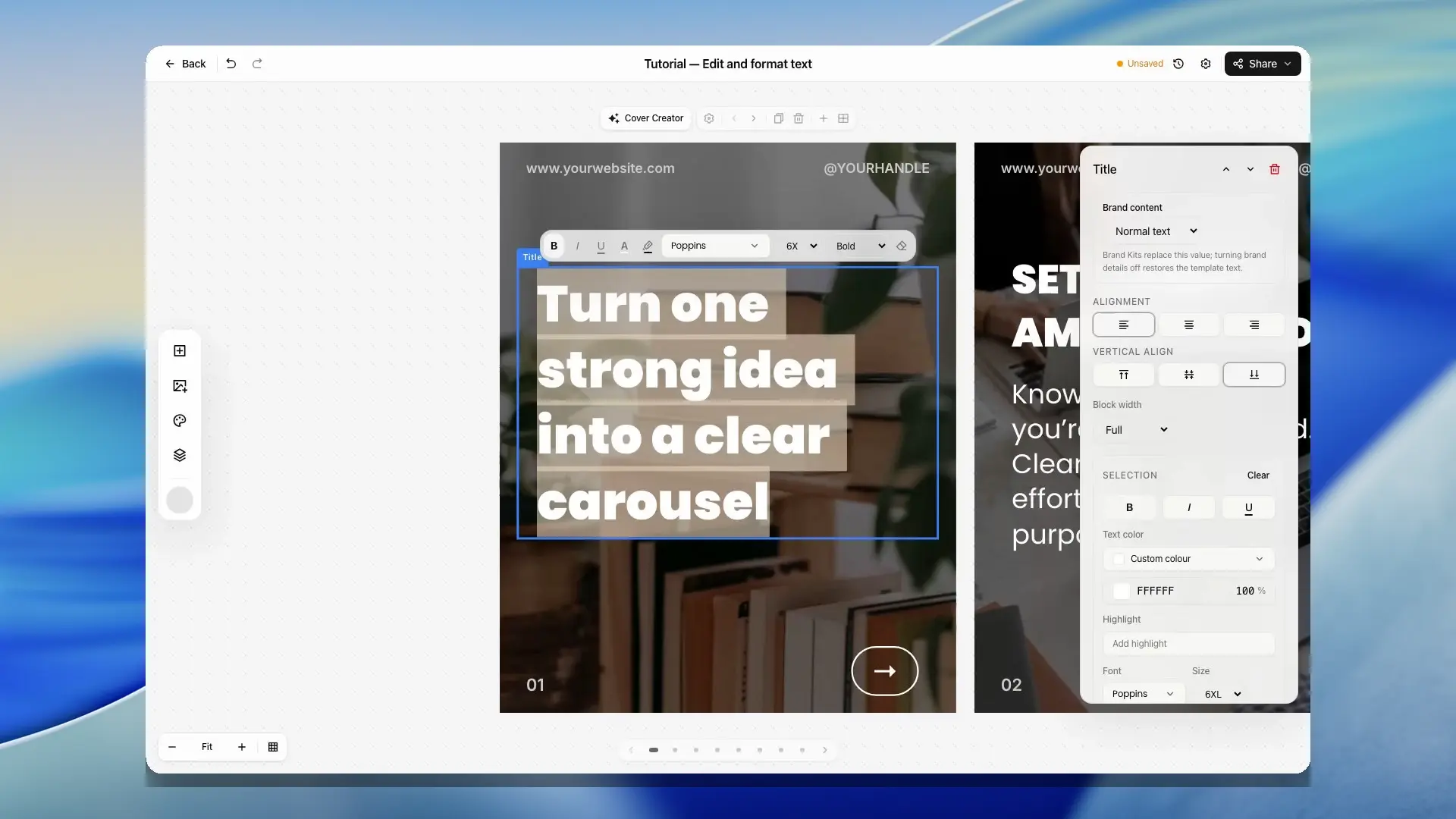
Select text on the current slide and update it directly in the editor controls. Keep each slide focused on one idea.
When you select part of a text element, SlideDrift can format just that selection. Use the inline toolbar or the selection controls in the properties panel to apply bold, italic, underline, text color, highlight, font, size, or weight without changing the whole text box.
Very long unbroken words are fitted to the available text width in the editor and export renderer, so URLs, technical terms, or compact labels are less likely to run off the slide.
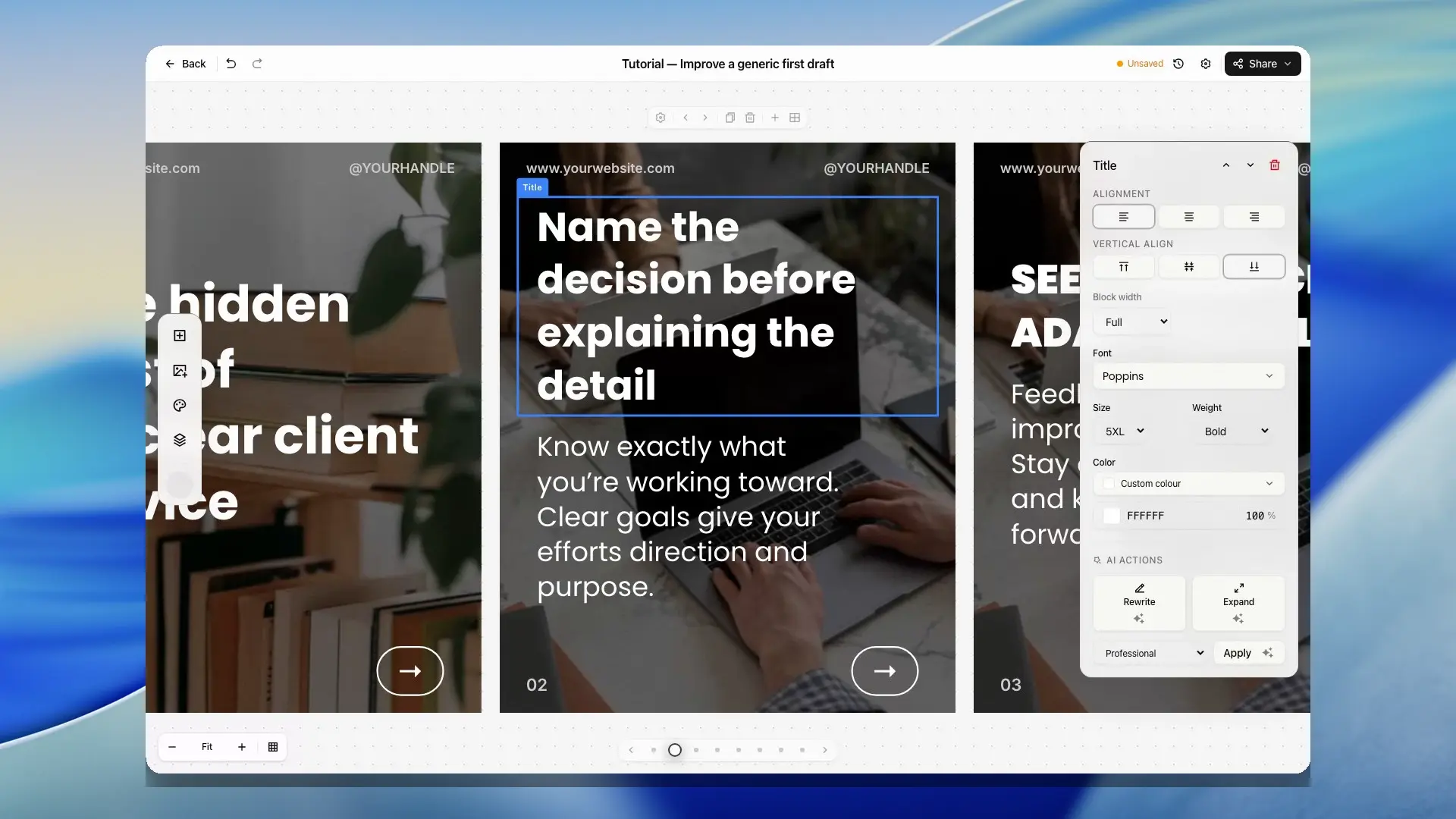
For selected text, SlideDrift also includes AI text actions such as rewriting, expanding, or changing tone when available.
When you need to copy or review wording on the canvas, text can be selected without turning every click into a move action.
While editing a text element, use its visible move grip when you want to reposition or reorder the block. Multiline text stays clipped to the slide canvas while the caret moves through the copy, so editing a longer text box does not scroll the slide itself.
Add, duplicate, delete, and reorder
The slide action controls let you:
- Add a blank slide.
- Add a designed slide when available.
- Duplicate the current slide.
- Delete a slide.
- Move a slide earlier or later in the deck.
Use duplicate when you want to preserve a layout but change the message.
Add designed slide opens editable cover, content, quote, image, and data/CTA layouts. The previews use the current carousel design settings where supported, and the new slide remains editable after you add it.
If you need to reorder several slides at once, use Slide overview to review the full deck sequence before export.

Regenerate or improve slide content
SlideDrift includes AI actions for selected slide content in the editor. Use them when a slide is close but needs clearer wording or a stronger version.
On Remix slides, the AI Edit panel has two options. Reroll Slide gives the slide a new design with the same content, and Edit With AI applies a change you describe, such as making the headline bigger or removing a badge. Each edit uses 5 credits, shown on the button, and an edit that fails or is interrupted uses none. An edit can take a few minutes, and the panel shows while it is still working. Undo returns the slide to how it was before the edit.
Always review AI edits before exporting.
When the whole first draft feels generic, start with the slide that defines the promise. Replace broad wording with a specific audience, decision, problem, or outcome, then review the remaining sequence against that sharper direction.

Add or remove optional blocks
Some remix slides include optional blocks such as badges, CTAs, quote cards, proof cards, stat cards, or footer notes.
Select an optional block on the slide to hide, restore, or delete it from the properties panel. You can also press Delete or Backspace after selecting an optional block.
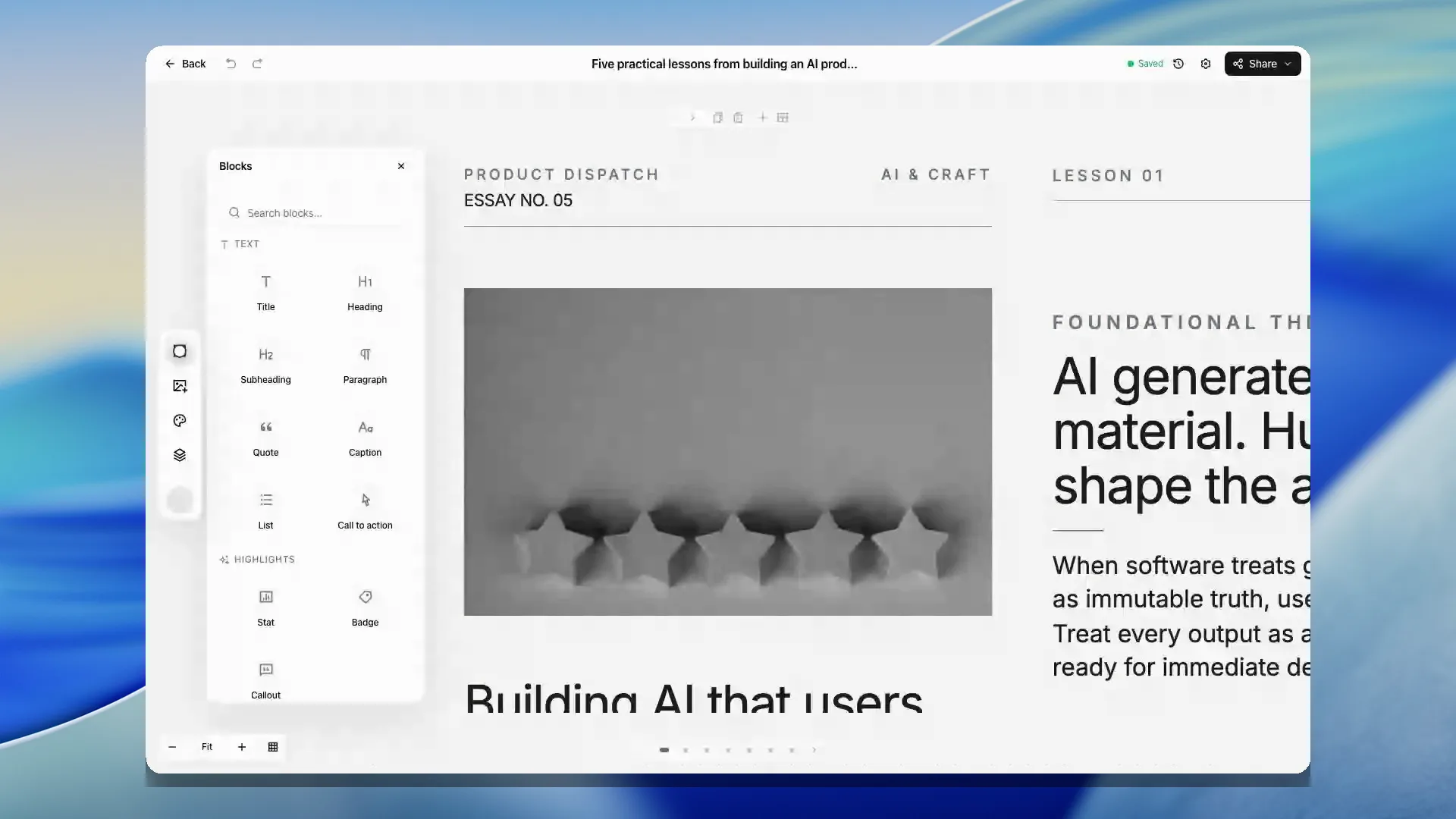
On remix slides, open the Blocks panel to add a new optional element to the active slide. You can click an element or drag it onto the slide when the slide supports remix editing.
When you select editable remix text, images, or optional blocks, SlideDrift prioritizes the most relevant target so the properties panel and on-canvas actions match what you clicked.
For supported Remix slides, select a card, its text, or its image directly on the canvas. The properties panel lists the editable elements inside the selected card so you can move between them without guessing which layer is active.
- Text targets can change their copy and supported typography, alignment, spacing, and color settings.
- Image targets can be replaced or removed, then adjusted for fit, position, zoom, grayscale, or overlay when the design exposes those controls.
- Card targets can change supported text and colors. Button-like targets can also change treatment, size, corners, and borders.
When you add a block or image to a Remix slide, select an existing target first if you want to place the new element before or after that part of the composition. With no target selected, SlideDrift adds it to the slide's supported default area.

Move elements
You can drag supported existing elements to change their order on a slide. Drop an element at the top when it should become the first block. When multiple slide areas are visible, supported elements can also be dropped into another slide area.
Header and footer areas no longer block normal canvas selection, so clicking an editable element near those zones should still select the element itself.