

Create a graphic
Start from a carousel cover design, change the headline and imagery, then download it or apply it to slide 1.
Use Graphics when you need a standalone LinkedIn graphic, such as a carousel cover or a single-image post, without rebuilding a full deck. In the editor, Cover Creator makes the same kind of graphic for slide 1.
The public Graphics library includes searchable carousel cover designs, post-type filters, individual design pages, and profession-specific variations. Design pages show more designs from the same collection, and Recreate this cover keeps the exact variation you selected. You can also open Cover Creator from slide 1 in the editor.
Create a standalone graphic
- Open Graphics. Signed in, it is under Explore → Graphics.
- Write the change you want in the prompt.
- Choose a source. Browse the design library, or select Use my images to start from one to three images you own.
- Add any reference images, color direction, brand profile, or output-size choice you need.
- Select Generate graphic and compare the result with the starting design.
- Download the finished image, or choose Build a carousel around it to continue in Create.
You can prepare the instruction before signing in. SlideDrift asks you to sign up or sign in when you generate the result.
Standalone generations are saved under Library → Graphics. Reopening or downloading a graphic you already generated does not cost generation credits.
When you start from your own images, choose existing files from the media library or upload new ones, then describe the graphic you want SlideDrift to create. You do not need to choose a library design first. With no palette selected, the generated design can draw its colors from the source images; you can still apply a saved brand profile or custom colors instead.
Apply a style to an existing photo
Use the separate Photo Styles guide when you want to apply a fixed visual treatment to one or more photographs. Each source photo creates its own styled image, which you can download or use as the starting point for a carousel.
Create a cover in the editor
- Open slide 1 in the editor.
- Select Cover Creator above the slide. The action appears on supported standard cover slides.
- Choose a design from the cover library or the Yours shelf.
- Describe the changes you want. SlideDrift starts with an instruction based on the current cover headline when one is available.
- Choose the output size and color direction.
- Select Generate cover and review the result beside the original.
- Select Apply to slide 1 when the cover is ready.
Applying a cover replaces slide 1 with the generated image, including its rendered headline. Save a restore point before applying it if you may want the original editable cover elements later.
Each generation costs 80 credits. The cost is shown on the generation button before you run it. Generating another version costs credits again.
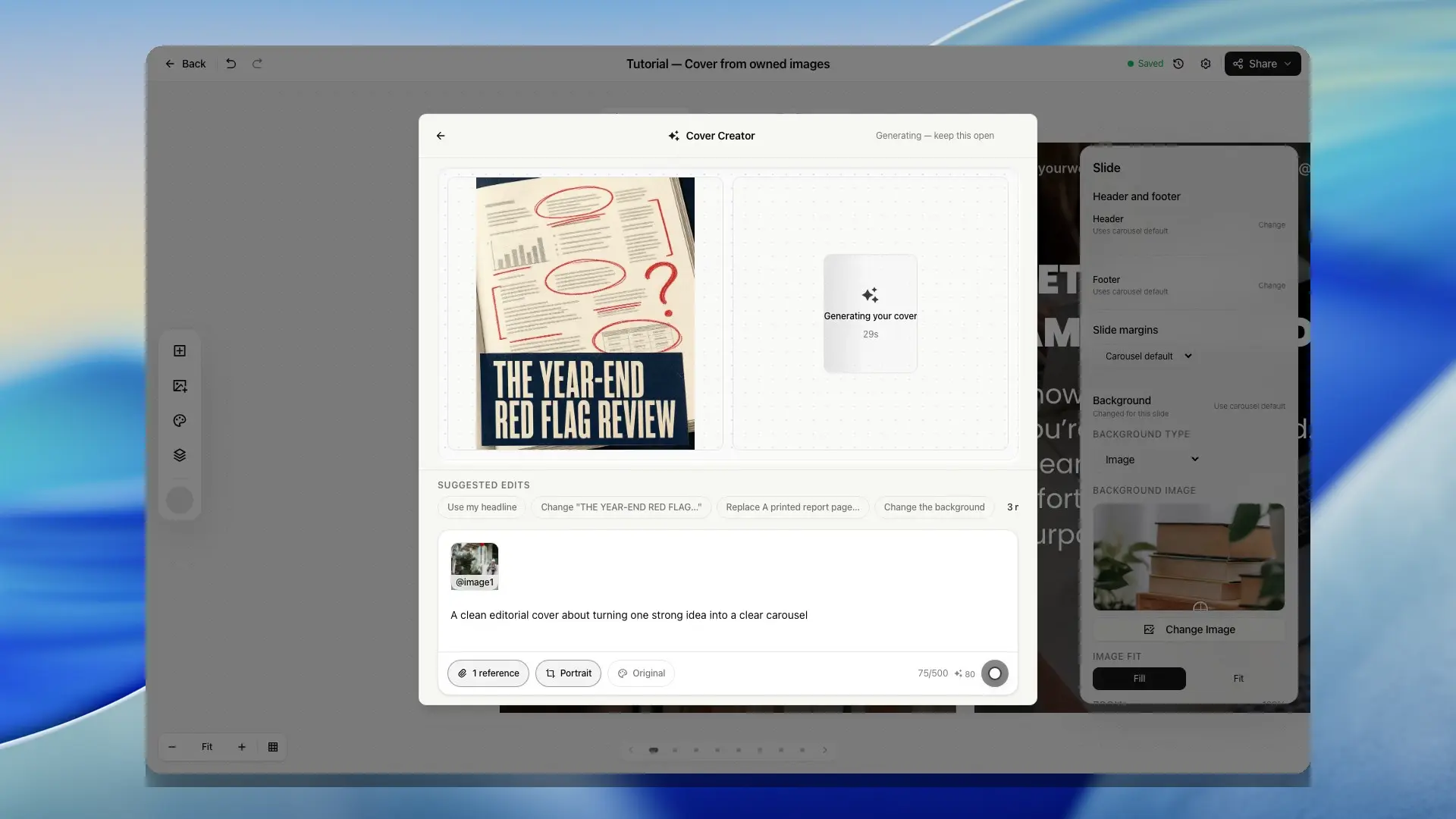
Choose colors and images
The color choices keep three different intentions separate:
- Original keeps the selected design's current color direction.
- My brand uses colors from the carousel's applied brand profile, or the available saved brand profile.
- Design's uses colors detected from the selected design.
When you choose My brand or Design's, you can remove suggested colors or add a custom color before generating.
Add up to three reference images when you want the graphic to include a headshot, product, or logo. Choose an existing image from your media library or upload a new one.
Each attached image receives a label such as @image1. Insert that label into the instruction to make the request specific, for example: “Replace the person with @image1.” SlideDrift redraws the reference into the design's visual direction rather than placing it on top unchanged.
Avoid uploading private, sensitive, or confidential images.
Reuse or revise a previous graphic
Open the Yours shelf in the editor Cover Creator, or open Library → Graphics, to find graphics you generated earlier.
- Select Use to apply a saved graphic to slide 1 without generating it again.
- Select Edit to use that saved graphic as the starting point for another change. The new generation costs credits.
- In Graphics, select Edit again to continue from the current generated graphic rather than returning to the original source.
During the current editing session, generated versions remain available as thumbnails so you can compare them and apply the best result.