How to Add AI Images to LinkedIn Carousels Without Making Them Look Generic
Give each AI image one job, write a prompt that names it, and add it in SlideDrift's editor. Prompts by carousel type, costs and a review checklist.

Give each AI image one job on its slide, then write a prompt that names that job, the layout and what to leave out. An image with a job reads as part of your argument; one added for decoration reads as stock art. In SlideDrift's editor, open Media, choose Generate and then Create an image, describe the picture, and select Insert into Slide once the result passes your review.
Standard images cost 5 credits and come out square. Pro images cost 40 credits, come in four shapes and can follow a reference image.
Give every image one job
Before you generate anything, finish this sentence:
This image helps the reader understand ____.
If you can't finish it, the slide probably doesn't need a picture. That matters on LinkedIn: its guidance on AI-assisted posts says you're responsible for what you post and that generic posts get less distribution.
| Slide idea | Weak image job | Better image job |
|---|---|---|
| "How one webinar becomes five posts" | Make it look interesting | Show one recording splitting into five posts |
| "Why dashboards confuse clients" | Add a business image | Show a wall of charts narrowing to one decision |
| "Your pipeline leaks at the demo stage" | Add a sales team photo | Show a funnel with one crack at the third stage |
| "Boundaries are not demands" | Add a calm illustration | Show two separate areas of responsibility |
Pictures tend to earn their place on four kinds of slide:
- The cover: one metaphor or scene that sets up the headline's promise.
- Process slides: a workflow the reader can trace from start to finish.
- Before-and-after slides: a contrast that's quicker to see than to read.
- Section breaks: a visual pause before the deck changes topic.
Don't set paragraphs over a generated picture. Text needs contrast and space to stay readable on a phone.
Choose the right kind of image
An AI image is the right choice when no real picture can do the job. SlideDrift has three ways to make a picture, plus your own files and stock photos:
| What the slide needs | Use | Where in the editor | Credits |
|---|---|---|---|
| A picture of an idea, process or scene, with no words in it | An AI image | Media → Generate → Create an image | 5 (Standard) or 40 (Pro) |
| A photo you own, restyled to a set look | Photo Styles | Media → Generate → Restyle an image | 80 per photo, paid plans |
| A designed first slide with your headline and layout | A graphic from Cover Creator | Cover Creator, above slide 1 | 80, paid plans |
| An everyday real-world photo | Stock photos | Media → Stock photos | No credits |
| Proof: a result, a product screen, a client's work | Your own screenshot or approved image | Media → Library, then upload | No credits |
Graphics are designed visuals with words and layout, and in the editor Cover Creator makes one for slide 1. An AI image has no layout, so use it for the picture on a slide, not for the slide's design.
Don't use an AI image as proof. LinkedIn's Professional Community Policies ask for real and authentic information, nothing false or misleading, and disclosure of synthetic media, so a generated "client photo" or "dashboard screenshot" doesn't belong in a carousel. Use the real screenshot, or let the slide make its point in words.
Write a prompt that names the job
Use this pattern, and keep the prompt under 1,000 characters, the most the image tool accepts:
[Kind of image] showing [subject] for a slide about [the slide's point].
Composition: [what goes where, and where to leave space for the headline].
Style: [colors in words, lighting, level of detail].
Leave out: readable text, logos, real brands, [anything that could pass as proof].A few habits separate a useful image from a generic one:
- Describe the structure, not just the topic. Name the parts, how many there are and where they sit. The tool's own tip says the same: be specific about style, colors and composition.
- Keep words out of the picture. Put the headline and labels on the slide, where you can edit them, and ask for no readable text in the image.
- Set the shape with the buttons, not the prompt. Standard makes 1:1 squares only. Pro also makes 4:5, 9:16 and 16:9. Use 4:5 for an image that fills a portrait slide and 1:1 for a square slide or a square image box. The carousel size guide covers the slide sizes themselves.
- Reuse one style line. Copy the same "Style:" line into every prompt in the deck, and name your Brand Kit colors in words, such as "navy and off-white with one orange accent". The image tool doesn't apply your Brand Kit for you.
- Use a reference for real subjects. With Pro, you can add an optional Reference Image, such as a photo of your product, to guide the result. Use only images you own or have permission to use. To restyle your own photo rather than make a new picture, use Photo Styles instead.
Prompt repair
Worked example: repair a vague image prompt
The slide is page 2 of a portrait carousel about turning one webinar into five LinkedIn posts, a deck you could plan with our guide to turning a webinar into carousels. Its job: show how one recording becomes five posts. The first prompt was:
Make a nice AI image about repurposing a webinar.
It names a topic but gives the image no structure, no number of outputs and nothing to leave out. The repaired prompt:
A clean workflow illustration for a LinkedIn carousel slide. One webinar recording card on the left, three note cards in the middle and five separate post cards on the right, joined by simple arrows. Leave the top third empty for the slide headline. Style: flat editorial cards on a warm neutral background. Leave out: readable text, platform logos and stock-photo people.
Settings: Pro at 4:5, for 40 credits a try. Standard makes squares only, and this picture needs a portrait shape.
| Review point | Weak prompt | Repaired prompt |
|---|---|---|
| Named stages | 0 | 3: recording, notes, posts |
| Required outputs | Unspecified | 5 post cards |
| Exclusions | 0 | 3: readable text, logos, stock-photo people |
| Space for the headline | Not mentioned | Top third left empty |
| Pass condition | Looks nice | A reader can trace one recording through notes to five posts without reading the headline |
Generate once and judge the result against the pass condition before you touch the style. If the flow isn't obvious, fix the composition line and generate again; each new version costs credits again.
Prompts by carousel type
Copy one, fill in the brackets and add your deck's style line.
Workflow carousel
A clean process illustration showing [source] turning into [output] in [3–5] stages, left to right, joined by simple arrows. Leave the top third empty for a headline. Style: flat illustration, [your colors]. Leave out: readable text, logos, people.Mistakes carousel
A split illustration comparing a cluttered, confusing version of [concept] on the left with a calm, organized version on the right. Style: flat illustration, [your colors]. Leave out: readable text, real brands.Strategy carousel
A minimal decision-tree illustration for [decision]: one starting point branching into three paths, each ending in a simple icon, with plenty of white space. Style: flat illustration, [your colors]. Leave out: readable text.Industry guide
An editorial illustration of [a professional in your field] doing [the task the carousel teaches]. Calm and respectful, not promotional. Style: [your style line]. Leave out: client details, records, real logos, readable text.Add an AI image in SlideDrift
- Open your carousel in the editor and go to the slide that needs a picture.
- Select the Media icon in the left toolbar, then the Generate tab, then Create an image. To replace a picture that's already on the slide, select it and choose Change Image (or Change, for a picture in a Remix design); the same tabs open there.
- Under Model, pick Standard (5 credits, 1:1 only) or Pro (40 credits, with more shapes and an optional Reference Image).
- Paste your prompt, choose the Aspect Ratio and click Generate Image. The button shows the cost before you click.
- Review the result. Insert into Slide puts it on the slide. The refresh button next to it makes a new version, which costs credits again.
- Select the image on the slide and use the image controls to choose which part of it shows. Then check the slide at phone size.
AI images need a SlideDrift account. On the Free plan you can make three Standard images a day; Pro images aren't available on Free. If a generation fails, you aren't charged. Each image you generate is saved to your Library tab, so you can use it on another slide without generating it again. For uploads, cropping and replacing pictures, see the images and media guide.
No carousel yet? Paste your notes into SlideDrift with a brief like this:
SlideDrift brief
Turn the notes below into a LinkedIn carousel for [audience].
Job: explain [the idea or process] in plain steps.
One idea per slide, short headlines, and nothing the notes don't support.
End with one next step: [the action you want readers to take].

[Paste your notes here]The number of slides comes from Preferences, which shows 7 slides until you change it. If the template has picture areas, SlideDrift fills them with images from your source or with stock photos. Replace any that look generic or off-topic with the steps above.
Make a carousel from your notes
Paste your notes or a link. SlideDrift drafts the slides; you add an AI image where a slide needs one, edit the rest, then export the PDF for LinkedIn.


Check it before you export
Go through every slide that has an AI image:
- Job: can you still finish "This image helps the reader understand ____"?
- Readability: does the headline stay readable on a phone screen?
- Flaws: look for garbled lettering, warped hands or faces, and invented logos or interface details. Crop them out or generate again.
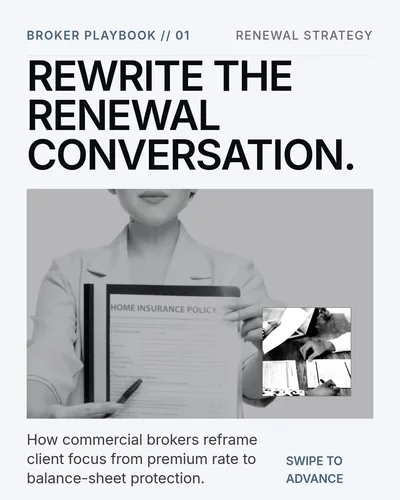
- Proof: could anyone take it for a real result, client, event or product screen? Replace it with the real thing, or say it's AI-generated.
- Consistency: does it share the style line, colors and level of detail with the deck's other images?
- Need: hide the image for a moment. If the slide works as well without it, leave it out.
When every slide passes, click Share, then Export, and Download PDF, then page through the file. LinkedIn's help page on document posts says you can edit a post's description after posting but not the document, so fix images before you upload. The LinkedIn carousel checklist covers the rest of the deck.
FAQ
Should every LinkedIn carousel slide have an AI image?
No. Add one where it explains a process, shows a contrast or sets up the cover's idea. Many slides read better with type and white space alone.
How much does an AI image cost in SlideDrift?
A Standard image costs 5 credits and comes out square (1:1). A Pro image costs 40 credits and comes in 1:1, 4:5, 9:16 or 16:9, with an optional reference image. Each new version costs credits again. On the Free plan you can make three Standard images a day, and Pro images aren't available. Credits and billing lists every cost.
Can I put text inside an AI image?
Keep words on the slide instead, where you can edit them. If you want a designed first slide with your headline built in, that's a graphic: Cover Creator, above slide 1, makes one for 80 credits on paid plans.
What's the difference between AI images, Graphics and Photo Styles in SlideDrift?
An AI image is a picture made from your description, with no layout (Create an image, 5 or 40 credits). Graphics are designed visuals with words and layout, and Cover Creator makes one for slide 1 (80 credits, paid plans). Photo Styles restyles a photo you own with a fixed look (Restyle an image, 80 credits per photo, paid plans).
Do I need to label AI images on LinkedIn?
LinkedIn's Professional Community Policies ask members to disclose synthetic media, and its guidance on AI-assisted posts asks you to disclose heavy AI use. If an image could pass for a real photo, say it's AI-generated, for example in the caption.