LinkedIn Carousel Size Guide: Dimensions, PDF Format, and Export Checklist
The best LinkedIn carousel size is 1080 × 1350 px (4:5 portrait), exported as one PDF. Dimensions, LinkedIn's upload limits, slide count and a pre-upload check.
The best LinkedIn carousel size is 1080 × 1350 px, a 4:5 portrait page. Use 1080 × 1080 px for a square carousel you also want to post elsewhere. Either way, upload it as one PDF with every page the same size.
- Portrait, 1080 × 1350 px: the most room in the mobile feed. The best default.
- Square, 1080 × 1080 px: compact, and easy to reuse on other platforms.
- The file: a PDF of up to 100 MB and 300 pages, every page the same size, with no layers or animations.
Recommended LinkedIn carousel dimensions
LinkedIn doesn't publish an official carousel size. A carousel is a document post, and LinkedIn's help page sets the file rules rather than pixel dimensions. In practice, carousels use one of three page shapes:
| Format | Dimensions | Best for |
|---|---|---|
| Portrait (4:5) | 1080 × 1350 px | Most carousels: the most feed space on a phone |
| Square (1:1) | 1080 × 1080 px | Short copy, quotes and posts you'll reuse on other platforms |
| Landscape (16:9) | 1920 × 1080 px | Existing presentation slides; small in the mobile feed |
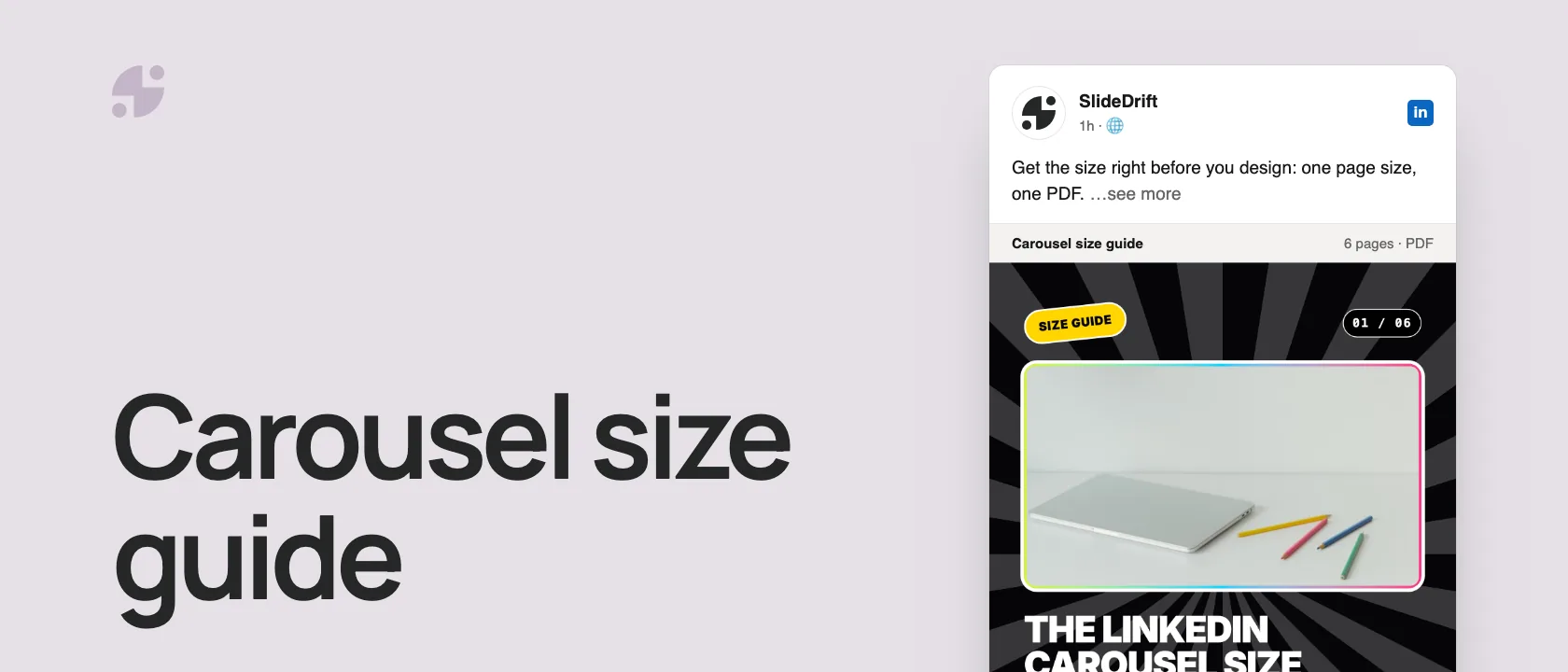
Here's this size guide as a carousel, made in SlideDrift.
SlideDriftCreate your ownCarousel transcriptShowHide


- 01Size guide. The LinkedIn carousel size cheat sheet. Use 1080 × 1350 px portrait pages and upload one PDF. Here's everything to get right before you post.
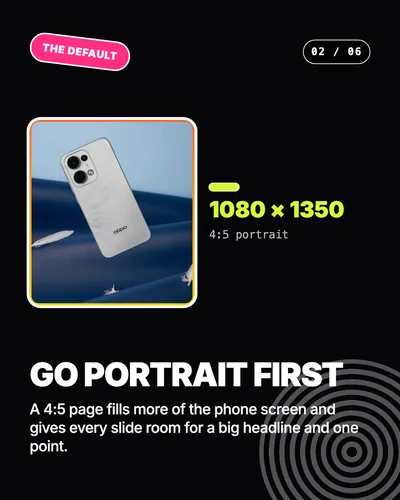
- 02The default, 1080 × 1350, 4:5 portrait. Go portrait first. A 4:5 page fills more of the phone screen and gives every slide room for a big headline and one point.
- 03The alternative. Square, 1080 × 1080 px. Use square for short copy, quotes or a carousel you'll also post on Instagram. It holds less, so edit tighter.
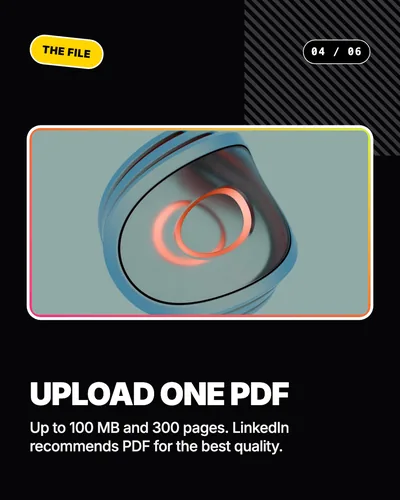
- 04The file. Upload one PDF. Up to 100 MB and 300 pages. LinkedIn recommends PDF for the best quality.
- 05Before export. Same size, no layers. Fit every page to one size and flatten layered PDFs. Animations show as still images, so don't rely on them.
- 06Final check. Read it on a phone first. Open the PDF once: page order, text size, one size throughout. You can't change the document after posting.
Portrait or square?
Start with portrait, 1080 × 1350 px. It gives each slide more height for a big headline and one supporting point, and it fills more of the screen in the mobile feed.
Choose square, 1080 × 1080 px when:
- you'll post the same carousel on Instagram or another platform;
- each slide carries one short line, a quote or a single number;
- you prefer compact, poster-like layouts.
Square slides hold less, so they need tighter editing. If a slide needs more than two short lines and one visual, go portrait.
PDF or PNG?
For a LinkedIn carousel, export a PDF. LinkedIn accepts PDF, PPT, PPTX, DOC and DOCX files, and recommends converting files to PDF for the best quality.
| Export | Use it when | Watch out for |
|---|---|---|
| You want a swipeable LinkedIn document post | Open it once to check fonts, spacing and slide order | |
| PNG | You need separate images for other platforms | Uploading images to LinkedIn makes an image post, not a document carousel |
The PDF export guide covers export settings in more detail.
LinkedIn's file rules
From LinkedIn's help page:
- File types: PDF, PPT, PPTX, DOC or DOCX.
- Limits: up to 100 MB and 300 pages.
- Page size: PDFs with pages of different sizes must be fit to one page size.
- Layers: PDFs with multiple layers must be flattened or merged.
- Motion: videos and animations show as still images.
- After posting: you can edit the description or remove the post, but not change the document.
How many slides?
LinkedIn allows 300 pages, but most good carousels need 6 to 12.
| Slides | Best for |
|---|---|
| 3–5 | One quick point, a quote, a reminder |
| 6–8 | A checklist, a mini framework, a list of mistakes |
| 9–12 | A tutorial, a case study, an article summary |
| 13+ | A detailed guide or research summary |
The better question is how many slides the reader needs before the point is clear. The slide count guide goes deeper.
Keep it readable on a phone
The right size doesn't help if the text is too small to read.
- One idea per slide, with a big headline.
- Short lines instead of paragraphs.
- High contrast between text and background.
- Important text away from the edges.
- No key information in tiny captions.
A quick test: look at each slide at phone size. If you can't read it at a glance, it's too dense.
Size by content type
| Content type | Size | Why |
|---|---|---|
| Framework or checklist | 1080 × 1350 | Room for a title, the points and an example |
| Quote or single stat | 1080 × 1080 | Clean, and easy to reuse |
| Research summary | 1080 × 1350 | Space for the number and its context |
| Product tutorial | 1080 × 1350 or 1920 × 1080 | Depends on the screenshot shape |
| Cross-platform carousel | 1080 × 1080 | Works on Instagram too |
Before you upload
- The file is a PDF under 100 MB.
- Every page is the same size.
- The first page works as a cover.
- The smallest text is readable on a phone.
- Nothing depends on animation or video.
- The document title names the content.
- You've opened the PDF once and checked the page order.
Make one in SlideDrift
SlideDrift's Remix designs are made for the 4:5 portrait page, and every carousel exports as one PDF. Start from notes, an article or a link with a brief like this:
SlideDrift brief
Turn the notes below into an 8-slide LinkedIn carousel in 4:5 portrait.
One point per slide, with a big headline readable on a phone.
End with a short recap and one next step.

[Paste your notes, article or link here]Get the size right from the start
Paste notes, an article or a link. SlideDrift drafts portrait slides, you edit them, then export one PDF for LinkedIn.
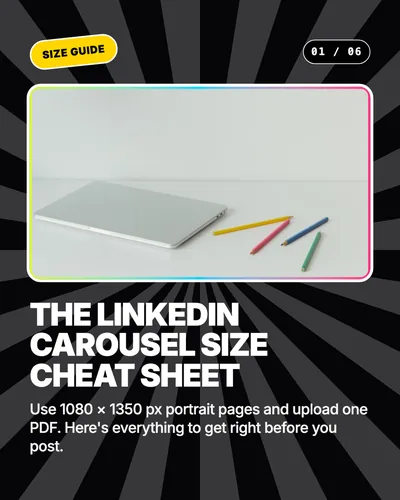
Brief for this carousel
Make a 6-slide LinkedIn carousel that works as a size cheat sheet. A cover with the answer (1080 × 1350 px portrait pages in one PDF), then one point per slide: go portrait first, use square 1080 × 1080 px for short or cross-platform posts, upload one PDF of up to 100 MB and 300 pages, keep every page the same size with no layers, and read it on a phone before you post.
To check a file you already have, use the free LinkedIn carousel size checker, then run the LinkedIn carousel checklist.
FAQ
What size should a LinkedIn carousel be?
1080 × 1350 px, a 4:5 portrait page, is the best default. Use 1080 × 1080 px for a square carousel you also want to post on other platforms.
What file format should a LinkedIn carousel be?
A PDF. LinkedIn also accepts PPT, PPTX, DOC and DOCX files, but recommends PDF for the best quality.
How many pages can a LinkedIn carousel have?
Up to 300 pages and 100 MB. Most carousels work best with 6 to 12.
Should a LinkedIn carousel be square or portrait?
Portrait for most carousels, because it gives each slide more room and fills more of the mobile feed. Square suits short, visual or cross-platform carousels.