How to Turn a Case Study Into a LinkedIn Carousel
Turn an approved case study into a clear LinkedIn carousel without losing the source, scope, context, or client permission behind its claims.

To turn a case study into a LinkedIn carousel, tell the story of one useful decision, one slide at a time:
- Choose the lesson: the one decision a reader can reuse.
- Remove what isn't approved: names, numbers, screenshots and anything that identifies the client.
- Keep each number with its context: the source, timeframe and scope.
- Give each slide one job: context, problem, constraint, decision, work, result, lesson.
- Draft it, then check it: generate a first draft from the case study, then compare every slide with the source before you export.
The slide structure
| Slide | Job | Example |
|---|---|---|
| 1 | Hook | "How we reduced onboarding confusion without adding another email" |
| 2 | Context | Who the client was, anonymized if needed |
| 3 | Problem | What wasn't working |
| 4 | Constraint | What made it hard |
| 5 | Decision | The key choice |
| 6 | Work | What changed |
| 7 | Result | What improved, with its context |
| 8 | Lesson | What the reader can reuse |
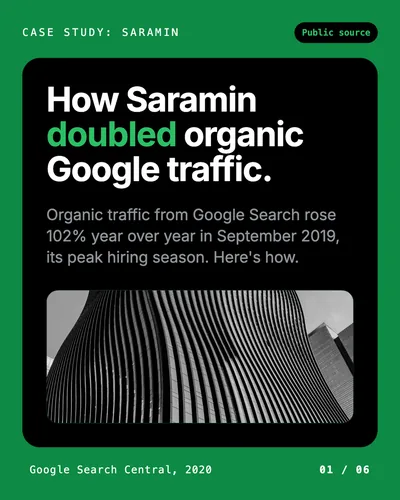
A short case can merge jobs. Here's a real example: Google's public case study on Saramin, a Korean job platform, as a six-slide carousel made in SlideDrift. It puts the problem in with the context and the work in with the decision, and every number keeps its timeframe and scope.
SlideDriftCreate your ownCarousel transcriptShowHide


- 01How Saramin doubled organic Google traffic. Organic traffic from Google Search rose 102% year over year in September 2019, its peak hiring season. Here's how. Source: Google Search Central, 2020.
- 02First, they fixed the basics. In 2015, Saramin, a Korean job platform, added its site to Google Search Console and fixed the crawl errors it found. Early signal: year one brought a 15% increase in organic traffic, and a reason to invest more in SEO.
- 03They kept investing. Next they removed keyword-stuffed meta tags, used canonical URLs, cut duplicate content and added structured data. The early win was a reason to do more, not to stop.
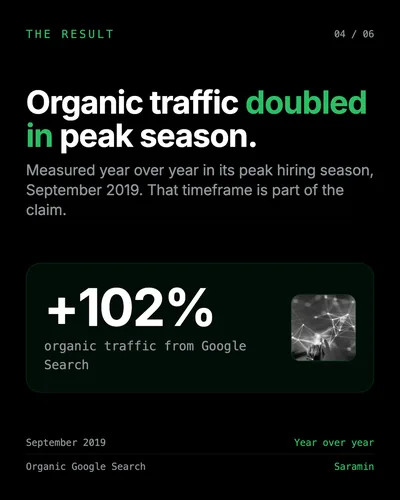
- 04Organic traffic doubled in peak season. +102% organic traffic from Google Search, measured year over year in its peak hiring season, September 2019. That timeframe is part of the claim.
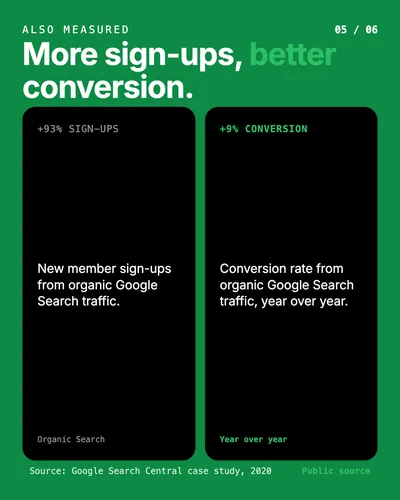
- 05More sign-ups, better conversion. +93% new member sign-ups from organic Google Search traffic. +9% conversion rate from organic Google Search traffic, year over year. Source: Google Search Central case study, 2020.
- 06Keep making small fixes. They add up. No single change gets the credit. Fixing the basics, then improving steadily, is what added up. Source: Google Search Central, Saramin SEO case study, published April 2020.
Step 1: Choose the lesson
A case study carousel that only says "hire us" reads like an ad. One that teaches a decision earns attention. Before you write a slide, answer:
- Which decision made the biggest difference?
- What did the client believe before the work started?
- What constraint shaped the solution?
- What could a reader apply without hiring you?
- What has to stay private?
Step 2: Remove what isn't approved
Case studies are full of client names, numbers, screenshots, dashboards and internal context. None of it goes into a public carousel without permission. Check each detail:
- Permission: has the client approved public use?
- Identification: could someone work out who the client is, even without the name?
- Claims: is every result accurate and supported?
- Context: does every metric come with its baseline, timeframe and scope?
- Sensitivity: does anything expose internal systems, people or weaknesses?
If permission is unclear, stop and ask. Removing the name isn't enough when the industry, team size, timing or a screenshot still gives the client away.
Step 3: Keep each number with its context
Google Search Central's case study on Saramin describes a sequence of work. In 2015, Saramin added its site to Search Console and fixed the crawl errors it reported, which brought a 15% increase in organic traffic. It then removed keyword-stuffed meta tags, used canonical URLs, cut duplicate content and added structured data. In its peak hiring season, September 2019, organic traffic from Google Search was up 102% year over year. Google also reports a 93% increase in new member sign-ups from organic Google Search traffic, and a 9% year-over-year increase in the conversion rate from that traffic.
That's enough for a strong carousel. It isn't evidence that one change doubled all of Saramin's traffic, or that another company should expect the same result. The carousel above keeps each number on the same slide as its channel and timeframe, wherever Google gives one.
Before you write slide copy, make a proof sheet with one row per claim:
| Field | What to capture |
|---|---|
| Claim | The exact result or statement |
| Source | The approved case study section, report, dashboard or quote |
| Scope | The channel, audience, product or group measured |
| Comparison | The baseline, timeframe and what counts as before and after |
| Permission | What the client approved for public use |
If a field is blank, find the missing context or leave the claim out. Don't let a short slide turn "organic traffic in peak season" into "traffic doubled".
Step 4: Give each slide one job
Here's a rough case study paragraph:
The client had a complex onboarding flow and users weren't reaching the activation event. We audited emails, product prompts and analytics. The biggest issue was that every message tried to explain the whole product. We rebuilt the flow around one first win and changed follow-ups based on whether the user completed it.
As carousel slides:
- "The onboarding problem wasn't the number of emails"
- "Users got more information, not more momentum"
- "Every message tried to explain the whole product"
- "We chose one first win instead"
- "Every follow-up pointed to that win"
- "Behavior decided the next message"
- "The lesson: onboarding should create progress, not coverage"
Each slide makes one point, so the story is easier to follow than the paragraph. For more slide-by-slide patterns, see the case study carousel templates.
Step 5: Draft it in SlideDrift, then check it
If the case study is published, paste the link into SlideDrift. If it's internal, paste approved notes or a cleaned outline. On paid plans you can start from the PDF. Then tell SlideDrift what to focus on:
SlideDrift brief
Turn the case study below into a 6-slide LinkedIn carousel.
Focus on the decision and the lesson, not self-promotion.
Leave out anything that identifies the client.
Keep each number with its timeframe and scope.
End by asking readers to save the structure.

[Paste the case study or your approved notes here]SlideDrift drafts the slides for you to edit. Then check every slide against the source before you export, the way each number in the Saramin carousel was checked against Google's page. When it matches, export the PDF for LinkedIn. The AI content review checklist covers what else to check in a draft.
Turn your case study into slides
Paste the link or your approved notes, and edit the draft before you export.
Brief for this carousel
Turn Google's Saramin SEO case study (https://developers.google.com/search/case-studies/saramin-case-study) into a 6-slide LinkedIn carousel. Lead with the result: organic traffic from Google Search up 102% year over year in September 2019, Saramin's peak hiring season. Then the 2015 Search Console crawl fixes and the 15% first-year gain, the work that followed (meta tags, canonical URLs, duplicate content, structured data), the result, the rise in sign-ups and conversion rate from organic Search, and the lesson. Keep every number with its timeframe and scope.
Add visuals carefully
Good case study visuals:
- anonymized before-and-after process diagrams
- simple metric cards that show the timeframe
- workflow diagrams and decision trees
- cleaned-up screenshots with nothing private in them
Avoid client logos you haven't cleared, screenshots that identify the client, dashboards with private data, tiny charts nobody can read, and charts without a timeframe or baseline.
Write a caption that adds context
The caption should say why the case matters, not repeat the slides.
Weak:
Here's a case study from one of our clients. Swipe to learn more.
Better:
The interesting part of this project wasn't the result. It was the constraint: the team couldn't add more onboarding steps, so the fix had to simplify the first win instead of explaining more.
Pick a CTA that fits the case
| Situation | CTA |
|---|---|
| Teaching a method | "Save this structure for your next project review." |
| Agency lead generation | "Message me if you're solving a similar problem." |
| Founder lesson | "Which constraint would you have tackled first?" |
| Offering a template | "Comment 'case study' and I'll send you the outline." (Only if you will.) |
| Newsletter | "I broke down the full process in this week's newsletter." |
The carousel CTA examples cover more endings.
Final check before you publish
- The client approved every name, quote, screenshot, logo and identifying detail you kept.
- Every factual slide traces back to an approved source.
- Every result keeps its baseline, timeframe, audience and scope.
- The carousel explains one decision instead of squeezing in the whole case study.
- The first slide makes a specific promise, and every slide after it moves that promise forward.
- The smallest text is readable on a phone.
- The exported PDF opens correctly, with the pages in the right order.
FAQ
Can a case study become a LinkedIn carousel?
Yes. A case study already has the order a carousel needs: context, problem, constraint, decision, work, result and lesson. Give each its own slide.
Should I name the client in a case study carousel?
Only with explicit permission for that use. Without it, remove the name and check that the remaining details don't identify the client.
How many slides should a case study carousel have?
Most work in 6 to 10 slides: enough for the problem, the work and the lesson without turning the post into a full report. A short case like Saramin's fits in six.
Can I turn a published case study page into a carousel?
Yes. Paste the link into SlideDrift to get a first draft, then check every slide against the page and keep each number with its timeframe and scope.
What's the best CTA for a case study carousel?
One connected to the case: "save this structure", "message me if you're solving the same problem", or a question about the constraint.