How to Export a LinkedIn Carousel as a PDF
Learn how to export a LinkedIn carousel as a PDF, review it before posting, and upload it correctly as a LinkedIn document post.

A LinkedIn carousel is usually posted as a document upload. PDF is the safest default because LinkedIn supports PDF documents and recommends converting documents to PDFs where possible for quality.
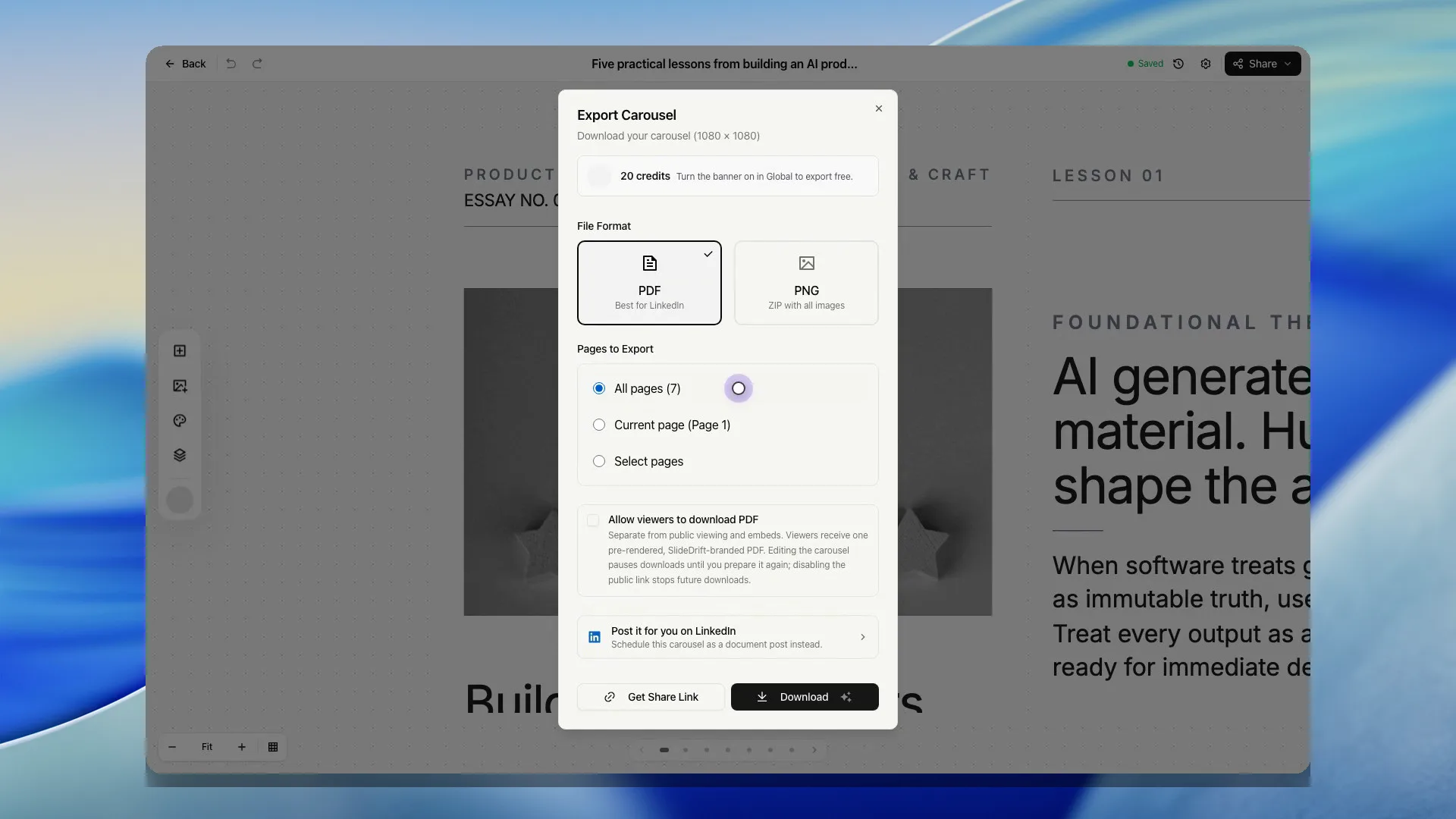
The short version: to export a LinkedIn carousel as a PDF in SlideDrift, review the generated deck in the editor, open the export dialog, choose PDF, confirm any credit or watermark options, download the file, then upload it to LinkedIn as a document post.
LinkedIn supports PPT, PPTX, DOC, DOCX, and PDF document uploads, with a 100 MB and 300-page limit. Once a document is uploaded to a post, LinkedIn says you can edit the description or remove the post, but you cannot change or edit the document inside the post. That makes the pre-export review step important.
Key takeaways
- Use PDF when the carousel is meant to be uploaded as a LinkedIn document post.
- Review the deck before export because the uploaded document itself cannot be changed later.
- Keep every page the same size, check mobile readability, and open the downloaded file before posting.
- SlideDrift fits when you want to generate, edit, and export the carousel from one workflow.
Step-by-step: export a SlideDrift carousel as PDF
- Generate or open your carousel in SlideDrift Create.
- Review the opening slide.
- Check slide order.
- Edit any copy that feels vague or repetitive.
- Confirm images, icons, and layouts.
- Open the export dialog.
- Select PDF export.
- Review the file options and credit cost shown in the product.
- Download the PDF.
- Upload the PDF to LinkedIn as a document post.
Pre-export checklist
| Check | Why it matters |
|---|---|
| First slide promise | The hook determines whether people swipe. |
| One idea per slide | Crowded slides are hard to read on mobile. |
| Readable text size | LinkedIn readers often view carousels on phones. |
| Consistent spacing | Messy alignment makes expertise look less credible. |
| Final CTA | The ending should give readers a clear next step. |
| Accurate claims | You cannot edit the uploaded document after posting. |
| Safe content | Do not publish private, confidential, or sensitive material. |
| PDF quality | LinkedIn recommends converting to PDF where possible. |
PDF export preflight checklist
- Open the deck in the editor and confirm the first slide matches the post promise.
- Scan every slide at mobile size for cramped text, weak contrast, and cut-off elements.
- Export as PDF, then open the downloaded file before uploading it to LinkedIn.
- Confirm the PDF file is under LinkedIn's size and page limits.
- Use a clear document title that matches the cover slide.
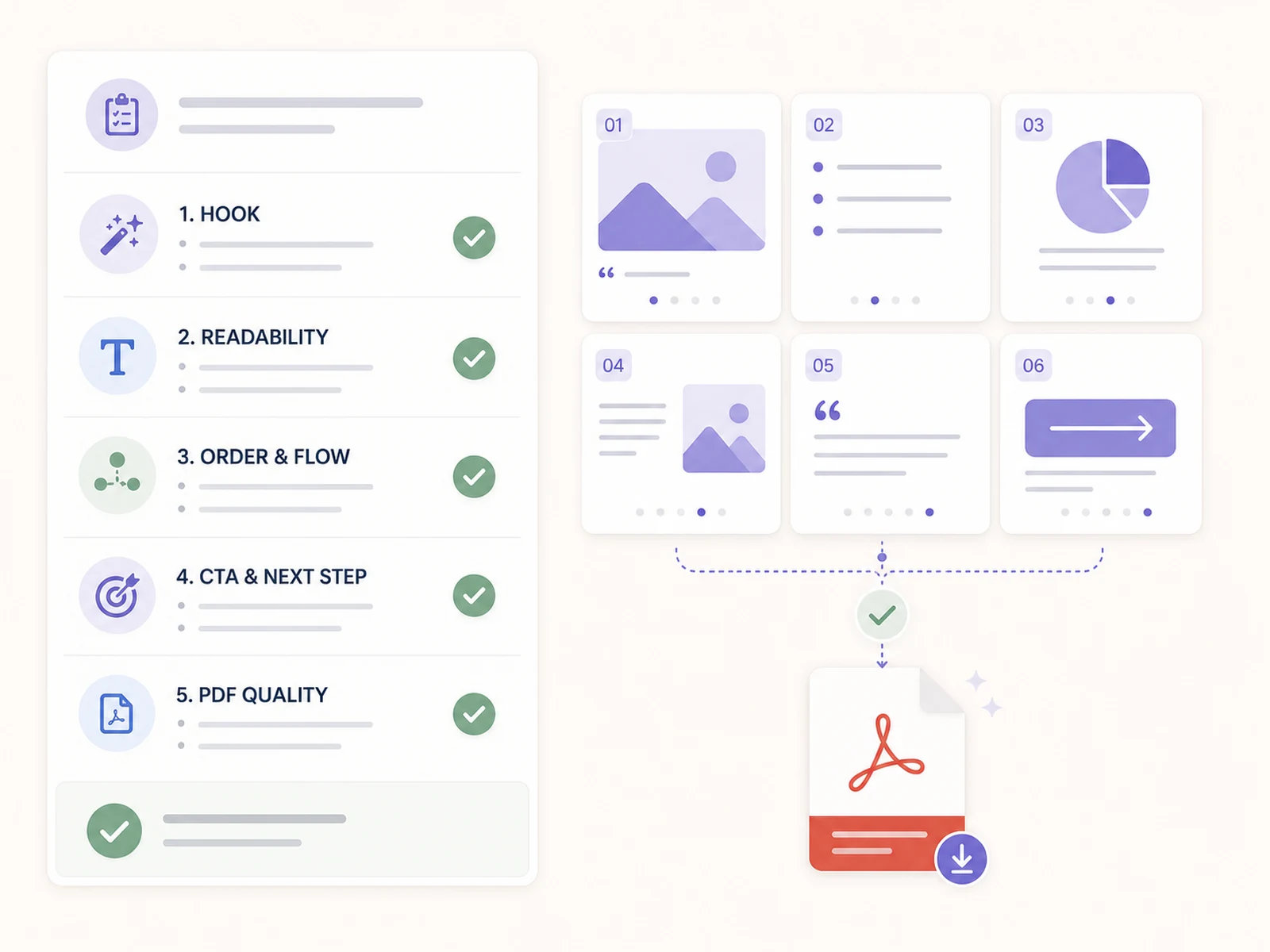
The PDF export step is your final quality gate.
What to check in the downloaded PDF
Before uploading to LinkedIn, open the PDF locally and inspect it like a reader.
Look for:
- cut-off text
- unexpected page order
- tiny body copy
- logos that appear too large
- images that look blurry
- slides that repeat the same point
- broken or unsafe links
- any page with a different size from the others
LinkedIn’s document guidance notes that PDFs with multiple sized pages should be fit to the same page size. That means consistency is not just a visual preference; it helps the upload behave predictably.
How to upload the PDF to LinkedIn
On LinkedIn desktop, the general process is:
- Start a post.
- Choose the document upload option.
- Select your PDF.
- Add a document title.
- Add your post caption.
- Review the preview.
- Publish.
Use the caption to add context, not to repeat every slide. The document should stand on its own, but the caption can explain why the topic matters.
Caption template
Most [audience] struggle with [specific problem].

I put together a short carousel on:
- [point 1]
- [point 2]
- [point 3]

The main takeaway:
[specific lesson]

Which part would you add?PDF export vs PNG export
| Export type | Best for | Tradeoff |
|---|---|---|
| LinkedIn document carousel posts | Best default for LinkedIn carousel publishing. | |
| PNG ZIP | Individual slide images or adapting content elsewhere | Requires more manual handling if used as a LinkedIn document-style carousel. |
| Share link | Reviewing or sharing outside LinkedIn | Not a substitute for native LinkedIn document posting. |
Which export should you choose?
| Publishing goal | Best export | Reason |
|---|---|---|
| Native LinkedIn carousel | Uploads as a document post that readers can swipe inside the feed. | |
| Slide-by-slide reuse | PNG ZIP | Gives you separate image files for presentations, newsletters, or manual edits. |
| Private review | Share link | Lets a reviewer inspect the carousel before you create the final LinkedIn upload. |
Common PDF export mistakes
Exporting before the copy is final
Design polish cannot fix unclear copy. Read every slide out loud before exporting.
Forgetting the document title
LinkedIn asks for a document title during upload. Use a clear title that matches the first slide.
Using too many slides
LinkedIn allows up to 300 pages, but that is not a recommendation. Most professional carousels are much shorter. Use the minimum number of slides needed to make the point clear.
Ignoring mobile readability
A PDF that looks good on a desktop preview can still be hard to read on a phone. Keep copy short and contrast high.
Publishing private source material
If the carousel came from notes, check for names, client details, private metrics, confidential roadmaps, or sensitive information before export.
SlideDrift credit note
SlideDrift uses credits for generation, export, image generation, remixing, and rewrite actions. The export dialog shows the cost before download. According to SlideDrift’s docs, exporting without the SlideDrift banner can cost credits.
Final takeaway
PDF export is the final quality gate. Treat it as a publishing step, not a file-format step.
Create a carousel in SlideDrift, run the pre-export checklist, download the PDF, and upload it as a LinkedIn document post. For product-specific export details, keep the SlideDrift PDF export docs open while you review the file.
Related reading
Before publishing, compare this with the LinkedIn document posts guide and run the final deck through the LinkedIn carousel checklist.
FAQ
What file type should I use for a LinkedIn carousel?
PDF is the safest default because LinkedIn supports PDF documents and recommends converting documents to PDF where possible for quality.
Can I edit a LinkedIn document after posting it?
LinkedIn says you can edit the description or remove the post, but you cannot change or edit the uploaded document in the post.
Does SlideDrift export carousels as PDF?
Yes. SlideDrift’s export workflow includes PDF export for LinkedIn document carousel posts.
Create and export a carousel
Ready to make one? Start with a URL, notes, or a short outline in SlideDrift, then export the finished carousel as a PDF for LinkedIn.