Why AI LinkedIn Posts Sound the Same, and How to Fix the Input
AI LinkedIn posts sound the same because they start from thin input. Start from your own notes, add a past post of yours, then edit, to keep your voice.

Why AI LinkedIn posts sound the same comes down to the input, not the tool. Ask for "a post about leadership" and the model has nothing of yours to work with, so it fills the gap with the most familiar phrasing it knows: the same openers, the same three-part lists, the same tidy lesson. The fix is to give it what only you have.
- Start from your own material: notes, a link or a PDF you wrote, not a one-line topic.
- Say who it's for and what you want: one reader, one point, one next step.
- Show it how you write: a past post of yours.
- Then edit: put back the detail and the opinion only you could add.
Why AI LinkedIn posts sound the same
A language model writes the most likely next words for the request it's given. When the request is short, the most likely words are the ones that appear in thousands of similar posts. That's where the familiar patterns come from:
- An opener that announces a lesson ("Here's what nobody tells you about…").
- A list of three to five broad points that would fit any industry.
- Words like "game-changer," "unlock" and "in today's fast-paced world."
- A closing question bolted on for comments.
None of this is a fault in one product. Two people who type the same short prompt into any AI writer will get posts that read alike, because neither gave it anything different to work from.
Your voice lives in the details: the client question you heard last week, the step you skip that everyone else teaches, the number from your own work, the way you phrase things. If those aren't in the input, they can't be in the output.
Paste your notes, see them as a carousel
SlideDrift drafts the slides from your notes, a post or a link. Edit them, then export the PDF to post.
What LinkedIn says about AI-written posts
LinkedIn doesn't ban AI help. Its help page on content created with the help of AI says AI can help you refine language, proofread or tighten a post, but the post should still carry your own voice and experience. It asks you to review, edit and approve anything AI helped you write, and reminds you that you're responsible for what you post.
The same page names the problem this article is about. It calls low-effort posts with no clear point of view "AI slop," and says generic or repetitive posts are less likely to be widely distributed. LinkedIn says it cares whether a post adds value, not how it was made.
It also recommends saying so when you relied heavily on AI and that isn't obvious from context. The practical takeaway: use AI for the drafting work, and make sure the substance is yours.
Step 1: Start from your own notes, link or PDF
The single biggest change is the starting point. Instead of a topic, give the AI something you've already thought through:
- Notes from a client call, a talk you gave or a problem you solved this week.
- A link to an article or newsletter you wrote.
- A PDF of a report, guide or slide deck you made.
Rough is fine. A messy page of bullet points written by you carries more of your thinking than a polished one-line prompt.
In SlideDrift, the Home box asks for exactly this: paste your notes, a link or half an idea. SlideDrift drafts an editable carousel from pasted notes or a public link on every plan. PDF sources work on paid plans and during a trial; on the Free plan, paste the text you need instead. For the details, see how to create a LinkedIn carousel from notes and how to turn a PDF into a LinkedIn carousel.

Step 2: Add a short brief before the source
Two or three lines above your notes change the draft more than any amount of polishing afterwards. Say:
- Who it's for: "finance leads at companies with 10 to 50 staff," not "business owners."
- The one point: the single idea the reader should leave with.
- What you want them to do next: reply, save it, book a call.
- What to avoid: "no motivational openers, no lists of tips that fit any industry."
For: finance leads at companies with 10 to 50 staff.
Point: reconcile the bank first, not last, at month end.
Next step: ask readers which step they leave until last.
Avoid: generic openers and advice that would fit any job.One focused source makes a cleaner draft than one that tries to cover everything. If your notes hold three ideas, make three posts.
Step 3: Show it how you write with a past post
A brief tells the AI what to say. A sample of your writing shows it how you say it: sentence length, how formal you are, whether you use "I" or "we," how you open.
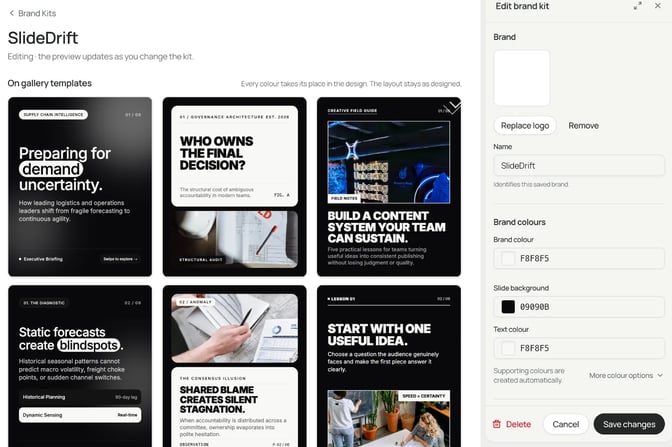
Pick a past post that sounds most like you on a good day, ideally one you wrote without help. In SlideDrift, it goes in your Brand Kit. When editing a kit, fill in Who you help and What readers should do next, then under Writing style paste A past post in your own words. SlideDrift uses that example for voice, rather than copying its topic or claims.
The kit also holds your colours, fonts and logo, so the same kit shapes both the look of a carousel and the words. If your source or request names a different audience or next step, that direction takes priority. For the design side, see how to use brand kits for LinkedIn carousels.
A sample helps; it doesn't do the thinking for you. A draft can match your rhythm and still say something generic if the source was thin. Steps 1 and 2 still matter most.
Step 4: Check the outline before the slides
Generic drafts often go wrong at the structure stage: a slide that restates the title, a "tips" list where you wanted one argument, an ending that doesn't match your point. It's quicker to catch that in an outline than across finished slides.
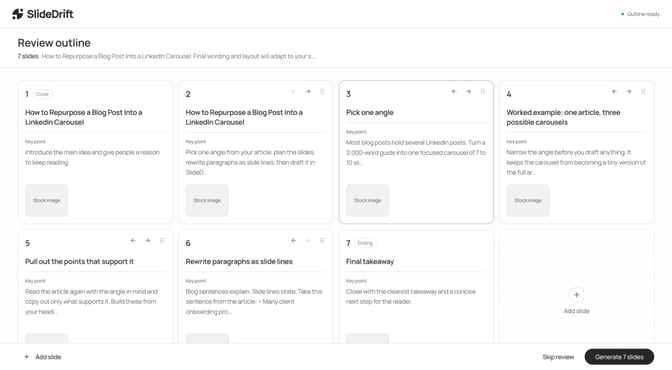
SlideDrift's Plan Mode shows a Review outline step before any slide is made. You can edit each slide's title and key point, add or remove slides and reorder the middle of the story, then choose Generate slides. If a key point reads like advice anyone could give, rewrite it in your words here.
Step 5: Edit until it sounds like you
Treat the draft as a first pass from an assistant who has read your notes. Then do the part only you can do:
- Read it aloud. Cut any sentence you wouldn't say to a client.
- Add one detail per slide or paragraph that only someone who did the work would know.
- Replace stock phrases with your own words. "Leverage" becomes "use." "Unlock growth" becomes the actual result.
- Add your opinion. Where the draft hedges, say what you'd do.
- Check every claim against your source, and cut anything the AI added that you can't stand behind.
In SlideDrift you edit the words on each slide directly, and AI text actions such as rewriting or changing tone are there when a line needs another pass. For a fuller checklist before you post, see how to review AI-generated LinkedIn content before publishing. To see how the caption and first lines will look in the feed, try the free LinkedIn post preview.
A worked example: the same topic, two inputs
The example below is made up for this article. The person, firm and wording are illustrations, not a real post.
Priya runs a small bookkeeping practice for growing companies. She wants a carousel about month-end close.
Input A, a one-line prompt: "Write a LinkedIn carousel about month-end close tips."
The first slide comes back as "5 month-end close tips every business needs." The slides cover staying organised, using software, reconciling accounts, communicating with your team and reviewing reports. It's accurate. It could also have been written by any of her competitors, or by someone who has never closed a month.
Input B, her own material:
- Her notes from three client calls this month, where the same problem came up.
- A two-line brief: for finance leads at companies with 10 to 50 staff; the point is that reconciling the bank last is why closes run late; the next step is to ask readers which step they leave until last.
- A past post of hers in the Brand Kit: short sentences, first person, one dry joke.
This time the first slide reads "Your close runs late because you reconcile the bank last." The middle slides follow the order she actually uses, and the example slide describes a client month (no names, no figures). The closing question is hers.
She still edits. She swaps one slide's wording for a phrase she uses with clients and cuts a line the draft added about software that she doesn't recommend. She's editing a draft that already holds her thinking, rather than rewriting a generic one, and the post sounds like the person clients hire.
Common mistakes that bring the sameness back
- Asking for "viral" or "engaging" posts. That pushes the draft towards the most common patterns.
- Pasting someone else's post as the voice sample. You'll get their rhythm, not yours.
- Using one sample for every kind of post. If you write differently for a client story and a how-to, keep the sample closest to what you post most.
- Regenerating instead of editing. If the structure is right, edit the slides. A new draft from the same thin input will sound the same.
- Skipping the source. No sample or setting makes up for having nothing specific to say.
If your best material is a long article you've already written, see how to repurpose a blog post into a LinkedIn carousel for picking one angle from it before you draft.
FAQ
Why do AI-generated LinkedIn posts all sound the same?
Most start from a short prompt with no specific detail. With nothing of yours to draw on, the model uses the most common phrasing for that kind of post, so different people get similar drafts. Specific input, such as your notes, a brief and a sample of your writing, changes that.
Does LinkedIn allow posts written with AI?
Yes. LinkedIn's help page on AI-assisted content says AI can help refine and tighten posts, but the post should carry your own voice and experience. It asks you to review and approve what you post and recommends saying so when you relied heavily on AI and that isn't clear.
How do I make AI write in my voice?
Give it a past post you wrote yourself, alongside your own notes and a short brief. In SlideDrift, paste the past post under Writing style in your Brand Kit; it's used for voice, not copied for topic or claims. Then edit the draft line by line.
Will a sample of my writing make the post sound like me on its own?
No. A sample shapes tone and rhythm. What makes a post yours is the substance: your examples, decisions and opinions. If the source is thin, the post will be thin in your rhythm. Start from real material and edit the result.
Can I use a PDF or an article I wrote as the source?
Yes. In SlideDrift, paste a public link to your article, or upload a PDF on a paid plan or during a trial. On the Free plan, paste the text you need into the box instead.
Should I regenerate a generic draft or edit it?
Edit it if the structure is right; regenerating from the same input tends to give a similar draft. Regenerate only after you've changed the input: more specific notes, a clearer brief or a better voice sample.
Keep your voice with SlideDrift
SlideDrift is a LinkedIn content studio. Paste your own notes or a link, add a past post of yours to your Brand Kit, check the outline, and edit the carousel until it sounds like you. Start from your notes in SlideDrift.
Make your own carousel
SlideDrift drafts the slides from your text. You edit them, then export a PDF for LinkedIn.


Brief for this carousel
Make a 6-slide LinkedIn carousel for finance leads at companies with 10 to 50 staff on the month-end close mistake I fix most often: reconciling the bank last. A hook slide, what goes wrong, why it happens, the order I use instead, one example from a client month (no names or figures), and a closing question for readers.