How to Brief an AI Carousel Generator So the Output Is Actually Useful
Use this AI carousel generator brief template to get better LinkedIn carousel drafts from notes, URLs, articles, and rough ideas.

An AI carousel generator is only as useful as the brief you give it. A vague input produces a generic deck. A specific brief gives the tool audience context, source material, structure, constraints, tone, and a clear CTA.
The short version: To brief an AI carousel generator, provide the audience, source material, goal, desired structure, key points to include, claims to avoid, brand tone, slide count, CTA, and any compliance constraints. Then review and edit the output before publishing.
SlideDrift can turn URLs, notes, text, and rough ideas into editable LinkedIn carousels, but the best results still come from good input SlideDrift docs.
Key takeaways
- Give the generator one reader, one job, and one main argument instead of a broad topic.
- Include source material, proof boundaries, structure, tone, and the action the final slide should support.
- Ask for an outline first when the structure matters, then review every claim and example before export.
- Keep confidential details and unsupported results out of the brief as well as the finished carousel.
The AI carousel brief template
Use this:
Create a LinkedIn carousel from the material below.
Audience:
Reader problem:
Goal of the post:
Source material:
Main argument:
Points to include:
Points to avoid:
Tone:
Brand style:
Slide count:
CTA:
Compliance or accuracy constraints:
Example carousel slide layouts for How to Brief an AI Carousel Generator So the Output Is Actually Useful.
Bad brief vs good brief
| Weak brief | Better brief |
|---|---|
| “Make a carousel about leadership.” | “Create an 8-slide carousel for first-time managers on how to give clearer feedback without demotivating their team.” |
| “Turn this article into slides.” | “Extract the 5 most useful points from this article for B2B founders and turn them into a practical checklist.” |
| “Make it viral.” | “Use a strong first slide, but keep the tone credible and avoid exaggerated claims.” |
| “Use my brand.” | “Use a calm, direct tone with short headings, minimal jargon, and a practical CTA.” |
A completed brief you can adapt
The template becomes more useful when every field makes a decision. Here is a complete version based on the source used in the SlideDrift walkthrough below:
Audience: Independent consultants
Reader problem: Useful client lessons often stay trapped in private notes
Goal of the post: Show how to turn one safe lesson into a practical LinkedIn carousel
Source material: An anonymized lesson from a completed client project
Main argument: One specific lesson, example, and action is stronger than a list of generic tips
Points to include: Context, the lesson, a concrete example, and one action to try
Points to avoid: Client names, confidential details, invented results, and generic advice
Tone: Practical and direct
Brand style: Use the selected Brand Kit and template without changing the meaning
Slide count: 7
CTA: Ask the reader to apply the lesson to one project this week
Accuracy constraints: Keep outcomes unclaimed and remove identifying detailsNotice what this brief does not ask for: virality, invented metrics, or a finished post without review. It gives the draft a narrow job and sets boundaries before generation starts.
What to include in the source material
A useful source package includes:
- The article, notes, transcript, or outline
- The intended reader
- The main takeaway
- Any examples worth keeping
- Any claims that need citations
- Terms to avoid
- Brand voice notes
- CTA
Give the AI a job, not a topic
“Make a carousel about productivity” is a topic. “Help consultants decide which client tasks to delegate first” is a job.
Better jobs:
- Help founders explain a hard lesson.
- Help lawyers educate clients without legal advice.
- Help doctors explain appointment preparation.
- Help agencies turn a case study into a useful post.
- Help customer success teams reduce repeated support questions.
Add constraints
Constraints improve output. Examples:
- Use 8 slides.
- Keep each slide under 30 words.
- Avoid hype.
- Do not invent statistics.
- Do not include client names.
- Use a checklist structure.
- End with a soft CTA.
- Include a final review slide.
Google's guidance on AI-generated content says quality, usefulness, and people-first value matter more than whether content was created with AI assistance Google AI content guidance.
Ask for the structure first
For important posts, do not generate the final deck immediately. Ask for an outline first:
Before creating the carousel, suggest three possible structures for this topic and explain which one best matches the audience and CTA.This prevents the tool from choosing the wrong format.
Use SlideDrift with stronger inputs
A strong SlideDrift workflow:
- Paste the source URL or notes.
- Add audience and goal.
- Choose a template or structure.
- Apply your Brand Kit.
- Generate the deck.
- Review claims, flow, and CTA.
- Export as PDF.
The walkthrough uses a seven-slide consultant brief with a defined audience, lesson, example, and final action. The generated deck is still a draft: use the editor guide to tighten the copy and sequence before export.
LinkedIn recommends converting documents to PDF where possible and supports document posts up to 100 MB and 300 pages LinkedIn Help.
Final review prompt
After generation, use this review prompt:
Review this carousel outline. Find any vague slides, unsupported claims, repeated points, weak transitions, or CTA problems. Suggest specific edits.Give SlideDrift a strong brief, not just a topic. Better input makes the first draft easier to review, but the final claims, examples, and wording still need your judgment.
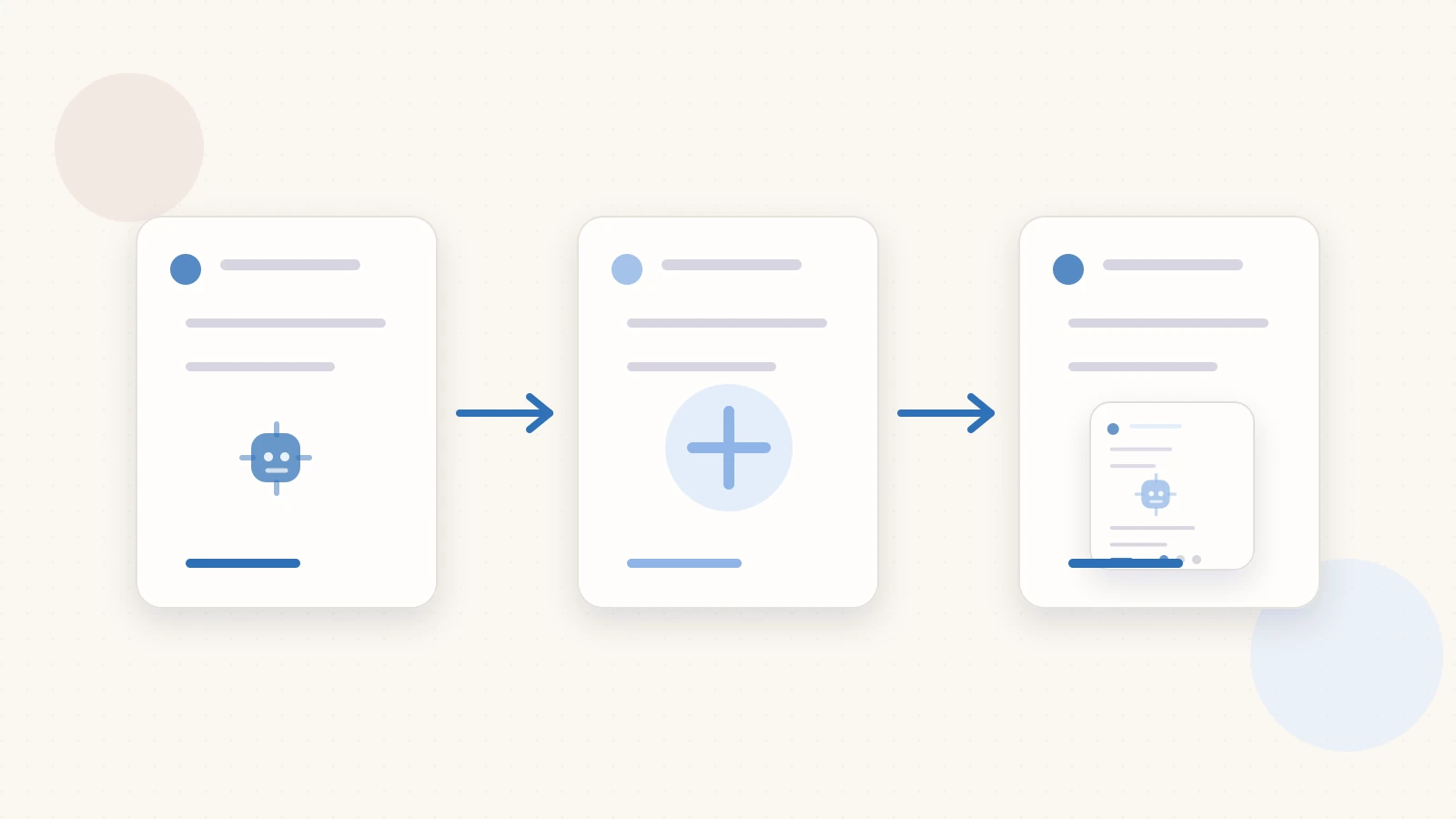
Workflow diagram for applying the process in How to Brief an AI Carousel Generator So the Output Is Actually Useful.
Related reading
If you are still comparing creation workflows, start with the best AI LinkedIn carousel generators and then run the final deck through the LinkedIn carousel checklist.
Create a carousel from your brief
Ready to make one? Start with a URL, notes, or a short outline in SlideDrift, then export the finished carousel as a PDF for LinkedIn.