How to Review AI-Generated LinkedIn Content Before Publishing
Review an AI-written LinkedIn draft in five passes: facts, permission, voice, opening and ending, then the finished post. With before-and-after examples.
Review an AI-written LinkedIn draft in five passes, in this order: check every claim against its source, cut what isn't yours to share, put your own voice back, fix the opening and the ending, then read the finished post the way your readers will. Facts go first because there's no point polishing a sentence you're about to cut.
- Facts: open the source beside the draft and keep, fix, attribute or cut every claim.
- Permission: remove client details, private figures and anything the AI invented about your experience.
- Voice: replace generic lines with a lesson, decision or example only you could give.
- Opening and ending: one specific promise, one idea per slide or paragraph, one ask.
- Finished post: read the caption and every page of the PDF as they'll appear on LinkedIn.
The first four passes each end with a short before-and-after. They're illustrations written for this guide, not real posts.
What LinkedIn expects from AI-assisted posts
LinkedIn welcomes AI-assisted posts when they reflect a real person's perspective, experience or expertise. Its help page on content created with the help of AI says AI can help refine language, proofread or tighten a post, but the post should still carry your own voice and experience. It urges you to review, edit and approve anything AI helped you write, reminds you that you're responsible for everything you post, and recommends saying so when you've relied heavily on AI and that isn't obvious from context.
The same page names what LinkedIn doesn't want: "AI slop," meaning low-effort posts that may sound polished but have no clear point of view, perspective or substance. LinkedIn says it cares whether a post adds value rather than how it was made, and that generic or repetitive posts are less likely to be widely distributed.
The rules for every post apply too. The Professional Community Policies ask you to share information that is real and authentic, and they rule out content that is false, misleading or intended to deceive, including misleading claims about your qualifications, work experience or achievements. The User Agreement warns that text from LinkedIn's own AI writing features may be inaccurate or misleading, and asks you to review and edit it before sharing.
Pass 1: Check every claim against its source
Open the source beside the draft: your notes, the article, the transcript or the report. Don't check facts from memory. A draft can sound certain about things the source never said.
Start with the claims most likely to be wrong or out of date:
- numbers, percentages and dates;
- quotes, and anything attributed to a person, company or study;
- platform rules and limits, which belong to the platform's own help pages;
- product features and prices, which belong to the product's current docs or pricing page;
- client results and comparisons with competitors.
Give each claim one decision:
- Keep it when the source supports the exact wording.
- Fix it when the idea is right but the wording is broader, newer or more certain than the source.
- Attribute it when the claim belongs to someone else: name the study, person or company in the sentence.
- Cut it when you can't find a source, or you don't have permission to publish it.
Illustration
A number with no source
Before: “Carousels get three times more engagement than text posts, so every consultant should be posting them.”
After: “Carousels suit ideas that have steps. If your point fits in three lines, a text post will do.”
The notes behind this draft had no engagement figure, so the number is cut. The useful idea under it stays.
For any claim you'll reuse in later posts, keep a short record:
Draft claim: [the exact sentence from the draft]
Source: [link or document, with its date]
Decision: [keep, fix, attribute or cut]
Final wording: [the sentence you published, or "cut"]
Check again when: [the source or product changes, or a set date]Pass 2: Cut what isn't yours to share
An AI draft works from what you give it, so private notes going in can mean private details coming out. Before you touch the wording, remove what you don't have the right to publish or claim:
- client, patient, employee or candidate details, including ones that identify someone without naming them;
- internal figures, prices or plans nobody has approved for publication;
- experience, credentials or results the AI made up to make the post sound personal;
- images that show a real person saying or doing something they didn't: LinkedIn's policies require a clear disclosure when synthetic or altered media does that;
- material you don't own: LinkedIn's AI guidance asks you to make sure AI-assisted posts don't infringe other people's rights, including intellectual property and privacy.
Check the whole document, not just the cover. LinkedIn's help page on documents says people who can see your post can download the document as a PDF. For legal, medical, financial or HR advice, add a review by someone qualified to give it.
Illustration
A named client and an invented result
Before: “Last month I helped [client name] cut patient no-shows by 40%.”
After: “A dental practice I work with had fewer no-shows after moving reminders to the day before. Here's the reminder schedule.”
The client hadn't agreed to be named, and the notes recorded fewer no-shows but no figure.
Pass 3: Put your own voice back
Now the writing. Read the draft aloud and mark every line you wouldn't say to a client. These are the usual suspects:
- "In today's fast-paced world..."
- "Unlock your full potential"
- "It's not just a strategy, it's a mindset."
- "Game-changer" and "seamless"
- "Let that sink in."
Replace each one with something only you could write: a decision you made, a mistake you've seen, a number from your own work that passed the facts check, or a question a client actually asked. That's the difference LinkedIn draws between AI-assisted writing and AI slop: a real point of view.
Illustration
Generic advice made specific
Before: “In today's fast-paced world, a seamless onboarding experience is a game-changer for client relationships.”
After: “Before the first call, I send new clients one page: what I need from them, what happens in week one, and who to contact if something's late.”
The second version describes something the author really does. If it isn't true for you, don't write it.
Pass 4: Fix the opening and the ending
AI drafts tend to open broad and end with several asks. Check the shape:
- The opening. The first slide, or the lines before "…see more" in a text post, makes one specific promise to one kind of reader. The hook examples show the difference.
- The middle. Each slide or paragraph carries one idea, in an order that builds. Read only the slide headlines: on their own, they should tell the whole argument.
- The ending. One ask that fits what the post gave the reader. A checklist earns a save; an opinion earns a question. The CTA examples match endings to post types.
Illustration
A vague opening and a crowded ending
Opening before: “Client onboarding matters more than ever.”
Opening after: “What to send a new client before the first call.”
Ending before: “Like, comment, share and follow for more. Book a call to see how I can help.”
Ending after: “Save this for your next kickoff.”
The new opening names the reader's moment, and the new ending asks for the one thing a checklist earns.
Pass 5: Read the finished post as your readers will
Review the post in the form people will see, not the draft in your editor. Things change between the two: text overflows a slide, an image crops badly, a link breaks, or the caption's opening cuts off mid-thought.
- Read the caption's first lines, the ones shown before "…see more".
- Open the PDF as a file and page through every slide in order.
- Give the document a clear title when you upload it; LinkedIn asks for one so readers know what it's about.
- Click every link, and check that every @mention points to the right person or Page.
- Check contrast, text size and alt text on any images, using the accessibility guide.
- Confirm which profile or Page you're posting from.
Do this pass last, and before you press Post. LinkedIn lets you edit a document post's text or remove the post afterward, but you can't change the document in it, so fixing a slide means deleting the post and uploading it again. The LinkedIn carousel checklist covers the rest of the pre-publish details.
Reviewing a SlideDrift draft
If you make carousels in SlideDrift, the same passes map onto the editor and the scheduler:
- Give it less to invent. Start from your own notes or a link, and say in the brief what the draft must not add. If you use a Brand Kit, its tone and writing guidance shape the words SlideDrift drafts.
- Read the headlines in order. Open Slide overview in the editor to see the deck as a grid and check the argument from the first slide to the last.
- Edit on the slide. Change any text directly. If you use an AI action to rewrite a slide, review that slide again.
- Open the PDF before you upload it. The PDF export guide says to open the file and check that every slide looks right.
- Hold the post until it's signed off. If you post from SlideDrift on a paid plan, the composer shows the caption in a LinkedIn-style preview and counts the characters left before the "…see more" fold. Choose Save as draft while anything is still under review. Under Client approval, Make a review link lets a client or colleague approve the post or request changes, down to a specific slide, and Only post once it's approved keeps it from going out until they do. If you change the post after it's approved, it needs approval again.
A brief like this keeps the first draft close to your source:
SlideDrift brief
Turn my notes below into a 6-slide LinkedIn carousel.
Use only facts, numbers and examples that appear in the notes.
Don't add statistics, client names, results or quotes.
Write in the first person, plainly, with one idea per slide.
Slide one makes one specific promise. The last slide asks for one thing.

[Paste your notes here]It won't replace the review, but it gives the facts pass less to catch.
Make a carousel from your notes
Paste your notes or a link. SlideDrift drafts the slides; you check every claim, edit the text and export the PDF.
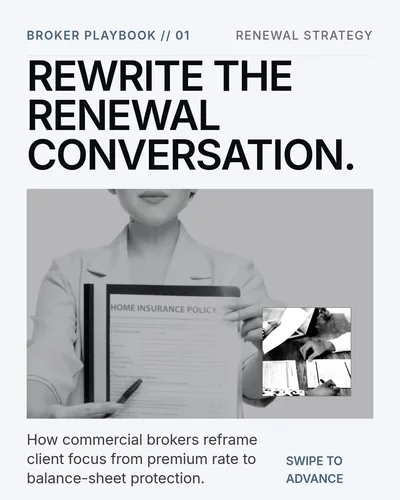
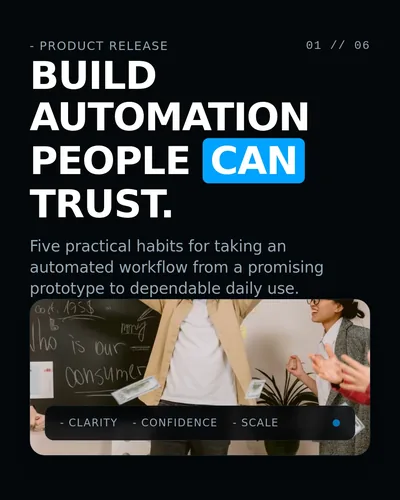
For the steps around this one, see how to make a carousel from notes and how to post a LinkedIn carousel.
FAQ
Do I have to say a LinkedIn post was written with AI?
For text, LinkedIn's help page recommends it rather than requiring it: say so when you've relied heavily on AI and that isn't obvious from context. Its policies do require a clear disclosure for synthetic or altered media that shows a person saying or doing something they didn't. Your employer, clients or industry may have stricter rules.
Does LinkedIn penalize AI-generated posts?
LinkedIn says it judges whether a post adds value, not how it was made, and that generic, repetitive posts or posts without a clear point of view are less likely to be widely distributed. Members can also mark a post as "Seems like AI slop." If a post gets enough of that feedback, its author sees a tip in Post analytics, which LinkedIn says isn't a removal or a policy decision.
Can I fix a carousel after posting it?
You can edit the post's text or delete the post, but LinkedIn doesn't let you change the document in a document post. To fix a slide, delete the post, correct the PDF and post it again.
Who should review an AI-written LinkedIn post?
At minimum, the person whose name is on it. Add someone qualified when the post gives legal, medical, financial or HR advice, and ask the client before you publish anything that describes their work.