How to Post a LinkedIn Carousel in 2026
Step-by-step instructions for posting a LinkedIn carousel in 2026, including PDF export, upload steps, caption tips, and checks.
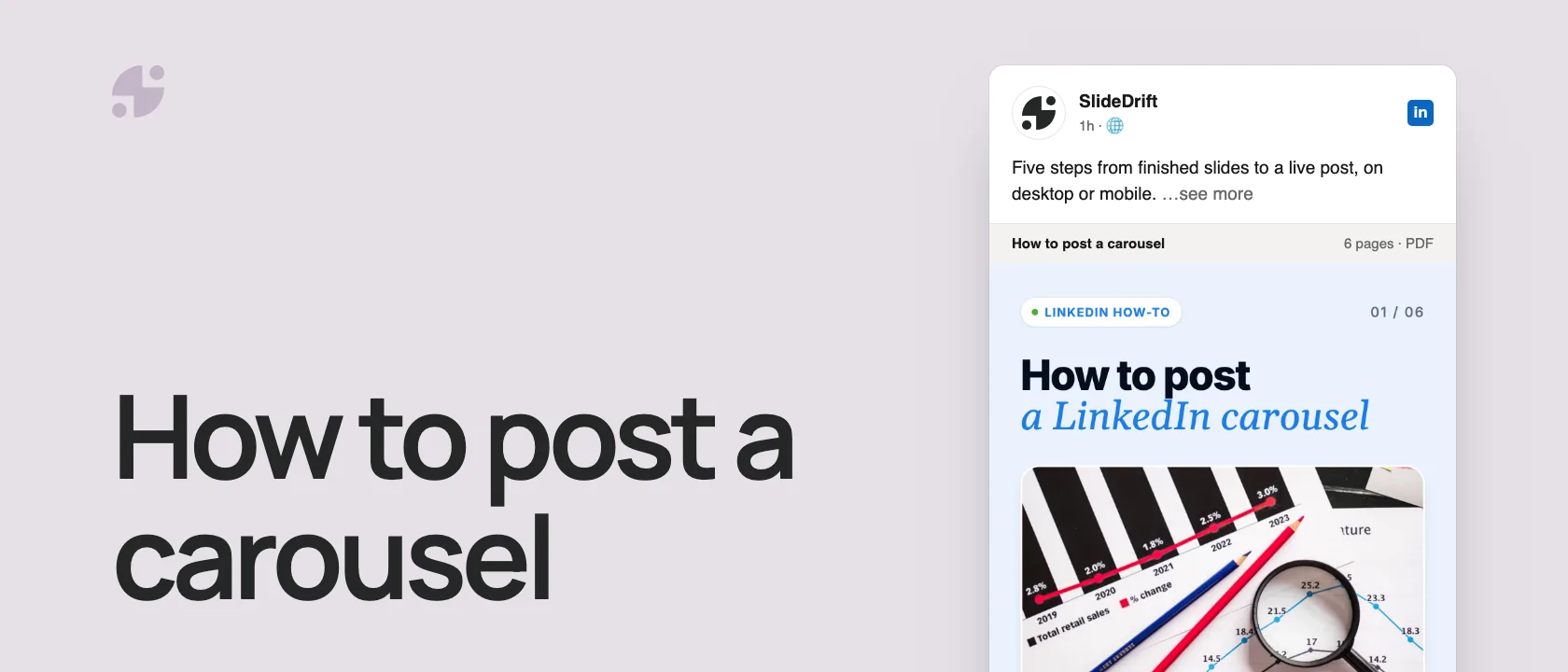
To post a carousel on LinkedIn, you upload it as a document:
- Export the carousel as one PDF and open it once to check it.
- On LinkedIn, select Start a post, then More, then Add a document.
- Choose the PDF and give it a title.
- Write a caption that says why it's worth swiping.
- Select Post.
LinkedIn calls this a document post. Readers swipe through its pages, which is why most people call it a carousel.
Before you upload: check the file
LinkedIn won't let you swap the document in a post after it's published, so check the file first:
| Check | Why it matters |
|---|---|
| Open the PDF | Make sure every slide came out right |
| Check the page order | LinkedIn shows the pages in the order they're saved |
| Read it on your phone | Small text that looks fine on a monitor can be unreadable in the feed |
| Use one page size | LinkedIn says PDFs with mixed page sizes must be fit to one size |
| Check the size and length | LinkedIn's limit is 100 MB and 300 pages |
LinkedIn also accepts PPT, PPTX, DOC and DOCX files, but recommends PDF for the best quality. In SlideDrift, open the carousel, choose Export, then PDF; the PDF export guide has the details. If your pages aren't one size, see the carousel size guide.
Here's the whole process as a carousel, made in SlideDrift.
SlideDriftCreate your ownCarousel transcriptShowHide


- 01How to post a LinkedIn carousel. Five steps from finished slides to a live post, on desktop or mobile.
- 02Step 1, export one PDF, then check it. Open the PDF once before you upload. Check that every slide came out right, the pages are in order and every page is the same size. LinkedIn can't swap it later.
- 03Step 2, start a post, then add a document. Select Start a post at the top of your homepage, then More, then the Add a document icon. On mobile: Post, More, Document. LinkedIn calls this a document post.
- 04Step 3, upload the PDF and give it a title. Choose the file and add a document title. Name the content, not the file: "5 checks before you post" beats "final-v3".
- 05Step 4, give readers a reason to swipe. Write the caption: the problem, what the carousel explains, and why it matters to the reader. Don't repeat every slide.
- 06Step 5, post it. You can't swap the PDF later. Select Post. You can edit the caption later, but to change the slides you have to delete the post and upload again.
Post it on desktop
These are the steps from LinkedIn's help page:
- Select Start a post at the top of your LinkedIn homepage.
- Select More, then the Add a document icon.
- Select Choose file and pick your PDF.
- Add a title for the document and select Done.
- Add your caption.
- Select Post.
Post it on mobile
- Tap Post.
- Tap the More icon, then Document.
- Choose the PDF from your phone or cloud storage.
- Add a title and tap Next.
- Add your caption.
- Tap Post.
If you made the PDF on a computer, send only the final, checked version to your phone, with a clear file name, so you don't upload an old draft by mistake.
Give the document a clear title
The title sits with the document, separate from your caption, and it's what people see if they download the file. Describe the content, not the file:
- Weak: "Carousel final", "LinkedIn post", "May content"
- Better: "7 onboarding mistakes that slow down SaaS activation", "The consultant's client discovery checklist"
Write a caption that earns the swipe
Don't repeat every slide in the caption. Give the reader a reason to open the carousel:
[The problem or context]

[What the carousel explains]

[Why it matters to the reader]For example:
Most onboarding emails fail because they try to explain the whole product before the user gets one win.

I broke down the 7 mistakes I see most often, and what to do instead.

Swipe through the checklist.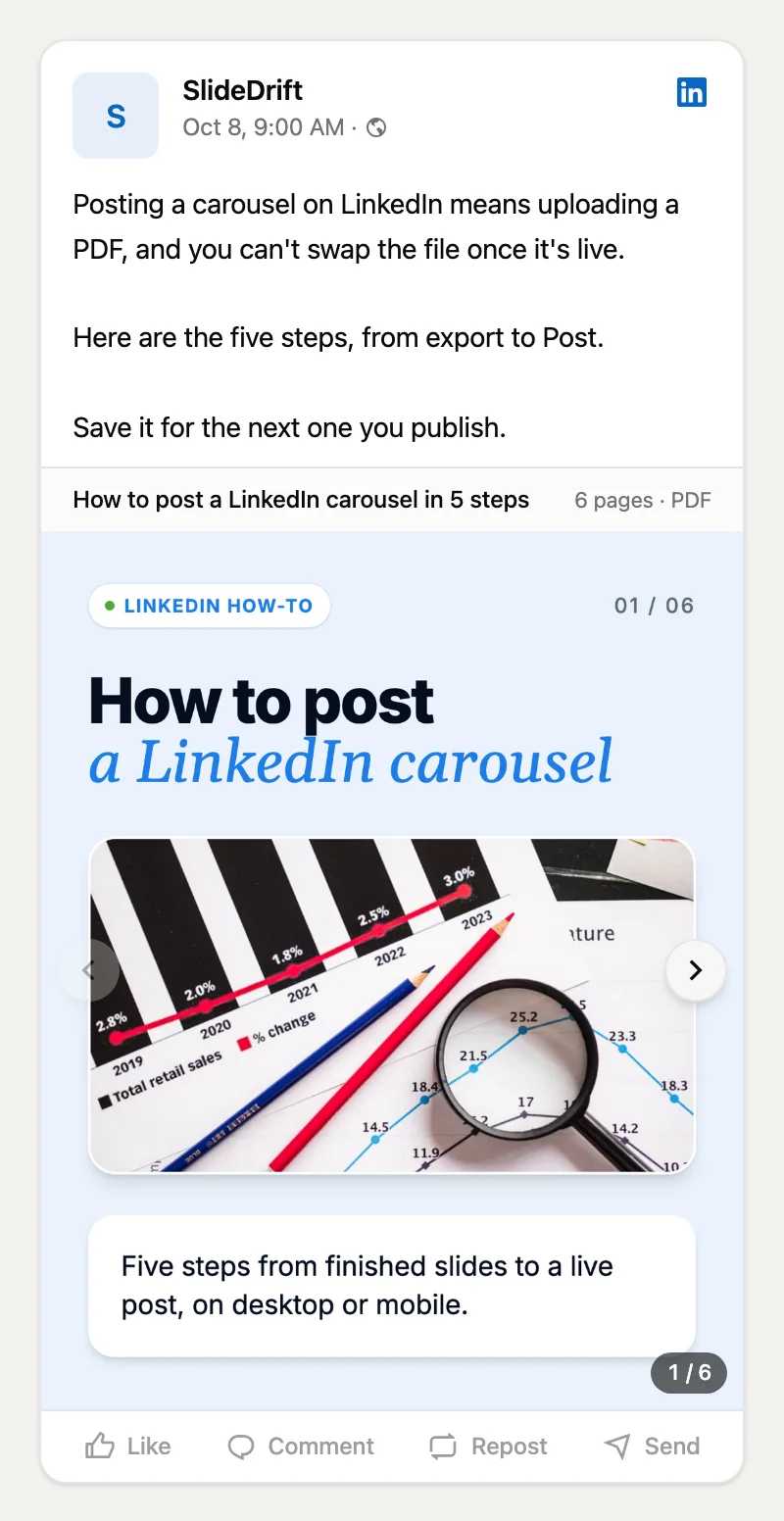
You can edit the caption after posting, but not the document. The carousel CTA examples help with the last slide.
Or schedule it from SlideDrift
On paid plans, SlideDrift can post the carousel to LinkedIn for you, so you skip the export-and-upload step. Open Schedule, choose New post, pick Carousel and your carousel, write the caption, choose the account and time, and check the feed preview before you select Schedule post or Publish now.
Scheduling is free; a carousel uses 20 credits when it publishes, or none if it carries the SlideDrift banner. Starter connects one personal profile; Pro and Agency can also post to Company Pages. LinkedIn scheduling covers the details.
Make your carousel
Paste your notes or a link, edit the slides, then export the PDF or schedule it to LinkedIn.
Brief for this carousel
Make a 6-slide LinkedIn carousel on how to post a LinkedIn carousel. A cover, then one step per slide: export one PDF and check it, start a post and add a document, upload the PDF and give it a title, write a caption that gives readers a reason to swipe, and post it (the caption can be edited later, the document can't).
Keep the posting details together
If someone else uploads the post, or you post it days after making it, keep the file and the copy in one place so nobody has to rebuild them in the composer:
Final PDF:
Document title:
Caption:
Reader action:
Final checks:
What you'll measure:Illustrative example
Filled in: SaaS onboarding checklist
Final PDF: saas-onboarding-checklist-v3.pdf, opened and approved after export.
Document title: 7 onboarding mistakes that delay a user's first win.
Caption: see where a new user's path gets harder than it needs to be.
Reader action: compare the checklist with one onboarding path and mark the first unnecessary step.
Final checks: eight pages, one page size, right order, readable text, claims checked, under LinkedIn's limits.
What you'll measure: saves, because the carousel is a checklist people will come back to.
After you publish
Don't judge a carousel by likes alone. LinkedIn's post analytics can include impressions, members reached, reactions, comments, reposts, saves, sends, profile activity and link engagement, and LinkedIn notes these are estimates.
Pick the signal that fits the post's job: saves and sends for a checklist, thoughtful comments or profile visits for an expertise post. They show how people responded to the post, not whether it moved your business.
Common upload problems
| Problem | Likely cause | Fix |
|---|---|---|
| Slides look blurry | Low-quality export | Export a high-quality PDF |
| Pages in the wrong order | The export order was wrong | Reorder the slides and export again |
| Text too small | Too much on one slide | Split dense slides in two |
| Upload fails | File too large or unsupported | Export a smaller or simpler PDF |
| Wrong file posted | An old export was picked | Delete the post and upload the right PDF; LinkedIn can't replace the document |
| Links don't work as expected | Links inside PDFs behave inconsistently | Put the next step in the caption or on the last slide |
Before you upload, run the LinkedIn carousel checklist.
FAQ
How do I post a carousel on LinkedIn?
Export your carousel as a PDF, then on LinkedIn select Start a post, More, Add a document, choose the file, add a title, write a caption and select Post.
Can I edit a LinkedIn carousel after posting?
You can edit the caption, but not the document. To change the slides, delete the post and upload the corrected PDF.
What file should I upload?
A PDF. LinkedIn also accepts PPT, PPTX, DOC and DOCX files up to 100 MB and 300 pages, but recommends PDF for the best quality.
Can I post a LinkedIn carousel from my phone?
Yes. Tap Post, then the More icon, then Document, choose the file, add a title, write the caption and tap Post.
Can I schedule a LinkedIn carousel?
Yes. On SlideDrift's paid plans you can schedule a carousel to your LinkedIn profile, or to a Company Page on Pro and Agency, and SlideDrift posts it at the time you pick.