LinkedIn Hashtags: How Many to Use and How to Choose Them
How to add hashtags to a LinkedIn post, how many to use, how to pick specific ones for your field, and how to write them so everyone can read them.

To add LinkedIn hashtags to a post, type # followed by a word or phrase with no spaces, such as #EmploymentLaw. For most posts, three to five specific hashtags at the end are plenty. That's a sensible default rather than a LinkedIn rule. Choose tags that describe your field and the post's topic, capitalise each word, and let the post itself do the work.
- How to add them: on a computer or a phone.
- How many: and where to put them.
- How to choose: field, topic and audience tags.
- How to write them: so screen readers and search can read them.
- A worked example: an employment lawyer's grievance post.
How to add hashtags to a LinkedIn post
LinkedIn's help page on using hashtags explains that you add one by typing # and then the word or phrase in your post. As you type, LinkedIn suggests matching hashtags, and you can pick one from the list or keep typing your own.
On a computer
- Write the post in LinkedIn's post box.
- Go to the end and leave a blank line.
- Type # and the first word of the tag.
- Pick a suggestion or finish typing it yourself.
- Add a space before the next hashtag.
On a phone
It's the same in the LinkedIn app. Type # on your phone's keyboard, then the word. The # key is usually on the symbols page, under 123 or ?123.
From a generator
If you'd rather start from a list, SlideDrift's free LinkedIn hashtag generator suggests tags for a topic or industry. Type the topic, tap the tags you want, then copy them or send them straight to the post preview. It doesn't need an account.
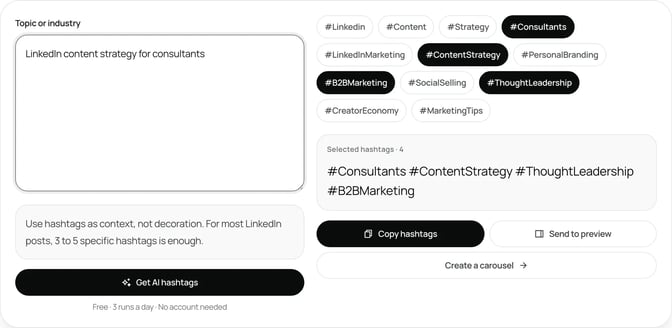
Treat any generator's list as a starting point. Keep the tags that describe your post, and drop the broad ones.
How many hashtags should you use on LinkedIn?
LinkedIn doesn't publish a number. Three to five is a practical default for most posts.
- One to three suits a short post on a single topic.
- Three to five suits a longer post or a carousel that covers a few related points.
- More than five usually means some tags are there for volume, not meaning. Readers notice.
LinkedIn also doesn't say that hashtags change how many people see a post. So don't treat them as a reach tactic. Treat them as labels that tell readers, and LinkedIn, what the post is about. A clear first line and a useful post matter more than any tag.
Posts can contain up to 3,000 characters, according to LinkedIn's help page on posting, and hashtags count toward that. SlideDrift's free LinkedIn character counter counts your hashtags alongside characters, words and lines, so you can see when a tag block is getting heavy.
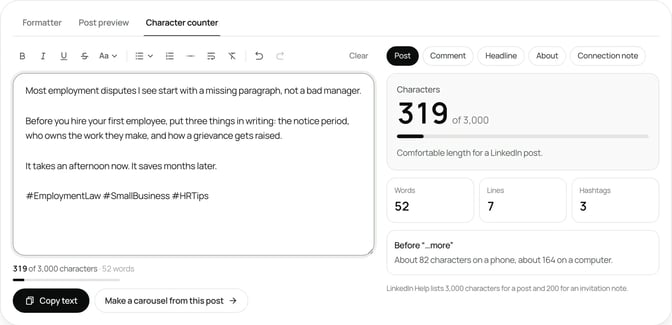
Where to put hashtags in a post
At the end, on their own line. This is the cleanest option. The post reads naturally, and the tags sit out of the way.
Inside a sentence, sparingly. One hashtag can sit inside a sentence if the word belongs there anyway: "Three questions to ask before a #GDPR audit." More than one breaks up the reading.
Not in the first line. The opening line is what readers see before "…more." Spend it on your point. The LinkedIn hook examples show openings that work in plain words.
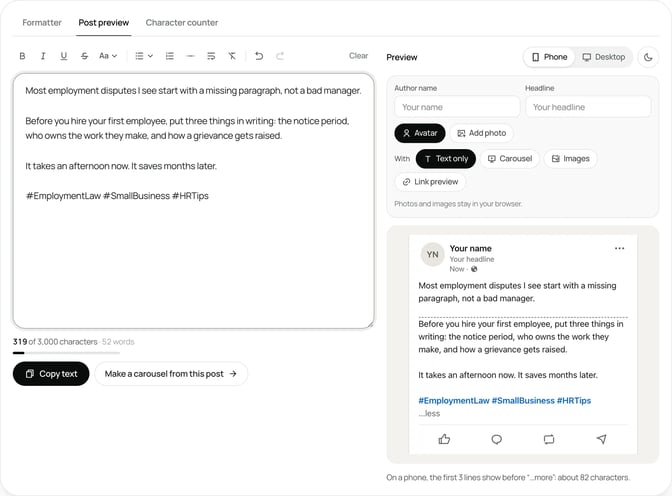
The free LinkedIn post preview draws hashtags in LinkedIn's blue and shows the approximate "…more" cut on a phone or computer, so you can check the tags don't crowd the post.
How to choose LinkedIn hashtags
Good hashtags describe the post. Pick from three groups and you'll rarely need more.
| Group | What it says | Examples |
|---|---|---|
| Field | Your area of work | #EmploymentLaw #Accounting #ExecutiveCoaching |
| Topic | What this post is about | #Grievances #YearEndAccounts #Delegation |
| Audience | Who it's for | #SmallBusiness #Founders #HRLeaders |
A practical mix is one field tag, one or two topic tags and, if it fits, one audience tag.
Specific beats broad. A tag like #Business or #Success describes almost every post on LinkedIn, so it tells nobody anything about yours. #EmploymentLaw or #CharityFinance tells the right reader the post is for them.
Use the words your clients use. A tax adviser might say "corporation tax planning," while their clients search for "business tax." Pick the version a reader would recognise.
Check a tag before you rely on it. Search the hashtag on LinkedIn and look at the recent posts. If they're about something else, or mostly spam, choose a different tag.
Keep a short list. Most people who sell their expertise post about a handful of themes. Keep a note of six to ten tags that fit those themes, and pick from it each time, instead of inventing new ones for every post.
How to write hashtags so everyone can read them
Capitalise each word. #EmploymentLaw is easier to read than #employmentlaw, for people and for screen readers. The US government's Section 508 guide to accessible social media notes that screen readers can read a multiword hashtag as one long word, and recommends capitalising each word, as in #FourthOfJuly. The capitals don't change which tag it is. Our guide to accessible LinkedIn carousels covers the rest of a caption that works with a screen reader.
No spaces or punctuation. A hashtag usually ends at the first space or punctuation mark, so #small-business may only tag #small. Join the words instead.
Keep them in plain letters. Bold or italic letters from a formatter, and emojis, make a tag harder to search for. If you use the LinkedIn text formatter, format the post and leave the tags plain.
Keep them short. A tag of two or three words is easy to read. #HowToWriteABetterLinkedInPost isn't.
Hashtag mistakes to avoid
- A wall of tags. Ten hashtags under a three-line post look like a bid for attention, not a label.
- Popular but unrelated tags. A trending tag that has nothing to do with your post brings the wrong readers, if any.
- The same block on every post. If every post carries identical tags, they stop describing anything. Match the tags to the post.
- Tags instead of words. "Big week for #tax #compliance #deadlines" says less than one plain sentence about the deadline.
- Hashtags in your hook. Keep the first line for your point.
- Tags in every comment. Comments are conversations. Plain text reads better there.
Hashtags on carousels and Company Pages
Carousels. Put hashtags in the caption, not on the slides. Tags in the caption work as hashtags, while tags typed onto a slide are just part of the design. The LinkedIn carousel checklist covers the rest of the caption, from the first line to the ask.
Company Pages. The same rules apply. Use a few tags that describe your firm's field and the post's topic. If several people post for the Page, agree a short list of tags so posts stay consistent.
How to change hashtags after you post
LinkedIn lets you edit a post after it's published, so you can add, remove or fix a hashtag. Edit the text as normal and save. It's worth checking the tags once a post is live, since a typo in a hashtag creates a different tag.
Worked example: an employment lawyer's grievance post
Daniel is a made-up employment lawyer who advises small companies. He's written a post on what a manager should do in the first week after an employee raises a grievance. His first draft ends like this:
#law #HR #business #leadership #management #success #employees #work #legal #advice #UK #grievanceTwelve tags, mostly broad, and all lower case. The useful one, #grievance, is buried at the end.
He cuts it to four:
- Field: #EmploymentLaw
- Topic: #Grievances and #WorkplaceInvestigations
- Audience: #SmallBusiness
He puts them on the last line, after his closing question, and capitalises each word. He searches #WorkplaceInvestigations on LinkedIn first and finds recent posts from other lawyers and HR advisers, so he keeps it.
The finished ending reads:
What's the first thing you do when a grievance lands on your desk?

#EmploymentLaw #Grievances #WorkplaceInvestigations #SmallBusinessThe preview shows the tags sit below the cut on a phone, so the first lines carry the post. Several managers comment asking for the steps in more detail, so he turns the post into a carousel for the following week. Here's his brief:
SlideDrift brief
Make a 5-slide LinkedIn carousel for managers at small companies.
Goal: show them what to do in the first week after an employee raises a grievance, so they handle it fairly and avoid common mistakes.
Structure: a hook slide ("The first week after a grievance"), one slide per step with a short explanation, and a closing question for readers.
Tone: calm, plain and practical. General information, not legal advice for any one situation.
Avoid: hashtags on the slides, invented statistics, client names and promises about outcomes.The caption carries the same four hashtags, and the slides carry none.
FAQ
How do you add a hashtag on LinkedIn?
Type # followed by a word or phrase with no spaces, such as #EmploymentLaw, anywhere in your post. LinkedIn suggests matching hashtags as you type.
How many hashtags should I use on LinkedIn?
LinkedIn doesn't set a number. Three to five specific hashtags is a practical default for most posts, and one to three suits a short post.
Do hashtags help on LinkedIn?
They label what your post is about, which can help the right readers recognise it. LinkedIn doesn't say they change how many people see a post, so a clear, useful post matters more than the tags.
Where should hashtags go in a LinkedIn post?
At the end, on their own line, is usually best. One tag can sit inside a sentence if the word belongs there anyway. Keep them out of the first line.
Should LinkedIn hashtags be capitalised?
Yes, capitalise each word, as in #SmallBusiness. It's easier to read, and screen readers are more likely to read the words separately. It doesn't change which tag it is.
Can I use hashtags in LinkedIn comments?
You can type them, but comments are conversations, so plain text usually reads better there.
Should I put hashtags on carousel slides?
No. Put them in the caption, where LinkedIn can read them as text, and keep the slides for your content.
Turn a tagged post into a SlideDrift carousel
When a post grows into steps or a checklist, a carousel can carry the detail while the caption carries the hashtags. Paste the post into SlideDrift and it drafts the slides for you to edit.
Turn your post into a carousel
Paste your post or notes. SlideDrift drafts the slides in your brand; you edit them, then export the PDF or schedule the post.


Brief for this carousel
Make a 5-slide LinkedIn carousel for managers at small companies on what to do in the first week after an employee raises a grievance. A hook slide, one slide per step, and a closing question for readers.