LinkedIn Emojis: How to Add Them and When They Help a Post
How to add emojis to a LinkedIn post on a computer or phone, which ones read well in a professional feed, and what they cost screen reader users.

You can add LinkedIn emojis with the emoji button in the post box, your computer's emoji panel or your phone's keyboard. They show up for everyone, in posts, comments and messages. The harder question is when to use them. A few can help a reader scan a post. A string of them makes it harder to read, especially with a screen reader.
- How to add them: on a computer, on a phone and from a formatter.
- Which ones work: emojis that do a job in a professional feed.
- The costs: screen readers, character counts and how they look on other devices.
- Patterns: three ways to use emojis that read well.
- A worked example: a financial adviser's pension checklist.
How to add emojis to a LinkedIn post
There are three ways in. All of them put the same emoji into your post.
| Where you're writing | Easiest way |
|---|---|
| LinkedIn on a computer | The emoji button in the post box, or your computer's emoji panel |
| LinkedIn app on a phone | The emoji key on your phone's keyboard |
| A draft in another tool | Your computer's emoji panel, then copy the text into LinkedIn |
On a computer
LinkedIn's help page on posting and sharing updates lists an emoji option in the post box, next to the buttons for photos and other media. Click it, pick an emoji, and it goes in where your cursor is.
Your computer has its own emoji panel too, which works in any text box, including comments:
- Windows: press the Windows key and the full stop (period) together.
- Mac: press Control, Command and Space together, or choose Edit, then Emoji & Symbols.
Type a word such as "check" or "pin" to search the panel, then press Enter.
On a phone
The LinkedIn app uses your phone's keyboard, so tap the emoji key (a smiley face or a globe on most keyboards) and pick one. Most phone keyboards also let you search emojis by name.
From a draft or a formatter
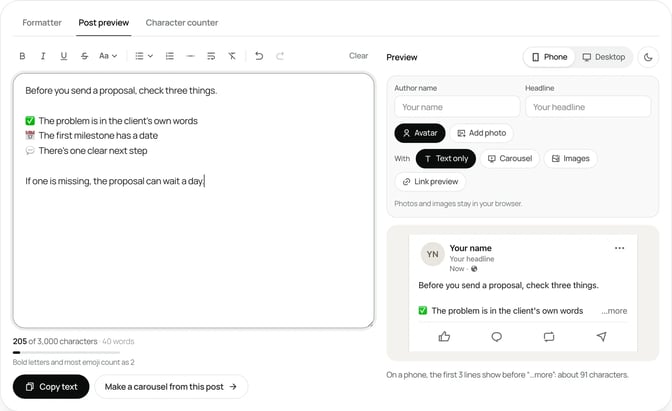
If you write posts somewhere else first, emojis copy across with the text. SlideDrift's free LinkedIn post preview takes pasted text, emojis included, and shows how the post will sit in the feed on a phone or a computer, with the approximate "…more" cut. It's a quick way to check the emojis line up the way you meant before you paste the post into LinkedIn.
In comments and messages
Emojis work in comments the same way, from your computer's panel or your phone's keyboard. In LinkedIn Messaging you can also react to a message with an emoji instead of typing a reply.
Should you use emojis on LinkedIn?
Yes, if each one does a job. LinkedIn doesn't publish anything saying emojis change how many people see a post, so treat them as a reading aid, not a reach tactic.
A useful test: delete every emoji from the post and read it again. If it says the same thing, the emojis were decoration, which is fine in small doses. If it no longer makes sense, the emojis were carrying meaning that should be in words.
Here's how that plays out for people who sell their expertise:
- A lawyer posting about a change in employment rules can use a calendar emoji next to the date it takes effect. The date is still written out.
- An accountant listing documents can use a check mark at the start of each line. The list still reads as a list without them.
- A coach sharing a client lesson probably doesn't need any. The story does the work.
If you're unsure, leave them out. A plain post never looks wrong. An emoji-heavy post can look like it's trying too hard, especially to the clients and partners you most want to impress.
Emojis that work in a professional feed
The emojis that read well on LinkedIn are the ones with one clear meaning.
| Job | Emojis that do it | Use them for |
|---|---|---|
| List markers | ✅ ▪️ 👉 | The start of each item in a short list |
| Pointing to a link or next step | 👇 ➡️ | One line that points to a comment, link or carousel |
| Dates and deadlines | 📅 ⏰ | The line with the date, next to the date in words |
| Numbered steps | 1️⃣ 2️⃣ 3️⃣ | Short sequences, three to five steps |
| Warnings or common mistakes | ⚠️ ❌ | A single line you want readers to stop on |
| Ideas and tips | 💡 | One tip in a longer post |
Be careful with:
- Faces and hand gestures. Their meaning shifts between people, cultures and age groups. A face that looks friendly to you might read as sarcastic to someone else.
- Rockets, fire and money bags. They tend to read as hype in a feed of professional advice.
- Flags. Unless the post is about a country, they add little and can look different from one device to another.
- Emojis in your name or headline. People look for you by name and by what you do, and screen readers announce the emoji every time your name appears.
What emojis cost your readers
Emojis are characters, not pictures you attach. That has three practical effects.
Screen readers read every one aloud. Each emoji has a name, and a screen reader says it. A line ending in three rockets is read as "rocket, rocket, rocket." The US government's Section 508 guide to accessible social media warns that screen readers describe each emoji individually, so too many in one post can confuse listeners. It suggests putting emojis at natural breaks, such as the end of a sentence, rather than in the middle of one. Some of your clients, or their staff, use a screen reader.
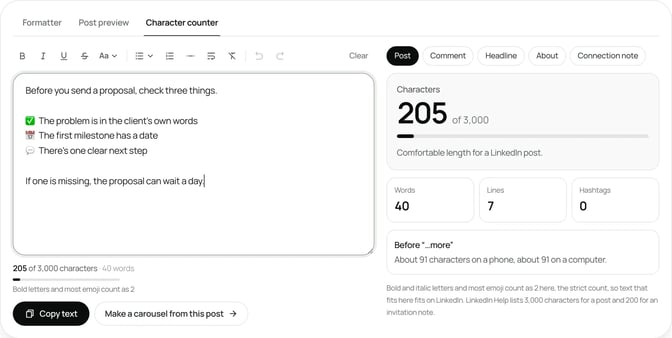
Most emojis count as two characters. LinkedIn's help page on posting allows up to 3,000 characters per post. Most emojis are stored as two units, and some, such as flags, skin-tone variations and numbered keycaps, take more. SlideDrift's free LinkedIn character counter counts most emoji as two, the strict count, so text that fits there fits on LinkedIn.
They look different on different devices. Unicode, the standard behind emojis, defines what each one is but not exactly how it looks. Its emoji FAQ explains that each platform draws its own designs. So the emoji you pick on a Mac may look a little different on an Android phone, and a newer emoji may show as a blank box on an older device.
None of this rules emojis out. It means a few emojis at the edges of lines are fine, and emojis in place of words aren't.
Three emoji patterns that read well
These patterns use emojis for structure. The examples are made up; swap in your own details.
The checklist. One emoji at the start of each line, the same emoji every time.
Before you sign a commercial lease, check three things:

✅ The break clause: when you can leave, and what it costs.
✅ The rent review: how the rent changes, and how often.
✅ Repairs: who pays to fix what.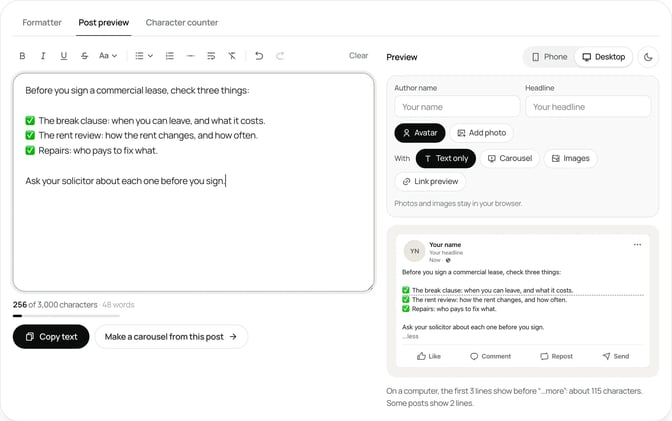
The single pointer. One emoji on the line that tells readers where to go next.
I've put the full checklist in a carousel below.
👇The date marker. An emoji next to a deadline, with the date written out in words.
📅 The new rules start on 1 April.
If you employ anyone, update your contracts before then.Each of these keeps the meaning in the words. Remove the emojis and the post still works. For more post structures to fill in, see the LinkedIn post templates, and the how to post on LinkedIn guide walks through the post box step by step.
Emoji mistakes to avoid
- An emoji on every line. If every line has one, none of them stand out.
- Emojis in the middle of a sentence. "We help 🚀 founders 💼 grow 📈" is hard to read and harder to listen to.
- Emojis instead of words. "I ❤️ tax season" relies on the reader decoding the picture. A screen reader says "red heart."
- Mixing many kinds. Check marks, arrows, stars and faces in one post look busy. Pick one or two.
- Emojis in hashtags. Keep hashtags as plain words so people can search for them. The free LinkedIn hashtag generator suggests a short set of plain tags for a topic.
- Emoji-heavy first lines. The opening line is the one every reader sees before "…more." It should work in plain words. The LinkedIn hook examples show strong openings without decoration.
Emojis in carousels and images
On carousel slides, emojis are part of the design, so the same rules apply with more force. A small icon can help a reader find their place on a slide, but a slide full of emojis looks cluttered, and the emoji may render differently in the exported PDF than on your screen.
If a slide needs a symbol, a simple icon in your brand colour usually reads better than an emoji. Keep the caption in plain text, with the key points written out for anyone who can't see the slides. Our guide to accessible LinkedIn carousels covers how to write that caption, and the LinkedIn post design guide covers making text posts and visuals easy to scan.
How to change emojis after you post
LinkedIn lets you edit a post after it's published. Open the post's menu, choose Edit, then delete or add emojis like any other text. If you reuse a post later, keep a plain-text copy without emojis. It's easier to add a few back than to strip out many.
Worked example: a financial adviser's pension checklist
Priya is a made-up financial adviser who works with people in their late fifties and sixties. She wants to post four questions people should ask before choosing a pension option. Her first draft looks like this:
🚨🚨 Retiring soon?? 🚨🚨 Here's what nobody tells you 👀💰It's loud, and a screen reader reads it as "police car light, police car light, Retiring soon…" before getting to the point.
She rewrites it:
- She makes the first line plain: "Four questions to ask before you choose a pension option."
- She puts each question on its own line with the same marker, 1️⃣ to 4️⃣, and writes the question out in full after each one.
- She adds one 📅 next to the line about when to start planning, with the timing in words.
- She ends with one plain question: "Which of these did you wish you'd asked sooner?"
The preview shows the first line and the first question above the "…more" cut on a phone. The counter shows the emojis added a few dozen characters, well under the limit.
Several comments ask for more detail on the second and fourth questions, so she turns the post into a carousel for the following week. Here's her brief:
SlideDrift brief
Make a 6-slide LinkedIn carousel for people approaching retirement.
Goal: help them ask the right questions before choosing a pension option, so they can make a calmer, better-informed decision.
Structure: a hook slide ("Four questions to ask before you choose a pension option"), one slide per question with a short explanation of why it matters, and a closing question for readers.
Tone: calm, plain and practical. General information, not personal financial advice.
Avoid: emojis on the slides, invented statistics, client names and promises about returns.The slides use clear headings instead of emojis, and the caption lists the four questions in plain text.
FAQ
How do I add emojis to a LinkedIn post?
Click the emoji button in the post box on a computer, or use your computer's emoji panel (Windows key and full stop on Windows; Control, Command and Space on a Mac). On a phone, use the emoji key on your keyboard.
Are emojis professional on LinkedIn?
They can be, used sparingly. A few emojis as list markers or next to a date help readers scan. Faces, hype emojis and long strings of them can look unprofessional to clients.
How many emojis should I use in a LinkedIn post?
LinkedIn doesn't set a number. A practical rule is to use them only where each one does a job, such as marking list items, and to keep them at the start or end of lines rather than inside sentences.
Do emojis affect how many people see my LinkedIn post?
LinkedIn doesn't say that emojis change reach. A clear, useful post matters more than decoration.
Can I use emojis in LinkedIn comments and messages?
Yes. Use your computer's emoji panel or your phone's keyboard. In LinkedIn Messaging you can also react to a message with an emoji.
Why do some emojis show as boxes?
The device reading the post doesn't have a design for that emoji, often because the emoji is newer than the device's software. Common emojis like check marks and arrows avoid the problem.
Should I put emojis in my LinkedIn headline or name?
It's best not to. People search for you by name and by what you do, and screen readers announce the emoji every time your name appears.
Turn a post with a list into a SlideDrift carousel
When a post grows into a checklist or a set of steps, a carousel can hold the structure that emojis strain to. Paste the post into SlideDrift and it drafts the slides for you to edit.
Turn your post into a carousel
Paste your post or notes. SlideDrift drafts the slides in your brand with clear headings; you edit them, then export the PDF or schedule the post.


Brief for this carousel
Make a 6-slide LinkedIn carousel for people approaching retirement on four questions to ask before choosing a pension option. A hook slide, one slide per question, and a closing question for readers.