LinkedIn Post Templates: 10 Copy-Ready Formats for Experts
10 LinkedIn post templates for experts, each with a fill-in structure and a filled example, plus layout rules and design tips for image and carousel posts.
A LinkedIn post template is a reusable structure with blanks: a first line that names the reader's problem, a few short lines of substance, and one question or next step. The ten below are for people who sell expertise, such as consultants, accountants, lawyers and coaches. Each has a fill-in skeleton and an example that fills every line. For image and carousel posts, the template is a design: one idea, big type, a portrait size and your brand colors.
- Pick by goal with the table, then copy the skeleton.
- Format it for a phone before you post.
- Turn the strongest one into an image or carousel.
Pick a LinkedIn post template by goal
Start with what the post should do for the reader, then choose the structure. Most templates work as a text post first. The ones built on steps, lists or comparisons also make good carousels.
| Your goal | Template | Format that suits it |
|---|---|---|
| Show you understand clients' problems | The client question | Text post or carousel |
| Prove you've done the work | The lesson from a project, the before and after | Text post or single image |
| Correct a costly belief | The myth | Text post or carousel |
| Give readers something to save | The checklist | Carousel |
| Make your process clear to buyers | How we do X | Carousel |
| Start a discussion | The opinion, the mistake I made | Text post |
| Share news | The announcement | Single image |
| Stay visible after an event | The event recap | Multi-image or text post |
If you'd rather start from your own notes, SlideDrift's Post ideas turns notes or a link into carousel, image, text and poll drafts. For more angles to fill these templates, see LinkedIn post ideas.
10 LinkedIn post templates you can copy
Swap the brackets for your own words and keep the line breaks. The examples are made up for this article. They leave out results, because yours should come from your own work.
1. The client question
A client asked me: "[their question, in their words]"
Most people answer it with [the usual answer]. Here's how I answer it:
1. [first thing to check or do]
2. [second]
3. [third]
The exception: [when the answer changes]
[Question for readers]A client asked me: "Should I hire a bookkeeper or keep doing the books myself?"
Most people answer it with a price. Here's how I answer it:
- Count the hours you spend on the books each month.
- Ask whether those hours could go to paid work.
- Check whether your records are ready on time.
The exception: if you enjoy it and it's up to date, keep going.
What would you add?
2. The lesson from a project
On a recent [type of project], we started with [what you did first].
What I expected to matter: [assumption]
What mattered: [lesson]
What I'll do differently: [change]
[Question for readers]On a recent pricing project, we started with a competitor table.
What I expected to matter: what rivals charge.
What mattered: which customers would leave if the price went up.
What I'll do differently: ask that on day one.
What do you ask first on a pricing job?
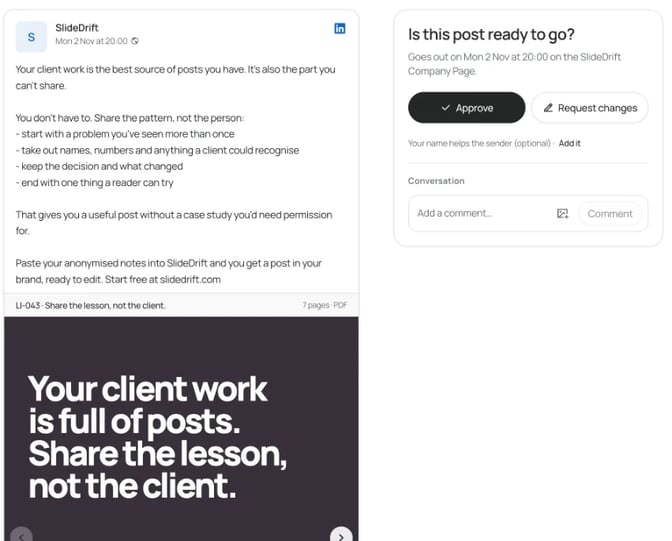
Take out names, numbers and anything a client could recognize.
3. The myth
Myth: [belief your clients hold]
Reality: [what's true, in one line]
Why it sticks: [reason]
Do this instead: [one action]Myth: a profitable business always has cash.
Reality: profit and cash arrive at different times.
Why it sticks: the profit and loss report looks healthy while invoices sit unpaid.
Do this instead: track when invoices are paid, not only when they're sent.
4. The checklist
Before you [task], check these [number] things:
- [item]
- [item]
- [item]
Save this for your next [task].Before you brief a recruiter, check these four things:
- What the hire must deliver in their first six months
- The salary range you've approved
- Who makes the final decision
- The interview steps
Save this for your next hire.
5. The before and after
Before: [the original, in one line]
After: [your version, in one line]
What changed: [the principle]
Try it on your own [thing].Before: "We deliver innovative digital solutions."
After: "We build booking websites for physiotherapy clinics."
What changed: it names the client and the job.
Try it on your own homepage headline.
6. The opinion
Most [people in your field] say [common advice]. I don't agree.
My view: [your view, in one line]
Why: [reason from your own work]
Where I might be wrong: [honest limit]
Agree or disagree?Most consultants say a strategy needs a full document. I don't agree.
My view: if a team can't repeat the three priorities from memory, the document is too long.
Why: the plans I've seen teams use fit on one page.
Where I might be wrong: regulated industries need the detail.
Agree or disagree?
7. How we do X
How we [process] at [firm]:
1. [step], because [why]
2. [step], because [why]
3. [step], because [why]
What clients don't expect: [one detail]How we review a commercial lease:
- The break clause, because it decides how easily you can leave.
- Repairs, because that's where hidden costs sit.
- Rent reviews, because they decide how the cost changes.
What clients don't expect: we ask about their five-year plans before we read a word.
8. The mistake I made
A mistake I made early on: [mistake]
What it cost: [in plain words]
What I do now: [change]
[Question inviting others to share]A mistake I made early on: I said yes to every coaching client who asked.
What it cost: some needed a therapist or a lawyer, and I couldn't help them.
What I do now: every first call ends with a clear answer on whether I'm the right person.
How do you decide who to turn away?
9. The announcement
News: [what's new], starting [date].
Who it's for: [client type]
What it includes: [two or three items]
Next step: [how to book or ask]News: a fixed-scope brand review, starting next month.
Who it's for: small design studios.
What it includes: the logo, the color palette and one key web page.
Next step: message me and I'll send the details.
10. The event recap
I spent [day] at [event]. Three things I'm taking away:
1. [idea]
2. [idea]
3. [idea]
The one I'll act on first: [idea], because [why]I spent Thursday at an HR leaders' meetup. Three things I'm taking away:
- Exit interviews come too late to fix anything.
- Managers want scripts more than training.
- Policy changes stick when someone explains them in person.
The one I'll act on first: the scripts, because they're the quickest to write.
How to lay out a LinkedIn post
A good template still fails as a wall of text on a phone.
Put the point in the first two lines. LinkedIn shows only the start of a post before "see more", and where the cut falls can change by device. The LinkedIn post preview shows an approximate fold in desktop and mobile-style previews.
Stay within the limit. LinkedIn's help page on posting and sharing updates says posts can contain up to 3,000 characters, and points to an article for anything longer. The LinkedIn character counter shows the character, word and line count.
Use short paragraphs and blank lines. One idea per line, or two, as in the examples above.
Bold a few words, not whole paragraphs. Bold in a post usually means Unicode letters that look bold: the LinkedIn text formatter swaps them in, with a live preview. Use it sparingly: designer Per Axbom wrote in August 2023 that screen readers most often skip these letters or read them out one by one, and search engines don't find them. Keep names, numbers and key terms plain.
Choose a link or an image. LinkedIn's help page on sharing photos says a post can include a URL link or an image, but not both at once.
End with one question or one next step. Two asks split the reader's attention.
Which templates make good carousels?
If a template has steps, a list or a before and after, each part can get its own slide: the checklist, how we do X, the myth and the client question all work. If it's one view with one reason, like the opinion or the mistake I made, keep it as text.
Socialinsider's 2026 LinkedIn benchmark covers 1.3 million posts from 16,645 business Pages. Native document posts, the format carousels use, averaged a 7.00% engagement rate by impressions in 2025, against 4.50% for text posts. That's an average across company Pages, not a forecast for your profile.
Design templates for image and carousel posts
A visual post template is a layout you reuse: where the headline sits, how big the type is, which colors and fonts you use, and where a photo goes. Good ones share a few traits.
- One idea per image or slide. A second idea needs a second slide.
- Big type. The headline should still read at thumbnail size on a phone.
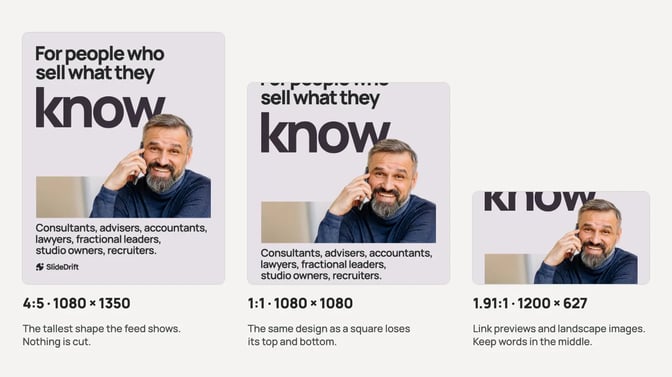
- A portrait size. LinkedIn's photo help page recommends images 1080 pixels wide and accepts ratios from 3:1 to 4:5, so 1080 x 1350 is the tallest shape at that width. That page doesn't cover document posts, which is how carousels are posted; the carousel size guide does.
- Your brand colors and fonts. The same palette and fonts make your posts look like they come from one place. A SlideDrift Brand Kit holds your colors, fonts and logo so each design starts from them.
- A person or a real product only where it's relevant. For a checklist or a myth, clear text is enough.
Shape matters because the feed crops what doesn't fit:
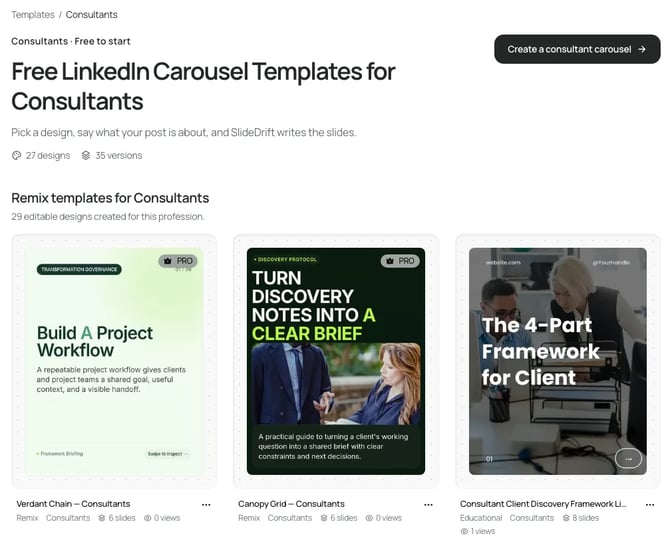
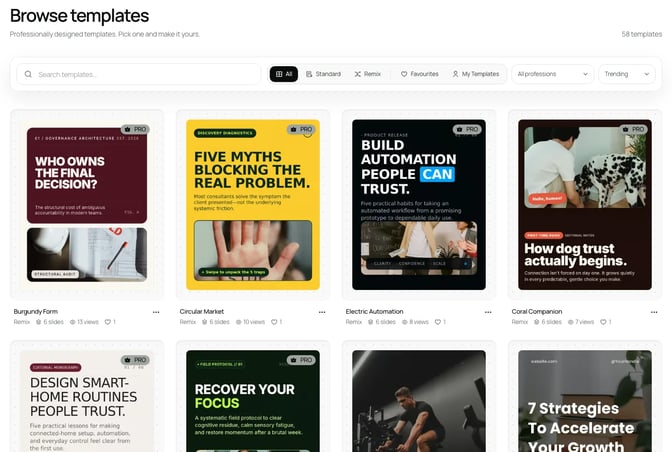
To start from a design, browse SlideDrift's Templates, filter by Standard, Remix or profession, and preview the slides first; the templates guide explains the options. For a single image, Graphics starts from a library design or your own images. To choose a carousel layout, see how to choose the right LinkedIn carousel template, the carousel templates for consultants and the thought leadership templates.
Worked example: a coach turns the client question into a carousel
Priya, a made-up career coach, keeps hearing one question: how do I explain a career change in an interview? Filled into template 1, the text post reads:
A client asked me: "How do I explain a career change in an interview?"
Most people answer it with an apology. Here's how I answer it:
- Name the change in one sentence.
- Link one skill from your old work to the new role.
- Say what you've done to prepare.
The exception: if the change wasn't your choice, keep it short and move to what's next.
What would you add?
As a carousel, each part of the answer gets its own slide, and readers can save it before their next interview. Priya pastes this brief into SlideDrift:
SlideDrift brief
Make a 7-slide LinkedIn carousel for mid-career professionals changing fields.
Goal: help them explain a career change in an interview with confidence.
Structure: the client question as the hook, why most people answer it badly, name the change in one sentence, link one skill from the old work to the new role, show how you've prepared, what to say if the change wasn't your choice, and a closing question for readers.
Tone: calm, practical and encouraging.
Avoid: promises of job offers, invented statistics and client names.She picks a template and her Brand Kit first, then edits the draft with the phrases her clients actually say. That edit matters: LinkedIn's guidance on AI-assisted posts says you're responsible for everything you post, and that generic content without a clear point of view is less likely to be widely distributed.
The carousel hook examples can sharpen the first slide, and the carousel templates for coaches have more coaching structures.
When the carousel is ready, export the PDF and upload it to LinkedIn as a document, or, on a paid plan, schedule it from SlideDrift to a connected LinkedIn account. For other platforms, export PNG images in square 1:1, portrait 4:5 or stories 9:16, or use image links. Posting to a Company Page needs the Pro or Agency plan. For dimensions, see LinkedIn post sizes.
FAQ
What is the best format for a LinkedIn post?
It depends on the job. A short text post suits an opinion or a quick lesson, a single image suits news, and a carousel suits steps, checklists and comparisons. In every format, put the point in the first two lines and end with one question or next step.
What size should a LinkedIn post image be?
LinkedIn recommends images 1080 pixels wide and accepts ratios from 3:1 (wide) to 4:5 (portrait), with uploads up to 5 MB. A 1080 x 1350 image is the tallest shape it accepts at that width.
How long should a LinkedIn post be?
LinkedIn allows up to 3,000 characters. The templates here use far less, because readers decide from the first lines whether to tap "see more". Check the length with the character counter before you post.
Is it okay to use AI to fill in a LinkedIn post template?
Yes, if the result reflects your own view and you check it before posting. LinkedIn says you're responsible for everything you post and recommends telling people when you've relied heavily on AI. Fill the brackets with your own examples so the post couldn't have come from anyone else.
Where can I find LinkedIn post design templates?
SlideDrift's Templates library lets you browse and preview carousel designs, filtered by profession if you like, and Graphics covers single-image posts. Free exports carry the SlideDrift banner, and paid plans can remove it. Whatever tool you use, set a portrait size and apply your own colors and fonts.
Turn a template into a post in SlideDrift
In SlideDrift's Post ideas, paste your notes or a link, and it drafts a mix of carousel, image, text and poll posts in your Brand Kit's look. You edit it, then export it or, on a paid plan, schedule it.
Turn your client question into a post
Paste a client question or your notes. SlideDrift drafts the slides in your brand, you edit them, then export the PDF or schedule the post.


Brief for this carousel
Make a 7-slide LinkedIn carousel for consultants and coaches called 'Ten LinkedIn post templates'. Start with the answer: a template is a structure with blanks. Then show the client question, the myth, the checklist and the before and after as one slide each, with a fill-in line and a one-line example. End by telling readers to pick one template and use their own client example.