How to Choose the Right LinkedIn Carousel Template
Choose a LinkedIn carousel template by the job the post must do, the source and proof you have, and the action you want. Pick the look last.

To choose the right LinkedIn carousel template, pick the structure before the style. Match the template to the job the post has to do, such as a checklist to prevent mistakes, steps to explain a process or a comparison to support a decision, then check that your source has the material and proof to fill every slide. Choose the look last.
Ask four questions first
- What job does the post do? Teach a process, prevent mistakes, compare options, prove a result or argue a point.
- What source do you have? A blog post, newsletter, podcast, case study, webinar or report each suits some structures better than others.
- What proof can you share? A case-study template needs real results you're allowed to show. Without them, choose a structure that teaches.
- What should readers do after the last slide? Save the post, comment, share it with a colleague, read the full article or try a tool.
Each answer narrows the choice. The tables below show where they lead.
Match the template to the reader's need
| Reader need | Template | Use it when | Avoid it when |
|---|---|---|---|
| "Help me avoid mistakes" | Checklist | You have practical do's and don'ts | The topic needs nuance and context |
| "Help me understand a process" | Step by step | The steps happen in a clear order | The process isn't linear |
| "Help me make a decision" | Comparison | You can compare the options fairly | You only want to promote your option |
| "Help me believe this works" | Case study | You have a real example and results you can share | You can't share the details accurately |
| "Help me think differently" | Thought leadership | You hold a clear view and can explain why | You only have generic advice |
| "Help me explain this to my team" | Framework | A simple model makes a complex topic clearer | The framework feels forced |
| "Help me act today" | Fill-in template or prompt | The reader can reuse it right away | The topic needs expert review first |
For layouts built around two of these jobs, see the case study carousel templates and the thought leadership templates.
Match the template to your source
| Source | Templates that fit |
|---|---|
| Blog post | Summary, framework or checklist |
| Newsletter | Lesson, opinion or step by step |
| Podcast notes | Lessons, quotes or decision rules |
| Case study | Before and after, problem and solution, or a breakdown of the proof |
| Webinar | A short series of carousels, or the key takeaways |
| Sales deck | Objection handling or buyer education |
| Support tickets | FAQ or mistake prevention |
| Research report | Data story or summary of findings |
The guides to turning a blog post, podcast notes or a webinar into carousels walk through those sources in more detail.
Let the last slide decide the structure
The action you want readers to take changes which structure works best.
| Call to action | Templates that fit |
|---|---|
| Save this | Checklist, glossary, fill-in template |
| Comment | Opinion, common mistake, comparison |
| Book a call | Problem, risk, then a checklist |
| Try a tool | Workflow, before and after, tutorial |
| Read the full article | Summary, data story, teaser |
| Share with your team | Framework, process, policy explainer |
The CTA examples show how to word each ending, and the hook examples cover the first slide.
Let the material set the slide count
Give every slide one job, and stop when the material runs out. LinkedIn's help page on document posts allows up to 300 pages, but that's an upload limit, not a target. In SlideDrift, you set the count in Preferences before you press Generate: 5 to 12 slides, with 7 as the default. The guide to how many slides a LinkedIn carousel should have covers the tradeoffs.
Template mistakes to avoid
- A case-study template without results you can share. Tell the story as the problem, what changed and what you learned, and leave out the results slide.
- A thought-leadership template for a generic tip. A short how-to or checklist suits a tip better.
- A checklist for a topic that needs judgment. Use a framework that explains when each option applies.
- A comparison template for a one-sided pitch. Compare fairly, including where your option isn't the right fit.
- A photo-heavy template for an abstract idea. If the source has no images to show, pick a text-led layout.
Fill in a template brief
Answer these before you open a template:
Reader:
Job (teach, warn, compare, prove or argue):
Source:
Proof you can share:
One action after the last slide:
Structure:
Template:
Brand Kit:Worked example
Completed brief: checks before you upload a carousel
This brief uses a public source anyone can check: LinkedIn's help page on sharing documents.
Reader: someone about to upload their first carousel as a LinkedIn document post.
Job: prevent mistakes.
Source: the help page. It lists the files LinkedIn accepts (PDF, PPT, PPTX, DOC and DOCX, up to 100 MB and 300 pages), recommends PDF for the best quality, and says you can edit a post's description after posting but not the document.
Proof you can share: LinkedIn's own rules. There are no results to report, so a case-study template doesn't fit.
One action after the last slide: save the post for the next upload.
Structure: a checklist with one check per slide, seven slides in all:
- Five checks before you upload a carousel.
- Export a PDF: LinkedIn recommends it for the best quality.
- Keep the file within 100 MB and 300 pages.
- Add a document title.
- Proofread every page: you can edit the description later, but not the document.
- Leave out anything private: viewers can download the file as a PDF.
- Save this post for your next upload.
Template: a Standard template with a plain body layout, since every check slide has the same shape and the source has no photos.
Brand Kit: your default kit, so the slides use your colors and fonts.
Every check traces back to LinkedIn's page, so a reviewer can confirm each slide before you post.
Choose and apply a template in SlideDrift
Open Templates to browse the library. Narrow it with the Standard, Remix, Favourites and My Templates filters or by profession, and sort by Trending, Most viewed or Newest. Preview shows every slide before you choose. What the buttons on a card do depends on the kind of template:
| Template | Button | What happens | Credits |
|---|---|---|---|
| Standard | Use template | The create box opens with the template picked. Add your notes, a link or an idea, then press Generate. | 10 |
| Standard with a PRO badge | Use template | The same, and the badge shows the price. | 30 |
| Remix design | Use template · 30 | Keeps the design as drawn and writes your content into its own text boxes. | 30 |
| Remix design | Recreate · 100 | The Remix designer rebuilds the deck in that style around your content. | 100 |
Free accounts can use Pro templates, including Remix designs used as they are, twice a day. Paid plans have no daily limit. If you aren't signed in, SlideDrift asks you to create a free account first.
Add your brand
A template sets the layout, and a Brand Kit adds your colors, fonts, logo and details. Free and Starter keep one Brand Kit, Pro five and Agency 25. Pick a kit from the brand menu in the create box before you press Generate, or apply one later from the editor's Brand panel. Your default kit is used unless you pick another, and No brand kit keeps the template's own colors.
Standard templates take the kit's colors. On a Remix design, the kit restyles the whole design while the layout keeps its own margins and spacing. Include brand details, on by default, fills only the slots marked for your brand name, website, social handle, tagline, logo or profile photo. The guide to using Brand Kits for LinkedIn carousels covers kits in more depth.
Keep templates for later
Signed in, use the heart on a template's card to save it. It then appears under Favourites on Templates and in Saved under Library, with any Graphics and Photo Styles you've saved. On Pro and Agency, you can also turn your own carousel into a template: open the editor's View settings menu (the gear icon) and choose Save as Template. Pro holds up to 25 saved templates and Agency up to 100, listed under My Templates.
Generate and check the draft
Once you've picked a template, paste your brief and source into the create box:
SlideDrift brief
Turn the notes below into a LinkedIn carousel checklist for [audience].
Job: help them avoid mistakes when they [task].
Slides: a cover that names the risk, one check per slide, and a last slide that asks readers to save the post.
Use only facts from the notes. Make no claims about reach or results.

[Paste your notes or source text here]If your source is a web page, put its link on its own line instead of pasting the text. SlideDrift reads the page and keeps any notes you typed; if the page can't be read, Switch to text paste writes from your text instead. SlideDrift then drafts the slides in your template. Edit them against your brief, choose Share, then Export, then Download PDF, and run the LinkedIn carousel checklist before you upload the file as a document post.
Start a carousel from a template
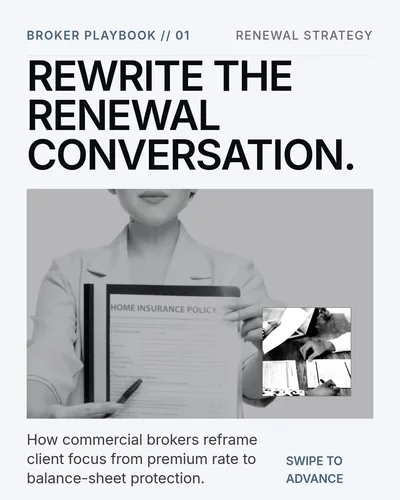
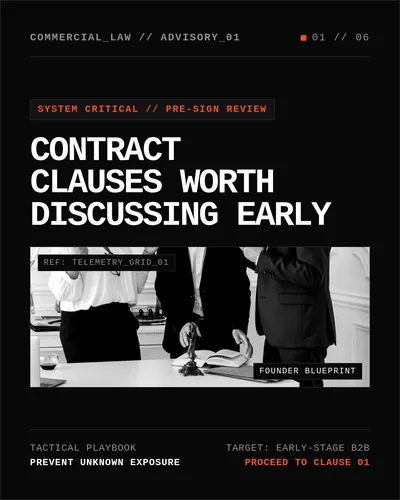
Add your notes, a link or an idea, pick a template and press Generate. SlideDrift drafts editable slides for you to check before you export the PDF.

FAQ
What is the best LinkedIn carousel template?
No single template suits every post. The best one has the structure the post's job needs: a checklist to prevent mistakes, steps for a process, a comparison for a decision, or a case study when you have results you can share. Choose the structure first and the look second.
Should I pick a Standard template or a Remix design?
Pick a Standard template when you want a reusable layout that repeats cleanly, such as one step or check per slide. Pick a Remix design when you like a particular design: Use template · 30 keeps it as drawn and writes your content into its text boxes, while Recreate · 100 has the Remix designer rebuild the deck in that style around your content.
Can Free accounts use Pro templates?
Yes, twice a day. Generating from a Pro template, including a Remix design used as it is, costs 30 credits, and paid plans have no daily limit.
Can I use my brand colors with a template?
Yes, with a Brand Kit. Free and Starter keep one; Pro and Agency keep more. Pick it before you generate or apply it later from the editor's Brand panel, and the slides take your colors and fonts. No brand kit keeps the template's own colors.
Can I save my own carousel as a template?
Yes, on Pro and Agency. Choose Save as Template in the editor's View settings menu, and the design appears under My Templates on the Templates page. Pro holds up to 25 saved templates and Agency up to 100.