LinkedIn Post Design: Rules and 10 Ideas for Non-Designers
Design LinkedIn image posts, infographics and carousels that read on a phone: size, type, contrast and brand, plus 10 layouts experts can reuse.

Good LinkedIn post design is one idea per image, in type big enough to read on a phone, with strong contrast and the same brand look every time. Make images and carousel pages 1080 × 1350 px, a 4:5 portrait, the tallest shape LinkedIn accepts. Then pick a layout that fits the idea.
- The rules: one idea, big type, contrast, a consistent look and the 4:5 size.
- Where things get cut off: tall images, the caption's "…more" and the edges.
- 10 layouts: what each one shows and when to use it.
- A worked example: a made-up accountant's tax tip as an image and a carousel.
Five rules for LinkedIn post design
You don't need design training to make a post that reads well. You need a few rules you apply every time.
One idea per image. Most people see your post on a phone, between other posts. An image that makes one point gets read. An image with a headline, three bullets, a chart and a logo strip gets skipped. A second idea goes on a second slide or in a second post. The LinkedIn post ideas article covers where those ideas come from.
Type that reads at phone width. On a phone, a 1080 px wide image shrinks to the width of the screen. As a rule of thumb, set body text at 40 px or more on a 1080 px canvas and the headline at two to three times that. Keep the headline to six to ten words and put no more than three short lines under it.
Then send the image to your phone and read it at arm's length. If you have to zoom, cut words or make the type bigger.
Strong contrast. The WCAG contrast guideline asks for at least 4.5:1 between normal text and its background, and 3:1 for large text (18 point, or 14 point bold). Your image shrinks on a phone, so aim for 4.5:1 everywhere. The usual failures are light gray text, pastel on pastel and words over busy photos.
WCAG's use of color guideline adds that color shouldn't be the only way you convey information. Label chart bars as well as coloring them. The accessible carousels guide shows how to check.
The same brand look every time. Pick two colors, one or two fonts and one layout style, and keep them. Using the same palette and type on every post helps people recognize your posts before they read your name. Put your logo or name small, in the same corner each time. The brand kit guide shows how to hold these in one place.
4:5 portrait, 1080 × 1350 px. LinkedIn's help page on sharing photos recommends images 1080 px wide and accepts shapes from 3:1 to 4:5 (width to height), up to 5 MB. 1080 × 1350 is that width at the tallest shape accepted. LinkedIn's supported file types for images are GIF, JPEG, PNG and WEBP.
Carousels are document posts, and LinkedIn doesn't publish a page size for them, so use 1080 × 1350 px pages there too. The LinkedIn post size guide lists every size with its source, and the carousel size tool checks any width and height.
Where text gets cut off
Three places catch people out.
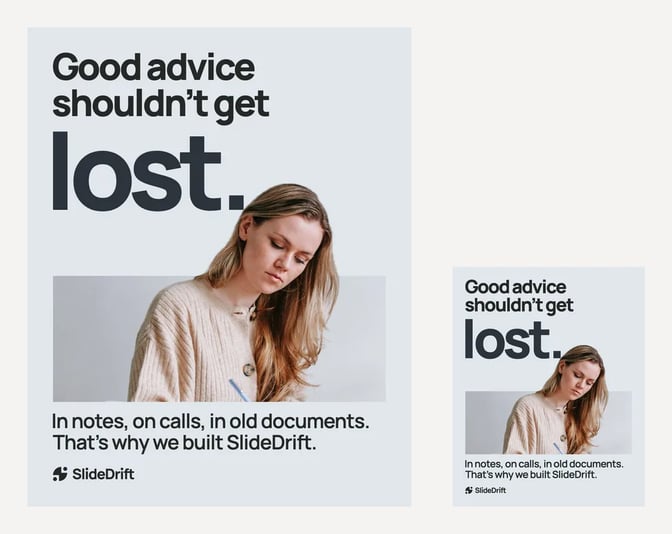
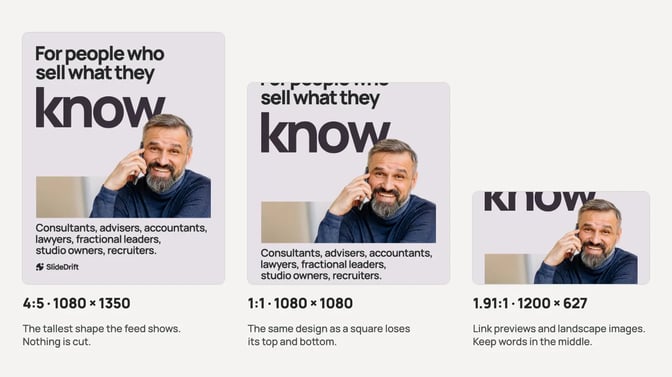
- The top and bottom of tall images. LinkedIn's photo help page accepts shapes from 3:1 to 4:5 and says an image outside that range is centered and cropped. A 9:16 phone screenshot or a long infographic is taller than 4:5, so check the preview: the lines at the top and bottom, often the headline, are the usual losses.
- The caption. In the feed, a long caption is folded behind "…more" after its first lines, so put the point there. The LinkedIn post preview tool shows phone and desktop layouts and roughly where the fold falls.
- The edges. Text close to the edge looks cramped. As a rule of thumb, keep about 80 px of empty space inside each edge of a 1080 px canvas.
Check before you publish. LinkedIn says photos can't be resized or edited once they're posted, and its help page on documents says you can edit a document post's description but not the document.
10 LinkedIn post design ideas for experts
Each layout suits a particular kind of idea, so pick by what you want to say. For the caption, the LinkedIn post templates give fill-in structures.
| Design | What it shows | Use it when | Format |
|---|---|---|---|
| 1. Statement card | One sentence, very large, on a plain background | You have a clear opinion or rule | Single image |
| 2. Before and after | Two halves: the old way and the better way | You fix the same problem for clients again and again | Single image |
| 3. Checklist | A title and 4-6 short ticked lines | The reader should follow steps or keep a list | Image or carousel |
| 4. Simple chart | One chart, the takeaway as the headline, labeled bars | You have a number from your own work or a named source | Single image |
| 5. Framework diagram | Three to five boxes or a 2 × 2 grid | You teach a method with a name | Image, then a carousel |
| 6. Client question | A question clients ask, with nothing that identifies them | You answer the same question often | Image or carousel |
| 7. Myth vs fact | The belief, crossed out, then what's true | Your field has a common misunderstanding | Image or carousel |
| 8. Process steps | Numbered steps, one line each | You explain how something works | Carousel |
| 9. One-number infographic | One big figure, what it means and its source | One number tells the story | Single image |
| 10. Your photo plus one line | A photo of you at work with a short headline | A personal story, an announcement or a carousel cover | Image or cover |
Three notes. Keep client questions general: no names, dates, amounts or places, so it reads as "a question I get a lot". Write a chart's takeaway as its headline (for example, "Most invoices are paid [X] days late") so nobody has to read the axis, and label any made-up numbers as an example.
Post a framework as one image first, and if people ask about it, give each box its own slide. The carousels vs image posts guide covers choosing between one image and several slides.
How to design a LinkedIn infographic
A LinkedIn infographic shows information at a glance: a number, a comparison, a process or a few facts. The trap is the classic tall infographic, which loses its top and bottom in the feed.
If it fits in a 1080 × 1350 frame with type that passes the arm's-length test, post it as one image. If it doesn't, split it into a carousel with one section per page, exported as one PDF. Either way:
- Start with the takeaway. Write the sentence a reader should leave with, and make it the headline.
- Keep only the numbers that support it. Three figures read better than ten.
- Name the source in small text on the image, and link it in the caption.
- Add alt text. LinkedIn's photo help page has an ALT option for members who use screen readers. Write what the infographic says, with the numbers.
Worked example: an accountant's tax-season tip
Say an accountant wants to share one tip before tax season: keep one folder for every tax document and add each one the day it arrives. The accountant, the firm and the tip are made up, and the carousel examples for accountants cover keeping posts like this to general education.
The image post: a statement card. Headline: "Start your tax folder now." One line under it: "Add each form and receipt the day it arrives." Two brand colors, the headline at about 120 px, the line at about 48 px and the firm's logo small in a corner. The caption gives the reason in its first line. The alt text reads: "Card reading Start your tax folder now. Add each form and receipt the day it arrives."
The carousel, later in the week. The same tip, one step per page: a hook, why missing documents slow things down, what goes in the folder, when to add to it, what to send the accountant, and a close that tells readers to ask their own accountant. Both use the 4:5 shape, so the image can share the carousel's colors and fonts.
Paste this brief into SlideDrift's Create box:
SlideDrift brief
Make a 6-slide LinkedIn carousel for small-business owners: "Start your tax folder now."
Goal: help them keep every tax document in one place as it arrives, so tax season goes faster. General education only.
Structure: a hook, why missing documents slow things down, what kinds of documents go in the folder (in general terms), when to add each one, what to send their accountant, and a closing slide telling readers to ask their own accountant what their folder needs.
Design: one idea per slide, a large headline, short lines, high contrast, our brand colors.
Tone: calm, plain English, practical.
Avoid: tax advice, deadlines, thresholds, promises of savings, and any client details.Set the format to 4:5 in Preferences. SlideDrift exports Portrait at 1080 × 1350 px, as the export guide explains. Edit any line that's too long for a phone, then export the PDF.
For the image post, choose PNG and This slide to download one slide. You can also make it in Graphics, which makes a standalone graphic from a library design or from one to three of your own images.
Check it before you post
Run this list on every design, whichever layout you chose.
Before you post
- The image makes one point, and the headline says it.
- It is 1080 × 1350 px, or 1080 × 1080 px if you chose square.
- You can read every line on your phone at arm's length.
- Text and background have at least 4.5:1 contrast.
- Nothing important sits within about 80 px of an edge.
- Colors, fonts and logo match your last post.
- Any figure has its source on the image.
- The alt text says what the image says.
- The first line of the caption carries the point.
You can't change a photo or a document once it's posted, so fix problems now. If you used AI to draft any of it, read every word: LinkedIn's guidance on AI-assisted posts says you're responsible for what you post.
FAQ
What is the best design for a LinkedIn post?
One idea per image, large type that reads on a phone, at least 4.5:1 contrast between text and background, and the same colors and fonts on every post. Make it 1080 × 1350 px, a 4:5 portrait, so it fills the most of the screen without being cropped.
What size should a LinkedIn post image be?
1080 × 1350 px. LinkedIn recommends images 1080 px wide and accepts shapes from 3:1 to 4:5, with uploads up to 5 MB. Square 1080 × 1080 px also works. The post size guide lists every other size.
Can you post an infographic on LinkedIn?
Yes, as an image or as a carousel. A long infographic loses its top and bottom in the feed. Keep it to one 1080 × 1350 frame, or split it into carousel pages and post them as one PDF.
Do I need a designer for LinkedIn post graphics?
Not for most posts. A statement card, a checklist or a simple chart depends on clear words, big type, strong contrast and the right size. Start from a template in your brand colors, check it on your phone, and keep the layouts that work.
What fonts work best on LinkedIn posts?
Pick one or two clear, heavy-enough fonts and use them every time. Choose a bold sans serif or a sturdy serif for headlines and a plain one for body text. Check that thin strokes survive at phone width before you commit.
How much text should go on a LinkedIn image?
A headline of six to ten words and up to three short lines under it. If you need more, move the extra to the caption or to a second slide.
Design your next LinkedIn post in SlideDrift
SlideDrift is a LinkedIn content studio. You paste notes or a link, it drafts slides in your Brand Kit's colors, fonts and logo, at 1080 × 1350 px when you choose the 4:5 format, and you edit them. You can also make a single-image post in Graphics, then export or schedule.
On a paid plan, SlideDrift schedules image and carousel posts to LinkedIn, and requires alt text on image posts. Posting to a Company Page needs the Pro or Agency plan. SlideDrift publishes natively to LinkedIn; for other platforms, export PDF or PNG in square 1:1, portrait 4:5 or stories 9:16 and post them anywhere.
Design a post from your notes
Paste your notes or a link, and SlideDrift drafts the slides in your brand at 1080 × 1350. Edit them, then export the PDF or a single image, or schedule the post.


Brief for this carousel
Make a 7-slide LinkedIn carousel called 'Five rules for LinkedIn post design'. A cover with the answer (one idea, big type, strong contrast, the same brand look, 1080 x 1350 px), then one rule per slide with a plain example, and a last slide with the arm's-length phone check. Large headlines, short lines, high contrast.