LinkedIn Carousels vs Image Posts: Which Format Should You Use?
Use an image post when one picture makes your point, a multi-image post for a set of pictures, and a carousel when readers need your points in order.
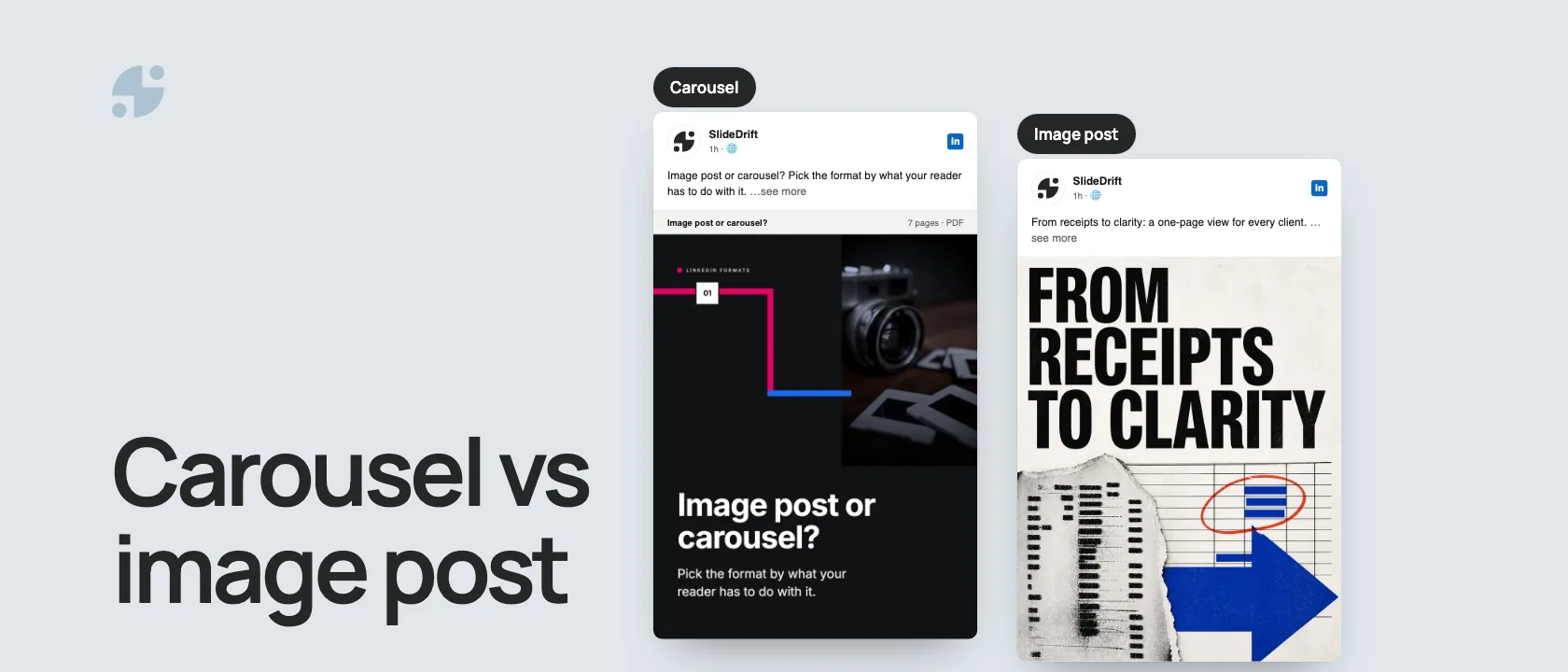
Choose the format by what your reader has to do with it:
- One picture makes the point: post a single image.
- Several pictures that work in any order: post them together as a multi-image post.
- Points that build on each other: make a carousel. That's a PDF LinkedIn shows as pages people swipe through. LinkedIn calls it a document post.
The three formats side by side
| Format | What readers see | Best for |
|---|---|---|
| Single image | One picture | A chart, screenshot, quote or announcement |
| Multi-image | Up to 20 pictures in a grid | Event photos, product shots, a portfolio |
| Carousel | A PDF, one page at a time | How-tos, frameworks, checklists, case studies |
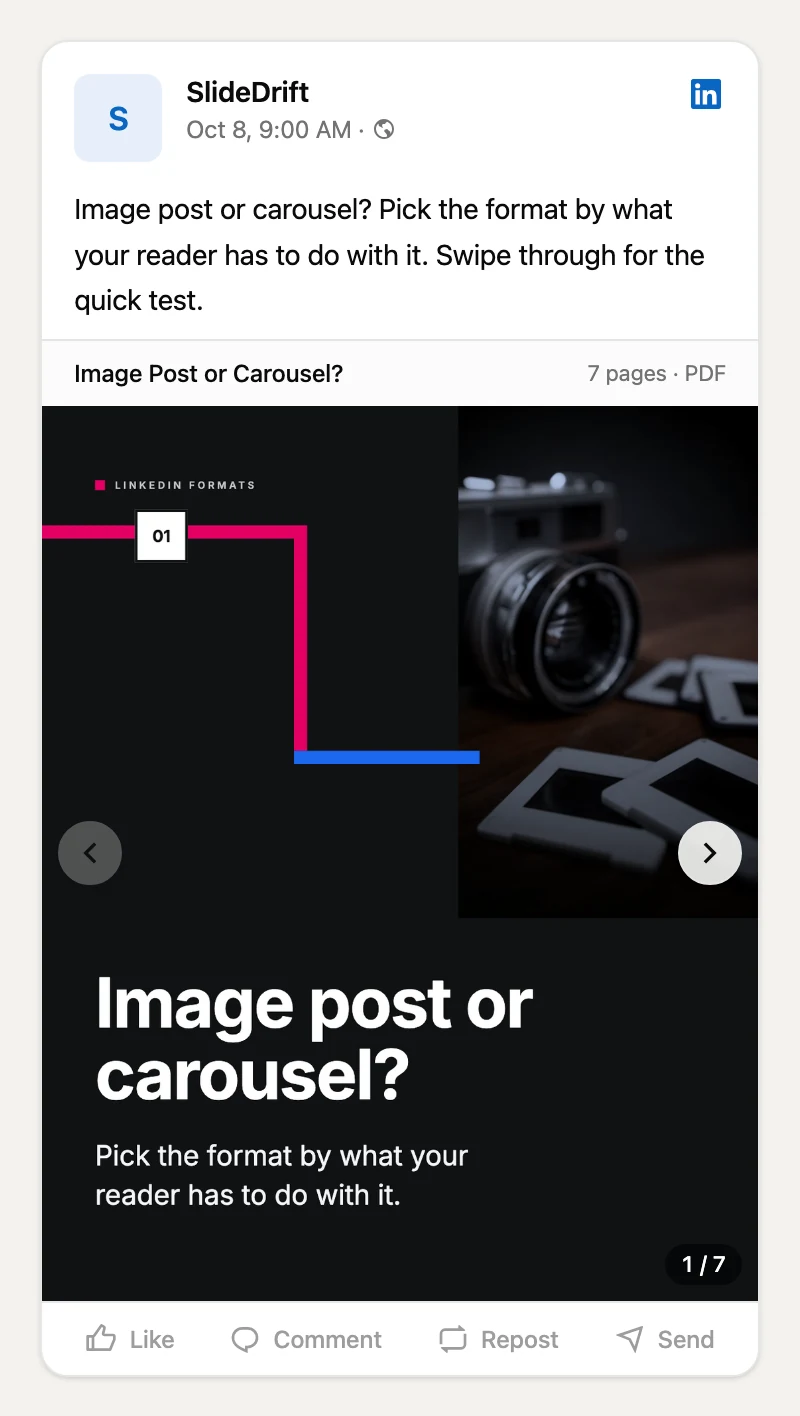
Here's this article as a carousel, made in SlideDrift. Swipe through it: each page sets up the next one, which a single image can't do.
SlideDriftCreate your ownCarousel transcriptShowHide


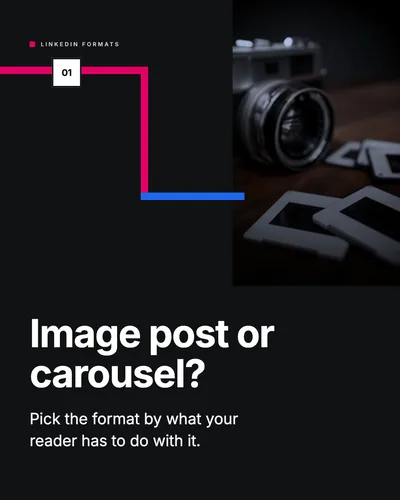
- 01Image post or carousel? Pick the format by what your reader has to do with it.
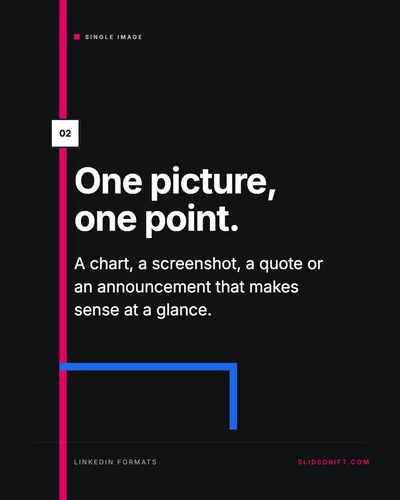
- 02One picture, one point. A chart, a screenshot, a quote or an announcement that makes sense at a glance.
- 03A set, in any order. Up to 20 pictures shown together: event photos, product shots, a portfolio. Put the best one first.
- 04Points that build on each other. A PDF people swipe page by page. Use it for how-tos, checklists and case studies.
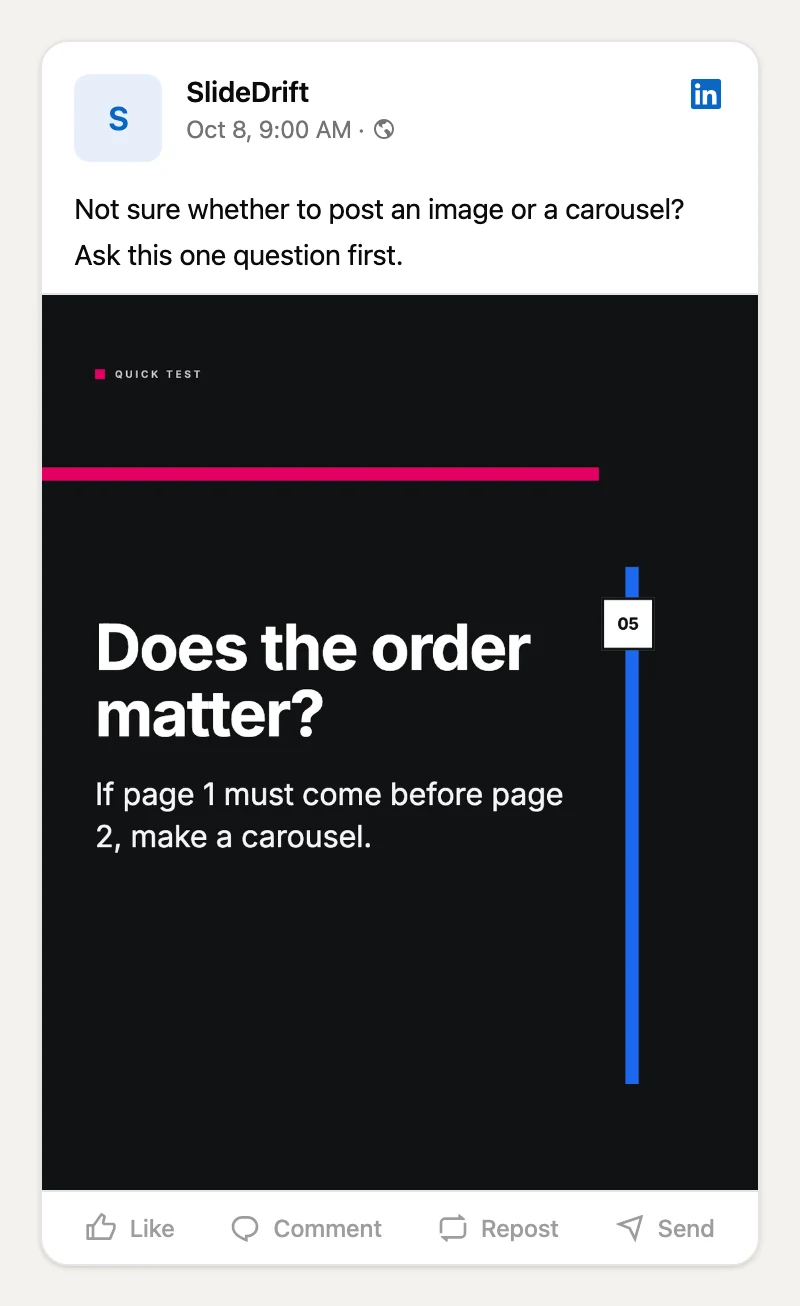
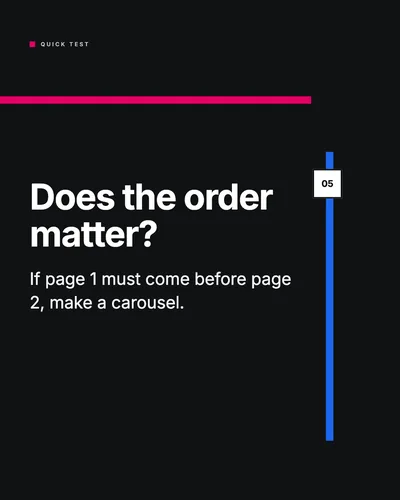
- 05Does the order matter? If page 1 must come before page 2, make a carousel.
- 06One idea, two posts. Post the carousel first. Later, share its strongest page on its own as a single image. First, the full carousel: post it first, so readers can swipe through the whole idea. Later, its strongest page: days later, post its best page, like a chart or a summary, as a single image.
- 07Make the carousel version. Paste your notes or a link into SlideDrift and edit the draft. Start in your browser at slidedrift.com.
When one image is enough
Post a single image when the picture carries the whole message:
- a chart with one clear takeaway
- a product screenshot
- a quote card
- an event or team photo
- a launch or milestone announcement
Readers get it without swiping. The test: if the image needs a long caption before it makes sense, the idea probably wants a carousel.
When to post several images
A multi-image post suits a set of pictures that people can look at in any order, like an event recap, several product shots, or a portfolio of client work.
LinkedIn allows up to 20 photos in one post. Its help page says two photos sit side by side, each keeping its shape. With three or more, the first photo decides the layout: a landscape first photo sits on top with the rest side by side below it, and a portrait or square first photo takes the left column, with the rest stacked on the right. Put your strongest picture first.
If the pictures only make sense in a set order, use a carousel instead. A grid doesn't tell anyone where to start.
When a carousel works better
Use a carousel when the reader has to go through your points in order:
- a step-by-step how-to
- a framework or process
- a checklist
- a client story: problem, decision, result
- a common mistake and how to fix it
Give each page one idea. Most carousels need far fewer pages than you think. See how many slides a LinkedIn carousel should have.
LinkedIn accepts PDF, PPT, PPTX, DOC and DOCX files up to 100 MB and 300 pages, and recommends converting to PDF for the best quality. The LinkedIn document posts guide explains how the format works in the feed.
You can also use both formats for one idea. Post the carousel first, then share its strongest page on its own later as a single image.
Which format gets more engagement?
Socialinsider's LinkedIn benchmark studied 1.3 million posts from 16,645 company Pages. It measures engagement as a share of impressions.
| Format | 2025 average | Q2 2026 |
|---|---|---|
| Carousel (document) | 7.00% | 6.60% |
| Multi-image | 6.45% | 6.90% |
| Single image | 5.30% | 5.20% |
Carousels and multi-image posts both beat single images, and they swap the top spot from one quarter to the next. These are averages for company Pages, so use them to decide what to test, then compare your own posts with similar goals.
Pick by goal
| Your goal | Use |
|---|---|
| Announce a simple update | Single image |
| Share one chart | Single image |
| Explain what a chart means | Carousel |
| Recap an event | Multi-image |
| Show a portfolio | Multi-image |
| Teach a framework or process | Carousel |
| Tell a client story | Carousel |
Common mistakes
- Using a carousel as a photo album. If the pages work in any order, post them as images.
- Cramming a sequence into one image. If the picture needs a long caption to make sense, split it into pages.
- Text too small for a phone. Most people read LinkedIn on their phone, so check every page at phone size.
- Pages that don't lead anywhere. A run of quote cards with no thread between them is a gallery, not a carousel. Each page should move the point forward.
Make the carousel version in SlideDrift
Most carousel ideas start as something you've already written: a post, meeting notes, an article. Paste the text or a link into SlideDrift and it drafts the slides. Edit the wording and layout, then export a PDF to upload to LinkedIn. Before you post, check the pages against the LinkedIn carousel size guide.
Paid plans add two shortcuts: start from a PDF instead of pasted text, and schedule posts to LinkedIn from SlideDrift, with carousels, single images and multi-image posts in one queue.
Make the carousel version of your idea
Paste a post, your notes or a link. SlideDrift turns it into slides you can edit, then export for LinkedIn.
Brief for this carousel
Make a 7-slide LinkedIn carousel that helps people choose between a single image post, a multi-image post and a carousel. One idea per slide: when one image is enough, when to post a set of images, when a carousel works better, a quick test (does the order matter?), and how to use both formats for one idea. End by inviting readers to make the carousel version of their own idea.
FAQ
Is a LinkedIn carousel the same as a multi-image post?
No. A carousel is one PDF that readers swipe through page by page, in the order you set. A multi-image post is a set of separate pictures that LinkedIn shows together as a grid.
Do LinkedIn carousels still work in 2026?
Yes. In Socialinsider's 2026 figures for company Pages, document carousels are still one of the highest-engagement formats: 6.60% in Q2 2026, behind multi-image posts (6.90%) and ahead of single images (5.20%). They work best when each page gives the reader a reason to swipe to the next.
What size should a LinkedIn carousel be?
LinkedIn doesn't set an official carousel size. Most creators use 1080 × 1350 px (portrait), which takes up more of the feed, or 1080 × 1080 px (square) when they want to reuse the slides elsewhere. Keep every page the same size. The LinkedIn carousel size guide covers the details.
How many images can one LinkedIn post have?
Up to 20. Two images sit side by side; with three or more, the first image decides how LinkedIn lays out the rest.
What file should I upload for a LinkedIn carousel?
A PDF. LinkedIn also accepts PPT, PPTX, DOC and DOCX files up to 100 MB and 300 pages, but it recommends converting to PDF for the best quality. The how to post a LinkedIn carousel guide walks through the upload.
Should I post an image or a carousel?
Post an image when one picture makes the point on its own. Make a carousel when the reader needs to go through several points in order.