Types of LinkedIn Posts: Which One Fits an Expert
The types of LinkedIn posts, from text and image to carousel, poll, video and article, and how a consultant, lawyer, coach or adviser picks the right one.
The main types of LinkedIn posts are text, image, multi-image, document (the carousel), poll, video, article and newsletter. If you sell your expertise, pick by what the idea needs. A view in your own voice is a text post. One point people can see is an image. A process in steps is a carousel. A question for your audience is a poll. Proof that needs your face is a video. Depth that should outlive the feed is an article.
Start with the idea, not the format. The table below matches each type to its best job, and the sections after it show when each fits a consultant, lawyer, coach or adviser.
The types of LinkedIn posts at a glance
| Type | What it is | Best job for an expert | Effort |
|---|---|---|---|
| Text post | Words only, up to 3,000 characters | A view, a lesson or a story in your voice | Low |
| Image post | Text plus one image | One point, number or rule people can see | Low to medium |
| Multi-image post | Text plus 2 to 20 photos | An event, a workshop, a set of related visuals | Medium |
| Document post (carousel) | Text plus a PDF readers swipe through | A process, checklist or framework in steps | Medium |
| Poll | Text plus a question with 2 to 4 options | A choice your audience can weigh in on | Low |
| Video | Text plus a video you recorded | Showing how you explain or work | High |
| Article | A long piece published on LinkedIn | A full answer to a question clients ask | High |
| Newsletter | A series of articles people subscribe to | A regular column on your subject | High, and ongoing |
The first six are posts you write in LinkedIn's composer. Articles and newsletters are longer pieces with their own editor. The steps for posting each one, on a computer and on your phone, are in how to post on LinkedIn.
Paste your notes, see them as a carousel
SlideDrift drafts the slides from your notes, a post or a link. Edit them, then export the PDF to post.
Text posts: for a view in your own voice
A text post is the quickest type to write and to read. LinkedIn's help page allows up to 3,000 characters and suggests an article for anything longer.
Use text when the whole idea fits in a few short paragraphs and your voice is the point:
- an opinion on a change in your field;
- a lesson from client work, with no names;
- a question you'd like your network to answer in the comments;
- a short story about a decision you got wrong.
Text suits experts well because it shows how you think. LinkedIn says generic content without a clear point of view is less likely to be widely distributed, and a plain text post has nowhere to hide a weak view.
Two tools help. The LinkedIn text formatter adds bold text, bullets and clean line breaks, and the LinkedIn post preview shows roughly where "see more" will cut your opening. If you want emphasis, read how to bold text in a LinkedIn post first, since bold has costs as well as uses.
Image posts: one point people can see
An image post is your text plus one picture. It works when one thing carries the message: a number, a rule, a quote, a before-and-after.
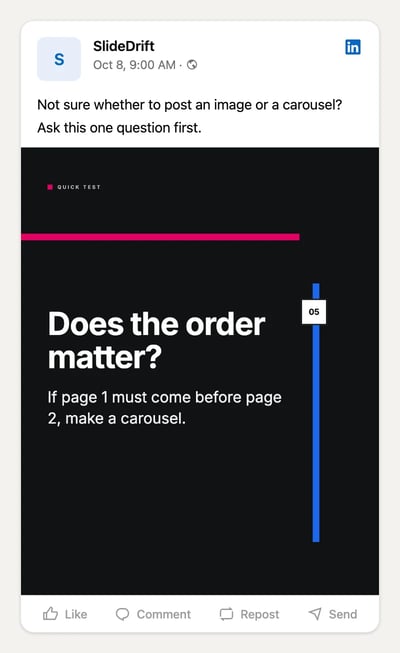
LinkedIn's photo help page takes images up to 5 MB, in shapes from 3:1 (wide) to 4:5 (tall), with alt text for people using screen readers. A post can carry a link or an image, not both, and you can't edit a photo after posting. Design at the shape you'll post, which the LinkedIn post sizes guide covers.
Multi-image posts take up to 20 photos. They suit pictures people can view in any order, such as a workshop you ran or a conference talk. If the pictures need to be read in order, make a carousel instead. The carousels vs image posts guide walks through that choice.
Carousels: document posts for a process in steps
A LinkedIn carousel is a document post: a PDF uploaded to an ordinary post, which readers swipe page by page. LinkedIn's composer calls it a document, and creators call it a carousel. LinkedIn carousel vs document post explains why they're the same thing.
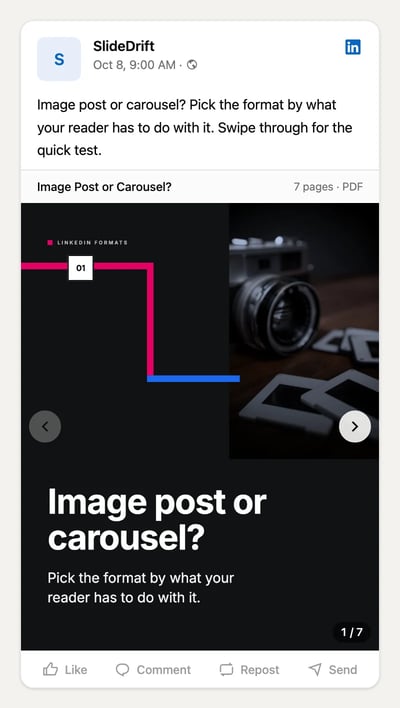
Use a carousel when the reader needs points in a set order: a framework, a checklist, the steps of a process, the mistakes clients make and their fixes. Each page does one job, and the reader can come back to it.
LinkedIn's document help page accepts PDF, PPT, PPTX, DOC and DOCX files up to 100 MB and 300 pages, and recommends PDF. Members who can view the post can download it as a PDF. You can edit the description after posting, but not the document, so check every page first.
A carousel takes more work than text: a caption, a first page that earns the swipe, and one idea per page. If you're unsure whether an idea deserves slides, LinkedIn carousels vs text posts has a five-question test. For length, see how many slides a LinkedIn carousel should have.
Polls: for a question your audience can answer
A poll is a question with two to four options. LinkedIn's poll page sets the default duration at one week, and its poll limits are 140 characters for the question and 30 for each option. You can't edit a poll once it's created.
Polls work for experts when the answer is useful to you or your readers:
- which of three problems people are facing this quarter;
- how they handle a task you advise on;
- which topic they want you to cover next.
Avoid polls with an obvious answer, or ones that only exist to collect votes. Write a short post above the poll that says why you're asking, and share what you learned when it closes. That follow-up is often a better post than the poll itself.
One limit to know: LinkedIn doesn't let a Company Page schedule polls or multi-photo posts, so post those as they go out.
Video posts: when your face and voice are the proof
Video is the most personal type, and the most work. LinkedIn's video specifications take files from 75 KB to 5 GB and up to 15 minutes long.
Use video when seeing you matters: how you explain a hard idea, how a coaching session feels, how you walk a client through a document. If the value is in the information rather than the person, a carousel usually says it faster and is easier to skim.
Like photos and documents, a video can't be swapped after posting. LinkedIn's page on editing a post says only the text can change, so to replace the media you delete the post and create a new one.
Articles and newsletters: depth that outlives the feed
An article is a long piece published on LinkedIn, with headings, lists and images. Use it when the answer is too long for a post, such as a full guide to a question every client asks. Whether those articles also reach Google is covered in do LinkedIn articles show up on Google.
A newsletter is a series of articles. All LinkedIn members can create one, each edition is a published article, and subscribers are notified when a new one goes out. It suits an expert who can commit to a regular column. Start one only if you can keep it going.
Articles and posts work well together. Write the article once, then turn its main points into posts that send readers to it. Repurposing a carousel into a newsletter shows the same idea in the other direction.
Which type fits your work
Most experts need three types, not eight: text for views, carousels for processes and one more that suits their work. These are starting points, not rules.
| You are | Lead with | Add | Why |
|---|---|---|---|
| Consultant | Carousels of your frameworks | Text posts on client lessons | Frameworks show how you work; lessons show judgment |
| Lawyer | Text posts on what a change means | Carousels of checklists | Clients want plain answers, then a list to keep |
| Accountant | Image posts with one number or deadline | Carousels of step-by-step guides | Dates and figures read at a glance |
| Coach | Text posts and stories | Video of how you explain | Trust comes from your voice |
| Financial adviser | Carousels that explain one decision | Polls on what readers worry about | Explaining builds trust; polls show what to cover next |
A lawyer or adviser should keep posts to general information and say so where it matters. For topic ideas by profession, see LinkedIn post ideas. For wording you can copy, see LinkedIn post templates.
Worked example: one idea, four types of post
Here's a made-up example. Dana is an employment lawyer who keeps getting the same question from small business owners: "Do I need a written contract for a part-time hire?"
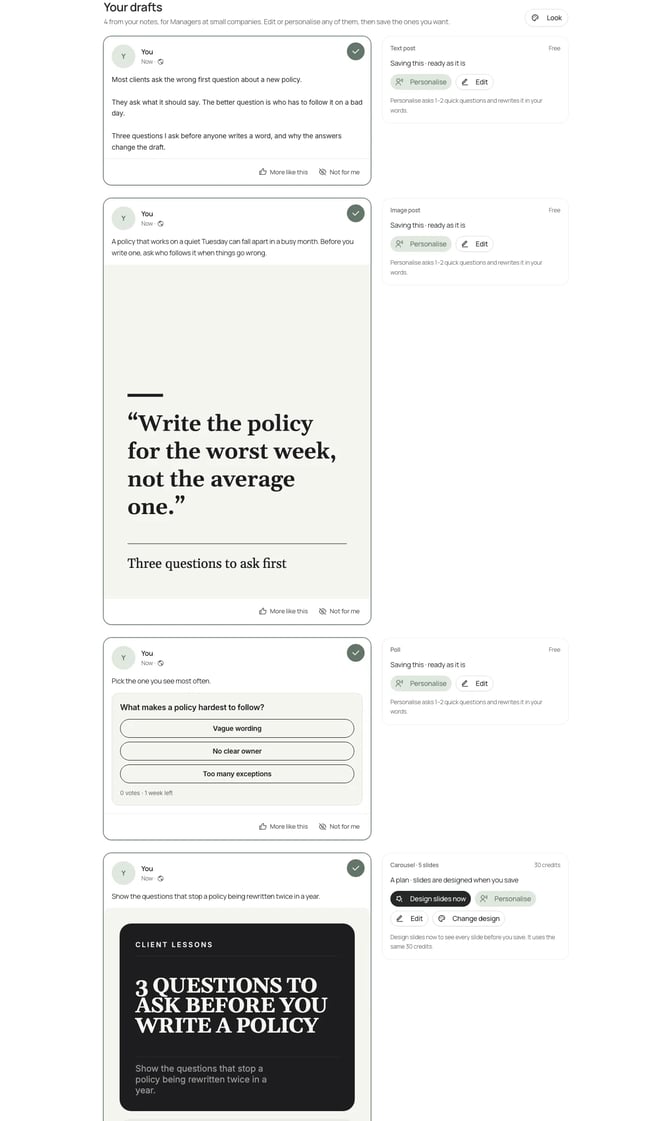
That one question can become four different posts, each doing a different job:
- Text post. Her view in three short paragraphs: why a short written contract saves arguments later, with a line that this is general information.
- Image post. One rule on one image: "Put the hours, the pay and the notice period in writing." The caption adds the context.
- Carousel. Seven pages on what a part-time contract should cover, one item per page, ending with "talk to a lawyer where you're based".
- Poll. "Do your part-time staff have written contracts?" with options Yes, Some, No and Not sure. She shares the results a week later.
She doesn't post all four in one week. She starts with the text post, checks which part people ask about in the comments, and builds the carousel from that. On a personal profile, LinkedIn's post analytics show impressions, comments, saves and sends for each post, so she can compare like with like. The measurement worksheet helps keep that comparison fair.
Mistakes when choosing a post type
- Choosing the format first. A carousel of one idea feels padded, and a text post of ten steps is hard to follow.
- Using every type at once. Three types you can keep up beat eight you try once.
- Putting a link in an image post. A post can carry a link or an image, not both, so pick one.
- Posting media you haven't checked. Photos, documents and videos can't be swapped after posting.
- Judging a type by one post. Compare several posts of each type, from the same account, over the same period.
FAQ
What are the main types of LinkedIn posts?
Text, image, multi-image, document (the carousel), poll and video posts, all made in LinkedIn's composer. Articles and newsletters are longer pieces with their own editor. Most experts do well with text posts and carousels, plus one other type that suits their work.
Which type of LinkedIn post is best for consultants?
Carousels for frameworks and processes, and text posts for client lessons and opinions. A carousel shows how you work step by step, and a text post shows your judgment in your own voice. Use video if clients buy from you partly because of how you explain.
Is a LinkedIn carousel the same as a document post?
Yes. LinkedIn's composer calls it a document, and creators call it a carousel when every page is designed to be swiped. You upload a PDF, and readers move through it page by page.
How long can a LinkedIn post be?
LinkedIn allows up to 3,000 characters in a post and suggests an article for anything longer. The LinkedIn character counter checks a draft, and the character limit guide lists the limits for comments, headlines and more.
Should I use LinkedIn polls?
Use one when the answer helps you or your readers, such as which problem to cover next. Write a short post explaining why you're asking, and share the results when it closes. A poll can't be edited once it's created, so check the options first.
How many types of LinkedIn posts should I use?
Two or three you can keep up. Start with text for views and carousels for processes, then add the one type that suits your work, such as image posts for deadlines or video for coaching.
Make every type of LinkedIn post in SlideDrift
SlideDrift is a LinkedIn content studio. It turns what you know into text posts, image posts, polls and carousels in your brand, then schedules and publishes them to LinkedIn.
When you have material but aren't sure which type of post it should be, use Post ideas. Paste your notes, a public article link or a short idea, and it drafts a mix of carousels, image posts, text posts and polls. Drafting ideas uses no credits, and nothing is published until you schedule it. For a single-image post, Graphics starts from a designed cover, and a Brand Kit keeps your colors, fonts and logo the same across every post.
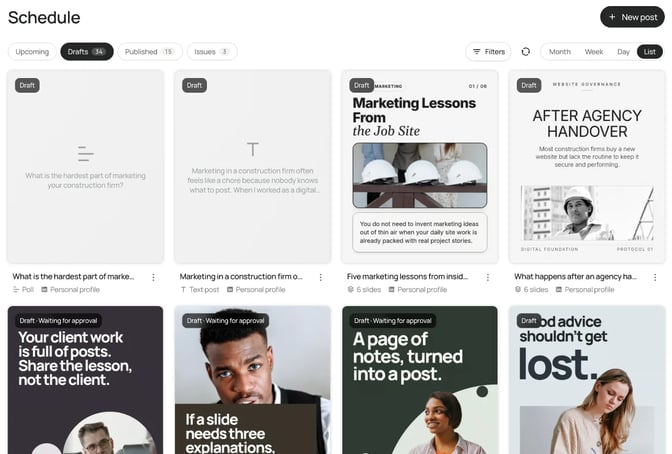
On a paid plan, the Schedule page publishes carousel, image, multi-image, video, poll and text posts to LinkedIn. SlideDrift doesn't create or edit videos, but it posts ones you made. SlideDrift publishes natively only to LinkedIn, so for other platforms export your carousel as PDF or PNG in square 1:1, portrait 4:5 or stories 9:16 and post it anywhere. It uses AI to draft, so check every post against what you know.
Turn one idea into the right post
Paste your notes, a link or a client question. SlideDrift drafts text, image, poll and carousel posts in your brand; you edit them, then export or schedule.


Brief for this carousel
Make a 7-slide LinkedIn carousel for consultants and advisers on choosing a LinkedIn post type. A cover asking which format an idea needs, then one slide each: text for a view in your own voice, an image for one point people can see, a carousel for a process in steps, a poll for a question your audience can answer, video when your face and voice are the proof. End with the rule: pick the job first, then the format.