How to Post on LinkedIn: A Beginner's Guide to Every Format
How to post on LinkedIn from a computer or phone: text, image, document, video and poll posts, Page posts, scheduling, editing and when to use each format.

Here is how to post on LinkedIn. From a computer, select Start a post at the top of your homepage, write your text, add a photo, document, video or poll if you want one, and select Post. On the phone app, tap Post in the navigation bar and follow the same steps. A post can be up to 3,000 characters, and you choose who sees it and who can comment before it goes out.
This guide is for people who know their subject but rarely post:
- Formats: which one suits which idea.
- Steps: how to post each format on desktop and phone.
- Pages: posting as yourself or as a Company Page.
- After posting: scheduling, editing and deleting.
Which format fits your idea
Start with the idea, then pick the format.
| If your idea is... | Use | Why it fits |
|---|---|---|
| An opinion, a question or a short story from your week | Text post | It's the quickest to read and to write |
| One point, a quote, a number or a before-and-after | Image post | One visual carries one message |
| Several photos from one event, or a set of related visuals | Multi-image post | Readers see them together, up to 20 images |
| A process, checklist or framework you teach in steps | Document post (a carousel) | Each step gets its own page, and readers can download the file as a PDF |
| Something people need to see or hear you explain | Video | Your face and voice do the work |
| A choice you want your audience to weigh in on | Poll | Two to four options give people an easy way to answer |
If you're unsure between one image and a carousel, the carousels vs image posts guide walks through the choice. If you're short of ideas, LinkedIn post ideas has a list to draw from.
How to post on desktop and on your phone
These steps follow LinkedIn's help page on posting and sharing updates.
On a computer:
- Select Start a post at the top of your LinkedIn homepage.
- Use the controls under your name to set who can see the post (Anyone, Connections only or a Group) and who can comment (Anyone, Connections only or Off).
- Write your text.
- Add an image, document, video or poll if you want one (see the table below).
- Select Post.
On your phone:
- Tap Post in the navigation bar.
- Tap Anyone next to your photo to set who can see and comment on the post. If you manage a Company Page, you can choose to post as it here too.
- Write in the Share your thoughts... box.
- Add an image, document, video or poll if you want one.
- Tap Post.
You can also save a post as a draft and finish it later, including from another device. A text post needs nothing more. Other formats add one step, and each format below links to LinkedIn's help page for it.
| Format | On a computer | On your phone | Limits |
|---|---|---|---|
| Image or multi-image | Select the photo icon and upload from your computer. Add ALT text to each image, then Next | Tap the photo icon and choose your images. Use ALT and reorder them, then Next | Up to 20 images and 5 MB each, in ratios from 3:1 to 4:5 |
| Document (carousel) | Select More (the + icon), then the document icon, then Choose file. Add a title and select Done | Tap the more icon, then Document. Choose the file, add a title and tap Next | PDF, PPT, PPTX, DOC or DOCX, up to 100 MB and 300 pages |
| Video | Select the media (photo) icon and choose the file | Tap the media icon and choose the file | Up to 5 GB and 15 minutes |
| Poll | Select More (the + icon), then Create a poll. Add a question and options, set the duration and select Done | Tap the more icon, then Poll. Use +Add option for more choices and tap Done | Two to four options. The default duration is one week |
LinkedIn recommends PDF for document posts, with every page the same size. You can't swap a document or edit a photo after posting, so check both first. For a carousel, the step-by-step guide to posting a LinkedIn carousel covers the upload in detail, and the document posts guide explains when the format earns its place.
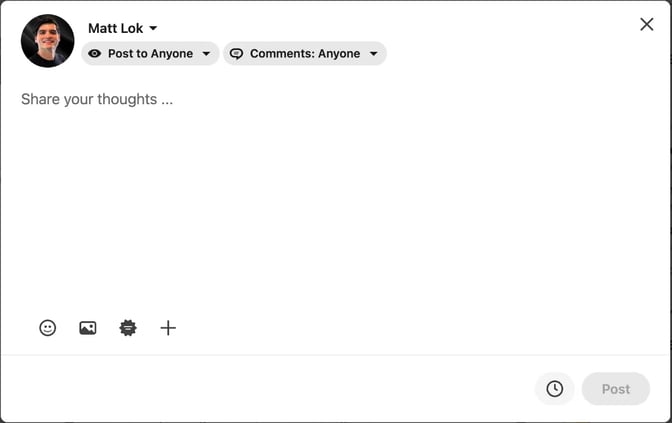
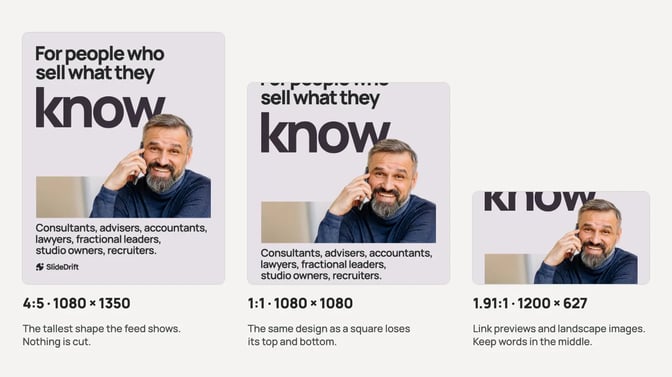
Image shape matters too. LinkedIn takes photos from 3:1 (wide) to 4:5 (tall), so design at the shape you plan to post. Cropping a finished design into another shape cuts off its edges. The LinkedIn post sizes guide has the exact dimensions for each format.
Post as yourself or as a Company Page
Post as yourself when the idea is your view, your lesson or your story, since that kind of post reads naturally in the first person. Post as your Company Page for firm news, hiring, events and material the whole team stands behind.
To post as a Page, you need to be a super admin or content admin of it. LinkedIn's help page on posting as your Page gives these steps:
- Open the Page's super admin or content admin view and select Page posts in the left menu. On your phone, tap Dashboard at the top left, then Page posts.
- Select Start a post (on your phone, tap Post) and write your text. Add any photo, video or document.
- Select the Page name to set the audience (Anyone or Targeted Audience) and who can comment.
- Select Post.
On your phone the audience stays Anyone; you can only change who comments. You can also save a Page post as a draft or schedule it.
Schedule, edit or delete a post
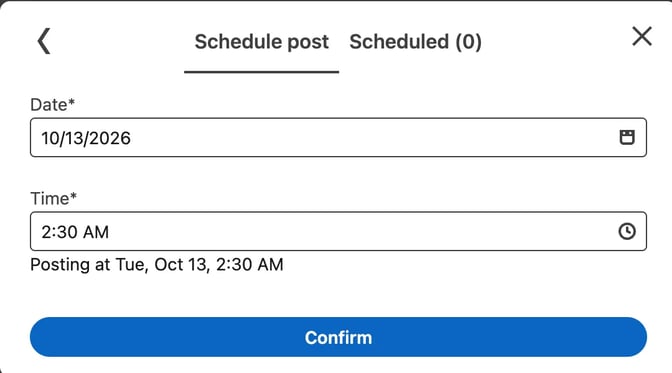
Schedule a post. LinkedIn's page on scheduling posts says you can pick a time between 10 minutes and 3 months ahead. Write the post, select the Clock icon next to Post, choose the date and time and confirm it, then select Schedule. To change it later, select the Clock icon again, open your scheduled posts and use the More icon for Modify schedule or Edit post. Events and jobs can't be scheduled.
Page posts can be scheduled between an hour and three months ahead, but not events, multiple photos, reshares, polls, jobs or service posts. The guide to scheduling LinkedIn posts covers time zones and Page rules in more detail, and best time to post on LinkedIn helps you choose a slot.
Edit a post. Select the More icon at the top right of the post, choose Edit post, change the text and select Save. The post then shows Edited. LinkedIn's page on editing a post says only the text can change. To swap a photo, document or video, delete the post and create a new one. A new link won't pick up a new preview image, which the LinkedIn Post Inspector guide explains.
Delete a post. Select the More icon at the top right of the post, choose Delete post, then select Delete to confirm. LinkedIn's page on deleting content warns that a deleted post could still appear in a digest email already sent to your connections.
Before you press Post
Read the first lines on their own. The feed shows only the opening of a long post before people choose to read more, so the first line should say who it's for or what they'll get. The LinkedIn post preview shows roughly where that fold falls on desktop and mobile.
Break the text up. Short paragraphs with a blank line between them are easier to read on a phone than one dense block. The LinkedIn text formatter adds clean line breaks and bullets you can copy straight into the post box.
Check the length. The LinkedIn character counter shows how close you are to the 3,000-character limit.
Decide where the link goes. LinkedIn's photo help page says you can share "either a URL link or an image in a post, but not both at the same time." If the image or carousel is the point, leave the link out or add it in a comment. If the link is the point, make it a text post so the preview shows.
Add alt text to every image. The ALT option appears while you upload, and it describes the image for members who use screen readers. The guide to accessible carousel posts covers what to write.
Tag people with care. Type @ and a name, then pick the person or Page from the list. Tag people who are in the post or helped with it, and ask a client before you name them.
Worked example: one client lesson, two posts
Say you're an operations consultant. This is a made-up example. On a recent project, you noticed the real delay came before the work started: nobody had written down who makes which decision. That one lesson can carry two posts.
This week, an image post. Put the whole lesson in one line, "Most project delays start in the kickoff meeting," on a single image. The caption says what you saw, why it happens and one thing to try, with no client name or identifying detail. In SlideDrift, a LinkedIn content studio, you can start from a design in the Graphics library and generate the image, then post it as an image post or schedule it from SlideDrift's calendar.
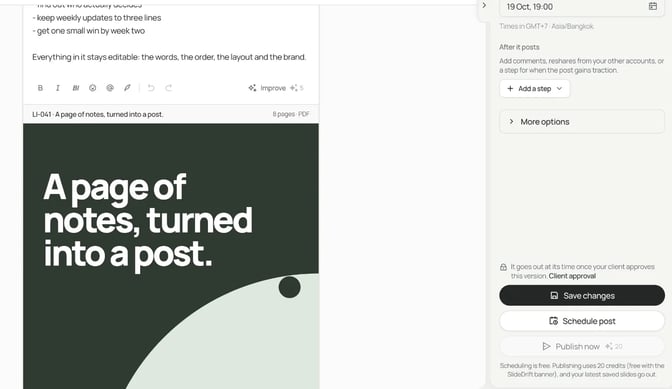
Next week, a carousel. Turn the same lesson into steps a reader can use. Paste this brief into SlideDrift's Create box:
SlideDrift brief
Make a 7-slide LinkedIn carousel for founders and operations leads at small companies.
Goal: show that most project delays start before the work does, when nobody records who decides what.
Tone: practical and calm, written by an independent operations consultant.

Points:
- The delay shows up weeks later, but it starts at the kickoff
- Teams agree on tasks and deadlines, then leave decisions unassigned
- A one-page decision log fixes this: the decision, the owner, the deadline and who needs to know
- Fill it in during the kickoff meeting
- Review it in every weekly check-in

End with the four decision log columns as a checklist the reader can copy.
Avoid: client names, invented results and promises of faster delivery.Choose a Brand Kit first so the slides use your logo, colors and fonts, then read every slide in the editor. LinkedIn's guidance on AI-assisted posts says you are ultimately responsible for everything you post. Then export the PDF, as the PDF export guide shows, and upload it as a document post.
FAQ
How long can a LinkedIn post be?
A post can contain up to 3,000 characters. For anything longer, LinkedIn points you to writing an article instead. The LinkedIn character counter shows how close you are before you post.
Can you schedule posts on LinkedIn?
Yes. Select the Clock icon in the post window and pick a time between 10 minutes and 3 months ahead. Events and jobs can't be scheduled. Page posts need at least an hour's notice, and Pages can't schedule polls or multi-image posts.
Can I edit a LinkedIn post after posting?
You can edit the text through the More icon and Edit post, and the post then shows Edited. You can't swap a photo, document or video. To change those, delete the post and create a new one.
Should I post on LinkedIn as myself or as my company?
Post as yourself when the idea is your own view or experience. Post as your Company Page for firm news, hiring and shared material. To post as a Page, you need to be its super admin or content admin.
Can I save a LinkedIn post and finish it later?
Yes. LinkedIn lets you save a post as a draft and come back to it, including from another device. Page admins can save Page posts as drafts too.
Can I post a link and an image together?
No. LinkedIn says a post can hold either a URL link or an image, not both at once. If the image matters most, put the link in a comment. If the link is the point, post it as text so the preview shows.
Post faster with SlideDrift
SlideDrift is a LinkedIn content studio. It makes carousels, graphics, text posts and polls in your brand, then schedules and publishes them to LinkedIn from a calendar. Scheduling needs a paid plan, and posting to a Company Page needs Pro or Agency.
If you're not sure what to post, Post ideas turns a few notes or a link into draft posts in different formats, and drafting is free. SlideDrift posts natively only to LinkedIn. For other platforms, export PDF or PNG in square 1:1, portrait 4:5 or stories 9:16 sizes and post them anywhere. You can read how scheduling to LinkedIn works in the docs.
Turn a client lesson into a carousel
Paste your notes or a link, and SlideDrift drafts the slides in your brand. Edit them, then export the PDF or schedule the post to LinkedIn.


Brief for this carousel
Make a 7-slide LinkedIn carousel for founders and operations leads at small companies. Show that most project delays start before the work does, when nobody records who decides what. End with a one-page decision log as a checklist.