How to Schedule LinkedIn Posts on Desktop, Phone and Pages
Schedule LinkedIn posts free with the clock icon on desktop, phone or a Company Page. Limits, time zones, editing a queued post, and when a tool helps.

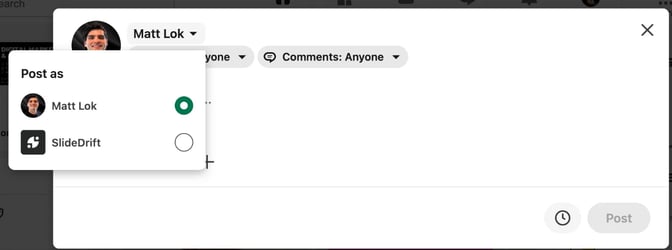
You can schedule LinkedIn posts for free, inside LinkedIn. Write the post, select the clock icon next to Post, choose a date and time, then select Schedule. A profile post can go out from 10 minutes to 3 months ahead. A Company Page post needs at least 1 hour. The phone app works the same way.
Below: the steps, how to edit or reschedule a queued post, the limits, and when a scheduling tool is worth adding.
How to schedule a post on LinkedIn
On desktop. These are the steps from LinkedIn's help page on scheduling posts:
- Select Start a post at the top of your homepage and write the post. Add any image, video or document now.
- Select the clock icon in the lower right, next to Post.
- Choose a date and a time. You can pick a 30-minute step or type an exact time.
- Select Next to go back to the post.
- Check the post once more, then select Schedule.
On your phone. In the LinkedIn app, tap Post in the navigation bar and write the post. Tap the clock icon in the upper right, choose the date and time, tap Next, then tap Schedule.
Before you schedule, paste the opening lines into the LinkedIn post preview to check line breaks and the mobile layout. If you want bold or italic text, the LinkedIn text formatter makes it. The guide to posting on LinkedIn covers the upload step for each format, and LinkedIn post sizes has the image and document dimensions.
Check these before you select Schedule
Run through this list first. A queued post is easy to forget until it goes out.
Before you schedule
- The date and time you picked are the ones you meant, in the time zone you meant.
- The image, video or document is attached and is the final version.
- The first two lines work on their own, before "see more".
- Figures, names and links are right.
- For a Page post, you are in the Page's admin view, not your profile.
The media check matters most. Once a post is live, LinkedIn's page on editing a post says only the text can change. To swap a photo, document or video, you delete the post and create a new one.
Find, edit or reschedule a scheduled post
The Schedule window lists what's queued. On desktop, select Start a post, then the clock icon, then View all scheduled posts. On your phone, tap Post, the clock icon, then View all.
From that list, per LinkedIn's scheduling help page:
- See the details: open the post.
- Reschedule it: select the More icon in the upper right, then Modify schedule, and pick a new date and time.
- Edit it: select More, then Edit post (on your phone, Edit).
- Keep it but drop the time: select Edit next to the scheduled time, then Clear time (on your phone, Clear).
- Delete it: select the Delete icon next to the post and confirm.
If a scheduled post turns out to be wrong, change it here before it goes out. After it's live, you're limited to editing the text.
Schedule a post as a Company Page
You need to be a super admin or content admin of the Page. LinkedIn's help page on scheduling a Page post gives these steps:
- Go to your Page's admin view and select Page posts in the left menu. On your phone, tap Dashboard in the upper left, then Page posts.
- Select Start a post (on your phone, tap Post in the upper right).
- Select the schedule icon, choose a date and time, then select Next to go back to the post.
- Finish the post and select Schedule.
To manage the queue, open the same schedule window and choose View all scheduled posts. Then use the More icon beside a post:
- Modify schedule changes the date and time, per LinkedIn's page on rescheduling a Page post.
- Edit post changes the content, the post's visibility, who can comment, and the brand partnership label, per its page on editing a scheduled Page post.
- Delete post, then Delete, removes it for good, per its page on deleting a scheduled Page post. A deleted post can't be recovered, so reschedule instead if only the timing is wrong.
One more Page rule: a scheduled post can't be promoted through Browse existing content in Campaign Manager until it has been published.
Post as yourself when it's your view or your lesson. Post as the Page for firm news, hiring and material the whole team stands behind. The content strategy guide for consultants goes further.
Scheduling limits and time zones
These rules come from LinkedIn's help pages for profiles and Pages, checked in October 2026.
| Personal profile | Company Page | |
|---|---|---|
| Earliest time | 10 minutes from now | 1 hour from now |
| Latest time | 3 months ahead | 3 months ahead |
| Can't be scheduled | Events and jobs | Events, multiple photos, reshares, polls, jobs and service posts |
| Time zone | Converted to UTC using your device's time zone setting | Based on your location |
| Who can schedule | You | Super admins and content admins |
Time zones. A profile post is timed by your device's time zone setting, so a laptop still set to another city's time will schedule in that time. If you travel or work across time zones, check the device's setting before you pick a time.
Page formats. Neither help page lists document posts among the types that can't be scheduled, so a carousel uploaded as a PDF isn't excluded. A Page poll or a Page post with several photos has to go out live in LinkedIn, or through a tool whose own docs say it can schedule that format for a Page.
How often. LinkedIn's help pages don't set a cap on how many posts you can queue. How often to post is a separate question; see how often to post carousels and the best time to post on LinkedIn.
When a scheduling tool helps
If you post once or twice a week to one profile, LinkedIn's scheduler is enough, and it's free. A separate tool earns its place when one of these applies:
- You need the post itself designed. LinkedIn's scheduler sends out the post you write and upload, so the carousel, graphic and caption have to exist first.
- You plan a month at a time. LinkedIn shows your queue as a list under View all scheduled posts. A calendar shows the month across accounts, so gaps are easy to spot. A simple carousel content calendar works for the planning side.
- You post to several accounts. In LinkedIn, you schedule a profile post from your homepage and a Page post from the Page's admin view, one post at a time.
- You want a first comment to go up with the post. LinkedIn's scheduling steps cover the post only, so you add the comment yourself once it's live.
- A client or partner approves posts first, and you'd rather send one link than a set of screenshots.
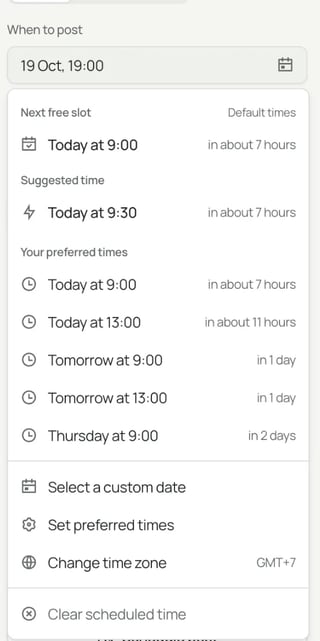
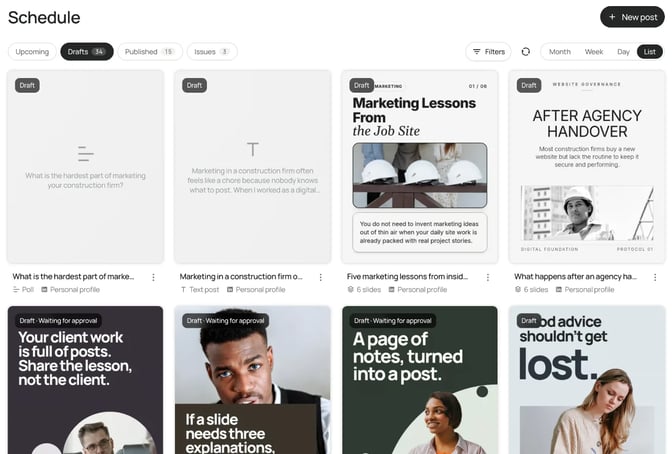
SlideDrift covers these from its LinkedIn scheduling feature. The Schedule calendar has Month, Week and Day views, plus a list you can filter to upcoming posts, drafts, published posts or issues. It schedules carousel, image, multi-image, video, poll and text posts.
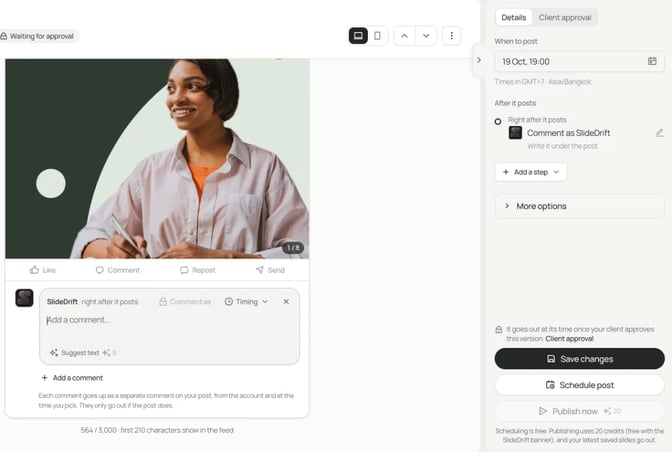
Under After it posts, you can add comments that go up right after the post or later, reshares from your other accounts, and Gaining traction triggers that reshare or comment once a Company Page post reaches a number of likes or impressions. Client approval makes a review link the client opens without a SlideDrift account, and Only post once it's approved holds the post until they say yes. With two or more connected accounts (Pro or Agency), Also post to turns one draft into a post for each account you choose.
Scheduling to LinkedIn from SlideDrift needs a paid plan, and Company Pages need the Pro or Agency plan. SlideDrift schedules posts to connected LinkedIn accounts. For other platforms, export PNG images in square 1:1, portrait 4:5 or stories 9:16, or use image links, and post them there. For a side-by-side look at other tools, see the best LinkedIn scheduling tools.
Worked example: an accountant schedules a month of posts
This example uses a made-up person. Say you run a small accounting practice and want two posts a week for November: one on your own profile each Tuesday and one on the firm's Page each Thursday. A partner signs off on anything that mentions tax.
1. Plan the month on one page. Eight posts, mixed by format so the feed doesn't repeat itself:
| Week | Tuesday, your profile | Thursday, firm Page |
|---|---|---|
| 1 | Carousel: what to send your accountant before year-end | Image post: office hours over the holidays |
| 2 | Poll: "When do you start your year-end paperwork?" | Text post: a question clients ask every November |
| 3 | Carousel: a month-end close checklist for small businesses | Image post: a new team member |
| 4 | Text post: one lesson from this year's busy season | Image post: one client question answered in a sentence |
Keep every post to general education for business owners. The carousel shouldn't tell anyone what to claim or file. The carousel examples for accountants has more topics that stay on the right side of that line.
2. Draft the week 1 carousel. Paste this brief into SlideDrift's Create box, check it, then generate the draft.
SlideDrift brief
Audience: Small business owners and self-employed people
Goal: Help them get their records ready before they hand over their year-end paperwork
Tone: Calm, practical and plain, with no jargon

Points:
- Year-end goes faster when the records arrive complete
- Bank and card statements for every account, including the ones you rarely use
- Sales invoices and any that are still unpaid
- Receipts for business costs, grouped by month
- Payroll records and contractor invoices
- Loan and lease paperwork
- Any big purchases or sales of equipment
- A note of anything unusual this year, so nothing comes as a surprise

Must include: a closing slide with the checklist on one page. Keep it general education, with no tax advice or deadlines. 8 slides.3. Schedule the month. In SlideDrift, open Schedule and switch to Week. Select an empty Tuesday time to start a post there, choose Carousel, pick the deck, write the caption and pick your profile. Repeat for the other seven slots, choosing the firm's Page on Thursdays. The week 2 poll goes on your profile: one question, with 2 to 4 options.
4. Add what happens after it posts. On each carousel, add a comment Right after it posts, such as "What's the one document you always hunt for in December?" On the Page's posts, a Gaining traction trigger can reshare from your profile once the post reaches the number of likes you choose.
5. Get sign-off. Open the week 1 and week 3 carousels, choose Client approval, then Make a review link, and add the other posts that mention tax. Send the link to your partner and turn on Only post once it's approved. If they ask for a change on slide 4, their comment says which slide it's about.
If you'd rather stay in LinkedIn, the same plan works there. Upload each PDF and schedule it with the clock icon, send the drafts to your partner yourself, and add the comments once each post is up. The guide to posting a LinkedIn carousel covers the PDF upload.
FAQ
Can you schedule posts on LinkedIn for free?
Yes. Scheduling is built into LinkedIn's post window, and the help page doesn't tie it to a paid plan. You can schedule a profile post from 10 minutes to 3 months ahead, and a Company Page post from 1 hour to 3 months ahead.
Which LinkedIn posts can't be scheduled?
Events and jobs can't be scheduled on a profile or a Page. On a Company Page, polls, posts with multiple photos, reshares and service posts can't be scheduled either. Post those live, or use a tool that can schedule them.
Can you edit a scheduled post on LinkedIn?
Yes. Select the clock icon, choose View all scheduled posts, then use the More icon to pick Edit post or Modify schedule. Once the post is live, only the text can change.
Can you schedule a LinkedIn carousel?
Yes, as a document post. Export the carousel as a PDF, upload it, then use the clock icon as normal. LinkedIn's help pages name the post types that can't be scheduled, and documents aren't among them on either a profile or a Page.
What time zone does LinkedIn use for scheduled posts?
For a profile, LinkedIn converts your chosen time to UTC using your device's time zone setting. For a Page, the time is based on your location. If you're travelling, check the time you picked before you select Schedule.
Who can schedule posts for a LinkedIn Company Page?
Super admins and content admins of the Page. If you only see your personal profile in the post window, you don't have one of those roles on the Page yet.
Is there a limit on how many LinkedIn posts you can schedule?
LinkedIn's scheduling help pages give a time window, from 10 minutes (1 hour for a Page) to 3 months ahead, but no cap on the number of queued posts. If that changes, LinkedIn's help page is the source to check.
Plan and schedule your posts in SlideDrift
SlideDrift drafts carousels from your notes in your Brand Kit's colours and fonts, and schedules carousel, image, poll and text posts to LinkedIn from one calendar. Scheduling needs a paid plan; on the Free plan you can still draft and export a carousel first.
Draft a post to schedule
Paste your notes or a link to an article you wrote. SlideDrift drafts the post in your brand, you edit it, then export it or schedule it to LinkedIn.


Brief for this carousel
Make an 8-slide LinkedIn carousel for small business owners: a year-end records checklist to send to their accountant. A cover with the promise, then one item per slide (bank and card statements, sales invoices, receipts by month, payroll and contractor records, loan and lease paperwork, equipment purchases and sales, anything unusual this year), and a closing slide with the whole checklist on one page.