LinkedIn Scheduling Without a Browser Extension: What to Check
Want LinkedIn scheduling without a browser extension? Seven checks before you pick a tool: how it posts, failure alerts, expiry warnings, comments and Pages.
You can get LinkedIn scheduling without a browser extension in two ways. LinkedIn's own scheduler is built into the post window, and a scheduling tool can connect through LinkedIn's sign-in and post from its own servers. Either way, nothing runs in your browser at posting time.
Before you choose a tool, check seven things:
- How the post gets to LinkedIn.
- What happens when a post fails.
- Whether it warns you before the connection expires.
- Whether the first comment can be scheduled.
- Whether you can see the month in one calendar.
- How carousels are posted.
- Which Company Pages and how many accounts your plan covers.
Check 1: how does the post get to LinkedIn?
This is the question behind "without a browser extension". There are two common ways a scheduler can work:
- Through LinkedIn's sign-in and API. You connect your profile or Page on LinkedIn's own authorization screen. When the post is due, the tool's server sends it to LinkedIn. Your laptop can be closed.
- Through software in your browser. The tool works inside your signed-in LinkedIn tab.
LinkedIn's page on prohibited software and extensions says it doesn't allow browser plug-ins or extensions that "automate activity" on the site. Not every extension does that, so ask the vendor directly, and look for the answer on their own help pages:
- Does posting need my browser open, or my computer switched on?
- Do I connect on LinkedIn's authorization screen, or do I install something?
- Does the extension do anything on linkedin.com by itself?
LinkedIn's built-in scheduler needs nothing installed, and the guide to scheduling LinkedIn posts walks through it. A profile post can go out from 10 minutes to 3 months ahead, and a Company Page post from 1 hour to 3 months ahead, according to LinkedIn's help pages for profiles and Pages.
SlideDrift connects the first way. You connect each profile or Company Page through LinkedIn's authorization screen, and SlideDrift publishes the post when it's due.
Check 2: what happens when a post fails?
A scheduler earns its keep on the day something goes wrong. A post can fail because LinkedIn rejected it, the connection lapsed, or an image couldn't load. Ask:
- Will I be told? By email, in the app, or both.
- Will I know why? "Failed" alone doesn't help. "Reconnect this account" or "The caption is too long" does.
- Does it retry? A short LinkedIn outage shouldn't need you. A rejected post shouldn't be sent again and again.
- Can I fix and resend it in one place?
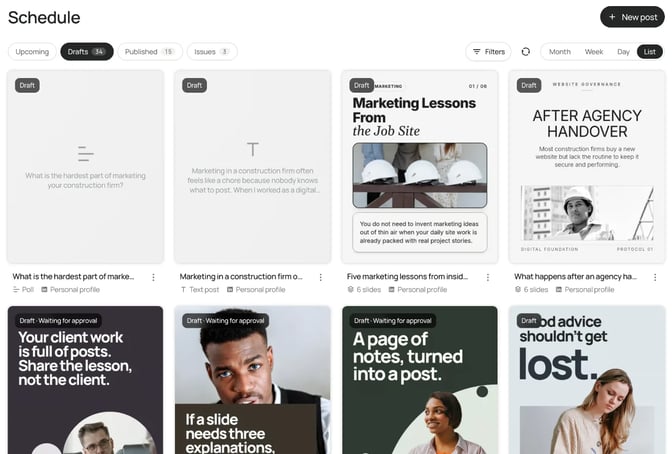
In SlideDrift, a temporary LinkedIn problem keeps the post in the queue and retries it, shown as Retrying with the next attempt. After five unsuccessful attempts, publishing stops. Problems that need you, such as a rejected connection or a post LinkedIn won't accept, go straight to Issues with the fix beside them: Reconnect, Add credits, Edit post, Open carousel or Try again. The notification bell lists failed posts too.
No tool can promise every post goes out. What you're buying is knowing quickly, and fixing it in a minute.
Check 3: will it warn you before the connection expires?
Tools that post through LinkedIn's API hold a connection LinkedIn gave them when you signed in. That connection doesn't last forever. Microsoft's LinkedIn API docs say access tokens are valid for 60 days by default, and refresh tokens that extend that are for approved partners.
So at some point you'll need to reconnect. The question is whether you find out before or after a scheduled post fails. Ask:
- Does the tool warn me before a connection expires, and how far ahead?
- Does it tell me which account needs attention?
- What happens to posts already queued for that account?
SlideDrift sends reminder emails starting 14 days before a connection expires, and the account's card on the Schedule page shows Reconnect from then on. The notification bell also lists connections that need attention. If LinkedIn rejects a connection outright, SlideDrift stops using it at once and asks you to reconnect before you schedule from that account.
Check 4: can the first comment go up with the post?
Many people put a link or a question in the first comment. LinkedIn's help page on scheduling covers the post itself and doesn't mention comments, so with LinkedIn's own scheduler you add the comment yourself once the post is live.
Ask a scheduler:
- Can I write the comment now and have it go up right after the post?
- Can a comment come from another account, such as my Company Page on my personal post?
- Can I add later comments or reshares?
- If the comment fails, will the post still go out, and will I see why?
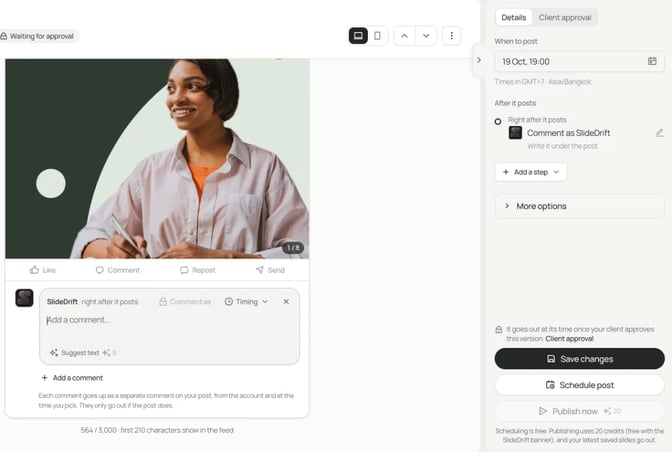
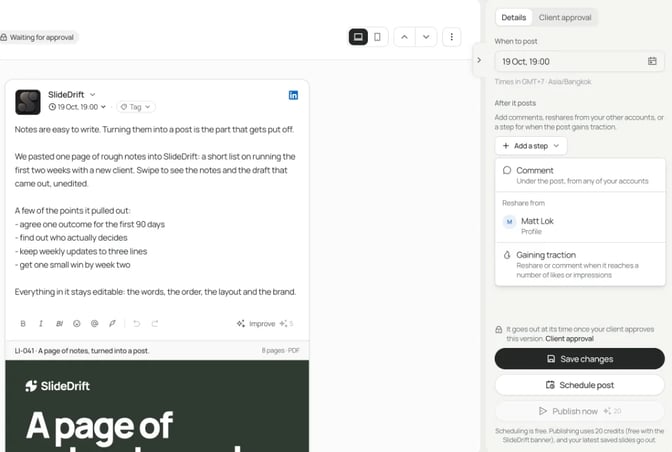
In SlideDrift, After it posts holds up to four comments of up to 1,250 characters each: one right after the post, and up to three later. Each comment can come from the posting account or another connected profile or Page. Comments only go out if the post does. If an account can't comment at that moment, the post still publishes and the comment shows as failed with the reason, ready to retry.
Check 5: can you see the month in one calendar?
LinkedIn's own scheduler shows your scheduled posts as a list on its Scheduled posts page. Once you post to more than one account, one calendar for all of them saves checking each list.
Check whether the calendar:
- Shows every connected account, with a filter for one.
- Lets you drag a post to a new day or time.
- Shows drafts, published posts and failed posts, not only what's queued.
SlideDrift's Schedule page has Month, Week and Day views and a list view for upcoming posts, drafts, published posts and issues. You can drag a scheduled post to a new time, filter by account, and add a private note to a day, such as a webinar date. If you're planning a run of posts, the carousel content calendar guide helps you fill it.
Check 6: how are carousels posted?
On LinkedIn, a carousel is usually a PDF added to a post as a document. LinkedIn's API supports this too: Microsoft's Documents API page shows a post created from an uploaded document.
Ask a scheduler:
- Does a carousel go out as a swipeable document, or as separate images?
- Do I upload the PDF myself, or does the tool make it?
- If I fix a typo after scheduling, which version goes out?
SlideDrift makes the PDF for you. When the post is due, it turns the carousel's latest saved slides into a PDF for LinkedIn, so a fix you save after scheduling is what goes out. If you'd rather post by hand, export the carousel as a PDF and follow the steps in how to post a LinkedIn carousel.
Check 7: which Pages and how many accounts?
Company Page support varies more than anything else on this list. Check:
- Is posting to a Company Page included on the plan you'd buy?
- How many accounts in total? Some plans count a profile and a Page separately.
- What role do you need on the Page? LinkedIn lets super admins and content admins schedule Page posts.
- Which formats can go to a Page? LinkedIn's own scheduler won't schedule polls or multi-photo posts on a Page.
SlideDrift's scheduling needs a paid plan. Starter includes 1 personal profile. Pro includes 3 LinkedIn accounts and Agency includes 10, and on those plans each slot can be a profile or a Company Page. SlideDrift can schedule carousel, image, multi-image, video, poll and text posts to the profiles and Company Pages you connect.
The checklist on one page
| Check | A good answer | In SlideDrift |
|---|---|---|
| How it posts | LinkedIn sign-in, posted by the tool's server | LinkedIn authorization screen; SlideDrift publishes when it's due |
| Failure alerts | Email and in-app, with the reason and a fix | Notification bell, Issues with the fix |
| Expiry warning | Days ahead, naming the account | Reminder emails from 14 days before, Reconnect on the account |
| First comment | Written now, posted right after | Up to four comments, from any connected account |
| Calendar | All accounts, drag to move | Month, Week, Day and List, with an account filter |
| Carousels | Swipeable document post | Latest saved slides turned into a PDF at post time |
| Pages and limits | Pages on your plan, clear account count | Pro 3 accounts, Agency 10, profiles or Pages |
Worked example: a consultant tests one scheduler in a week
This example is made up. Priya is an independent finance consultant. She posts on Tuesdays from her profile and on Thursdays from her firm's Page, and she doesn't want anything installed on her work laptop.
Day 1: connect. She connects her profile and her firm's Page. She notes whether she was sent to LinkedIn's own authorization screen or asked to install something.
Day 2: schedule a real post. She schedules a carousel for Tuesday at 8:00, with a first comment linking to her full article. Before scheduling, she checks the opening lines in the LinkedIn post preview.
Day 3: close the laptop. On Tuesday morning her laptop stays shut. The post either goes out on time or it doesn't, and that answers check 1.
Day 4: check the comment and the carousel. She opens the live post. Is the first comment there, from the right account? Does the carousel swipe as a document?
Day 5: test a failure. She schedules a test post to her own profile, then disconnects that account in the tool before it's due. Does she get an email? Does the tool name the account and offer a reconnect?
Day 6: look at the calendar. She adds Thursday's Page post and checks that both accounts show in one view.
Day 7: read the plan page. She checks that her plan covers the Page and how many accounts she has left.
One week, two real posts and one deliberate failure tell her more than any feature list. If she also wants help writing and designing the posts, the comparison of LinkedIn scheduling tools covers tools that do both.
FAQ
Can I schedule LinkedIn posts without installing anything?
Yes. LinkedIn's built-in scheduler needs nothing installed: write the post, select the clock icon and pick a time. Scheduling tools that connect through LinkedIn's sign-in and API also need nothing installed, because their servers send the post.
Are browser extensions against LinkedIn's rules?
LinkedIn says it doesn't allow extensions that scrape the site, change how it looks or automate activity on it. Not every extension does those things, so ask the vendor what theirs does on LinkedIn.
Why do I have to reconnect LinkedIn every couple of months?
The connection LinkedIn gives a tool expires. Microsoft's LinkedIn API docs say access tokens are valid for 60 days by default. A good scheduler warns you before then and names the account.
Does SlideDrift need a browser extension to schedule posts?
No. You connect LinkedIn on its own authorization screen, and SlideDrift publishes the post when it's due. SlideDrift's optional Chrome extension is for something else: it turns the article or text you're reading into a carousel brief. Scheduling doesn't use it.
Does my computer need to be on when a scheduled post goes out?
Not with LinkedIn's own scheduler or a tool that posts from its servers. Ask any tool that asks you to install software whether it does, or run the test above: close the laptop and see whether the post goes out.
Can I schedule a LinkedIn carousel with a first comment?
In LinkedIn's own scheduler, you schedule the PDF and add the comment yourself once it's live. In SlideDrift, you write the comment before scheduling, and it goes up right after LinkedIn accepts the post.
Schedule your next post with SlideDrift
Bring your notes or an article you wrote. SlideDrift drafts the carousel in your brand, you edit it, and you schedule it to your profile or Company Page with its first comment. Start a carousel in SlideDrift.
Make your own carousel
SlideDrift drafts the slides from your text. You edit them, then export a PDF for LinkedIn.


Brief for this carousel
Make a 7-slide LinkedIn carousel on choosing a LinkedIn scheduler without a browser extension. A cover, then one check per slide: how the post gets to LinkedIn, what happens when a post fails, whether it warns you before the LinkedIn connection expires, whether the first comment can be scheduled, and whether carousels go out as swipeable PDFs. End with a one-week test plan.