LinkedIn Character Limit: Posts, Comments, Profiles and More
The LinkedIn character limit for posts is 3,000. Here are the limits for group comments, About, connection notes and polls, and how to stay under.

The LinkedIn character limit for a post is 3,000 characters, according to LinkedIn Help. Other places have their own limits: 1,250 for a comment in a LinkedIn group, 2,600 for your About section and 200 for a connection note on a free account. Most posts never reach 3,000. The limit that matters more is the first few lines, which is all a reader sees before "…more".
- Every limit in one table: posts, comments, profile and polls.
- How LinkedIn counts: spaces, line breaks, emojis and bold text.
- The "…more" cut: why the first lines matter more than the total.
- When you go over: what to cut or move.
- A worked example: an HR manager's onboarding post.
LinkedIn character limits at a glance
| Where you're writing | Limit | Source |
|---|---|---|
| Post | 3,000 characters | LinkedIn Help |
| Comment in a group | 1,250 characters | LinkedIn Help gives this for group comments; it doesn't publish a separate number for comments under feed posts |
| Profile headline | Not published | LinkedIn Help doesn't give a number; see the headline section below |
| Profile About section | 2,600 characters | LinkedIn Talent blog |
| Connection note, free account | 200 characters, up to five personalized invitations | LinkedIn Help |
| Connection note, Premium | 300 characters, no limit on the number of notes | LinkedIn Help |
| Poll question | 140 characters | LinkedIn Help |
| Poll option | 30 characters; up to four options on desktop and Android, five on iOS | LinkedIn Help |
LinkedIn changes its boxes from time to time, and it doesn't publish every number. When a limit isn't in LinkedIn's help pages, the box itself is the final word: it stops you typing, or it won't let you save.
The LinkedIn post character limit
LinkedIn's help page on posting and sharing updates sets the limit at 3,000 characters. That's the text you write in the share box at the top of your LinkedIn homepage.
3,000 characters is roughly 400 to 500 words, depending on how long your words are and how many line breaks you use. That's plenty for a story, a short checklist or a clear argument.
If your idea needs more than that, LinkedIn's own answer is an article. The same help page says that if your post exceeds 3,000 characters, you can write an article instead, and the page on the differences between posts and articles says articles are limited to 125,000 characters. A carousel is another option, covered below.
How LinkedIn counts characters
LinkedIn's help pages give the limits but don't explain how they count. The safe way to plan is to count everything you type, not just letters:
- Spaces. Count each one as a character.
- Line breaks. Count every press of Enter. A post with lots of short lines uses more of the limit than the same words in paragraphs.
- Emojis. Plan on two for most of them. Most emojis are stored as two units, and some, such as flags and skin-tone variations, take more. The LinkedIn post design guide covers keeping a post easy to scan without them.
- Bold and italic letters. "Bold" text pasted into a post is made of special Unicode letters, and each one is stored as two units.
- Links, mentions and hashtags. Count the text you type, including the @ or #.
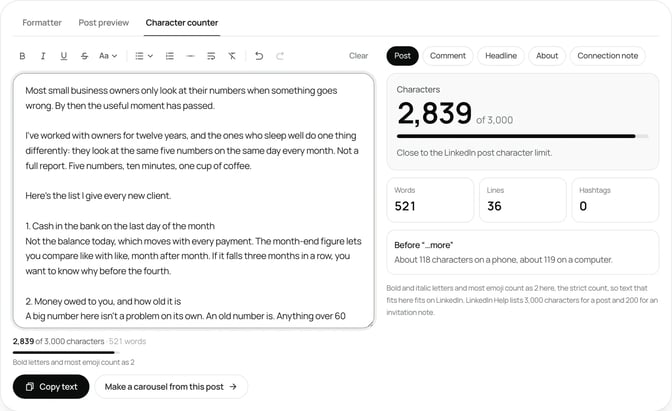
SlideDrift's free LinkedIn character counter uses this strict count, so bold and italic letters and most emoji count as two. If your text fits there, it fits on LinkedIn.
The limit that matters more: the "…more" cut
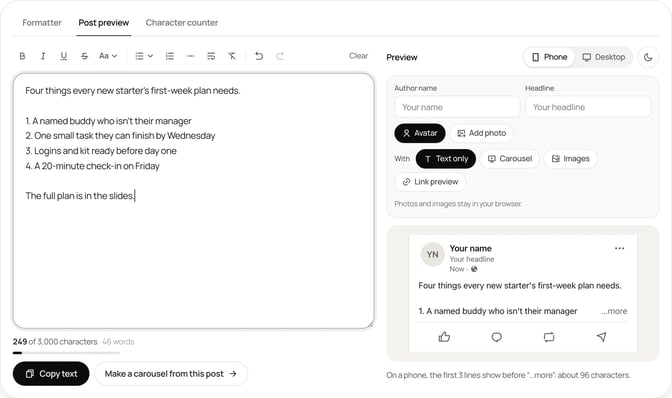
Your post can run to 3,000 characters, but the feed shows only the first few lines. After that, readers see "…more" and have to tap to keep reading.
LinkedIn's help pages don't publish a number for this cut. Where it falls depends on the screen, the line breaks and the length of your words, so the safe plan is to make the first line or two carry the post on their own.
So check two things before you post:
- The total. Is the post under 3,000 characters?
- The opening. Do the lines above "…more" make someone want to tap?
SlideDrift's free LinkedIn post preview marks the approximate "see more" fold in desktop and mobile-style previews. Treat it as a planning aid, not a pixel-perfect copy of LinkedIn. The LinkedIn hook examples are a good source of openings that earn the tap.
Comment, profile and invitation limits
Comments
LinkedIn's help page on group limits sets comments in groups at 1,250 characters. It doesn't publish a separate number for comments under posts in your feed, so if a long reply won't fit, the comment box is the final word. If a reply needs that much room, it's usually a sign it should be its own post.
Headline
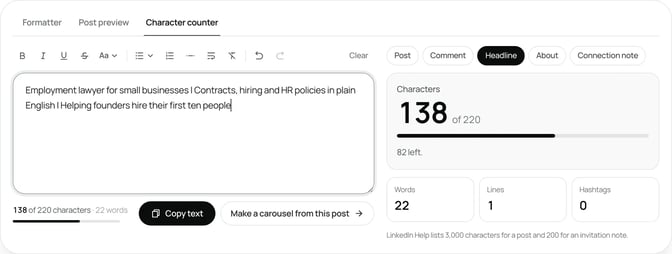
Your headline is the line under your name. LinkedIn's help pages don't publish a character limit for it, so if the box stops you typing, that's the limit. You rarely need all of it anyway: lead with what you do and who for, so the first words do the work.
The free LinkedIn headline generator gives you eight headlines, each counted against 220 characters, and the character counter has a Headline setting for checking your own.
About section
Your About section can hold up to 2,600 characters, according to LinkedIn's Talent blog. Readers start at the top, so put who you help and how in the first two lines. Our guide to building a LinkedIn personal brand covers what to write there.
Connection notes
LinkedIn's help page on invitations and InMail says members with a free account can send up to five personalized invitations, each with a note of up to 200 characters. Premium members can send an unlimited number of personalized notes, each up to 300 characters. 200 characters is about two sentences: say how you know of them and why you'd like to connect.
Polls
A poll question can be up to 140 characters, and each option up to 30, according to LinkedIn's help page on polls. The same page says you can add up to four options on desktop and the Android app, and up to five on the iOS app.
What to do when your post is over the limit
LinkedIn Help puts the post limit at 3,000 characters and suggests an article if you need more, so you'll need to cut or move something. In order of what usually works best:
- Cut the warm-up. Most long posts spend their first paragraph getting started. Delete it and see if the post still makes sense. It usually does.
- Merge short lines. A post with a line break after every sentence uses characters on breaks. Join related sentences into short paragraphs.
- Remove repetition. If the last paragraph restates the first, cut one of them.
- Drop decoration. Long rows of emojis and bold text count as two characters per symbol in the strict count.
- Move the detail. If the post is a list of steps or points, put the full version in a carousel and keep the post to the key idea. Our comparison of carousels and text posts explains when each works better.
- Write an article. If it's an essay with an argument that needs room, LinkedIn Help points you to articles, which can run to 125,000 characters.
Read the post aloud once it's under the limit. Sentences that you stumble over are usually the ones to shorten next, and the post will read better for it.
Don't split one post across several comments to get round the limit. Readers rarely open the comments to finish a post, and the main point gets lost.
For a quick way to tidy line breaks and lists, the free LinkedIn text formatter has clean line breaks, bullets and a live preview, so you can tidy a pasted draft before you count it.
How long should a LinkedIn post be?
The limit tells you the maximum, not the target. A post should be as long as the idea needs and no longer.
As a rough guide for people who sell their expertise:
- A single tip or opinion: a few short paragraphs. Well under 1,000 characters.
- A story with a lesson: often 1,200 to 2,000 characters.
- A checklist or step-by-step guide: often better as a carousel, with a short post on top.
We haven't found a LinkedIn help page saying longer or shorter posts reach more people. What LinkedIn does show you is how far each post reaches, in your post analytics. Try a few lengths and compare them. For more ways to shape a post, see the LinkedIn post templates.
Worked example: an HR manager's onboarding post
Jordan is a made-up HR manager at a 60-person firm. Jordan drafts a post about what to put in a new starter's first-week plan, then pastes it into the character counter. It's 3,420 characters, 420 over.
Jordan works through the list:
- The warm-up goes. The first paragraph explains why onboarding matters. Everyone reading already knows. That's 380 characters.
- Short lines are merged. Twelve single-sentence lines become five short paragraphs. That saves another 60 or so.
- The bold heading goes. Bold letters were counting twice in the strict count.
The post is now 2,840 characters. But the preview shows a problem: the first line, "Let's talk about onboarding", is the only thing above the approximate fold in the phone view. Jordan rewrites it: "Four things every new starter's first-week plan needs."
Reading it again, Jordan sees the post is really a checklist of four items with a paragraph each. That's a carousel. Jordan keeps a short version of the post as the caption and moves the detail into slides. Here's the brief:
SlideDrift brief
Make a 6-slide LinkedIn carousel for HR managers at small and mid-sized firms.
Goal: help them plan a new starter's first week, so the person feels welcome and knows what to do from day one.
Structure: a hook slide ("Four things every new starter's first-week plan needs"), one slide per item with a short explanation and an example, and a closing question for readers.
Tone: practical, warm and plain.
Avoid: invented statistics, company names and legal advice.The caption ends up under 1,000 characters, with the full detail in the slides.
FAQ
What is the LinkedIn character limit for a post?
3,000 characters, according to LinkedIn's help page on posting. Count spaces, line breaks, emojis and links as you go, since LinkedIn doesn't say how it counts them.
What is the LinkedIn comment character limit?
LinkedIn's help page gives 1,250 characters for comments in groups. It doesn't publish a separate number for comments under feed posts.
How many characters can a LinkedIn headline have?
LinkedIn's help pages don't publish a headline limit. SlideDrift's free headline generator counts its options against 220 characters. Either way, put the most important words first.
How many characters can I use in a LinkedIn connection note?
200 characters on a free account, for up to five personalized invitations. Premium members can write notes of up to 300 characters.
Do emojis count as more than one character on LinkedIn?
LinkedIn's help pages don't say. Most emojis are stored as two units, and some take more, so plan on two. SlideDrift's character counter counts most emoji, and bold and italic letters, as two each.
What happens if my LinkedIn post is over 3,000 characters?
LinkedIn Help puts the limit at 3,000 characters and suggests writing an article if your post exceeds it. Otherwise, remove the warm-up, merge short lines, or move the detail into a carousel.
Move a long post into a SlideDrift carousel
When a post runs long because it's really a list of points, a carousel gives each point its own slide and leaves the caption short. Paste your draft into SlideDrift and it drafts the slides, then opens them in the editor for you to change.
Turn your long post into a carousel
Paste your draft. Pick your brand profile so the slides use your colours, fonts and logo, edit them in the editor, then export the PDF.


Brief for this carousel
Make a 6-slide LinkedIn carousel for HR managers on four things to put in a new starter's first-week plan. A hook slide, one slide per item, and a closing question for readers.