LinkedIn Post Inspector: How to Use It and Fix Link Previews
How to use LinkedIn Post Inspector to check and refresh a link preview, fix a wrong, missing or cropped image or an old title, and where to put the link.
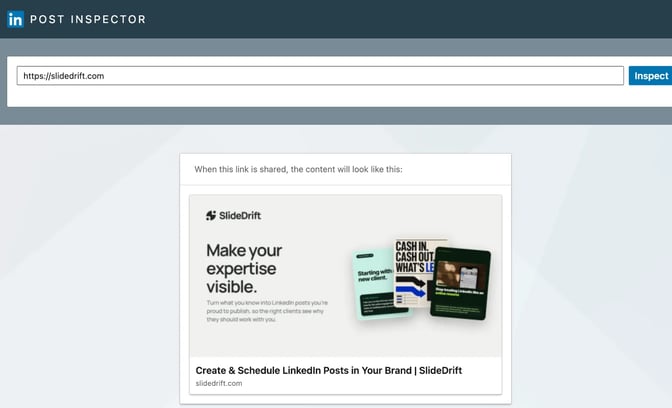
LinkedIn Post Inspector is LinkedIn's free tool at linkedin.com/post-inspector that shows how a link will look when it's shared in a post. Paste a URL and press Inspect: it reads the page again, shows the preview card and lists the title, image and description it found. Use it to refresh a preview after you change a page. It only affects new posts.
If you share your own articles to win clients, the card is the first thing people see. A logo where the headline image should be, or last month's draft title, makes good work look careless. A quick check in Post Inspector before you post prevents it.
What LinkedIn Post Inspector shows
LinkedIn's engineering team introduced Post Inspector in June 2018 as a way for publishers to see how LinkedIn reads a page's metadata. It prefers structured tags such as Open Graph or oEmbed, and falls back to other content on the page when they're missing.
The tool's own page names three jobs: find missing data, see when LinkedIn last read the page and request a re-scrape, and debug problems. The results come in four parts:
- The preview card, under "When this link is shared, the content will look like this."
- URL information: Last scraped, Fetched URL and Canonical URL.
- URL redirect trail: each redirect from the address you pasted to the page LinkedIn landed on.
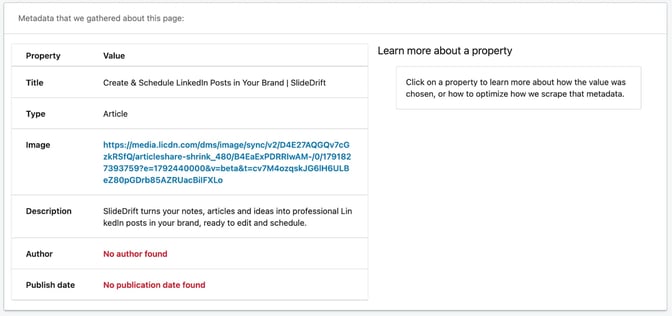
- Metadata that we gathered about this page: Title, Type, Image, Description, Author and Publish date.
Click any property to see how LinkedIn chose its value and how to change it.
How to use Post Inspector, step by step
- Publish the page first. LinkedIn can't read a draft or a page behind a login.
- Open Post Inspector and paste the full URL into the box labeled "Enter a URL to see how it is shared on LinkedIn."
- Press Inspect. Last scraped should say it has just read the page.
- Check the card: the title, the image and how it's cropped.
- Check URL information. Fetched URL and Canonical URL should both be the page you're sharing, not your homepage or an old address.
- Click any property that's wrong to see where the value came from.
- Fix it on your site, clear your site's cache, and press Inspect again.
- Write the post once the card is right. New posts use the refreshed preview.
You can inspect any public URL, including someone else's. If their preview is broken, only the site owner can fix the tags, and LinkedIn's troubleshooting page suggests telling them. Post Inspector checks the link card only. To check how your post's text reads before the …more cut, paste the draft into the free LinkedIn post preview tool.
The Open Graph tags Post Inspector reads
LinkedIn's help page on making your website shareable asks for the Open Graph protocol and lists four tags: og:title, og:image, og:description and og:url. They sit in the page's head:
<meta property="og:title" content="Five things to sort out in the year before you retire" />
<meta property="og:description" content="A plain checklist for the twelve months before your last day at work." />
<meta property="og:image" content="https://example.com/images/retirement-checklist-1200x627.jpg" />
<meta property="og:url" content="https://example.com/blog/year-before-you-retire" />The Open Graph protocol defines og:url as the page's canonical URL, its permanent ID, and adds og:image:alt for describing the image. Most website builders and SEO plugins write these tags from their "social title" and "social image" fields.
The same LinkedIn page sets the image rules for link previews:
- Size: at least 1200 x 627 pixels, and no more than 5 MB.
- Shape: a 1.91:1 ratio is recommended. LinkedIn's help page on sharing links describes the same 1.91:1, 1200 x 627 frame.
- Small images: images narrower than 401 pixels show as a thumbnail.
- Square and vertical images might be cropped when shared organically.
How to fix common link preview problems
Inspect the link first, then match what you see to one of these.
The wrong image appears
Click Image in Post Inspector. If the page has no og:image tag, LinkedIn picked another image from the page, such as a logo. If it's an image your site uses on every page, your SEO plugin is filling in a site-wide default. Either way, set a social image on the article itself.
There's no image at all
Check that the page has an og:image tag and that the image meets LinkedIn's size and file limits above. Use the image's full address, starting with https://, and open it in a private browser window: if it asks you to sign in, LinkedIn can't reach it either. LinkedIn's shareable website page says that when an image meets the requirements and still doesn't appear, your site may be blocking LinkedIn, or the image may sit in a protected directory.
The old title or image shows after you updated the page
LinkedIn stores what it read the last time someone shared the link. Its Post Inspector help page says to enter the URL in Post Inspector to refresh it, then confirm the preview shows the right content. If Last scraped updates but the card is still old, your own site or CDN may be serving a cached copy of the page. Clear it, then inspect again.
The image is cropped
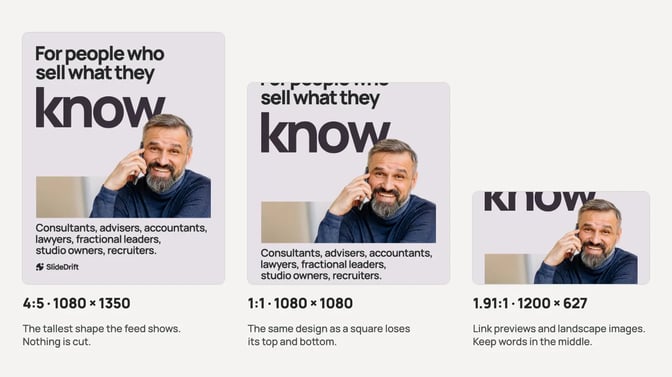
Square and vertical images might be cropped, so make the social image 1.91:1, such as 1200 x 627, with words, faces and logos away from the edges. A portrait carousel cover needs its own landscape version.
The preview won't refresh
Inspect again after each fix, and check you pasted the final address, not a tracking or short link that redirects. LinkedIn's own help pages give two waits for its cache: the troubleshooting page says to allow 48 hours from the last time the URL was shared, and to wait 48 hours after updating tags, while the page on editing posts says the share box remembers a link's content for three days.
A post that's already live won't change. LinkedIn says Post Inspector's refresh only affects new posts, and that shared rich media such as articles can't be replaced: to change it, you delete the post and create a new one.
Should the link go in the post or the comments?
What LinkedIn says. Its help pages don't say how a link affects a post's reach, in the post or in a comment. They do say, on the page about AI-assisted content, that generic content without a clear point of view is less likely to be widely distributed. That argues for a post that makes its point on its own, whatever you do with the link.
What benchmarks show. Socialinsider's LinkedIn benchmark, based on 1.3 million posts from 16,645 business Pages, found link posts had the lowest average engagement rate by impressions in 2025, 3.25%, against 7.00% for document posts. That's how people responded to posts they saw on company Pages, not how many saw them, and it isn't a forecast for your profile.
Links in comments. The case for the first comment comes from creators' own experience rather than from LinkedIn, and their reports vary. Test it on your own posts and compare. The carousels vs external links guide covers the studies in more detail.
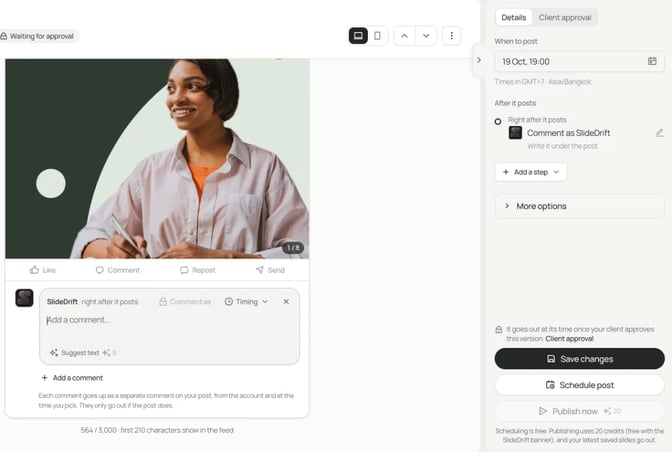
The practical alternative. Put the idea itself in the post, as an image or a carousel, and the link in the first comment for readers who want the full article. The post then stands on its own, and the link is still one tap away. Add a tracking tag to the comment link so your site analytics show the visits. On a paid plan, SlideDrift's LinkedIn scheduling can add that comment for you, set to go up right after the post.
When the click is the point, such as a sign-up page or an event registration, post the link and make the card right with Post Inspector first.
Worked example: an adviser shares a new blog article
Dana, a made-up financial adviser, publishes "Five things to sort out in the year before you retire" on her firm's site and pastes the link into a LinkedIn post. The card shows the firm's logo and the article's draft title.
Fix the preview. In Post Inspector, Title shows the draft title from the first save, and clicking Image shows LinkedIn used the logo because the article had no og:image. In the website's SEO settings, Dana:
- sets a social title that matches the published headline;
- uploads a 1200 x 627 social image with the headline on it, kept clear of the edges;
- writes a one-sentence social description;
- clears the site cache, then presses Inspect again.
Last scraped updates, and the card shows the new title and image. Nothing was published with the old card, so there's nothing to delete.
With the card fixed, Dana can share the link knowing it shows the right title and image, or put the article's ideas in the feed and the link in a comment, as in the last section.
FAQ
Is LinkedIn Post Inspector free?
Yes. It's a public LinkedIn page, and inspecting a link costs nothing. It works on any public URL, but only the site's owner can change the tags.
Why is my LinkedIn link preview not showing an image?
Usually the page has no og:image tag, the image breaks LinkedIn's limits (at least 1200 x 627 pixels, up to 5 MB), or LinkedIn can't reach it. Fix the tag or image, then inspect the link again.
How do I refresh a LinkedIn link preview?
Paste the URL into Post Inspector and press Inspect. If the card is still old, clear your site's cache and inspect again; LinkedIn's troubleshooting page says to allow 48 hours.
Does Post Inspector update posts I've already published?
No. LinkedIn says the refresh only affects new posts that include the URL, and existing posts keep their preview. To change one, delete it and post again once the card is right.
Should I put links in the post or the first comment?
LinkedIn's help pages don't say. Its guidance favors posts with a clear point of view, so make the post stand on its own. One pattern: share the idea as an image or carousel, with a tracked link in the first comment, and compare results.
Does Post Inspector work for carousels?
A carousel is a PDF uploaded as a document post, not a link, so there's no link card to inspect. Use Post Inspector for the article or page you link to in the caption or the first comment.
Turn the article into a carousel in SlideDrift
SlideDrift is a LinkedIn content studio: it turns what you know into carousels, graphics and other posts, then schedules them. To put an article's ideas in the feed with the link in a comment, paste the link into SlideDrift's Create box with a line of direction. It reads the page and drafts an editable carousel, as described in creating from a URL. A brief like this works:
SlideDrift brief
[Paste your article link here]

Make a 7-slide LinkedIn carousel from this article for people planning to retire in the next few years.
Tone: calm, plain and practical. General education, not personal advice.
One point from the article per slide, each with what to check or ask.
Final slide: "Full checklist in the comments" and a reminder that every situation is different.Check every slide against the article and keep it to general education; the carousel ideas for financial advisors cover the compliance checks. Then upload the PDF as a document post, as in how to post a LinkedIn carousel, with the article link as the first comment. For a single idea, a graphic works the same way.
Turn your article into a carousel
Paste your article's link or your notes. SlideDrift drafts the slides; you edit them, then export the PDF or schedule the post.


Brief for this carousel
Make a 7-slide LinkedIn carousel from an article for people planning to retire in the next few years. Calm, plain and practical; general education, not personal advice. One point from the article per slide, each with what to check or ask. Final slide: Full checklist in the comments, and a reminder that every situation is different.
For the full steps for each post format, see how to post on LinkedIn, and for image and document dimensions, see LinkedIn post sizes.