Do LinkedIn Articles Show Up on Google? What Decides It
LinkedIn articles can show up on Google when they're public. The settings that decide it, the SEO title and description, Page articles, and how to check.

Do LinkedIn articles show up on Google? Yes, they can, but only when they're public and only if Google chooses to rank them. A LinkedIn article has its own web address, and LinkedIn lets you set an SEO title and description for search results. Two things decide whether it appears: your visibility settings and whether the article answers something people search for.
For most people who sell their expertise, the best plan is simple. Keep the full article on your own website, where it builds your search traffic. Use LinkedIn articles and posts to bring readers to it, or publish there when you have no site. Below: the settings, the SEO fields, Page articles and how to check.
What LinkedIn says about articles and search
LinkedIn's help page on publishing articles says your article may be searchable on and off LinkedIn, depending on your profile settings. Off LinkedIn means search engines and people who aren't signed in.
So an article isn't hidden from Google by default, and it isn't promised a place there either. Google's own guide to how Search works says it doesn't guarantee that it will crawl, index or serve any page. That applies to a LinkedIn article as much as to your website.
Three things have to line up:
- The article can be seen signed out. If Google can't load it, it can't list it.
- Google indexes it. Crawling and indexing happen on Google's timetable, not LinkedIn's.
- It's the best answer for a search. An article titled "Some thoughts on Q4" competes for nothing. One titled "What to send your accountant before year-end" answers a real question.
Check that your article can be seen off LinkedIn
For an article on your own profile, two settings matter. LinkedIn's page on article visibility says articles are shown to people who aren't signed in only when your public profile visibility is on and the Articles and Activity section is set to Show.
You change both on the desktop site. They can't be changed in the mobile app or on mobile web.
- Open LinkedIn on a computer and go to your profile.
- Open your public profile settings.
- Make sure your profile's public visibility is on.
- Set Articles and Activity to Show.
That page covers articles from a member profile. For an article from a Company Page, the quickest test works for both: copy the article's link, open a private browser window, and paste it in. If the full article loads while you're signed out, search engines can reach it too.
If you've just changed a setting, give it time. LinkedIn's help page on appearing in web searches says search engines can take weeks or even months to reflect changes, and LinkedIn doesn't control when they refresh.
Set the SEO title and description
LinkedIn lets you write the words Google shows for your article, separately from the headline readers see. Its help page on SEO settings for articles describes both fields:
| Field | What it replaces in search results | LinkedIn's guidance |
|---|---|---|
| SEO title | The article title | Over 60 characters is truncated |
| SEO description | The article's opening lines | Use keywords, summarise the piece, aim for 140 to 160 characters |
For an article from your profile, open the article editor, select the Publishing menu, then Settings. For a newsletter run by a Page, LinkedIn's page says to select Manage, then SEO settings. Menu names change from time to time, so if yours look different, the help page is the one to check.
Write the SEO title as the question your reader types, in their words. "Year-end records checklist for small businesses" will match more searches than a clever headline. Keep the description to one plain sentence that answers the question, so it reads well when Google shows it.
Publish an article from your Company Page
Super admins and content admins of a Page can publish an article as the Page or as themselves, per LinkedIn's help page on publishing articles as your Page. You start from the Page's admin view, write the article, then select Publish. The timer icon next to Publish schedules it for a later date and time.
You'll need a computer for this. LinkedIn's article help page says the article tool isn't available in the mobile app.
After it's live, any super admin or content admin can edit the article, per LinkedIn's page on editing a Page article. That matters for search. If the SEO title or opening misses the search you meant, you can fix it rather than start over.
A Page article suits material the whole firm stands behind: a guide clients keep asking for, a yearly checklist, an explainer on a change in your field. Your own view and your own lessons usually do better from your profile. The guide to scheduling LinkedIn posts covers the Page admin view in more detail, and the personal brand guide covers your profile.
Why most LinkedIn articles don't rank
Most articles never show up for a search, and the reasons are usually plain.
No one searches for the title. Opinion pieces and updates are written for your followers. They can do well in the feed and still have nothing to rank for.
The same article is also on your website. When the same text sits at two addresses, Google picks one version to show. Its page on duplicate URLs lists syndicated content as one of those cases. If you paste your blog post into LinkedIn on the same day, the LinkedIn copy can end up as the one Google shows, and your site gets less of the traffic.
It's never checked. Google Search Console shows data only for a site you have verified that you own. You can't verify linkedin.com, so there's no report telling you how a LinkedIn article is doing in search. You have to look.
It's competing with stronger pages. A specific question with few good answers is a better target than a broad topic that big publishers already cover.
Should the article live on LinkedIn or your website?
If you have a website, publish the full article there first. Search traffic to your own site is yours to keep, and you can see it in Search Console.
Then use LinkedIn to bring readers to it. A few ways that don't copy the whole piece:
- A summary article on LinkedIn. Cover the main points in a few short sections, written fresh, and link to the full version on your site.
- A carousel of the key points. One idea per slide, with the last slide pointing to the article. The guide to making a carousel from a URL shows the steps.
- A month of posts from one article. Each section can carry its own post. The repurposing guide has a four-week plan.
If you don't have a website, LinkedIn articles are a reasonable home for your long-form writing. Set the visibility and SEO fields above, aim each article at one real question, and check it after a few weeks.
Before you post the carousel or the summary, paste the opening lines into the LinkedIn post preview to see how they read on a phone. If you're not sure which part of the article to turn into slides, the Blog-to-Carousel Angle Finder suggests three angles from a link.
How to check whether your article is on Google
You don't need a tool for a first check.
- Search the exact title in quotes. If the article appears, Google has it indexed.
- Use the site operator. Search
site:linkedin.com/pulse "your article title". Google's page on the site: operator explains how it limits results to one site or path. - Search the question you aimed at. This is the test that counts. Being indexed only means Google can show it; ranking means it does.
If the article isn't there after several weeks, check it loads signed out, then look again at the SEO title. Is it something your reader would actually type?
Worked example: an accountant's year-end article
This example uses a made-up person. Priya runs a small accounting practice. She writes an article on the five records small business owners should gather before year-end, and she wants it found on Google and read on LinkedIn.
1. Publish the full article on her firm's website. The page title is "What to send your accountant before year-end". That's the question her clients ask every November.
2. Publish a short version from the firm's Page. From the Page's admin view, she writes a fresh summary: one line per record and a link to the full checklist. She sets the SEO title to "Year-end records checklist for small businesses" (48 characters) and writes a 150-character description that answers the question.
3. Turn the article into a carousel. In SlideDrift, she pastes the website link into the Home box with a note: "small business owners, general education, no tax advice, 7 slides".

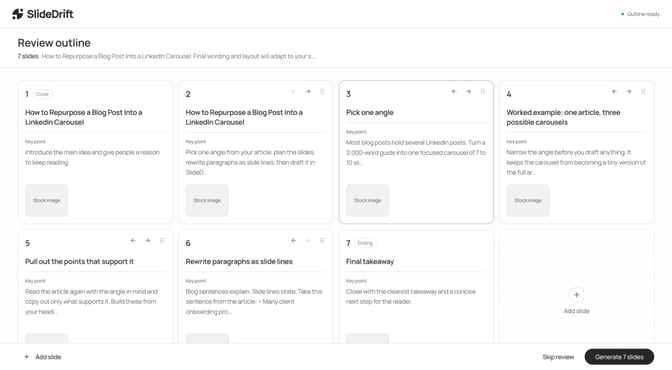
SlideDrift reads the public page and keeps her note alongside it. She checks the outline before the slides are drafted and makes the last slide point to the full article.
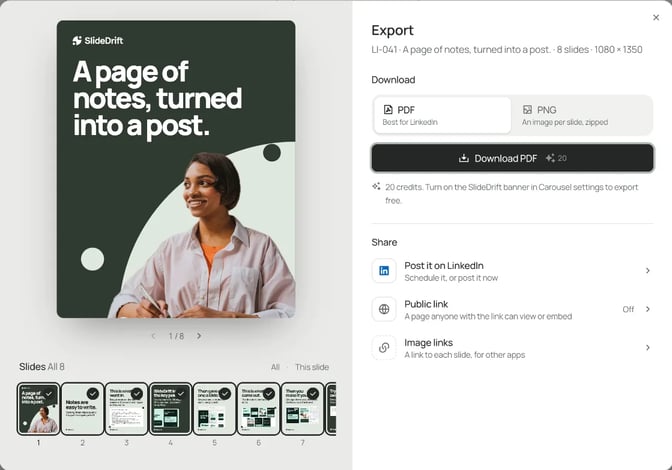
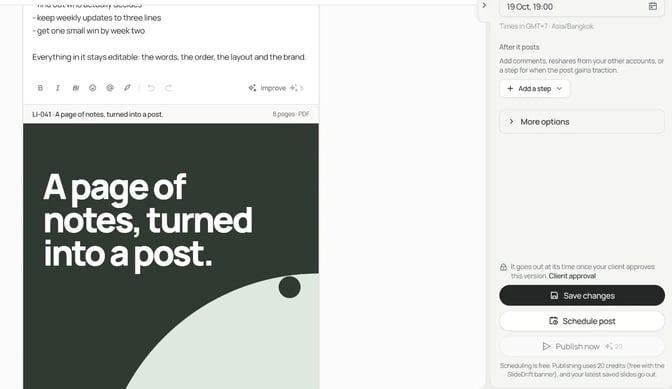
4. Export and post it. She exports the carousel as a PDF and posts it as a document post, with the article link in the first comment. On a paid plan she could schedule it from SlideDrift instead; Company Pages need the Pro or Agency plan.
5. Check in four weeks. She searches the question and the exact title. The website page is the one she wants to see; the LinkedIn article is a bonus if it shows too.
The same carousel works off LinkedIn. SlideDrift exports PNG images in square 1:1, portrait 4:5 or stories 9:16, so she can use the slides on other platforms. Whether a carousel or a link post reaches more people is a separate question; see carousels vs external links.
FAQ
Are LinkedIn articles indexed by Google?
They can be. A public LinkedIn article has its own web address that Google can crawl. Google doesn't guarantee it will index any page, so check by searching the exact title in quotes.
Do LinkedIn posts show up on Google too?
Posts are different from articles, and LinkedIn's article settings and SEO fields don't cover them. If a short post is meant to be found later, an article or a page on your own website is a safer home.
Why isn't my LinkedIn article showing up on Google?
Check three things. The article must load in a private window while you're signed out. Your public profile and Articles and Activity must be set to show. And the title should match something people search for. Search engines can also take weeks to catch up.
Can I set an SEO title for a LinkedIn article?
Yes. In the article editor, open the Publishing menu, then Settings. LinkedIn truncates SEO titles over 60 characters and suggests a description of 140 to 160 characters.
Can a Company Page publish articles on LinkedIn?
Yes. Super admins and content admins can publish an article as the Page from its admin view on a computer, and schedule it with the timer icon. Any of them can edit it after it's published.
Should I post my blog article on LinkedIn as well?
Post a summary rather than the full text. When the same article sits at two addresses, Google picks one to show, and it may not be yours. A short version or a carousel that links to your site keeps the search traffic there.
Turn your article into a carousel with SlideDrift
SlideDrift is a LinkedIn content studio. Paste a link to an article you've written, and it drafts a carousel in your brand that you edit, export as a PDF, or schedule to LinkedIn on a paid plan.
Turn an article into a carousel
Paste the public link to your article and a line on who it's for. SlideDrift drafts the slides, and you check each one before you post.


Brief for this carousel
Make a 7-slide LinkedIn carousel for small business owners that sums up an accountant's article on the five records to gather before year-end. A cover with the promise, one slide per record (bank and card statements, sales invoices, receipts by month, payroll and contractor records, loan and lease paperwork), and a closing slide that points to the full article. General education only, no tax advice.