LinkedIn Carousel Examples: 25 Formats That Work
25 LinkedIn carousel examples by format, with example hooks, a way to pick the right one, two slide-by-slide outlines and example pages for eight professions.

The most useful LinkedIn carousel examples are structured explanations, not decorative slide decks. Each one takes a format, such as a checklist, a mistakes list, a framework or a case study, and gives the reader one useful piece per slide.
Choose the format from the reader's problem, not from a template gallery. Below you'll find 25 formats with example hooks, a quick way to choose between them, two slide-by-slide outlines, example pages for eight professions and a brief you can paste into SlideDrift.
Why the format matters more than the design
A carousel is a sequence. The reader swipes because each page promises the next useful step, and they stop when a page repeats the last one or wanders off topic. The format is what keeps that promise: a checklist moves item by item, a case study moves from problem to decision to result.
On LinkedIn, a carousel is a document post. LinkedIn's help page suggests documents for career advice, insights and trends, event content and knowledge sharing, which is most of what professionals post about.
The format holds up in benchmarks too. Socialinsider's 2026 LinkedIn benchmark of business Pages found native documents had the top average engagement rate by impressions in 2025, at 7.00%, against 5.30% for images. Those are averages across company Pages, not a forecast for your profile. They show the format is worth learning well.
Paste your notes, see them as a carousel
SlideDrift drafts the slides from your notes, a post or a link. Edit them, then export the PDF to post.
25 LinkedIn carousel examples
The hooks below are illustrative examples written for this guide. They are not real posts, and none of them describe a real client or customer. Swap in your own topic, audience and experience.
| # | Format | Example hook | Best for |
|---|---|---|---|
| 1 | Checklist | “The 9-point checklist before you publish a carousel” | Tactical saves |
| 2 | Mistakes | “7 mistakes that make client onboarding harder” | Consultants, agencies |
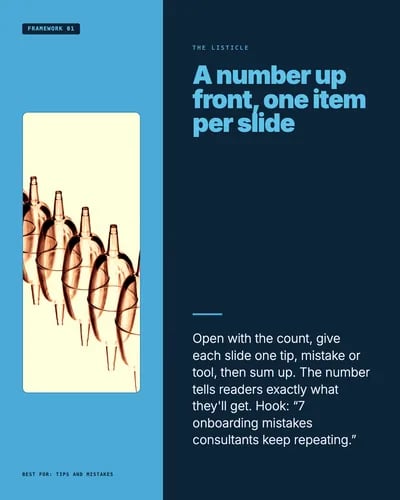
| 3 | Framework | “The 4-part framework I use before writing any post” | Thought leadership |
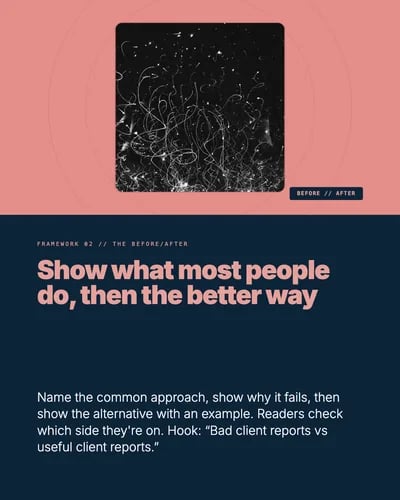
| 4 | Before/after | “Before: vague positioning. After: a clear ICP statement.” | Marketing, sales, founders |
| 5 | Case study | “How we cut onboarding time without adding meetings” | B2B proof |
| 6 | Myth vs fact | “5 myths about carousel posts” | Education and clarity |
| 7 | Decision tree | “Should this be a carousel or a text post?” | Practical decisions |
| 8 | Glossary | “10 terms every first-time founder hears from investors” | Beginner education |
| 9 | Lessons learned | “What 30 client projects taught me about scope” | Professional credibility |
| 10 | Teardown | “Why this landing page works” | Marketing, product, design |
| 11 | Timeline | “The first 30 days after a product launch” | Founders, teams |
| 12 | Process | “How to turn a webinar into a month of posts” | Repurposing |
| 13 | Template | “A discovery-call template you can reuse” | Consultants, agencies |
| 14 | Comparison | “Two ways to plan a quarter, side by side” | Decision support |
| 15 | Swipe file | “8 first-slide hooks worth saving” | Creators, marketers |
| 16 | Red flags | “6 signs your content calendar is too complicated” | Strategy education |
| 17 | Dos and don'ts | “Do this, not that, when writing carousel CTAs” | Tactical improvement |
| 18 | Data summary | “What 2026 benchmarks say about document posts” | Research-backed posts |
| 19 | FAQ carousel | “5 questions clients ask before hiring a consultant” | Service businesses |
| 20 | Role-specific guide | “Carousel ideas for financial advisors” | Industry targeting |
| 21 | Tool workflow | “How to turn an article into a carousel draft” | Product-led tutorials |
| 22 | Content audit | “Why your best post should become a carousel” | Optimization |
| 23 | Principle list | “5 principles of clear slide copy” | Education |
| 24 | Story arc | “The client lesson that changed how I scope projects” | Narrative authority |
| 25 | Resource roundup | “10 prompts to turn rough notes into carousels” | Utility and saves |
Hooks that mention a project count, a client lesson or a result only work if they are true for you. Use your own numbers, or rewrite the hook without one.
How to choose the right format
Start with the reader's situation, then pick the format that fits it:
| If the reader... | Use | Why it works |
|---|---|---|
| Needs to remember steps | Checklist | Easy to save and come back to |
| Keeps making the same error | Mistakes list | Names the problem they recognize |
| Needs a reusable model | Framework | Gives them something to apply again |
| Is comparing two options | Comparison or before/after | Shows the difference at a glance |
| Doubts the approach will work | Case study or lessons learned | Shows a decision and its result |
| Needs to make one call | Decision tree | Ends with a clear answer |
| Is new to the topic | Glossary or myth vs fact | Clears up confusion first |
| Wants ideas | Swipe file or resource roundup | Gives them a list to steal from |
Two checks before you commit. First, can you say the whole carousel in one sentence? If not, it's two carousels. Second, does each page add something the last one didn't? If two pages say the same thing, merge them.
A format only helps if it makes the idea easier to follow. If a plain text post would say it in four lines, post the text.
Illustrative example: checklist carousel
Topic: a publishing checklist for carousels. This outline is an illustration for this guide, not a real post.
| Slide | Copy direction |
|---|---|
| 1 | “Before you publish a carousel, check these 9 things” |
| 2 | File type and size |
| 3 | First slide promise |
| 4 | One idea per slide |
| 5 | Mobile readability |
| 6 | Caption setup |
| 7 | CTA clarity |
| 8 | Internal reuse plan |
| 9 | Final checklist |
The file check on slide 2 matters because LinkedIn posts carousels as documents. LinkedIn accepts PDF, PPT, PPTX, DOC and DOCX files up to 100 MB and 300 pages, and advises converting to PDF for the highest quality. For the full list, use the LinkedIn carousel checklist.
Illustrative example: case study carousel
Topic: how an agency improved client reporting. The agency is made up; the outline shows the structure.
| Slide | Copy direction |
|---|---|
| 1 | “The reporting change that saved our client meetings” |
| 2 | The problem before the change |
| 3 | What clients were confused by |
| 4 | The new reporting structure |
| 5 | What changed in the meeting |
| 6 | The lesson |
| 7 | Template readers can copy |
| 8 | CTA |
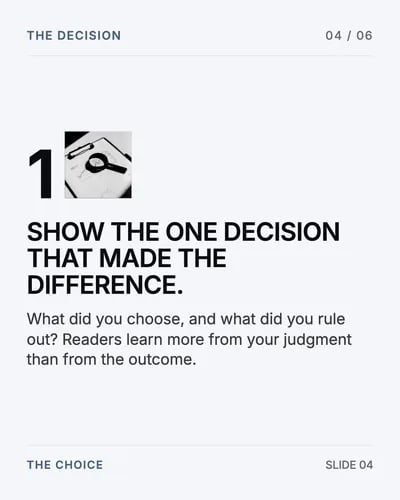
When you write a real one, describe your own work and get a client's agreement before you name them. The page that carries the most weight is the decision: what you chose and what you ruled out.
For more case study structures, see the case study carousel templates.
LinkedIn carousel examples by profession
The formats above work in any field, but the topics change with the reader. These guides apply them to one profession each, with ideas, slide plans and the checks that matter in that field:
- Accountants: tax-season, cash flow and month-end carousels.
- B2B marketers: ideas grouped by team, with a slide plan for each type.
- Recruiters: interview prep, offer checklists and hiring manager guides.
- SaaS companies: carousels built from changelogs, docs, pricing pages and postmortems.
- HR leaders: hiring, onboarding, benefits and review-cycle ideas.
- Product managers: decision memos, roadmap tradeoffs and retros.
- Customer success teams: kickoffs, adoption, QBRs and renewals.
- Real estate professionals: ideas for agents and brokers, grouped by reader.
If your field isn't listed, pick the closest one and keep the format. A checklist for accountants and a checklist for recruiters share a structure even when the topics don't.
What makes an example worth copying
When you study a carousel you liked, look past the colours and check four things:
- The first slide makes one specific promise. It names the reader or the problem, not just the topic. The first slide examples and hook examples show the pattern, and the free LinkedIn hook generator drafts options for your topic.
- Each page has one job. A headline that carries the point, and a short line that supports it.
- It reads at phone size. Large type, short lines and enough contrast. Confirm your page size in the LinkedIn carousel size guide.
- The last slide asks for one thing. Save, comment or visit, not all three. The CTA examples cover the options.
Copy the structure, not the words. A format is free to reuse; someone else's lines and data aren't.
FAQ
What are the most useful LinkedIn carousel formats?
Checklists, mistakes lists, frameworks, before/after comparisons and case studies cover most professional topics. Pick the one that matches the reader's problem: steps to remember, an error to fix, a model to apply, two options to compare or proof that an approach works.
How many slides should a carousel have?
Enough for one idea and no more. Most formats in this guide fit in 7 to 10 slides. The slide count guide shows how to decide for your topic.
Can I copy a carousel example I found?
Copy the format, not the content. Structures like a checklist or a before/after are free for anyone to use, but another creator's wording, design and data are theirs. Write your own copy from your own experience.
Are the examples in this guide real posts?
No. The hooks and outlines are illustrative examples written for this guide, and the agency in the case study is made up. Use them as starting points and replace the details with your own.
What file does LinkedIn need for a carousel?
LinkedIn posts carousels as documents. It accepts PDF, PPT, PPTX, DOC and DOCX files, and recommends PDF for the best quality.
Should I post carousels from my profile or a company Page?
Usually your profile, because people follow and trust individuals. If your company has a Page, reshare the post there.
Make your own carousel in SlideDrift
SlideDrift turns URLs, notes and topics into editable LinkedIn carousel posts. Pick a format from this guide, add one specific topic, and let SlideDrift draft the first version for you to edit.
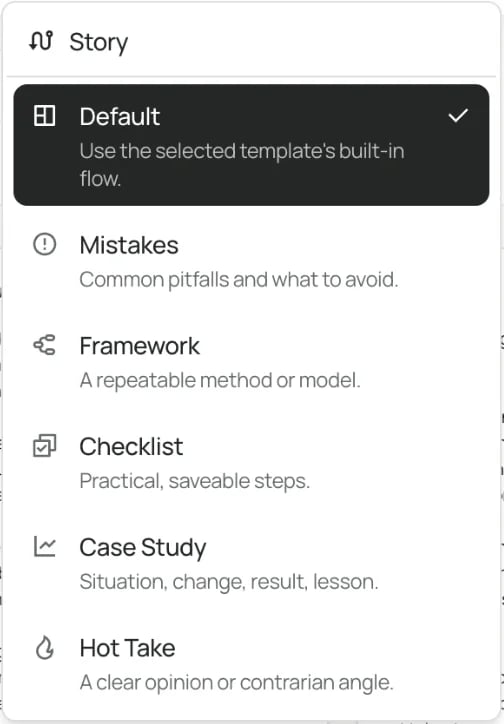
Paste a link, your notes or a rough idea into the Create box, and choose the shape in the Story menu: Mistakes, Framework, Checklist, Case Study or Hot Take.
Add a brief like this one:
SlideDrift brief
Create an 8-slide LinkedIn carousel using the mistakes format.
Audience: B2B consultants.
Topic: common discovery call mistakes.
Include: a specific hook, one mistake per slide with what to do instead, and a final checklist.
Tone: practical, direct, not salesy.Then edit the draft, apply your Brand Kit and export the PDF. Open it once before you upload: LinkedIn lets you change the description or delete the post later, but not edit the document. On a paid plan you can also schedule it to LinkedIn from SlideDrift. For other platforms, export PDF or PNG in square 1:1, portrait 4:5 or stories 9:16 and post the files anywhere.
Make a carousel from a format
Pick a format, paste your notes or a link, and SlideDrift drafts the slides for you to edit and export.


Brief for this carousel
Make an 8-slide LinkedIn carousel in the mistakes format for B2B consultants: common discovery call mistakes. A specific hook on the cover, one mistake per slide with what to do instead, and a final checklist slide readers can save before their next call. Tone: practical and direct, not salesy.