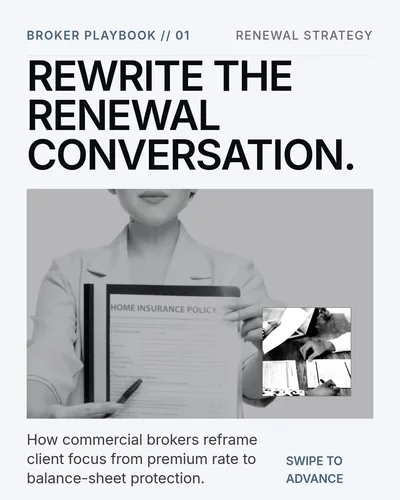
How to Turn a Whitepaper Into a LinkedIn Carousel
Convert whitepapers into saveable LinkedIn carousels using a research-to-story workflow, with examples, slide structures, and prompts.

To turn a whitepaper into a LinkedIn carousel, choose one finding or framework, translate it into a short story, build a 7 to 10 slide sequence, generate the draft in SlideDrift, simplify charts and language, then publish the carousel as a PDF document post.
A whitepaper is not one post. It is a source for many posts.
Key takeaways
- Choose one finding, framework, or recommendation rather than summarizing the whole whitepaper.
- Keep the source finding, its caveats, and your interpretation separate so the carousel does not overstate the research.
- Build each slide around one job: claim, context, evidence, implication, action, or next step.
- Use SlideDrift to turn the cleaned argument into an editable deck, then simplify the copy and visuals before exporting.
Why whole-whitepaper summaries fail
Whitepapers are built for depth. LinkedIn carousels are built for guided scanning. Trying to preserve every section usually creates a crowded deck with no clear reading path.
A whitepaper often starts with:
- Background context.
- Methodology.
- Market overview.
- Definitions.
- Footnotes.
A carousel should usually start with:
- A surprising finding.
- A practical implication.
- A mistake the audience is making.
- A decision the reader needs to make.
The carousel can point to the full whitepaper, but the lesson must stand alone.
The whitepaper-to-carousel workflow
Use this shorter sequence:
- Choose one audience.
- Choose one section of the whitepaper.
- Extract one finding, framework, or checklist.
- Translate it into a slide story.
- Generate and edit the first draft.
- Export as PDF and upload it as a LinkedIn document post.
Five carousel angles from one whitepaper
| Whitepaper material | Carousel angle |
|---|---|
| Executive summary | “5 findings from our latest report” |
| Data chart | “What this trend means for your strategy” |
| Framework section | “The model we use to evaluate this problem” |
| Mistake section | “Why teams keep getting this wrong” |
| Recommendations | “A checklist before you make this decision” |
If your whitepaper is strong, you should not need to force it into a single carousel.

One whitepaper can support multiple carousel angles.
Map the evidence before writing slides
Before generating a draft, make a small evidence map. It prevents a useful finding from turning into a stronger claim than the source supports.
This fictional example uses a whitepaper section about inconsistent customer onboarding. It makes a qualitative argument, recommends one operating change, and does not claim a measured revenue effect.
Evidence map
Keep four kinds of information separate
| Source item | How to use it |
|---|---|
| Finding | State the inconsistent-message problem without strengthening the claim. |
| Caveat | Say that the fictional report does not measure revenue impact. |
| Interpretation | Label the practical meaning as your interpretation, not research evidence. |
| Recommendation | Turn the one-owner check into the reader's next action. |
- Give every source-based slide an exact page, heading, table, or figure reference.
- Label your interpretation instead of presenting it as a report finding.
- Add no statistics when the source provides none.

Lead with the finding, preserve the caveat, then explain the implication.
Choose a clear story shape
- Finding: finding → context → evidence → caveat → implication.
- Framework: decision → model → parts → example → checklist.
- Mistake: mistake → why it happens → consequence → better approach.
- Checklist: decision → criteria → red flags → what good looks like.
Do not open with “We published a whitepaper.” Open with the idea that matters to the reader.
How to generate the carousel in SlideDrift
Paste the selected section or your cleaned evidence map into SlideDrift, not the entire whitepaper. The create-from-text guide covers the current input workflow. Add a short instruction.
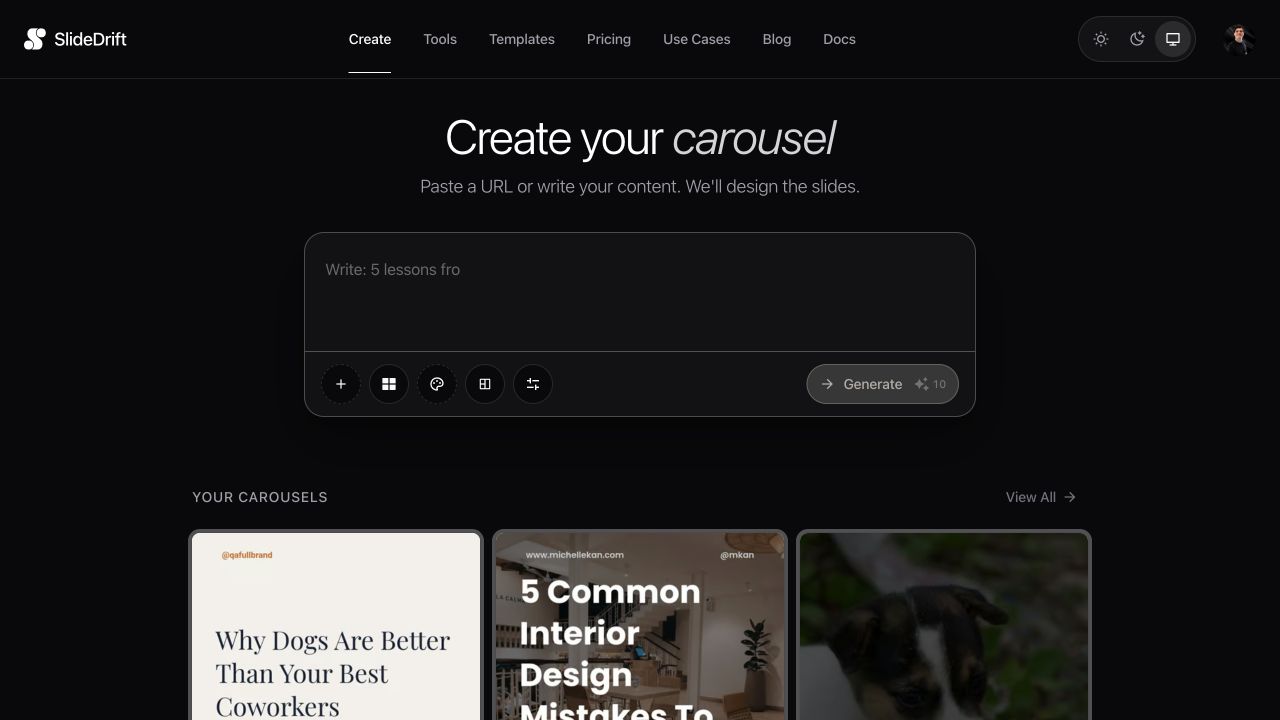
Create a LinkedIn carousel from this whitepaper section.
Audience: B2B marketing leaders
Goal: explain one finding and its practical implication
Format: findings carousel
Tone: clear, evidence-informed, not salesy
Do not summarize the whole whitepaper.
End with a CTA to read the full report.If the first generation includes too much context, edit the slides. Move methodology details into the caption or full report page.
How to handle charts
Do not paste complex whitepaper charts directly into a carousel. Instead:
- Show one simplified chart per slide.
- Remove unnecessary labels.
- Add a plain-language takeaway.
- Use the caption or whitepaper for methodological detail.
- Avoid chart screenshots that cannot be read on mobile.
Export and upload it as a LinkedIn document post
Export the edited carousel as a PDF, open the file, and check slide order, readability, and page edges. SlideDrift's PDF export guide covers that step.
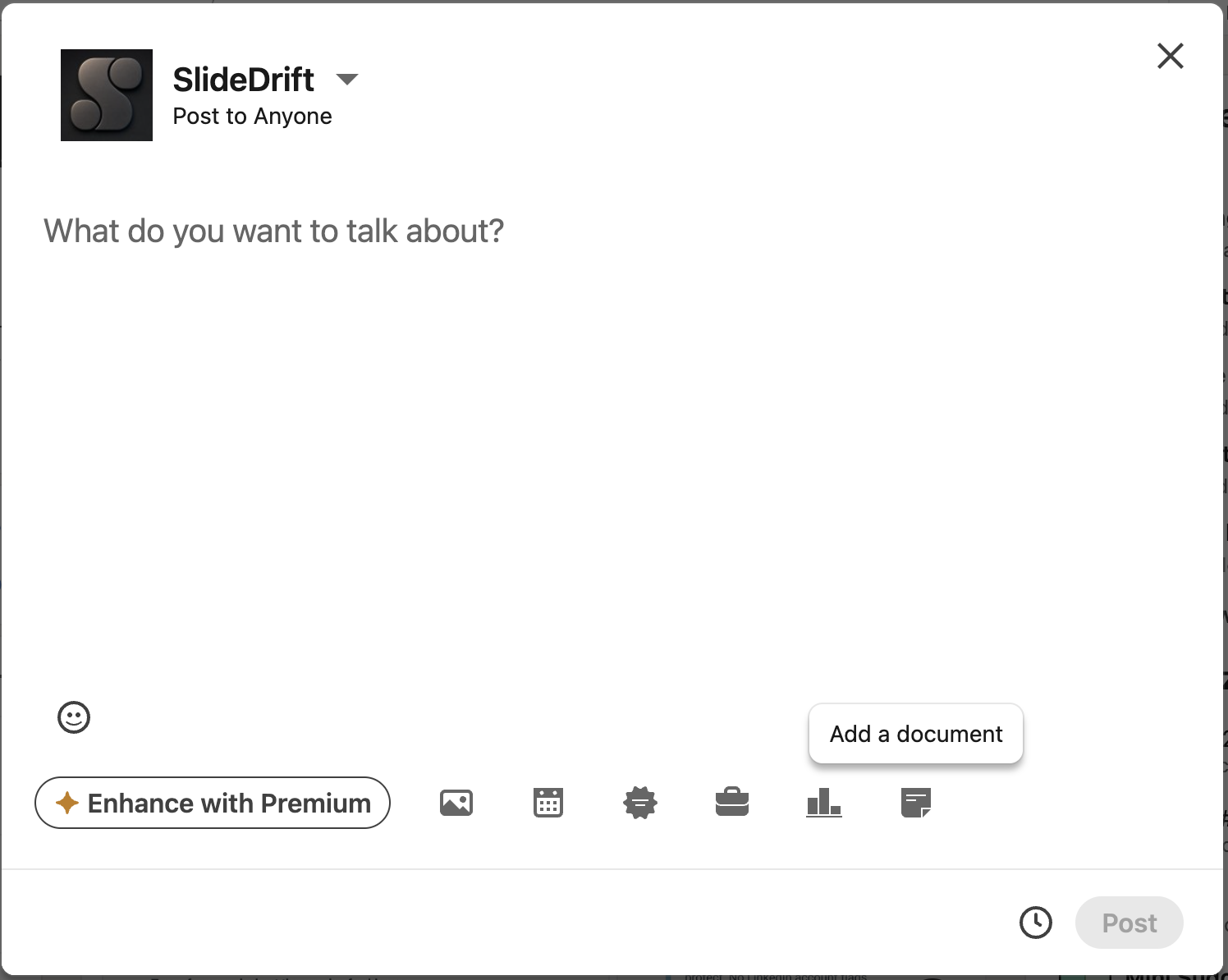
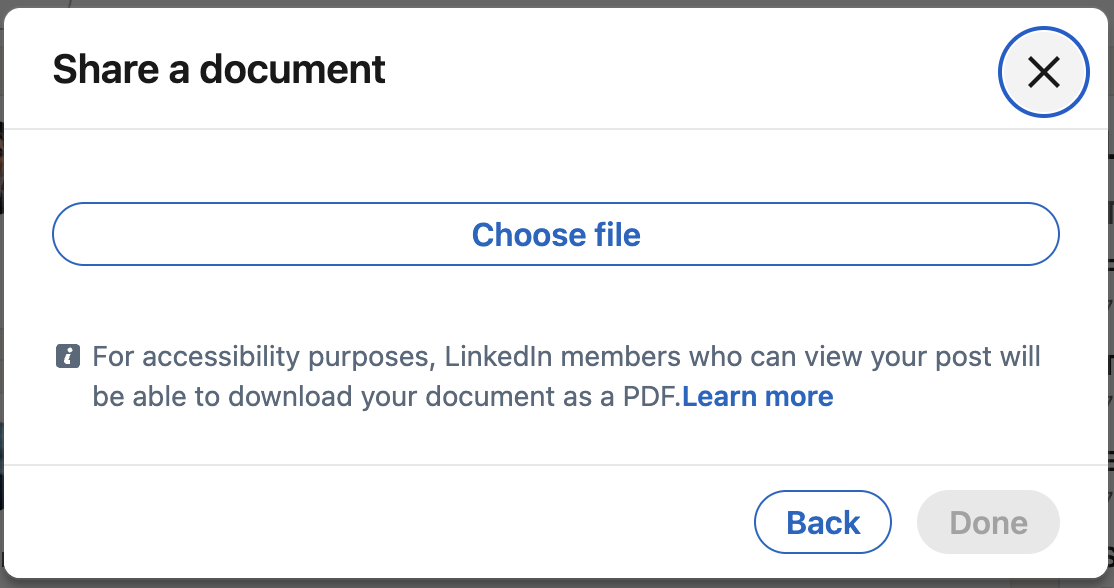
LinkedIn's document-upload workflow starts in the post composer. Choose More, then Add a document. LinkedIn Help: upload and share documents
Final check before you publish
- The carousel teaches one argument rather than summarizing the whole report.
- Every research claim can be traced to a page, heading, table, or figure.
- Caveats remain visible and interpretations are clearly labeled.
- Charts and labels are readable on a phone.
- The exported PDF opens correctly and the slides are in the right order.
- The caption tells readers what they will learn before asking them to read the full whitepaper.
Bottom line
A whitepaper should not be compressed into one crowded LinkedIn document. Choose one useful argument, preserve the source and caveats, turn it into an editable slide story, and publish a PDF that makes sense without the full report beside it.
Related reading
For adjacent repurposing workflows, see how to repurpose a blog post into a LinkedIn carousel or create a LinkedIn carousel from notes.
FAQ
Should a whitepaper become one carousel or several?
Usually several. One whitepaper can become a findings carousel, a framework carousel, a mistake carousel, a checklist carousel, and a quote carousel.
How do you make whitepaper content interesting on LinkedIn?
Lead with a finding, conflict, or decision. Avoid opening with background context that belongs in the whitepaper, not the carousel.
Should I gate the whitepaper and post the carousel?
You can use the carousel as an ungated summary that earns trust, then link to the full whitepaper in the caption or comments where appropriate.
Can SlideDrift help repurpose a whitepaper?
Yes. Paste a selected section, executive summary, or structured outline into SlideDrift and generate an editable carousel.
Final recommendation
Paste a whitepaper section or executive summary into SlideDrift and turn the most useful finding into an editable LinkedIn carousel.
Turn your whitepaper notes into slides
Ready to make one? Start with a URL, notes, or a short outline in SlideDrift, then export the finished carousel as a PDF for LinkedIn.