Content Repurposing Tools: Pick One by What You Start With
Content repurposing tools sorted by what you start with: articles, PDFs, recordings or video. What each does well, where SlideDrift fits, and a week's plan.
A content repurposing tool takes something you've already made, such as an article, a report, a talk or a podcast, and turns it into new pieces for other places. The right one depends on what you start with. Written material suits an AI assistant or a tool like SlideDrift that turns text into LinkedIn posts. Recordings suit transcription and clipping tools. Whatever you use, pick one idea per post and check it against the source.
What a content repurposing tool actually does
Most tools do some mix of four things:
- Read the source. Fetch an article from a link, read a PDF, or transcribe audio and video.
- Find the pieces. Pull out the ideas, quotes, steps or clips that can stand alone.
- Reshape them. Rewrite a section as a post, a carousel, a short clip, a newsletter or a thread.
- Send them out. Schedule or publish the new pieces, sometimes to several networks at once.
Few tools do all four well, and you probably don't need all four. If you sell your expertise, you already write proposals, client notes, articles and talks. The bottleneck is usually step 3: turning a long piece into a short one that someone scrolling LinkedIn will stop for.
Content repurposing tools, sorted by what you start with
| You start with | Tool type | Examples | Good for |
|---|---|---|---|
| Notes, articles, newsletters | AI assistant | ChatGPT, Claude, Gemini | Angles and rough text drafts |
| Articles, notes, PDFs | LinkedIn content studio | SlideDrift | Carousels, image and text posts in your brand, scheduled to LinkedIn |
| Podcasts, webinars, interviews | Transcription and writing | Castmagic | Transcripts, show notes and newsletter drafts |
| Recorded video | Video editing and clipping | Descript, OpusClip | Short clips with captions |
| Pieces you've already made | Distribution | Repurpose.io | Sending finished content to more places |
| An existing design | Design tool | Canva | Reworking a design you already made |
The examples are a starting list, not a ranking. Each tool's own site is the place to check current features and prices.
Written work: an AI assistant
If your source is text, a general assistant is the cheapest place to start. Paste a section of an article and ask for five angles, or ask it to turn one section into a post using only the points it contains.
Used this way, what you get back is text. Designing slides in your brand and scheduling the post are separate steps, and the assistant can't tell which of your points matter most to your clients. That part stays your job. The guide to reviewing AI-generated LinkedIn content shows how to check a draft in a few minutes.
Articles, notes and PDFs into LinkedIn posts: SlideDrift
SlideDrift is a LinkedIn content studio: it turns what you know into LinkedIn posts. It's made for one network, LinkedIn, and for written sources, not video. There are four ways in:
- Create. Paste a public article link or your notes on the Create page, choose your Brand Kit, and SlideDrift drafts an editable carousel in your colors, fonts and logo. You can add notes beside the link, such as who it's for or which points to keep. PDFs work too on a paid plan or a trial.
- Post ideas. Paste notes, a link or a short idea and it suggests a mix of carousels, image posts, text posts and polls from the same material. Drafting the ideas uses no credits.
- Follow a blog. Add your own blog or newsletter address under Following in For you. Choose Ideas to keep each new article as suggestions, or Made for me to have posts made automatically. Nothing is posted until you schedule or publish it. The For you guide has the details.
- The Chrome extension. The SlideDrift Chrome extension takes the article you're reading, or the text you've selected, and turns it into a carousel brief you can carry straight into SlideDrift.
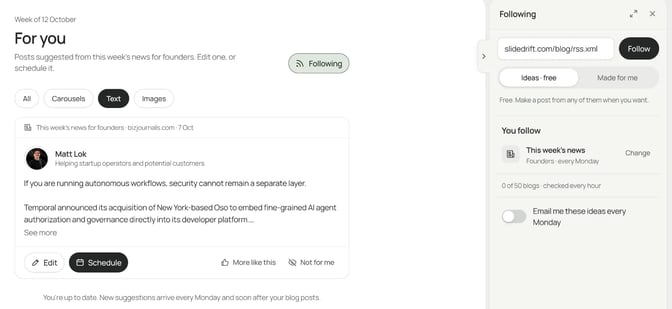
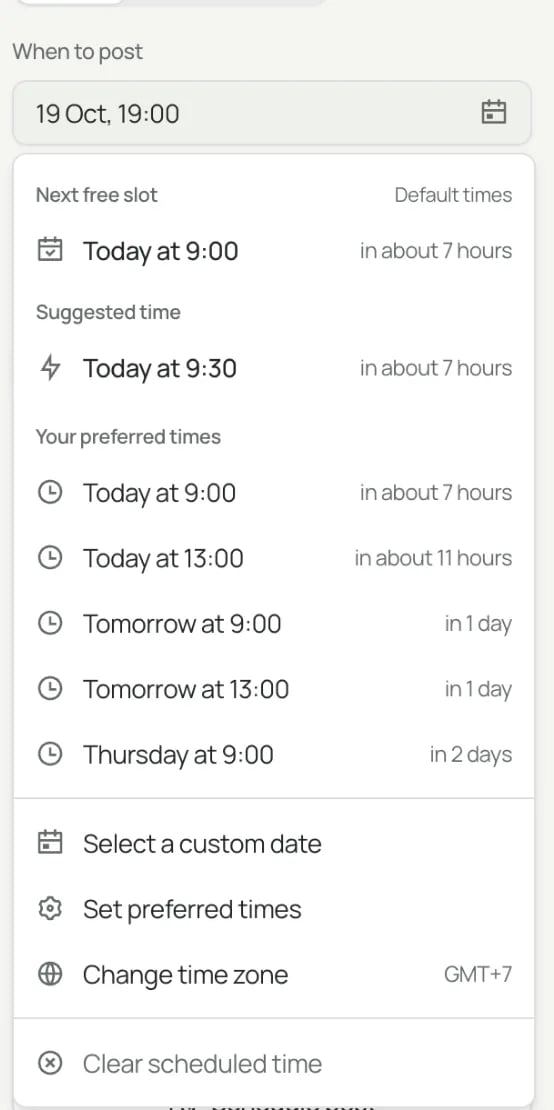
You edit the slides in the editor, then export a PDF or schedule the post from the Schedule page. Scheduling needs a paid plan, and Company Pages need Pro or Agency.
What it doesn't do: it doesn't create or edit videos, and it doesn't fetch a video's captions. It publishes only to LinkedIn; to use a carousel elsewhere, export it as a PDF or PNGs in square (1:1), portrait (4:5) or stories (9:16) size and post it yourself. For a video, paste a transcript you have permission to use; the YouTube video guide walks through it.
Recordings: transcription and writing tools
If your best thinking happens out loud, on calls, podcasts or webinars, start with a tool that transcribes. Castmagic is one example: its site describes turning an uploaded recording into transcripts, show notes, newsletter drafts and short clips.
The transcript is the valuable part. Once you have it, you can paste a section into any text tool. The webinar guide shows how to split one session into several carousels, and the podcast guide does the same for an episode.
Video: editing and clipping tools
If you record video and want short clips, use a video tool. Descript lets you edit video by editing its text and cut long recordings into clips for each platform. OpusClip picks highlight moments from a long video and turns them into a short with captions.
Clips suit networks built around short video. On LinkedIn, a carousel made from the same talk can be easier to read on a phone in a quiet office, so it's worth trying both.
Cross-posting and design
Repurpose.io calls itself an automated content repurposing and distribution platform. Tools like it help once a piece is finished and you want it in more places; check its site for the networks and formats it handles.
Canva is a design tool first. Its site didn't load for this update, so check its own pages for what each plan includes. If you already design in Canva, the Canva and SlideDrift comparison covers the difference for carousels.
How to choose a content repurposing tool
Five questions rule most tools in or out:
- What's your source? Text, documents, audio or video. Pick a tool that reads it directly.
- Where will the posts go? One network or several. A tool built for every network may do LinkedIn less well, and one built for LinkedIn won't help on other networks.
- What format do you need? Carousels, text posts, clips or a newsletter.
- Can you edit everything before it goes out? If not, skip it. Your name is on the post.
- Does it use your brand and your words? Your colors and fonts, and the points from your source, not generic filler.
If you're a consultant, adviser or founder who writes more than you record, the shortlist is usually short: an assistant for angles, and one tool that makes the finished LinkedIn posts. The content strategy for consultants covers how often to post and what to measure.
Worked example: one newsletter, a week of posts
Dana is a made-up fractional HR director who writes a monthly newsletter for founders. This month's issue is called "Your first HR policies: what you need at 10 staff, and what can wait." She wants three LinkedIn posts from it this week.
Step 1: map the issue (10 minutes). She reads her own newsletter and lists the parts that stand alone:
- The five policies a 10-person company needs first.
- Three policies founders write too early.
- A story: a client who lost a week to a holiday dispute with no written policy.
- One opinion: a handbook nobody reads is worse than one page people do.
If you're not sure which part would carry a carousel, the free blog-to-carousel angle finder reads a pasted article or a public link and suggests three angles.
Step 2: match each part to a format.
| Part of the issue | Format | Why |
|---|---|---|
| The five first policies | Carousel | A list of steps reads well one slide at a time |
| The handbook opinion | Text post | One argument, no visuals needed |
| The holiday dispute story | Image post | One line from the story, drawn as an image in her brand |
Step 3: make the carousel (20 minutes). She pastes the newsletter's link into SlideDrift's Create page with her Brand Kit chosen, then reviews the proposed outline, so she can check the slide order before anything is designed.
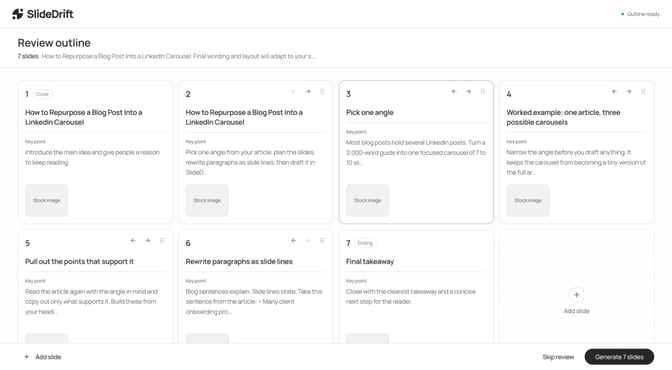
Her notes beside the link:
SlideDrift brief
Turn the "five policies you need first" section of the article into 7 slides for a LinkedIn carousel aimed at founders of companies with 8 to 20 staff.
Goal: help them see which HR policies to write first and which can wait, so they spend an afternoon on it instead of a month. General guidance only, not legal advice.
Structure: a hook, one slide per policy with one line on why it matters, and a closing slide inviting them to reply with the policy they're missing.
Tone: plain, calm and practical. No jargon.
Avoid: legal promises, scare stories, and anything from the client story.She edits two slides, checks every line against the newsletter, and schedules it for Tuesday on the Schedule page.
Step 4: the other two posts (15 minutes). For the text post, she writes the handbook opinion herself in four short paragraphs, using the newsletter's best sentence as the first line. For the image post, she takes one line from the story, removes anything that could identify the client, and pastes it into Post ideas, which suggests a mix of posts from it using her default Brand Kit. She keeps the image post. Wednesday and Thursday are booked.
One newsletter, three posts, about 45 minutes. Each post links back to the newsletter in its caption, so readers who want the full version can find it.
What to check before a repurposed post goes out
Repurposing saves the thinking, not the review. Before you post:
- One idea per post. A carousel that tries to carry a whole article becomes a deck nobody finishes. The guide to repurposing a blog post into a carousel shows how to narrow it.
- Every claim matches the source. Tools compress, and compression drops the conditions that made a claim true. Check numbers, dates and quotes against the original.
- Client details are gone. Something fine in a private newsletter may not be fine in a public post.
- It reads as you. LinkedIn's guidance on AI-assisted posts says content that "feels generic, repetitive, or lacks a clear point of view" is less likely to be widely distributed. It also says you're responsible for what you post.
- Someone else's work is credited. If you're repurposing another person's article or talk, name them, and don't copy their slides or wording. LinkedIn's User Agreement rules out violating others' intellectual property rights.
If you want the long view, how to repurpose one article into a month of LinkedIn posts has a four-week calendar built from a single piece.
FAQ
What is the best content repurposing tool?
It depends on your source and where the posts go. For written material going to LinkedIn, a tool that makes carousels and text posts from a link or notes fits best. For podcasts and calls, start with a transcription tool. For video clips, use a video editor with clipping. Pick the one that reads your source directly.
Is there a free content repurposing tool?
Yes, in part. General AI assistants have free versions, and many repurposing tools offer free plans or trials. SlideDrift's Post ideas drafts post ideas from your notes or a link without using credits, and its free account can make carousels. Scheduling from SlideDrift needs a paid plan.
Can I repurpose content for LinkedIn without a tool?
Yes. Pick one section of your article, rewrite it as a short post, and post it yourself. A tool helps most when you want carousels or images in your brand, or when you post every week and the formatting starts taking longer than the writing.
Is repurposing other people's content allowed?
Summarising someone's idea with credit is common. Copying their wording, slides or images isn't, and LinkedIn's User Agreement rules out violating others' intellectual property. Repurpose your own work freely, and treat other people's work as a source to cite, not material to reuse.
How many posts can I get from one article?
Usually three to five, one per section that stands alone. A long guide can fill a month. Post them a few days apart and change the format, so the same readers see a carousel, a text post and an image rather than the same idea three times.
Repurpose your next article in SlideDrift
Start with one piece you've already written and one section that stands alone. Paste the link or your notes, choose your Brand Kit, check the outline, and edit the slides until every line matches your source. Then export the PDF or schedule the post for LinkedIn.
Turn an article into a carousel
Paste a link to something you've written, or your notes. SlideDrift drafts the slides in your brand; you edit them, then export the PDF or schedule the post.


Brief for this carousel
Make a 6-slide LinkedIn carousel on choosing a content repurposing tool by what you start with. A cover with the answer (match the tool to your source), then one slide each for written work, recordings, video and finished posts, and a closing slide: one idea per post, checked against the source.