How to Turn a Twitter Thread Into a LinkedIn Carousel
Turn a Twitter (X) thread into a LinkedIn carousel: choose the strongest tweets, give each slide one idea, rewrite for LinkedIn readers and post a checked PDF.

Going from Twitter thread to LinkedIn carousel is mostly a cutting job: choose the thread's strongest tweets, give each slide one idea, and rewrite the lines for LinkedIn readers. Check every slide against the thread, then post the carousel as a PDF document.
A thread already has a carousel's shape: one point per post, in order. The work is cutting it down and making each slide stand on its own.
- Pick a thread that teaches one thing.
- Choose the strongest tweets and drop the rest.
- Split them so each slide carries one idea.
- Rewrite for LinkedIn readers, not for X.
- Check every slide against the thread.
- Post the PDF with a short caption.
Why a thread makes a good carousel
X's help centre describes a thread as a series of connected posts from one person. That's close to a slide plan already. Each tweet is short, makes one point and leads into the next.
What doesn't carry over is the filler. Threads lean on "a thread 🧵", "1/", "here's why", reply bait and a last tweet asking for a follow or a retweet. None of that belongs on a slide.
It's also your own writing, which makes it safer material than a summary of someone else's work. If you've written a thread that got replies or saves, the idea has already been tested once.
Pick a thread that teaches one thing
Not every thread should become a carousel. These usually work:
| Thread type | Carousel angle |
|---|---|
| A step-by-step process | The steps, in order, with one step per slide |
| A list of mistakes | The mistakes and the fix for each |
| A framework you use with clients | The parts of the framework and when to use it |
| A before-and-after story | What changed, why, and what you'd do again |
| A short answer to a common client question | The question, the answer and the example |
Skip threads that were a reaction to news, a joke, an argument with another account or a list of links. They depend on context a LinkedIn reader won't have.
If your thread covers three ideas, it's three carousels. The guide to repurposing one article into a month of LinkedIn posts shows how to split one source into several angles.
Choose the strongest tweets
Open the thread and copy each post into a document, one per line, with its number. For your own threads, your drafts or notes may be easier to copy from.
Then sort them into three piles:
- Keep. The tweets that carry the idea: a step, a mistake, a rule, an example.
- Merge. Two tweets that say the same thing, or one tweet split in two to fit the character limit.
- Cut. The thread opener, "1/" markers, links, hashtags, reply bait and the follow request.
A ten-tweet thread might keep five or six. That's fine: a carousel with fewer, clearer slides reads better than one that keeps every tweet.
The first tweet needs the most work, because it becomes your cover. A thread opener often promises "a thread on" something. A cover has to name what the reader gets. Try a few versions with the free LinkedIn hook generator, and see the first slide examples for patterns.
Give each slide one idea
The rule is one idea per slide, not one tweet per slide. Some tweets hold two ideas and need splitting. Some pairs of tweets hold one idea and should merge.
A simple check: can you say what the slide is for in four words? "Step 2: price the risk" passes. "Pricing, scope and also why clients push back" doesn't, so split it.
A common shape for a thread-based carousel:
- Cover: the promise, in one line.
- Problem: why this matters to the reader.
- Points: one slide per step, mistake or rule.
- Example: one real case or a made-up one, marked as such.
- Close: the takeaway, or one question for the comments.
The slide count guide helps you pick a number. If you'd rather plan the order on screen, the free carousel outline builder lays the slides out for you.
Rewrite for LinkedIn readers
Tweets are written for people who follow you on X and know your shorthand. LinkedIn readers might be clients, partners or hiring managers who don't.
- Spell out abbreviations. "LTV", "ICP" and "MRR" may need a word of context.
- Drop X habits. No "🧵", no "1/", no "RT if you agree".
- Give each slide a heading. A swipe should make sense even if the reader skipped the slide before.
- Keep the caveats. "In my practice" or "for UK clients" stops a slide claiming more than the tweet did.
- Keep it short. If a slide needs a paragraph, it's two slides.
Here's a made-up example. Priya, a fictional employment lawyer, wrote this tweet in a thread about contractor agreements:
"4/ biggest one imo: if you set their hours AND their tools AND they can't send someone else, that's not a contractor. that's an employee w/o the paperwork 🙃"
As a slide, that becomes a heading and a line: Three signs it's really employment. You set the hours, you supply the tools, and they can't send someone in their place. The point is the same, and the slide reads cleanly without the rest of the thread.
The notes-to-carousel guide covers this rewriting step in more depth.
Draft the slides in SlideDrift
Doing all of the above by hand in a design tool takes a while. SlideDrift is a LinkedIn content studio, and it shortens the drafting and design part.
Paste the tweets you kept into the Create box, in order, with a short brief. Paste the text rather than the thread's link. SlideDrift's guide to creating from a URL notes that pages that depend on logins or scripts may not extract cleanly, and X pages often do.
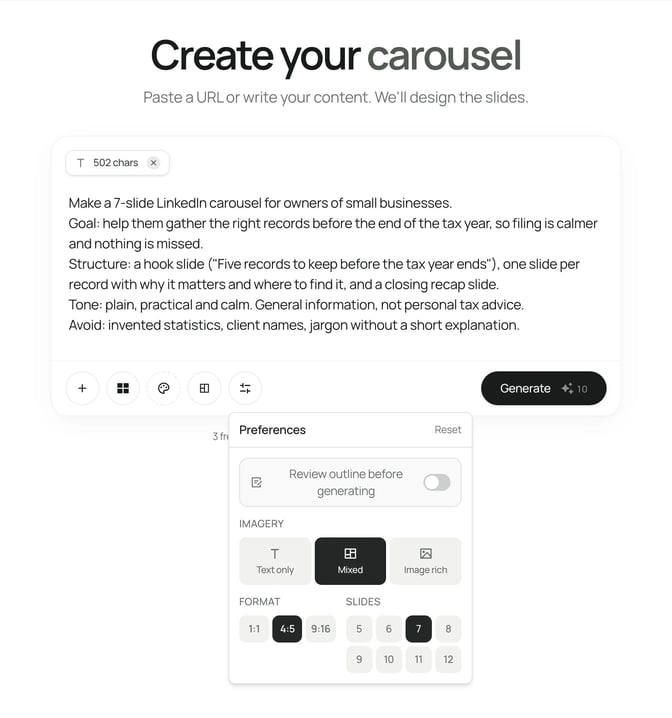
A brief like this keeps the draft tied to your thread:
SlideDrift brief
Make a 7-slide LinkedIn carousel for [audience] from the tweets below.
Lesson: [the one idea the thread teaches].
Cover: rewrite the first tweet as a clear promise, not "a thread on".
Give each slide one idea and a short heading.
Remove thread markers, hashtags, links and requests to follow or retweet.
Don't add claims, numbers or examples that aren't in the tweets.

[Paste the tweets you kept here, in order]Set the format and slide count in Preferences before you generate. SlideDrift supports 5 to 12 slides and the 1:1, 4:5 and 9:16 formats. If you've set up a Brand Kit, the deck comes out in your colours, fonts and logo.
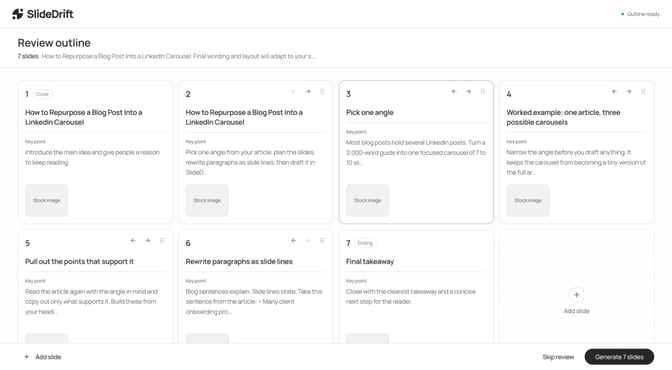
Turn on Review outline before generating to see one card per slide first. You can reorder points, merge two or add the example before SlideDrift designs the deck.
The same approach works for other sources. Repurposing a blog post into a carousel and the content repurposing tools guide cover articles, PDFs and recordings.
Worked example: a nine-tweet thread to seven slides
Priya's made-up thread has nine tweets on contractor agreements. Here's how they map:
| Tweet | What it says | Decision |
|---|---|---|
| 1 | "A thread on contractor mistakes I see every month 🧵" | Rewrite as the cover |
| 2 | Why misclassification costs small firms money | Keep: problem slide |
| 3 | The written agreement isn't the whole story | Keep |
| 4 | Hours, tools and substitution | Keep: the key slide |
| 5 | Same point as 4, different words | Merge into 4 |
| 6 | Long-running contractors on one client | Keep |
| 7 | What to review once a year | Keep |
| 8 | Link to a newsletter | Cut |
| 9 | "Follow for more" | Cut |
Worked example
From nine tweets to seven slides
- Cover: Five signs your contractor is really an employee.
- Problem: Getting this wrong can be costly for a small firm.
- Sign 1: The agreement says contractor, but the day-to-day says otherwise.
- Signs 2 to 4: You set the hours, supply the tools, and they can't send a substitute.
- Sign 5: They've worked only for you, full time, for years.
- Action: Review each contractor arrangement once a year.
- Close: Which of these do you see most often?
Traceability check: every slide maps to a tweet in the thread. The deck adds order and headings, not new claims.
Two tweets were cut and one merged, so seven of nine made it through. The newsletter link moves to the post caption or a comment.
Check every slide against the thread
A draft's wording isn't your wording. Before you export, match each slide to the tweet it came from:
| Check | What to look for |
|---|---|
| Source | The tweet number behind each claim or example |
| Caveat | Conditions like "in my experience" or "UK only" kept |
| Tone | Phrasing your clients would expect from you |
| Boundary | No slide claiming more than the thread did |
Rewrite or cut any slide you can't trace. LinkedIn's guidance on AI-assisted content asks you to review and edit it, and says you're responsible for what you post. The guide to reviewing AI-generated LinkedIn content has a fuller checklist.
Export the PDF and post it
In the SlideDrift editor, click Share, then Export, keep PDF selected and click Download PDF. The PDF export guide covers the settings.
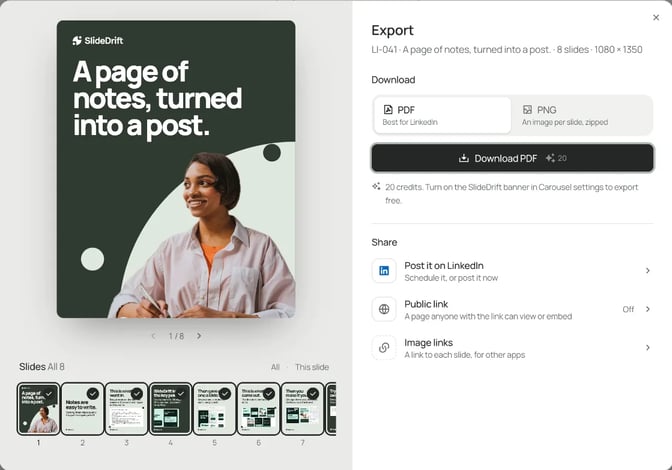
On LinkedIn, start a post, add a document, choose the PDF and give it a title. LinkedIn's help page on documents recommends PDF for the highest quality and accepts files up to 100 MB and 300 pages.
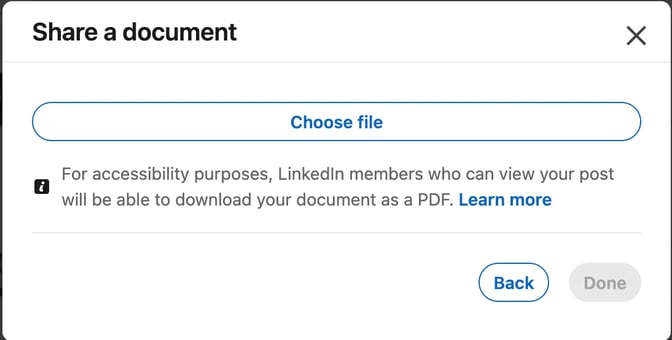
You can edit the description after posting but not the document, so open the file once before you upload it. Write a caption of two or three lines that says what the carousel covers; LinkedIn posts allow up to 3,000 characters, but the carousel carries the detail. Preview the caption with the free LinkedIn post preview, then run the LinkedIn carousel checklist.
FAQ
Can SlideDrift turn a Twitter thread link into a carousel?
Paste the tweets as text instead. SlideDrift reads public web pages, but pages that depend on logins or scripts may not extract cleanly, and X pages often do. Copying the tweets you want also lets you cut the filler first.
Should every tweet become a slide?
No. Give each slide one idea. Merge tweets that repeat a point, split a tweet that holds two, and cut the opener, links, hashtags and follow requests. A ten-tweet thread might become five to seven slides.
How many slides should a carousel from a thread have?
Enough to carry the idea and no more. In SlideDrift you set the count in Preferences, from 5 to 12, before you generate.
Can I turn someone else's thread into a carousel?
Not as your own work. If you build on someone else's thread, credit them by name, use a short quote and add your own view or structure. Your own threads are the safest material.
Should I post the carousel on X too?
You can. Export the same deck as PNG images and post them on X, or keep the thread there and the carousel on LinkedIn. Each platform's readers see the format that suits it.
How long does this take by hand?
It depends on the thread and your design tool. Choosing and rewriting the tweets is quick; laying out and styling each slide takes longest. A drafting tool mainly saves the layout time, not the thinking.
Turn your next thread into a carousel with SlideDrift
SlideDrift is a LinkedIn content studio. Paste the tweets you kept and a short brief, and it drafts an editable carousel in your brand that you check, export and post as a PDF document, or schedule from SlideDrift on a paid plan.
For other platforms, export the same deck as PDF or PNG in square 1:1, portrait 4:5 or stories 9:16 and post it anywhere.
Make a carousel from a thread
Paste the tweets you want to keep, in order. SlideDrift drafts one idea per slide; you check them against the thread, then export the PDF for LinkedIn.


Brief for this carousel
Make a 7-slide LinkedIn carousel for consultants, coaches and founders who write threads on X. A cover promising one thread turned into a carousel, then one step per slide: pick a thread that teaches one thing, choose the strongest tweets, give each slide one idea, rewrite the lines for LinkedIn readers, check every slide against the thread, and post the PDF.