Canva vs SlideDrift: Which Is Better for LinkedIn Carousels?
Canva vs SlideDrift for LinkedIn carousels: who writes the slides, templates, Brand Kits, free plans and how each gets your carousel onto LinkedIn.
Choose Canva if you want to design every page yourself: it's a general design platform with more than 1,000 LinkedIn carousel templates. Choose SlideDrift if writing the slides is the slow part: it drafts a carousel from your link, notes or idea, and on a paid plan schedules it to LinkedIn as a document post.
- Both offer LinkedIn carousel templates, Brand Kits and a PDF you can upload to LinkedIn, and both have a free plan.
- Canva does far more than carousels, from presentations to video and print. Its free plan includes one Brand Kit. Pro adds scheduling, but Canva sends LinkedIn JPG images rather than a PDF document.
- SlideDrift is built around LinkedIn carousels. Its AI drafts the slides and you edit them, then download the PDF or, on a paid plan, schedule it to LinkedIn. Free exports carry a SlideDrift banner, and paid plans start at $29 a month.
We make SlideDrift, so weigh that. Every fact below was checked on both sites on October 7, 2026.
Quick comparison
| Canva | SlideDrift | |
|---|---|---|
| Built for | Most kinds of design: social posts, presentations, video, websites, docs and print | LinkedIn carousels, from first draft to scheduled post |
| A carousel starts from | A LinkedIn carousel template or a blank design | A link, notes or an idea; a PDF on paid plans |
| Who writes the slides | You, page by page, with Canva AI to help | SlideDrift's AI drafts them, then you edit |
| Brand Kits | 1 on Free, 5 on Pro | 1 on Free and Starter, 5 on Pro, 25 on Agency |
| Download | PDF, JPG or PNG on every plan | PDF or PNG; free exports carry a SlideDrift banner |
| Posting to LinkedIn | Scheduling from Pro up, sent as JPG images | Scheduling on paid plans, sent as a PDF document; Company Pages on Pro and Agency |
| Price | Free plan; paid Pro, Business and Enterprise plans | Free plan with 200 credits; paid plans from $29 a month |
When to choose Canva
- Carousels are one job among many. Canva's plans cover social posts, presentations, video, websites, whiteboards, docs and print, so your carousels sit next to the rest of your design work.
- You want to place every element yourself. You start from one of Canva's LinkedIn carousel templates or a blank design, then set each page's layout, images and type.
- Your brand already lives there. Canva's free plan includes one Brand Kit and Pro includes five, and every plan downloads designs as PDF, JPG or PNG.
Canva has AI tools as well. Canva AI generates designs from a prompt and any files you attach, and on paid plans you can refine a design by chatting with it in the editor. Its help page on generating designs lists formats such as presentations, posters, documents and social posts for Instagram, Facebook, Pinterest, YouTube and X. LinkedIn carousels aren't on that list, so in Canva a carousel usually starts from a template, and you write the pages.
To post a Canva carousel as a document, download the PDF and upload it on LinkedIn yourself. Canva Pro can schedule designs to LinkedIn, but Canva's sharing limits page lists one file type for LinkedIn: JPG.
When to choose SlideDrift
- The material already exists. Paste a link, notes or an idea into SlideDrift's Create box and press Generate. Its AI drafts the slides in a template, seven by default, and on paid plans you can start from a PDF instead. The guide to making a carousel from a URL walks through the link route.
- You'd rather edit a draft than build a deck. In the editor you rewrite text, replace images, add or reorder slides, and use AI actions on a slide that needs clearer wording.
- You want your brand on every draft. A Brand Kit holds your logo, colors and fonts, and Free keeps one. It can start from your website: paste the address, choose Import, then check what it found. Pick the kit before you press Generate.
- You want the post to go out as a carousel. On paid plans, SlideDrift schedules to LinkedIn and turns the slides into a PDF when the post goes out, so it appears as a document post. Company Pages need the Pro or Agency plan.
Test both on one article
Feature lists only go so far. Run the same source through both tools and compare what you would actually post.
Worked example
Test: one article, two tools
Say the source is your own 1,200-word article, "How to Reduce Scope Creep During Client Onboarding," and the goal is a LinkedIn carousel for consultants.
| Step | In Canva | In SlideDrift |
|---|---|---|
| Find the angle | Read the article and write the first slide's promise yourself, or draft it with Canva AI. | Paste the article's link into the Create box and press Generate. Check that slide 1 makes a specific promise. |
| Split it into slides | Open a LinkedIn carousel template and write one point per page. | Start from the seven-slide draft. Cut or rewrite any slide the article doesn't support. |
| Apply your brand | Apply your Brand Kit, then adjust type, color and spacing by hand. | Pick your Brand Kit before you press Generate, or apply it in the editor. |
| Get it onto LinkedIn | Download a PDF and upload it to LinkedIn as a document. | Choose Share, then Export, then Download PDF, or schedule it on a paid plan. |
Then score both versions the same way: how many of the article's main points survived, how many slides you rewrote and how many steps were left before the PDF was ready.
To weigh more tools than these two, see the best Canva alternatives for LinkedIn carousels or the best AI LinkedIn carousel generators.
Make one in SlideDrift
Run the SlideDrift side of the test with a brief like this. Keep the link on its own line: SlideDrift reads the page and keeps your instructions with it.
SlideDrift brief
Turn the article below into a LinkedIn carousel for consultants.
Open with the problem it solves, in under ten words.
One point per slide, using only what the article says.
End with one step the reader can take this week.

[Paste the article link here]Make a carousel from your article
Paste the article's link or your notes. SlideDrift drafts the slides, you edit them, then download the PDF or schedule it to LinkedIn on a paid plan.


Before you post, from either tool
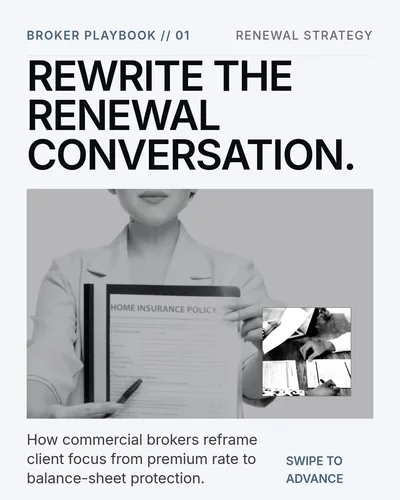
A LinkedIn carousel is a PDF uploaded as a document post. LinkedIn's help page on documents accepts PDF, PPT, PPTX, DOC or DOCX files of up to 100 MB and 300 pages, and recommends PDF for the best quality. You can edit the post's description after posting but not the document, so open the PDF and check every page before you upload. Then run the LinkedIn carousel checklist on whichever version you post.
FAQ
Which is better for LinkedIn carousels, Canva or SlideDrift?
It depends on who writes the slides. Choose Canva if you want to design every page yourself and already use it for other design work. Choose SlideDrift if you'd rather start from a draft built from your article or notes. If you're unsure, run one article through both.
Can Canva post a carousel to LinkedIn?
Canva Pro can schedule designs to LinkedIn, but Canva's help center lists one file type for LinkedIn: JPG. To post a carousel as a document, download the PDF from Canva and upload it on LinkedIn yourself.
Is Canva or SlideDrift free?
Both have free plans. Canva's includes templates, PDF downloads and one Brand Kit, and you can start a free trial of Pro or Business. SlideDrift's free plan gives you 200 credits that don't renew: a carousel with a standard template uses 10 to generate, and downloads with the SlideDrift banner use none. Its paid plans cost $29, $59 or $199 a month.
Is SlideDrift a Canva alternative?
For LinkedIn carousels, yes. It isn't a general design tool, though, so keep Canva if you also need presentations, video or print.