AI LinkedIn Post Generator: How to Get Posts That Sound Like You
How to use an AI LinkedIn post generator well: the three kinds, what to feed it, a prompt to copy, and the checks that keep each post in your own voice.

An AI LinkedIn post generator turns a topic or your notes into a ready-to-edit post in seconds. The draft is only as good as what you give it. Feed it a topic and you get a generic post that sounds like everyone else. Feed it your own notes, one reader and one point, and you get a first draft worth editing. Then you check every claim, put your voice back and post it yourself.
- The three kinds of AI post generator, and which suits you.
- What to feed it so the draft sounds like you.
- A prompt to copy for any chat assistant.
- The checks before a draft goes out.
What an AI LinkedIn post generator does, and doesn't
A post generator takes an input and writes a LinkedIn post: a hook, a few short paragraphs and an ending. Most let you set a tone and an audience. Some also suggest hashtags or a question to close.
What it doesn't do is know your work. It hasn't sat in your client meetings. It doesn't know which advice you'd give and which you'd never give. So the facts, the examples and the opinion have to come from you.
LinkedIn's own page on AI-assisted posts puts it the same way. It asks members to check, edit and approve what they make with AI, and says generic or repetitive content is less likely to be widely distributed.
Paste your notes, see them as a carousel
SlideDrift drafts the slides from your notes, a post or a link. Edit them, then export the PDF to post.
Three kinds of AI post generator
The tools fall into three groups. Each suits a different way of working.
| Kind | What you give it | What you get | Good for |
|---|---|---|---|
| Free single-post generator | A topic or notes, a tone, an audience | One text post | A quick draft, no sign-up |
| Chat assistant | A prompt you write | Whatever you ask for | Full control, if you write good prompts |
| LinkedIn content studio | Notes, a link or an idea | A mix of drafts: text, image, carousel, poll | A week of posts in your brand |
A free generator is the fastest start. A chat assistant gives you control but needs a careful prompt every time. A content studio does more of the planning, keeps your brand, and helps you decide which posts should be visual.
Our guide to AI tools for LinkedIn sorts the wider field by job, including the tools to avoid.
What to feed it so the draft sounds like you
Four inputs make the biggest difference. They work in any generator.
Your own notes, not a topic. "Year-end tax tips" gets you a list anyone could write. "Three things clients forgot to send me last December" gets you a post only you could write. Paste rough notes: a client question, a mistake you keep seeing, a decision you made.
One reader. Name who the post is for: "owners of small agencies", "first-time founders", "HR managers at firms of 50 people". A named reader changes the examples and the words.
One point. Write one sentence the reader should remember. If you can't, the post isn't ready, and no generator will fix that.
A past post of yours. If the tool takes examples, paste a post you wrote that sounded right. It's the quickest way to steer the rhythm and the length.
Our guide to why AI LinkedIn posts sound the same goes through these steps in more depth, with a side-by-side example.
How to write a post with a free generator, step by step
Here's how it goes with SlideDrift's free LinkedIn post generator. Visitors get three free AI runs a day without an account, and signed-in accounts get 20, without using credits.
- Paste your notes or type a topic. Notes work better.
- Set the audience, the tone and an optional ending, such as a question.
- Write the post. The generator keeps your points and shapes them into a post.
- Edit it in place. Cut anything you wouldn't say out loud.
- Copy it, or send it to the formatter or the preview tool to check it.
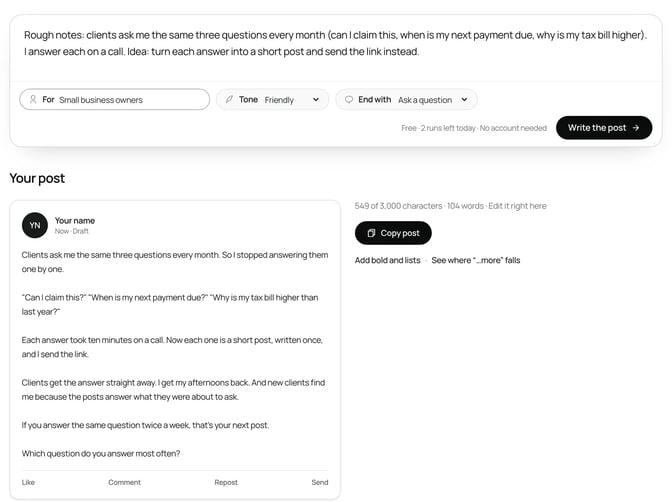
Signed in, Schedule opens a new post with the text filled in. Before you post, check the opening in the LinkedIn post preview tool to see what shows above "…more" on a phone.
A prompt you can copy for any chat assistant
If you use a chat assistant instead, the same four inputs go in the prompt. Here's a template. Replace the brackets with your own details.
Write a LinkedIn post for [one reader, e.g. owners of small agencies].
The one point: [one sentence they should remember].
Use only these notes. Do not add facts, numbers or examples that aren't here:
[paste your rough notes]
Here is a past post of mine for rhythm and length:
[paste a post you wrote]
Open with a plain first line under 15 words. Keep paragraphs to one to three sentences.
End with one question for readers. No hashtags, no emojis.The line "do not add facts" matters most. Chat assistants fill gaps with confident, made-up details. Telling it to stick to your notes cuts most of that.
Check the draft before you post
A generated post is a draft. Read it as the person whose name goes on it.
- Check every fact. Each number, date and claim must come from your notes or a source you can link. Delete anything you can't back up.
- Cut what isn't yours to share. Client names, case details and anything confidential stay out.
- Put your voice back. Swap phrases you'd never use for the words you'd say to a client.
- Fix the first line. It's what readers see before "…more". Make it specific to your reader.
- Read it on a phone. Long paragraphs that look fine on a laptop become walls of text.
LinkedIn allows up to 3,000 characters in a post, but most good posts are far shorter. Our guide to reviewing AI-generated LinkedIn content walks through each check with a worked example.
When the post should be something else
Some ideas work better as a carousel, an image or a poll. A step-by-step process, a checklist or a before-and-after usually reads better on slides. A quick opinion question can be a poll.
A content studio helps you make that call. SlideDrift's Post ideas takes your notes, a link or an idea, asks a few questions about your audience and what readers should do next, and suggests a mix of carousel, image, text and poll drafts.
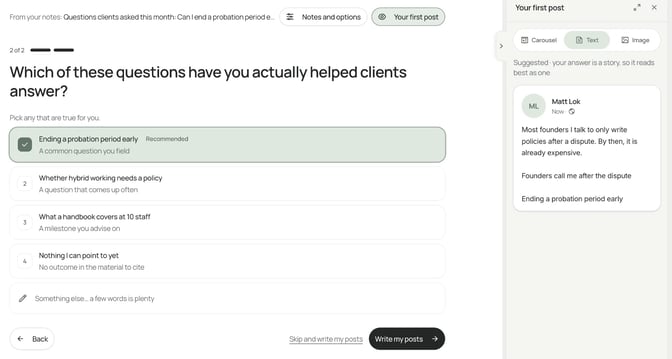
Drafting ideas uses no credits, and text, image and poll drafts made there are free too. The drafts are saved, not published, so you review each one before it goes anywhere.
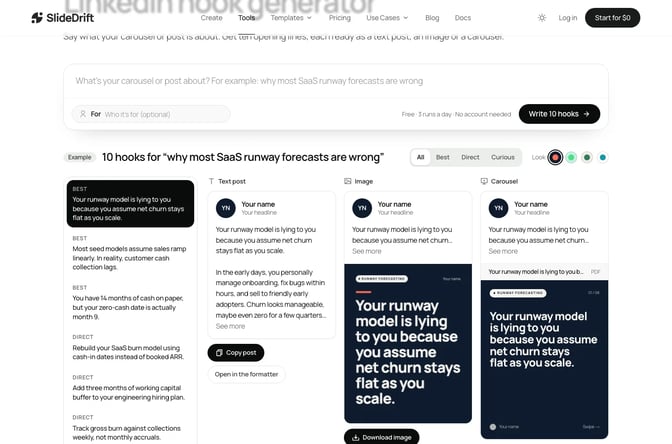
If the hook is the hard part, the free LinkedIn hook generator gives ten hooks for a topic and shows the one you pick as a text post, an image and a carousel.
For ready-made structures to fill in by hand, see our LinkedIn post templates.
Worked example: an HR consultant's first AI draft
Dan is a made-up HR consultant who works with companies of 20 to 100 people. He types "tips for onboarding new hires" into a generator. The draft is a list of seven tips with no detail. It could have come from anyone.
He tries again with notes instead:
- Notes: "Three onboarding mistakes I fixed for clients this year: no written plan for week one, the manager away on day one, and no check-in at 30 days."
- Reader: founders hiring their first ten people.
- One point: a one-page plan for week one prevents most first-month problems.
- Ending: a question about their own first week in a job.
The second draft names the three mistakes in his words. He cuts one sentence that claimed a statistic he never gave it, swaps "leverage" for "use", and moves the plan to the second line. He checks the opening in the preview, then copies it into LinkedIn.
The post gets questions about the week-one plan, so he turns it into a carousel the next week. Here's his brief:
SlideDrift brief
Make a 6-slide LinkedIn carousel for founders hiring their first ten people.
Goal: show them a simple one-page plan for a new hire's first week.
Structure: a hook slide ("The one page that fixes week one"), one slide each for day one, days two to four and day five, a slide on the 30-day check-in, and a closing question for readers.
Tone: plain, practical and friendly. General guidance, not legal advice.
Avoid: invented statistics, client names and guarantees.FAQ
What is an AI LinkedIn post generator?
A tool that writes a LinkedIn post from a topic, notes or a prompt, usually with a tone and an audience you choose. It gives you a first draft to edit, not a finished post.
Is there a free AI LinkedIn post generator?
Yes. SlideDrift's LinkedIn post generator is free: visitors get three AI runs a day without an account, and signed-in accounts get 20, without using credits.
Will LinkedIn penalise AI-written posts?
LinkedIn's help page says generic or repetitive content is less likely to be widely distributed, and asks members to check, edit and approve AI-assisted posts. A post built on your own notes and edited in your voice avoids both problems.
How do I make AI posts sound like me?
Give the generator your own notes instead of a topic, name one reader, state one point, and paste a past post for rhythm. Then edit the draft until every line is something you'd say to a client.
Should I say a post was written with AI?
LinkedIn encourages saying so when AI played a large role. If the ideas and examples are yours and you edited the draft, it's your post; if AI wrote most of it, say so.
Can an AI generator make LinkedIn carousels too?
Some can. A single-post generator writes text only. A content studio like SlideDrift can turn the same notes into carousel, image, text and poll drafts.
Turn your notes into posts with SlideDrift
Start from what you already know. Paste your notes into SlideDrift and it drafts an editable carousel in your brand, and Post ideas can turn the same notes into text, image and poll drafts.
Turn your notes into a carousel
Paste your notes, a link or a PDF. SlideDrift drafts the slides in your brand; you edit them, then export the PDF or schedule the post.


Brief for this carousel
Make a 6-slide LinkedIn carousel for consultants on how to get a useful post from an AI post generator. A hook slide, one slide each on notes, one reader, one point and a past post, a slide on checking the draft, and a closing question.