How to Make a LinkedIn Carousel in Canva: Size, PDF Export and Posting
Make a Canva LinkedIn carousel that looks right in the feed: the size to set, the PDF download settings, posting it as a document, and the snags to avoid.

To make a Canva LinkedIn carousel, start a design at 1080 × 1350 px or open one of Canva's LinkedIn carousel templates, put one point on each page, download it as a PDF, and upload that PDF to LinkedIn as a document post. Skip Canva's Share to LinkedIn button for this. Canva's help center lists JPG as the only file type it sends to LinkedIn, so your slides would go out as images, not a PDF.
Below are the settings that work, the snags that make Canva carousels look careless in the feed, and a quicker route if you'd rather not lay out every slide by hand.
What size to use for a LinkedIn carousel in Canva
Use 1080 × 1350 px, a 4:5 portrait page. Square 1080 × 1080 px also works.
LinkedIn doesn't publish a page size for document posts. Its photo guidance recommends images 1080 pixels wide, with shapes from 3:1 to 4:5, and crops anything taller. A 4:5 page is the tallest shape that guidance allows, so it fills the most of a phone screen. Canva's own LinkedIn carousel templates preview in the same 4:5 shape.
To set it up, choose Custom size on Canva's homepage, pick px under Units, and enter 1080 and 1350. Canva's help page allows anything from 40 px up to 8000 px a side.
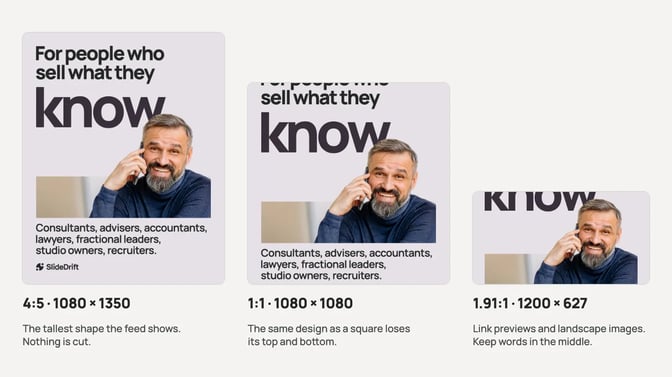
Pick the size before you design. Canva lists Magic Resize on Pro, Teams and some other plans, not Canva Free, and each use counts against your monthly AI usage limit. On Canva Free, a carousel started in the wrong shape means rebuilding it. The LinkedIn carousel size guide covers the other formats, and the free carousel size checker tells you whether a file fits.
Paste your notes, see them as a carousel
SlideDrift drafts the slides from your notes, a post or a link. Edit them, then export the PDF to post.
Step 1: Start from a template or a blank page
Canva's LinkedIn Carousel templates page lists 1,274 templates, plus a blank LinkedIn Carousel. Pick one as your starting point.
Three things to check before you commit to one:
- The Pro badge. Some templates are marked Pro. On Canva Free, a design with premium elements asks you to pay, upgrade, or download a watermarked draft.
- The page count. Templates come with their own number of pages. Delete the ones you don't need rather than padding your point to fill them.
- How far you'll restyle it. A popular template can turn up in other people's feeds too. Swap in your own colours, fonts and photo so the carousel reads as yours.
Canva AI won't write the pages for you here. Its help page lists presentations, posters, documents and social designs for Instagram, Facebook, Pinterest, YouTube and X, but not LinkedIn carousels. In Canva, the words are your job.
Step 2: Write one point per page
Write the words before you touch the design. A plain document with one line per page is enough:
- Cover: the problem or promise, in under ten words.
- Pages 2 to 7: one point each, a short headline plus one or two lines.
- Last page: what the reader should do next.
Then paste each line into its page. You'll see straight away which pages hold too much.
Keep the text large enough to read on a phone without zooming, and keep a clear margin so nothing sits against the edge. Make the point of view yours. LinkedIn's guidance on AI-assisted content says posts that feel generic or lack a clear point of view are less likely to be widely distributed. If you're stuck on the first page, the free hook generator suggests openers, and how to make a LinkedIn carousel covers planning the slides in more depth.
Step 3: Download it as a PDF with the right settings
In the editor, go to Share, then Download:
- File type: PDF. Canva's file type guide calls it PDF Standard; newer download menus show a Digital preset. Use that one.
- Pages: All, or Custom if you've left spare pages in the design.
- Advanced Settings: turn on Flatten PDF if your fonts look wrong once the file is open. Canva's flattening page says it helps fonts display accurately, but it can make the file bigger.
- Select Download, then open the file and check every page.
Standard or Print? Canva's PDF Standard is 96 dpi and made for screen graphics and text. PDF Print is 300 dpi and adds bleed, crop marks and a colour profile for printers. LinkedIn is a screen, so Standard is enough. If you do pick Print for sharper photos, leave crop marks and bleed off, or they end up on your slides.
Check the file size. LinkedIn accepts documents up to 100 MB and 300 pages. Print files with large photos grow fast. Canva's Compress PDF option is on paid plans only.
Watch cropped images. Canva's file type guide warns that a PDF keeps the original, uncropped version of any image you cropped in the design. Anyone can download a LinkedIn document as a PDF, so if you cropped a screenshot to hide a client's name, delete it and use an edited copy instead.
For more on checking a PDF before upload, see how to export a LinkedIn carousel as a PDF.
Step 4: Post it on LinkedIn as a document
LinkedIn's help page gives these steps on desktop:
- Click Start a post at the top of your homepage.
- Click More, then the Add a document icon.
- Click Choose file and pick your Canva PDF.
- Add a title and click Done. LinkedIn needs a title before it will upload the document.
- Write the post text and click Post.
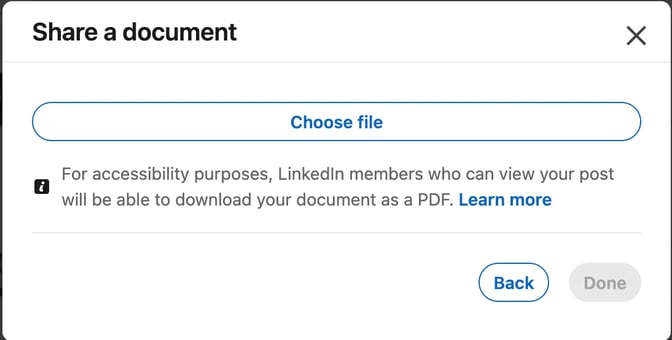
LinkedIn lets members schedule a post from 10 minutes to 3 months ahead with the clock icon, so you don't need another tool to post it on Tuesday morning.
Why not post from Canva? Canva's Content Planner can schedule to LinkedIn for administrators and brand designers on Canva Pro, Business, Education and Nonprofits. But Canva's sharing limits page lists one file type for LinkedIn:
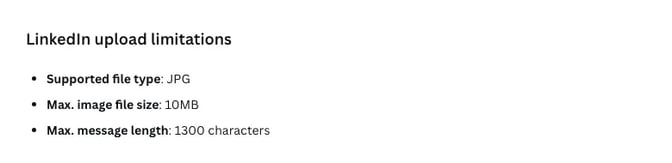
That means images, not a document, and a caption capped at 1,300 characters, where a LinkedIn post can hold up to 3,000. For a carousel, download the PDF and upload it on LinkedIn yourself. The full walkthrough, including mobile, is in how to post a LinkedIn carousel.
The snags that make Canva carousels look careless
Most Canva carousels that look off in the feed hit one of these.
| Snag | What you see | Fix |
|---|---|---|
| A 16:9 presentation page | Small, wide pages with lots of empty feed around them | Start at 1080 × 1350 px |
| Shared through Canva | Slides arrive as images, not a document | Download the PDF and upload it on LinkedIn |
| PDF Print with crop marks | Thin lines or a white border on every page | Use PDF Standard, or turn crop marks and bleed off |
| A Pro element on Canva Free | A watermark across the slide | Swap the element or license it |
| Template sample text left in | A stray line of sample copy or someone else's name | Read every page of the PDF before posting |
| Too many words per page | Text too small to read on a phone | One point per page; move detail to the caption |
| A cropped private image | The full original sits inside the PDF | Edit the image itself, then re-download |
The last check matters most because LinkedIn won't let you fix it later. Its document FAQ says you can edit the title and description, but not the document. A typo on page 4 means deleting the post and posting again. The LinkedIn carousel checklist has a full pre-post check.
Where the time goes, and the quicker route
Canva's steps are quick once the slides exist. The slow part is before that: deciding the angle, splitting your material into pages, writing each one and laying it out.
That's the part SlideDrift does for you. SlideDrift is a LinkedIn content studio: you paste a link to your article, your notes or an idea, and it drafts a designed carousel in your brand that you then edit. Standard generation usually takes 15 to 30 seconds before the editor opens.

Here's the same job, step by step:
| Step | In Canva | In SlideDrift |
|---|---|---|
| Set the size | Custom size, 1080 × 1350 px | Choose 4:5 in Create preferences |
| Start | A template or blank page | Your article link, notes or an idea |
| Write the slides | You write every page | Drafted from your source; you edit |
| Apply your brand | Restyle the template by hand | Brand Kit applied, importable from your website |
| Export | Share, Download, PDF | Export, PDF at 1080 × 1350 |
| Post as a document | Upload the PDF on LinkedIn | Upload it, or schedule it on a paid plan |
Canva gives you a canvas and leaves the layout to you. SlideDrift gives you a designed draft to edit. If you like placing every element yourself, Canva suits that. If writing and laying out the slides is what keeps you from posting, starting from a draft is quicker. The Canva vs SlideDrift comparison goes through both side by side, and the LinkedIn carousel generator page shows what SlideDrift makes.
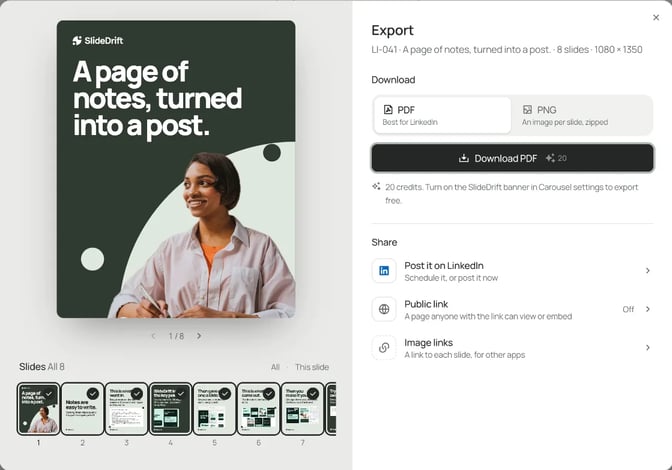
On a paid plan, SlideDrift can schedule the carousel too. When the post is due, it turns the latest saved slides into a PDF, so it goes out as a document post rather than a set of images. For other platforms, export PDF or PNG in square 1:1, portrait 4:5 or stories 9:16 and post it there. Starter costs $29 a month with 1 personal profile, and the Free plan gives you 200 credits that don't reset. A carousel uses 10 credits, or 30 on a Pro template, and Free exports carry a small SlideDrift banner.
If you already have carousels in Canva, they aren't wasted. On a paid plan or trial, an old Canva PDF can be the source for a new SlideDrift carousel. See how to turn a PDF into a LinkedIn carousel. To compare more tools first, read the best Canva alternatives for LinkedIn carousels.
Worked example: one article, both routes
Ana, a made-up employment lawyer, has a 900-word article on five clauses small businesses should check in contractor agreements.
In Canva, she sets a 1080 × 1350 px custom size, opens a plain template, writes a cover line and five clause pages in a document first, pastes them in, deletes two spare template pages, swaps in her firm's colours, downloads PDF Standard, reads every page, and uploads it on LinkedIn with the title "5 contractor clauses to check".
In SlideDrift, she imports her Brand Kit from her firm's website once, pastes the article link, chooses 4:5 and 7 slides, and generates. She rewrites two slides in her own words, checks every clause against the article, and exports the PDF or schedules it.
Either way, she reads the final PDF before it goes up, because the document can't change once it's posted.
FAQ
Does Canva have LinkedIn carousel templates?
Yes. Canva's LinkedIn Carousel templates page lists 1,274 templates and a blank LinkedIn Carousel. Some are marked Pro, and on Canva Free a design with premium elements asks you to pay, upgrade or download a watermarked draft.
What size should a LinkedIn carousel be in Canva?
Use a custom size of 1080 × 1350 px, a 4:5 portrait page. It's the tallest shape LinkedIn's image guidance allows, so it fills the most of a phone screen. Square 1080 × 1080 px works too. Set it before you design.
Can I post a Canva carousel straight to LinkedIn?
Not as a document. Canva's help center lists JPG as the only file type it shares to LinkedIn, so the slides go out as images. Download the PDF from Canva and upload it on LinkedIn with the Add a document option.
Should I download PDF Standard or PDF Print from Canva?
PDF Standard, shown as the Digital preset in newer menus. It's made for screens. PDF Print adds bleed and crop marks for printers, which can end up on your slides. Turn on Flatten PDF if fonts look wrong.
Is Canva free for making LinkedIn carousels?
Canva Free is available to anyone, and only some of Canva's LinkedIn carousel templates are marked Pro. A design with premium elements needs a Pro Content License, a paid plan or a watermarked draft download. Compress PDF is on paid plans only, and Magic Resize and Content Planner scheduling aren't on Canva Free.
Can I edit a Canva carousel after posting it on LinkedIn?
You can edit the document's title and the post's description, but not the PDF. To fix a slide, edit it in Canva, download a new PDF, delete the post and post again.
Make your next carousel in SlideDrift
If writing and laying out the pages is the slow part, start from what you've already written. Paste your article link or notes with a brief like this, then edit the draft:
SlideDrift brief
[Paste your article link or notes here]

Make an 8-slide LinkedIn carousel for small-business owners who hire contractors.
Plain and practical. General information, not legal advice.
Slide 1: the problem in under ten words.
One point per slide, using only what my article says.
Final slide: one thing to do this week.Make a carousel from your article
Paste your article's link or your notes. SlideDrift drafts the slides in a designed template with your Brand Kit; you edit them, then download the PDF or schedule it to LinkedIn on a paid plan.


Brief for this carousel
Make an 8-slide LinkedIn carousel from my article for small-business owners who hire contractors. Plain and practical; general information, not legal advice. Slide 1: the problem in under ten words. One clause per slide, each with what to check. Final slide: one thing to do this week.