AI Tools for LinkedIn: What to Use for Each Job, and What to Avoid
The AI tools for LinkedIn worth using, sorted by job: ideas, posts, repurposing, visuals, profile, scheduling and analytics, plus what to avoid.

The AI tools for LinkedIn worth using help with seven jobs: finding ideas, drafting posts, repurposing what you've already written, making visuals, writing your profile, scheduling and measuring. If you want AI tools for LinkedIn that leave profiles out, six of those jobs are about your posts, and only profile writing touches a profile. Pick one tool for the job that slows you down most, give it your own material, and read everything before it goes out.
SlideDrift, a LinkedIn content studio, covers ideas, carousels, scheduling and analytics in one place. Avoid any tool that comments, connects, messages or scrapes for you: LinkedIn doesn't allow software that automates activity on its site.
What LinkedIn says about AI-assisted posts
LinkedIn doesn't ban AI help. Its guidance on AI-assisted posts says AI can help you refine language, proofread or make a post more concise. It asks you to review, edit and approve anything AI helped with, and reminds you that you're responsible for what you post.
The same page is clear about what doesn't travel far: content that "feels generic, repetitive, or lacks a clear point of view is less likely to be widely distributed." LinkedIn's page on how the feed ranks posts lists whether a post "provides knowledge or advice" among its signals.
That gives you the test for any AI tool. Does it start from your expertise and leave you the final say? Or does it produce posts anyone could have written? The first kind is worth paying for. The second makes you sound like everyone else.
Paste your notes, see them as a carousel
SlideDrift drafts the slides from your notes, a post or a link. Edit them, then export the PDF to post.
LinkedIn's own AI features
LinkedIn's own AI writing help is limited right now:
- Post drafts. LinkedIn's help page on its AI-powered writing tool says the tool isn't available at this time, and that LinkedIn plans new tooling for post writing.
- Profile writing. LinkedIn's profile writing assistant suggests wording for your headline and About section, and can proofread your Experience entries. LinkedIn says it's available only to a select group of Premium subscribers.
So for most people, the jobs below need other tools, several of them free.
AI tools for LinkedIn, sorted by job
Most people don't need a stack. They need one tool for the job that slows them down most.
| Job | What the tool should do | Examples |
|---|---|---|
| Find ideas | Turn your notes, client questions or reading into post angles | A general assistant, SlideDrift's Post ideas and For you |
| Draft text posts | Shape your points into a post without inventing new ones | A general assistant, SlideDrift's free post generator |
| Repurpose | Turn an article, talk or newsletter you've written into posts | SlideDrift's free angle finder and Create from a URL |
| Make carousels | Turn a source into slides in your brand that you can edit | SlideDrift and other carousel tools |
| Write your profile | Suggest a headline and About section from your real facts | LinkedIn's profile assistant, SlideDrift's free headline generator |
| Schedule | Post at the right time through LinkedIn's own connection | LinkedIn's built-in scheduler, SlideDrift, other schedulers |
| Measure | Show which posts reached the right people | LinkedIn's Analytics & tools, SlideDrift Analytics |
Finding ideas
The hardest part of posting regularly is knowing what to say. AI is good at this when you feed it something real: the questions clients asked this month, a talk you gave, notes from a call.
A general assistant such as ChatGPT, Claude, Gemini or Microsoft Copilot can turn a page of notes into a list of angles. Ask for ten, keep the two you'd actually defend in a meeting, and throw the rest away.
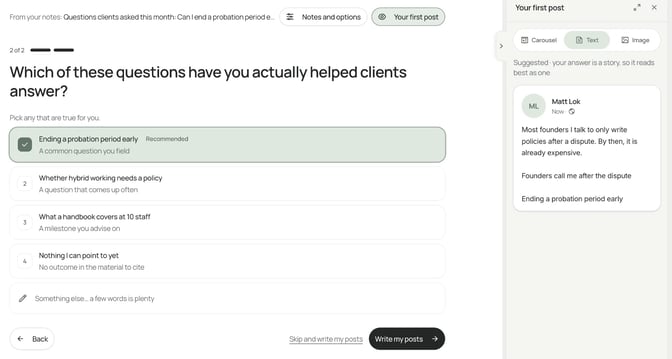
SlideDrift has two places for this. Post ideas takes your notes, a public article link or a short idea, asks a few short questions about your audience and what readers should do next, then suggests a mix of carousels, image posts, text posts and polls. Drafting the ideas uses no credits. For you suggests posts from this week's news in your niche and from the blogs and newsletters you follow; the For you guide explains how it works.
If you'd rather start from a list, the LinkedIn post ideas for experts article has prompts that don't need any tool.
Drafting text posts
Text posts are where generic AI writing shows most. The fix is in what you give the tool, not which tool you pick.
Give it:
- Your point, in one sentence you'd say out loud.
- Your evidence: the example, the decision, the mistake you've seen.
- The reader: who it's for and what they're stuck on.
- What to leave out: client names, promises, jargon.
Then ask it to shape, not to add. "Use only the points below" stops most invented claims. Read the result against your notes before you post it. The guide to reviewing AI-generated LinkedIn content has a five-pass check that takes a few minutes.
SlideDrift's free LinkedIn post generator works this way: you give it a topic or your notes, choose the tone and audience, and it keeps your points while shaping them into a post. You can edit it and copy it.
Repurposing what you've already written
If you've written articles, newsletters or talks, you already have months of posts. AI is good at finding the parts of a long piece that stand on their own.
SlideDrift's free Blog-to-Carousel Angle Finder takes a public link or the article text and suggests three carousels the piece could become. Pick the one your buyers would save. SlideDrift can then create the carousel straight from the public link, or from text you paste if the piece isn't published. The guide to repurposing a blog post into a LinkedIn carousel walks through the steps.
Making carousels and images
Carousels (on LinkedIn, a PDF you add to a post as a document) suit steps, frameworks, checklists and before-and-afters. Making them by hand in a design tool is the slow part, which is where AI saves the most effort.
What to look for in a carousel tool:
- It starts from your source: a link, pasted notes or a PDF, not just a topic.
- It uses your brand: your colors, fonts and logo on every slide.
- You can edit every slide before you export or post.
- It exports a PDF you can upload to LinkedIn, or posts it for you.
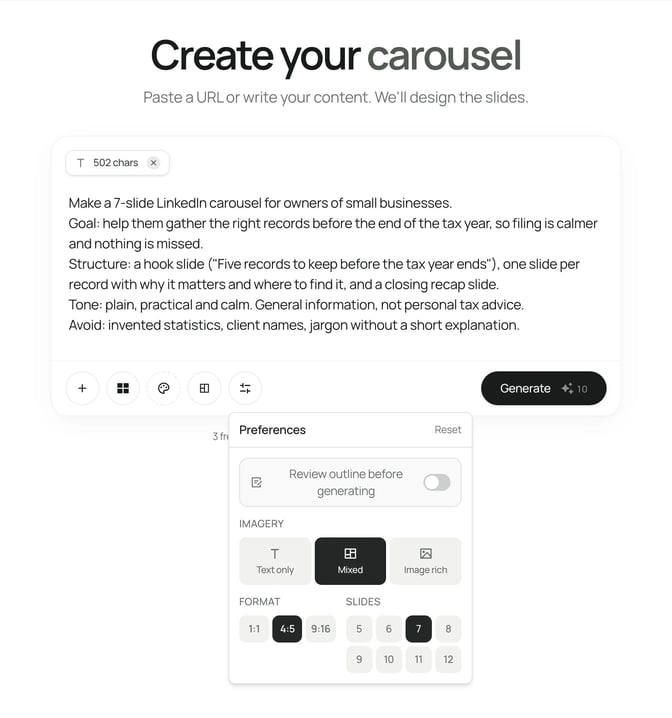
SlideDrift does this. You paste a link or your notes on the Create page, choose a template and a Brand Kit, and it drafts the slides. You edit the text, design and images in the editor, then export a PDF or schedule the post. PDF sources need a paid plan or a trial. The comparison of AI LinkedIn carousel generators covers the other options side by side.
Writing your profile
Your headline is the line under your name, so it's worth getting right. AI is useful here because the job is narrow: say what you do and for whom, in one short line.
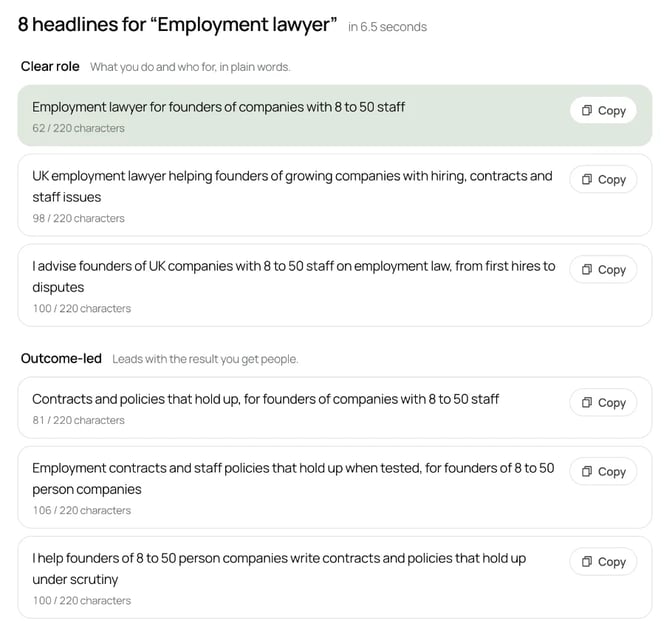
If you're one of the Premium subscribers with LinkedIn's profile writing assistant, it can suggest wording for your headline and About section. If not, SlideDrift's free LinkedIn headline generator writes eight options in three styles from what you type. It writes only from what you give it, and it doesn't read or change your LinkedIn profile.
Whichever you use, check every claim. A headline that overstates how many clients you've helped is a problem LinkedIn's Professional Community Policies cover: they ask you not to post misleading information about your qualifications or work experience.
Scheduling and publishing
You don't need AI to schedule. LinkedIn lets you schedule a post from 10 minutes to three months ahead. A separate scheduler earns its place when you want your drafts, carousels and calendar in one place, or you post for more than one profile or Page.
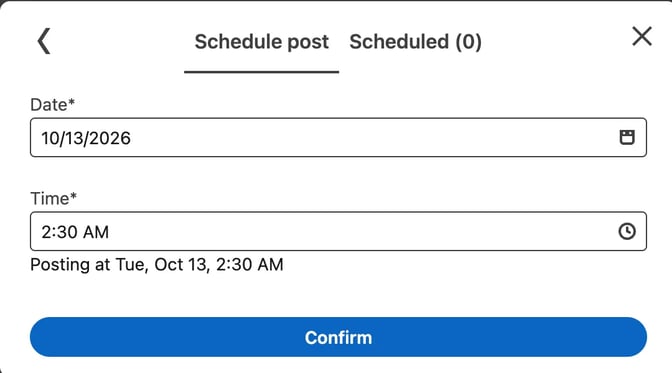
SlideDrift's Schedule page publishes carousel, image, multi-image, video, poll and text posts to LinkedIn profiles and Company Pages you connect through LinkedIn's own authorization screen. Suggest text under the caption drafts it (on a carousel, from your slides), and Improve reworks what you've written. Scheduling needs a paid plan, and Company Pages need Pro or Agency. The comparison of LinkedIn scheduling tools sets out the other options.
Measuring what works
AI can write a post in seconds, so the scarce thing is knowing which posts bring the right readers. Check that before you add another tool.
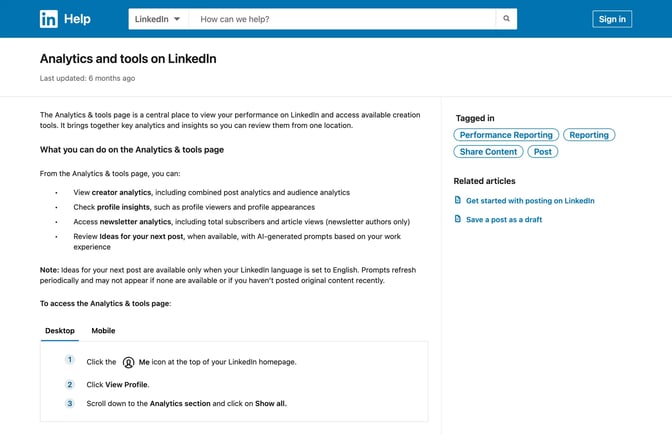
LinkedIn's Analytics & tools page gathers creator analytics, profile insights and newsletter analytics in one place. Its post analytics list impressions, reactions, comments, reposts, saves and sends, and LinkedIn says the numbers are estimates.
If you schedule from SlideDrift, its Analytics page shows your posts over 7 days, 30 days, 90 days or 12 months. Company Page posts get their numbers saved from a check 48 hours after posting; profile post results load when you open the post. The guide to LinkedIn impressions covers which numbers matter when you sell your expertise.
What to avoid: tools that act on LinkedIn for you
Some tools sold as "AI for LinkedIn" don't help you write. They act for you: they leave comments, send connection requests, like posts, send messages or copy data from profiles.
LinkedIn's help page on prohibited software and extensions says it doesn't permit third-party software or browser extensions that scrape, change how LinkedIn looks, or automate activity on its website. Its User Agreement rules out using bots or other unauthorized automated methods to do things like add contacts or send messages. LinkedIn says accounts using these tools risk being restricted or shut down.
There's a reputation cost too. A comment you didn't write, under your name, is the opposite of showing your expertise. If you want help with replies, let AI draft one and then rewrite it and post it yourself. On your own scheduled posts, SlideDrift's Suggest text can draft a comment from the post for you to edit.
A quick way to tell the two kinds apart:
- Safe kind: you write, review and approve; the tool posts only what you scheduled, through LinkedIn's official connection.
- Risky kind: it asks for your LinkedIn password, runs as a browser extension that clicks for you, or promises engagement, connections or comments "on autopilot".
Never give a tool your LinkedIn password. Proper tools connect through LinkedIn's own authorization screen, so your password stays with you. The guide to scheduling without a browser extension explains the difference.
Worked example: an employment lawyer's week with three tools
Priya is a made-up employment lawyer who advises small businesses. She wants to post twice a week without it eating her Fridays. Her one rule: nothing goes out that she hasn't read.
Monday, 15 minutes: ideas. She pastes her notes from three client calls into a general assistant and asks for post angles. It suggests eight. She keeps two:
- Why a probation period doesn't mean you can skip a fair process.
- Five things to check before you change someone's contract.
Tuesday, 20 minutes: a text post. For the first angle she writes three rough sentences and the point she'd make to a client. She asks the assistant to "shape these into a LinkedIn post, use only these points, no legal advice, no client details." She rewrites the opening in her own words and adds a line she says in every consultation.
Wednesday, 25 minutes: a carousel. The five checks suit slides. She pastes her checklist into SlideDrift with her Brand Kit chosen, using this brief:
SlideDrift brief
Turn the notes below into 7 slides for a LinkedIn carousel aimed at owners of businesses with 5 to 50 staff.
Goal: show them what to check before changing an employee's contract, so they ask for advice before acting, not after. General information only, not legal advice.
Structure: a hook, one slide per check, and a closing slide inviting questions in the comments.
Tone: plain and calm. Explain any legal term in one line.
Avoid: promises, scare tactics, client names and case details.

Notes:
- read the current contract first: what does it actually say about changes?
- is the change to pay, hours, duties or location? each is handled differently
- talk to the employee before anything is in writing
- put the proposed change and the reason in writing
- give reasonable notice
- keep a record of the conversation and their responseShe edits two slides that sounded too formal, checks every line against her notes, and schedules it for Thursday morning.
Friday, 10 minutes: review. She replies to comments herself, then checks which of the two posts reached business owners rather than other lawyers. That decides next week's first angle. Three tools, about an hour across the week, and every word is something she'd say.
How to choose your first AI tool for LinkedIn
Start with the job that stops you posting:
- "I don't know what to say." Start with ideas: a general assistant with your notes, or Post ideas.
- "I know what to say but writing takes ages." Start with a drafting tool, and give it your points, not a topic.
- "I've written plenty, just not for LinkedIn." Start with repurposing: one article can become several posts.
- "My posts are all text and look the same." Start with a carousel tool that uses your brand.
- "I write in bursts and then go quiet." Start with a scheduler so a good week fills the next two.
Use it for a month, check what reached the right people, then decide on a second. If a tool makes your posts sound less like you, drop it.
FAQ
What is the best AI tool for LinkedIn?
There isn't one best tool, because the jobs differ. A general assistant is good for ideas and rough drafts. A carousel tool is better for visual posts in your brand. LinkedIn's own scheduler is enough if you only post to one profile. Pick the tool for the job that slows you down most.
Does LinkedIn penalize AI-generated posts?
LinkedIn says it cares whether a post adds value, not how it was made. Its guidance says generic or repetitive posts without a clear point of view are less likely to be widely distributed. Posts built on your own expertise, reviewed by you, are fine.
Are there free AI tools for LinkedIn?
Yes. SlideDrift's free tools include a post generator, a hook generator, a headline generator and a blog-to-carousel angle finder, and visitors get three free AI runs a day without an account. Post ideas also drafts ideas without using credits. Scheduling from SlideDrift needs a paid plan.
Is it safe to use AI tools on LinkedIn?
Tools that help you write and that post only through LinkedIn's official connection are safe to use. Tools that comment, connect, message or scrape for you aren't: LinkedIn doesn't allow software that automates activity on its site, and accounts using it can be restricted.
Can AI write my LinkedIn comments?
It can draft them, but post them yourself after rewriting. LinkedIn doesn't permit software that automates activity on its site, and a comment you didn't write under your name undercuts the expertise you're trying to show.
Should I say a post was written with AI?
LinkedIn's guidance suggests saying so when you've relied heavily on AI and it isn't obvious. If AI only tidied your own words, most people don't mention it. Either way, you're responsible for what the post says.
Start with one job in SlideDrift
Pick the job that slows you down most. If it's turning what you know into visual posts, SlideDrift drafts carousels from your notes or a link in your Brand Kit, then lets you edit, schedule and measure them.
Turn your notes into a carousel
Paste your notes or a link to something you've written. SlideDrift drafts the slides in your brand; you edit them, then export the PDF or schedule the post.


Brief for this carousel
Make a 7-slide LinkedIn carousel for consultants, lawyers and coaches on choosing AI tools for LinkedIn. A cover with the rule "one tool per job you actually do", then one slide each for ideas, drafting, repurposing, carousels, scheduling and measuring, each saying what the tool should do and what you still check yourself. Close by inviting readers to share the job that slows them down most. Plain, calm tone; no hype.