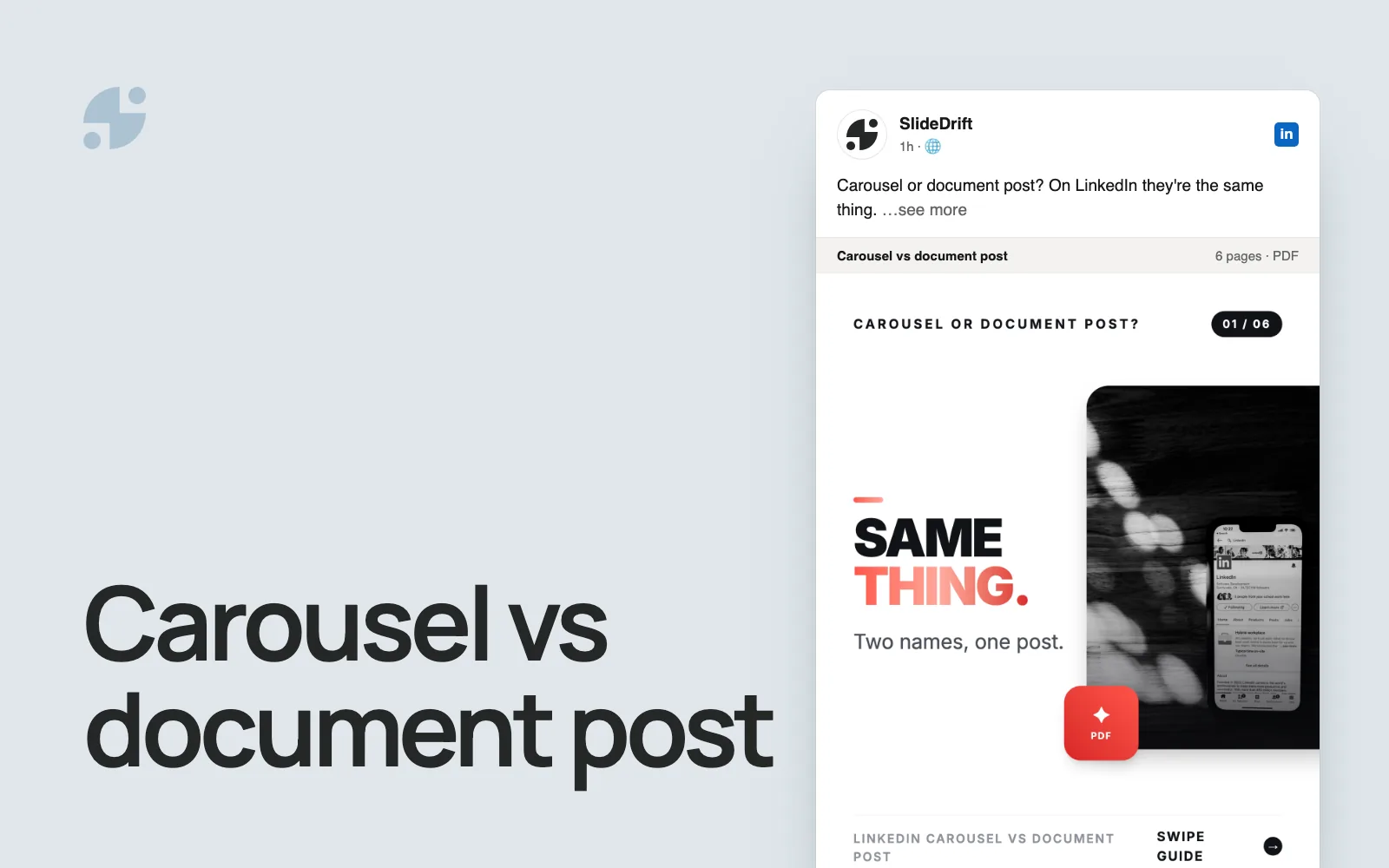
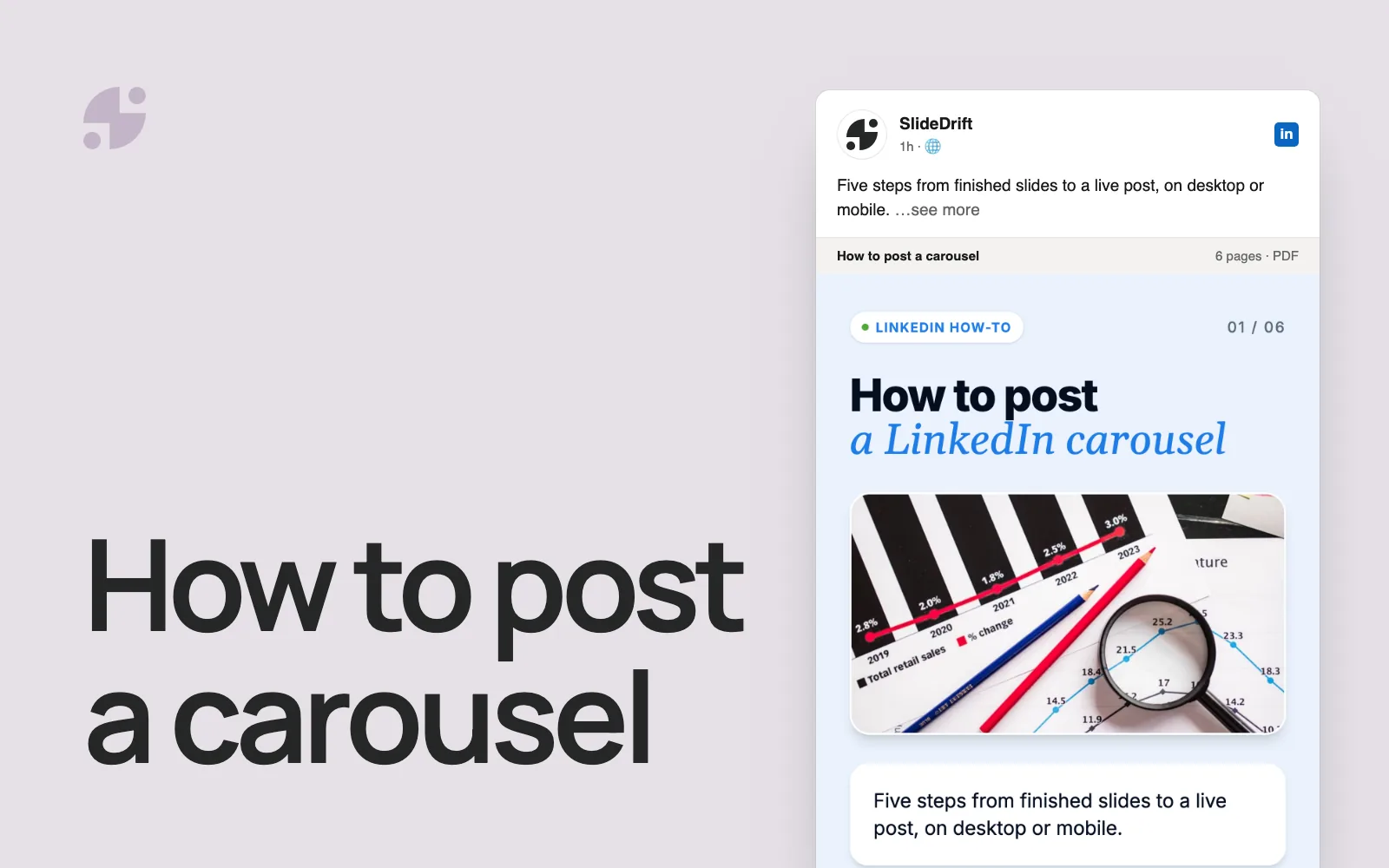
How to Create LinkedIn Carousels for Product Marketing
How to create LinkedIn carousels for product marketing: pick one buyer question, build from an approved source, plan each slide and post the PDF.

To create a LinkedIn carousel for product marketing, pick one buyer question and one approved source that answers it, such as a release note, a help doc or a customer story the customer signed off on. Plan the slides in order (the reader's problem, what changed, how it works, the proof your source supports, one next step), then export a PDF and post it on LinkedIn as a document.
- Pick one buyer question, such as "What changed?", "Is this for teams like ours?" or "How is this different?"
- Choose an approved source that backs every claim you'll make.
- Fill in an evidence brief: audience, claim, evidence, limits and next step.
- Give each slide one job, starting with the reader's problem rather than the feature name.
- Draft, edit and export the PDF, and have whoever owns the claims check it.
- Post it as a document from your profile or your company's Page.
A carousel suits product messages because they need an order: a buyer has to recognize the problem before a feature means anything to them. The format also does well on company Pages. Socialinsider's 2026 LinkedIn benchmark, which covers 1.3 million posts from 16,645 business Pages, found that document posts averaged a 7.00% engagement rate by impressions in 2025, against 4.50% for text posts, and multi-image posts led in Q2 2026. Those are averages across business Pages, not a forecast for yours, and they don't cover personal profiles.
Pick one buyer question
Product marketing has plenty of source material: launch notes, positioning docs, sales objections, customer stories and comparisons. Most of it is too long or too internal for LinkedIn as it stands, and a deck that mixes a launch, a pricing change and a customer story leaves the reader with nothing to act on. Give each carousel one job, and choose the format that fits the question your reader is asking.
| Format | The reader is asking | Slide plan |
|---|---|---|
| Launch story | "What changed?" | Problem → what changed → who it helps → next step |
| Feature education | "How do I use this?" | Problem → feature → steps → example → next step |
| Use-case guide | "Is this for teams like mine?" | Audience → job → workflow → first step |
| Objection answer | "What about [concern]?" | Concern → context → evidence → question to ask |
| Comparison explainer | "How is this different?" | Old way → new way → tradeoffs → who each fits |
| Customer lesson | "Has this worked for anyone like us?" | Situation → decision → approved result → lesson |
| Pricing explainer | "Which plan do I need?" | Plans → use case → limits → when to upgrade |
| Messaging teardown | "Why does this message work?" | Message → why it works → mistake to avoid |
Open with the problem, not the feature name. The feature can arrive on the next slide, once the reader recognizes what it fixes.
Weak first slide: "Introducing approval workflows."
Better first slide: "Stop chasing sign-off across three email threads."
The SaaS carousel examples have 30 more ideas in six groups. For customer lessons, the case study guide shows how to keep each number with its context and the client's permission.
Start from an approved source
Write from material someone has already approved, so the carousel can't promise more than the product does. Good starting points:
- A release note or changelog entry.
- A help doc or setup guide.
- A positioning or messaging doc.
- A customer story the customer approved, with its numbers.
- The answers your sales team already gives to a common objection.
- A comparison you've checked on the other product's own site, with the date you checked it.
Keep out anything that isn't meant to be public, such as roadmap items, private support tickets, deal details or customer names nobody approved. Remove them before the source goes into any tool.
Fill in the evidence brief
Fill in these fields before you write slide one. The brief ties the message to its source and gives product, legal or customer success something specific to check.
Reusable planning tool
Product-message evidence brief
- Audience: who is this for, described closely enough to rule someone out?
- Decision: what should the reader understand, compare or try after reading?
- Approved source: which current release note, help doc, product page, research report or approved customer story supports the message?
- Core claim: what one sentence can the source prove?
- Evidence: which documented step, screenshot, quote or measured result makes the claim concrete?
- Boundary: what must the carousel not imply about availability, plans, speed, performance or customer results?
- Format and slide jobs: which format from the table above, and one job for each slide.
- Next action: what useful step follows from the lesson?
Stop rule: if the source, evidence or boundary is blank, the message isn't ready to become slides.
Audience:
Decision:
Approved source:
Core claim:
Evidence:
Boundary:
Format and slide jobs:
Next action:Worked example: a feature carousel from a help page
Here's the brief filled in for a sample feature-education carousel. Its source is one of SlideDrift's own help pages, so you can check every line against it.
Worked example
Completed brief: scheduling carousels to a Company Page
Audience: marketers who post their company's carousels from its LinkedIn Page.
Decision: whether to schedule the Page's carousels from SlideDrift, where they're made.
Approved source: SlideDrift's LinkedIn scheduling guide.
Core claim: on the Pro and Agency plans, SlideDrift can schedule a finished carousel to a connected LinkedIn Company Page.
Evidence: the guide's steps. Connect the Page with Add Company Page and LinkedIn's authorization screen. Then, in the editor, click Schedule, choose the Page, pick a time, write the caption, check the desktop or mobile feed preview and click Schedule post.
Boundary: LinkedIn scheduling needs a paid plan, and Company Pages need Pro or Agency plus admin access to the Page on LinkedIn. The guide doesn't promise reach or engagement, and a scheduled post isn't published until it goes live.
Format and seven slide jobs: feature education.
- Name the problem: the carousel, its caption and the posting time sit in different places.
- Say what changed: schedule the carousel from where you made it.
- Say who can use it: Pro and Agency plans, with admin access to the Page.
- Connect the Page.
- Schedule from the editor: choose the Page, the time and the caption.
- Check the feed preview, then schedule.
- Close with one next step.
Next action: connect the Page, schedule one finished carousel, and open the Page after the posting time to confirm it went live.
Each slide traces back to a section of the guide, so a reviewer can cut anything the guide doesn't support.
Make it in SlideDrift
Paste your approved source into SlideDrift with a short brief above it. Set the slide count in Preferences (it's 7 by default), not in the brief:
SlideDrift brief
Make a LinkedIn carousel that explains [feature] to [audience].
Format: feature education. Open with the problem it fixes, not the feature name, then cover what changed, how it works, who it's for, what it doesn't do, and one next step.
Use only facts from the source below. No numbers, customer names or results it doesn't include.
Tone: plain and specific.

[Paste the approved release note or help doc here]If the source is a public page, put its link on its own line under your brief instead of pasting the text. SlideDrift keeps what you typed, adds the page's text, and reads only the first link. If it can't read the page, paste the text into the box and choose Switch to text paste. On a paid plan you can also start from a PDF, such as a launch deck or a research report.
Pick your Brand Kit in the brand menu before you press Generate, so the slides use your colors, fonts and brand details. Custom kits need a paid plan; free accounts can use preset brand styles.
SlideDrift drafts the slides and opens them in the editor. Edit each one against your brief: LinkedIn's guidance on AI-assisted posts says you review, edit and approve what you post, and you're responsible for it. When the deck is ready, click Share, then Export, then Download PDF.
Make a carousel from a release note
Paste an approved release note, help doc or customer story. SlideDrift drafts the slides; you edit them against your brief, then export the PDF for LinkedIn.
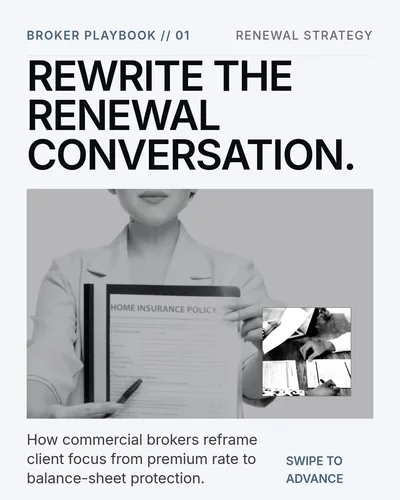


Before you post
Release review before you post
- The first slide names the reader's problem, not the feature.
- Every feature name and step matches the current product and help docs.
- Plan, price, credit and availability details match the current pricing page.
- Screenshots show the current interface, with text large enough to read on a phone.
- Customer names, logos, quotes and results have the customer's permission.
- Comparison claims are sourced, dated and limited to what you compared.
- Nothing comes from the roadmap, private support tickets or unapproved deals.
- The last slide gives the next step the carousel promised.
Upload the PDF as a document post and give it a title. LinkedIn's help page on documents says you can post one from your homepage, a Group or a LinkedIn Page, as a PDF, PPT, PPTX, DOC or DOCX file of up to 100 MB and 300 pages, and recommends PDF. You can edit the post's description afterward but not the document, and viewers can download it as a PDF, so open the file and check every slide before you upload.
If your team posts from the company Page, SlideDrift can schedule the carousel to a connected Company Page on the Pro and Agency plans. Either way, run through the LinkedIn carousel checklist first, and use the size guide if you're unsure about dimensions.
FAQ
What should a product marketing carousel cover?
One buyer question at a time: a launch explained through the problem it fixes, a feature how-to, a use case, an answer to an objection, a comparison, a customer lesson or a pricing explainer. Pick the one that matches the decision your reader is making now.
How many slides should a product marketing carousel have?
As many as the message needs and no more. Seven is a reasonable start and SlideDrift's default, which you can change in Preferences. Cut any slide that has no job in your brief.
Should a launch carousel lead with the product name?
No. Open with the problem the launch fixes, then name the feature once the reader recognizes the problem. A first slide that only says "we built this" gives the reader no reason to keep going.
Can you post a product marketing carousel from a company Page?
Yes. LinkedIn lets you upload a document post from a LinkedIn Page as well as from your homepage or a Group. SlideDrift can schedule to a connected Company Page on the Pro and Agency plans, or you can export the PDF and upload it yourself.
How do you measure a product marketing carousel?
On a company Page, LinkedIn's Page content analytics show impressions, members reached, clicks, reactions, comments, reposts and engagement rate, which LinkedIn defines as interactions per impression, clicks included. On a personal profile, post analytics also show saves, sends, profile viewers, followers gained and link visits, and LinkedIn says the numbers are estimates. Compare each carousel with your other posts, and track the next step it asked for in your own analytics.