LinkedIn Saved Posts: Where to Find Them on a Computer or Phone
Where to find your LinkedIn saved posts on a computer or in the app, how to save and unsave a post, and what to check when your saved list won't show.

To find your LinkedIn saved posts on a computer, click Saved items in the left-hand column of your LinkedIn homepage, then Saved posts and articles. In the LinkedIn app, tap your profile picture, then Saved posts. To add a post to the list, open the three-dot More menu at the top right of the post and choose Save. Below: both routes, what to check when the list won't show, how to unsave, and how to turn the list into ideas.
- Finding saved posts: on a computer and in the app.
- When the list won't show: four checks.
- Saving and unsaving: the steps on both.
- Privacy: who sees your saves.
- Using them: a weekly habit and a worked example.
Where to find your saved posts on LinkedIn
The route depends on whether you're on a computer or in the app.
| Where you are | Route |
|---|---|
| LinkedIn on a computer | On your LinkedIn homepage, click Saved items in the left-hand column, then Saved posts and articles. |
| LinkedIn app on a phone | Tap your profile picture, then tap Saved posts. |
Both routes come from LinkedIn's help page on saving content. The banner you see right after saving a post is another way in: its View Saved Posts link opens the list.
Make the list quicker to reach
On a computer, open the saved list once and bookmark the page in your browser. It's faster than clicking through the homepage every time.
What the list looks like
LinkedIn's help page covers saving, viewing and unsaving. It doesn't describe folders, tags or notes for saved posts, so plan to keep your notes somewhere else. That matters later: a long list with no notes is hard to use, which is why the habit section below keeps them in your own document.
Paste your notes, see them as a carousel
SlideDrift drafts the slides from your notes, a post or a link. Edit them, then export the PDF to post.
If you can't find your saved posts
When the list looks empty or the link isn't where you expect, run these checks in order.
- Check the post was saved. LinkedIn shows a short banner with a View Saved Posts link right after you save. If you didn't see it, find the post and save it again from its More menu.
- Try the other route. If the app doesn't show the list, try Saved items on your homepage on a computer, or the other way round.
- Update the app. If Saved posts isn't there when you tap your profile picture, update the app and look again.
- Check what you tried to save. Some feed items can't be saved at all. They're listed under what you can save below.
LinkedIn moves its menus from time to time. If a label looks different from the steps here, LinkedIn's help page on saving content has the current wording.
How to save a post on LinkedIn
LinkedIn's help page on saving content in your feed says you can save posts and articles you view in your feed, from the LinkedIn website on a computer or from the LinkedIn mobile app. The steps are almost the same on both.
On a computer
- Find the post in your feed.
- Click the More icon (three dots) at the upper right of the post.
- Click Save.
LinkedIn's help page says a banner then appears briefly, with a link to View Saved Posts.
In the LinkedIn app
- Find the post in your feed.
- Tap the More icon (three dots) at the upper right of the post.
- Tap Save.
The same banner shows briefly, with the View Saved Posts link.
What you can save
The help page covers posts and articles you view in your feed. People often save the useful ones, such as a checklist or framework, because it's something they'll come back to.
The help page also lists what you can't save this way: jobs recommended for you, follow recommendations, and work anniversary and profile change updates in your feed.
How to unsave a post
LinkedIn's help page gives the steps: open your saved list, click or tap the More icon (three dots) at the upper right of the post, and choose Unsave. The help page says the content is then unsaved.
The steps work on one post at a time, so clearing out a long list takes a while. That's a good reason to prune little and often rather than all at once.
A simple rule for what to keep:
- Keep posts you'll act on: a checklist you'll follow, a template you'll adapt, a reference you'll check again.
- Unsave posts you saved "to read later" and never opened. If a month has passed, you probably won't.
- Move and unsave posts you want for ideas: copy the useful part into your own notes in your own words, then unsave the post.
Who can see your saved posts
Your saved list is something you open from your own account: the Saved items link on your homepage, or your profile picture in the app. The help page on saving content doesn't describe showing the list to anyone else.
From the other side, if you're the author, saves show up as a number. LinkedIn's post analytics for individual posts include Saves, which the page describes as the number of times members saved your post. The same analytics show impressions, members reached, reactions, comments, reposts and sends, and LinkedIn says the numbers are estimates.
That count is useful. A save means someone expects to come back to your post, which is a different signal from a reaction. Our guide to increasing saves on LinkedIn carousels covers how to make posts people want to keep, and the guide to LinkedIn impressions explains the rest of those numbers.
Why saved posts are worth more than a bookmark
For people who sell their expertise, the saved list is quietly useful. It's a record of what made you stop scrolling. Over a few months, it shows you:
- The formats you trust. If most of your saves are checklists, your readers probably like them too.
- The questions your clients ask. A post that answers a question you hear every week is worth studying.
- The gaps. A topic you keep saving, and nobody covers well, is a topic you could own.
None of that works if the list is two hundred posts long with no notes. The fix is a short weekly habit.
A 15-minute weekly habit for saved posts
This is a routine you can run on a Friday afternoon. It keeps the list short and turns it into material for your own posts.
- Open the saved list. Start with the newest posts.
- Ask one question of each post: what did it do that made me save it? A clear first line, a useful list, a strong example?
- Write one line in your own notes, in your own words. For example: "Checklist of documents before a remortgage. Seven items, each with why it matters."
- Note the author and link next to your line, so you can credit them if your own post builds on theirs.
- Unsave the post once its line is in your notes.
- Mark one idea to write next week. Just one.
Your notes can live anywhere you already use: a document, a notes app or a spreadsheet. If you want a fuller system, our guide to building a swipe file for LinkedIn carousel ideas shows how to tag and sort the notes.
A word on credit. Studying the structure of a good post is fine. Copying its wording isn't. Write the idea in your own words, use your own examples, and if a specific post shaped yours, say so.
Turning a saved post into your own idea
A saved post is a starting point, not a script. Three ways to use one well:
- Answer it for your clients. A general post on cash flow becomes "Three cash flow checks for dental practices" if dental practices are who you serve.
- Disagree with it. If a saved post gets something half right, write the other half, politely and with your reasons.
- Show it applied. If a post gives a framework, write the post that walks through one real (or clearly made-up) case.
The LinkedIn post ideas guide has more angles, and the LinkedIn hook examples help with the first line.
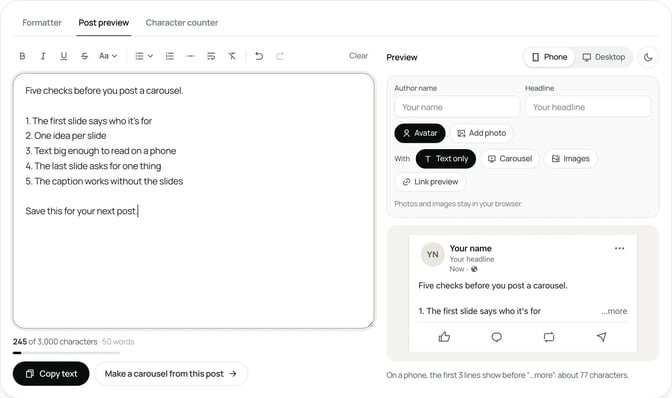
Before you post, paste your draft into SlideDrift's free LinkedIn post preview. It switches between desktop and mobile-style previews and marks the approximate "see more" fold, so you can check the first lines do their job. It runs in your browser without an account.
Worked example: an accountant's year-end checklist
Sam is a made-up accountant who works with small business owners. Over two months, Sam saved 38 posts. Most were never opened again.
On a Friday, Sam runs the weekly habit:
- Twenty-six posts are "read later" saves more than a month old. Sam unsaves them.
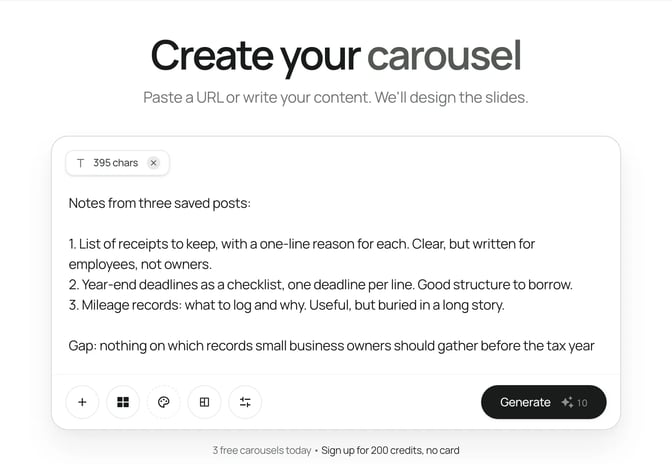
- Nine posts are about tax and records. Sam writes one line on each, such as "List of receipts to keep, with a one-line reason for each. Clear, but written for employees, not owners."
- Three posts are checklists that Sam saved for their structure, not their topic.
Looking at the nine lines together, Sam spots a pattern. Several posts list records to keep, but none are written for small business owners at year end, which is the question Sam's clients ask every spring. That's the gap.
SlideDrift can start a carousel from pasted text or notes, so Sam pastes the three most useful notes in to start a draft:
Here's the brief Sam writes:
SlideDrift brief
Make a 7-slide LinkedIn carousel for owners of small businesses.
Goal: help them gather the right records before the end of the tax year, so filing is calmer and nothing is missed.
Structure: a hook slide ("Five records to keep before the tax year ends"), one slide per record with why it matters and where to find it, and a closing recap slide.
Tone: plain, practical and calm. General information, not personal tax advice.
Avoid: invented statistics, client names, jargon without a short explanation.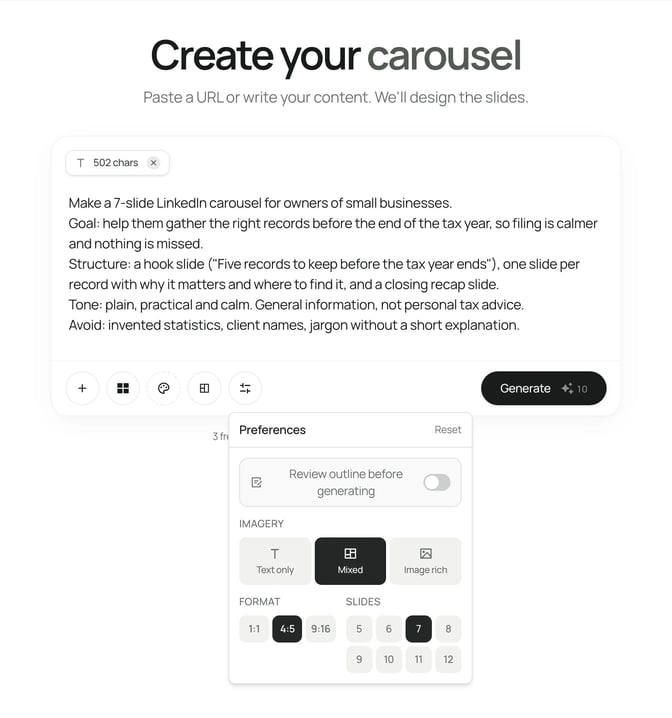
The slides go out the following Tuesday. In the post's analytics, Sam watches the saves count more than reactions, because a checklist is meant to be kept. For a refresher on putting the post together, the how to post on LinkedIn guide walks through the post box.
FAQ
How do I find my saved posts on LinkedIn?
On a computer, click Saved items in the left-hand column of your LinkedIn homepage, then Saved posts and articles. In the LinkedIn app, tap your profile picture, then Saved posts.
Why can't I find my saved posts?
Check that you've saved something: the list fills from the Save option on a post's More menu. LinkedIn moves its menus from time to time, so if the labels look different, check LinkedIn's help page on saving content and update the app.
Can people see when I save their LinkedIn post?
Authors see a number of saves in their post analytics. LinkedIn's analytics page describes Saves as the number of times members saved the post, shown alongside reactions, comments and reposts.
How do I unsave a post on LinkedIn?
Open your saved list, select the More icon (three dots) on the post and choose Unsave. The steps work on one post at a time.
Can I organise saved posts into folders?
LinkedIn's help page doesn't describe folders for saved posts. Keep short notes in your own document or notes app if you want to sort them by topic.
Do saved posts stay forever?
LinkedIn's help page describes unsaving as the way to take a post off your list. A saved post still belongs to its author, so copy any useful idea into your own notes in your own words in case the post changes.
Turn your saved ideas into a SlideDrift carousel
When your notes point to a topic your clients keep asking about, a carousel is a good shape for it: one point per slide, easy to save. Paste your notes into SlideDrift and it drafts the slides, then opens them in the editor for you to change.
Turn your notes into a carousel
Paste your notes in your own words. Pick your brand profile so the slides use your colours, fonts and logo, edit them in the editor, then export the PDF.


Brief for this carousel
Make a 7-slide LinkedIn carousel for owners of small businesses on five records to keep before the end of the tax year. A hook slide, one slide per record, and a closing recap.