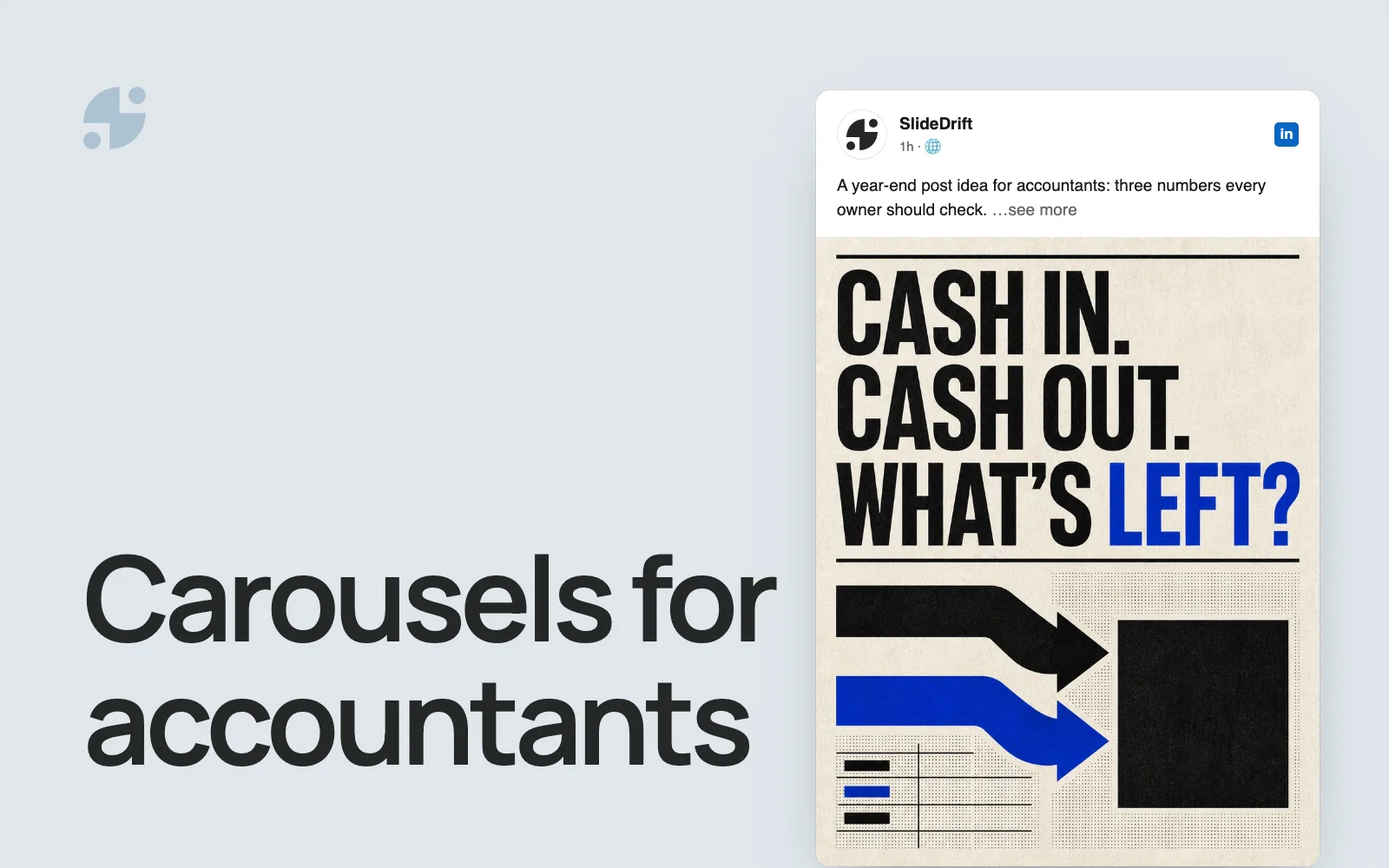
How to Write Alt Text and Filenames for LinkedIn Carousel Blog Images
Name carousel images in short, hyphenated words and write alt text that gives a slide's words or point. Examples for slides, charts, photos and LinkedIn.

Give each image a short filename of lowercase words joined by hyphens that says what it shows, such as onboarding-mistakes-carousel-cover.png rather than slide-01.png. Then write alt text that gives someone who can't see the image what it adds to the article: the words on a carousel slide, the point of a chart, or an empty alt (alt="") for a photo that's only there for looks.
Filename, alt text and caption do different jobs
| Element | Who reads it | What to write | Example |
|---|---|---|---|
| Filename | Search engines, and screen readers when alt text is missing | A few words saying what the image shows | onboarding-mistakes-carousel-cover.png |
| Alt text | Screen reader users and search engines | What the image adds, in a phrase or a sentence | "Carousel cover: 5 onboarding mistakes that slow new hires down" |
| Caption | Every reader | What to notice, or why the image is there | "Slide 1 of the LinkedIn version of this post" |
Alt text does the most work. Google's image SEO guide calls it the most important attribute for describing an image to Google, says a filename gives only "very light clues," and reads captions and the text around an image too. Write all three, but don't make them identical: a screen reader user hears both the alt text and the caption.
How to name image files
Rename every image before you upload it. A name like slide-01.png tells search engines nothing, and W3C's guidance on decorative images notes that some screen readers read out the filename when an image has no alt attribute.
- Say what the image shows in a few words. Google's guide prefers
my-new-black-kitten.jpgtoIMG00023.JPGand suggests avoiding generic names such asimage1.jpgorpic.gif. - Separate words with hyphens and keep them lowercase. Google's URL guidance recommends hyphens rather than underscores, and Google treats URLs as case sensitive.
- Start with the topic, then the kind of image:
[topic]-[what-it-shows].png, such ascarousel-hook-before-after.png,support-tickets-by-week-chart.pngorlinkedin-document-post-preview.png. - Rename exports. SlideDrift's PNG export, for example, downloads a ZIP named after the carousel's title, with the slides inside numbered in order (
slide-01.png,slide-02.pngand so on). - Translate the filename when you translate the post, as Google's guide suggests.
How to write the alt text
Decide what the image is for before you describe it. W3C's alt decision tree walks through the questions; in a post built around a carousel, most images fit one of these cases:
Alt text for carousel post images
| Image | What the alt text says | Example |
|---|---|---|
| A slide whose words aren't anywhere else on the page | The slide's words, as written | "Carousel cover: 5 onboarding mistakes that slow new hires down" |
| A slide whose words are in the text right beside it | Nothing. Use an empty alt so screen readers skip it | alt="" |
| A chart, diagram or timeline | What it is and where the details are, with the details written out in the article | "Bar chart of support tickets per week. The figures are in the table below." |
| Several slides in one image | What the set shows | "Three slides from the carousel: the cover, one mistake and the closing checklist" |
| A screenshot | What it shows and what to notice | "LinkedIn document post with the carousel's main points written in the post text" |
| A photo that only sets the mood | Nothing. Use an empty alt | alt="" |
- Copy a slide's words exactly when they're the point. W3C's page on images of text says the alternative must contain the same text as the image, and you don't need to describe the styling.
- Leave out "image of" and "picture of." Screen readers already announce an image, as W3C's alt text tips point out.
- Keep it to a phrase or a sentence. When an image needs more, W3C's advice for complex images is a short alt that names the image and says where the full description is, with that description on the page.
- Write for the listener, not for search. Google's guide warns against filling alt attributes with keywords, and its best example is a plain description: "Dalmatian puppy playing fetch."
- Never leave the alt attribute out. For an image screen readers should skip, use an empty one,
alt="", with no space between the quotes.
Captions and placement
Put each slide beside the section it illustrates, not in a gallery at the end; Google's guide asks for images near the text they relate to. Use the caption for what a sighted reader should notice, such as which slide it is or why it's there, and keep it different from the alt text.
Add images with your blog's image block (an HTML <img> element) rather than as a CSS background image, because Google doesn't index CSS images. PNG files from a slide export can go up as they are: Google supports BMP, GIF, JPEG, PNG, WebP, SVG and AVIF.
If you're expanding a carousel into a full article, repurposing a carousel into a blog post covers the structure around the images.
Example: four images from one carousel post
Worked example
Naming and describing four images from one carousel
Say you've written a post called "5 onboarding mistakes that slow new hires down," made a seven-slide carousel from it and exported the slides as PNG files. You use four images in the article.
The cover slide, under the introduction. Rename slide-01.png to onboarding-mistakes-carousel-cover.png. Its words appear nowhere else on the page, so the alt text gives them: "Carousel cover: 5 onboarding mistakes that slow new hires down." Caption: "Slide 1 of the LinkedIn version of this post."
Slide 4, beside the section it illustrates. Rename slide-04.png to onboarding-mistake-no-first-week-plan.png. The heading and paragraph next to it say the same thing, so it gets an empty alt (alt="") and no caption.
Slide 7, a first-week timeline. Rename slide-07.png to new-hire-first-week-timeline.png. Alt text: "Timeline of a new hire's first week. Each day is described below." Then write each day out in the paragraphs under it.
The stock photo at the top. Rename the download to new-hire-first-day-desk.jpg. It only sets the mood, so it gets an empty alt. If it showed something the post discusses, such as a filled-in onboarding checklist, you'd describe that instead.
To check the result, listen to the page with a screen reader, such as VoiceOver on a Mac or iPhone or Narrator on Windows. Each image should either add something or stay silent.
Alt text on LinkedIn
LinkedIn's help page on alt text covers images you share in the feed and images in LinkedIn articles: after you upload an image, select the alt text option below it and write the description. LinkedIn says it may add alt text automatically to images that don't have any, so write your own to say what the image is for.
A carousel posted as a PDF is a document post, and LinkedIn's alt text page doesn't cover documents. LinkedIn's help page on documents has you add a document title instead, so make the title describe the carousel and put its main points in the post text. The guide to making LinkedIn carousels accessible covers both.
If you schedule a LinkedIn Image post from SlideDrift (scheduling is on paid plans), the composer won't save it without alt text. When you upload a file with a descriptive name, SlideDrift suggests that name as the alt text for you to edit; a name like IMG_0423.jpg gives no suggestion. Scheduling LinkedIn posts has the steps.
Make the carousel in SlideDrift
If the post doesn't have a carousel yet, you can draft one from it. Paste a brief like this into the Create box with your post's link on its own line, set the slide count in Preferences, and press Generate:
SlideDrift brief
Make a LinkedIn carousel for [audience] from the blog post at the link below.
Give each slide one point and a short headline that makes sense on its own.
Use the post's own steps, numbers and examples, and add nothing it doesn't say.

[Your blog post link]Headlines that stand on their own also make short alt text. If SlideDrift can't read the page, paste the post's text instead of the link. The guide to turning a blog post into a carousel covers what to keep and what to cut.
Once you've edited the slides, click Share, then Export, choose PNG and click Download PNGs, as the PNG export guide shows. Unzip the file, rename the slides you'll use and write their alt text. For LinkedIn, export a PDF instead and run the LinkedIn carousel checklist before you upload.
Make a carousel from your blog post
Paste your post's link or text. SlideDrift drafts the slides; you edit them, then export PNG images for the article or a PDF for LinkedIn.



FAQ
Should alt text include keywords?
Only words that describe the image. Google's image guide warns that filling alt attributes with keywords makes for a poor experience. If a slide says "LinkedIn carousel," its alt text will too; don't add the phrase where the image doesn't show it.
Do image filenames matter for SEO?
A little. Google says a filename gives only light clues about an image, so a short, descriptive name is enough. The alt text, caption and surrounding text tell it more.
Can you add alt text to a LinkedIn carousel?
Not to one posted as a PDF. LinkedIn's alt text help covers images in feed posts and articles, and a document post has a title instead. Give the document a descriptive title and put the main points in the post text.
Does every image need alt text?
Every image you add to the page needs an alt attribute, but it doesn't always need words. For images that are decorative or repeat the text beside them, W3C's guidance is an empty alt (alt="", with no space between the quotes) so screen readers skip them.