Best LinkedIn Content Creation Tools for Consultants in 2026: A Buyer's Shortlist
Six LinkedIn content tools for consultants, ranked on design quality, starting from your own material, client privacy and price. Checked October 2026.

The best LinkedIn content creation tools for consultants turn what you already know from client work into posts, without making content a second job. Our pick is SlideDrift, a LinkedIn content studio that turns your notes, links and PDFs into designed carousels, text posts and polls, then schedules them. Taplio and Supergrow suit consultants who mostly write text posts, AuthoredUp suits careful editing, Canva suits designing by hand, and Buffer is a low-cost scheduler for several networks.
We make SlideDrift, so every product fact below is sourced and dated.
Key takeaways
- SlideDrift is the pick if you want client lessons turned into posts that look designed: Pro templates, a Brand Kit, client approval links and LinkedIn scheduling from $29 a month.
- Most consultants don't need five tools. One place to draft, design and schedule, plus a private notes file, covers the work.
- Taplio and Supergrow are writing-first. Both start at $39 a month and both offer a carousel maker, so try them if text posts are your main format.
- AuthoredUp helps you format, preview and schedule text posts, from $19.95 a month. Canva gives you full design control. Buffer schedules to several networks cheaply.
- Whatever you pick, keep client names, figures and documents out of it. Write the pattern, not the client.
Before you pay for any tool on this list, run the same short test in each. Here it is as a carousel, made in SlideDrift.
SlideDriftCreate your ownCarousel transcriptShowHide


- 01The 10-minute test. Test any carousel generator in 10 minutes. Every tool's demo looks good. Run these five checks on your own material before you pay: a real source, the first slide, one edit, your brand and the exported PDF. Use the same source in every tool you test.
- 02Test 01, bring your own source. Start from a real source. Paste an article, a newsletter or notes you'd actually post about. A one-line topic shows what the tool invents; your own material shows what it understands.
- 03Test 02, the hook check. Judge slide one first. Does the first slide make a specific promise to one reader? If it could introduce any post, the tool wrote a title, not a hook. A good hook: specific, one reader, one promise.
- 04Test 03, no full regeneration. Edit one slide without starting over. Change a headline, swap an image and reorder two slides. If fixing one slide means regenerating the whole deck, every draft becomes a gamble.
- 05Test 04, your brand settings. Apply your brand once, then reuse it. Save your fonts, colors and logo once, and check they land on every slide of the next carousel without fixing anything by hand.
- 06Test 05, the final check. Export the PDF and open it on a phone. Every page the same size, text readable at phone size, slides in the right order. Pick the tool that passes all five on your own material.
What a LinkedIn content creation tool for consultants is (and isn't)
A LinkedIn content creation tool helps you get from an idea to a published post. Depending on the tool, that means drafting the words, designing slides or images, scheduling the post and reading the results afterwards.
Consultants use these tools differently from creators. Your best material is client work you can't share as it happened: a diagnosis you keep making, a decision framework, the mistake buyers make before they hire help. The tool's job is to turn an anonymised version of that into something a prospect can read in a minute and save.
So the right tool for you does three things well. It starts from your own notes rather than a one-line topic. It produces posts that look like a professional firm made them. And it gets them published on a schedule you can keep through a busy month.
It isn't a ghostwriter, and it won't give you a point of view. Tools that generate posts from a topic with nothing of yours in them produce the generic advice prospects scroll past. It also isn't a CRM or an outreach tool; some suites on this list include those, but they're a separate decision.
Most of what you post will be one of three formats: a text post, a carousel (a PDF uploaded as a document post) or a poll. LinkedIn's help page on document posts accepts PDFs up to 100MB and 300 pages and recommends PDF for the highest quality. For ideas on what to post, the LinkedIn content strategy for consultants guide goes further.
How we ranked these tools
We judged each tool on what its own public pages show, signed out:
- Design quality. How a finished carousel or image looks on a phone: type you can read, one idea per slide, a consistent look. We show each tool's public examples so you can judge for yourself.
- Starts from your expertise. Whether it takes your notes, an article, a PDF or a recorded conversation, rather than inventing a post from a topic.
- Client confidentiality. Whether you can work from anonymised notes rather than raw client documents.
- Formats. Text posts, carousels, polls and images, since consultants need more than one.
- Publishing and sign-off. LinkedIn scheduling, Company Pages and a way for a client or partner to approve a post.
- Price of a working month. The cheapest monthly plan that covers drafting and scheduling for one consultant.
Competitor facts come from each vendor's own site, read in October 2026. Prices are in US dollars unless the vendor shows local currency.
The shortlist: six LinkedIn content tools for consultants
1. SlideDrift, best for turning client lessons into designed posts
SlideDrift starts from what you already have. Paste a public article link or your rough notes, or on a paid plan or trial a PDF, and it drafts an editable carousel of 5 to 12 slides. Post ideas takes the same notes and suggests a mix of carousel, image, text and poll drafts; drafting is free, and a carousel costs 30 credits.
The design is the part most consultants can't do quickly. Pro templates are complete designs shown on real example slides before you use them.
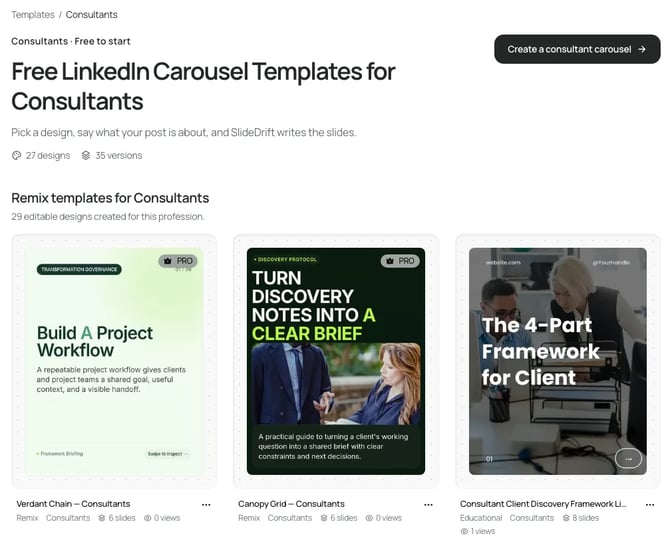
Your Brand Kit, which you can import from your website, puts your colours, fonts and logo on every carousel. It also saves who you help and what readers should do next, so drafts start from your buyer rather than a generic audience. The consultant carousel templates guide shows more designs.
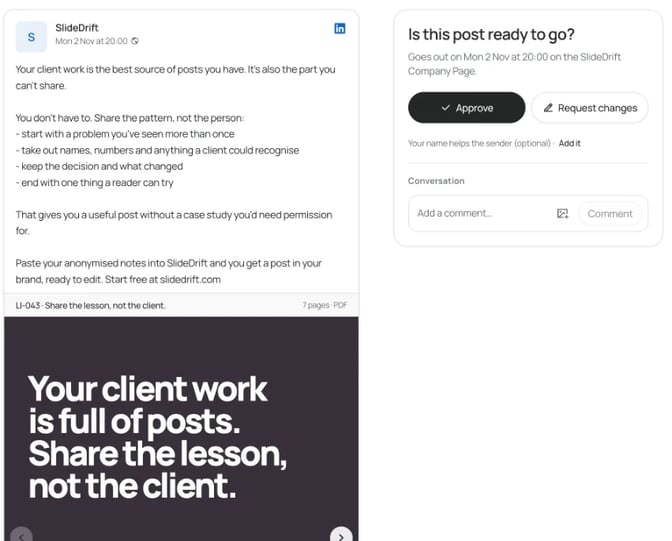
For consultants who post for a firm or a client, the approval link matters. It works for 14 days, holds up to 20 posts and needs no account, so a partner can approve or ask for changes before anything goes out.
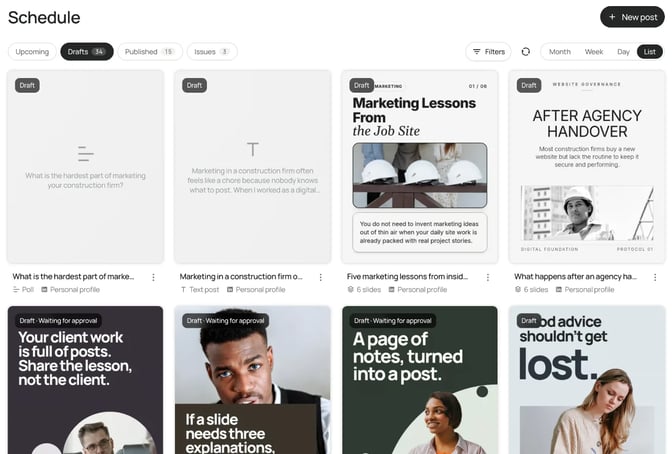
Scheduling needs a paid plan: Starter at $29 a month connects 1 personal profile, and Company Pages need Pro at $59. SlideDrift's scheduling connects LinkedIn accounts; to post anywhere else, export PDF or PNG in square 1:1, portrait 4:5 or stories 9:16 and upload it to other platforms. Analytics then shows how each post did over 7 days to 12 months.
The free plan includes 200 credits that don't reset, and free exports carry a small SlideDrift banner. The trade-off: fewer blank-canvas design tools than Canva, and scheduling built for LinkedIn, so other networks mean exporting and uploading yourself.
Best suited for: consultants, advisers and small firms who want client lessons turned into designed posts, signed off and scheduled in one place.
2. Taplio, best for text posts inside a LinkedIn growth suite
Taplio is built around writing. You describe what you want to say and it drafts a post in your voice, ready to schedule. Around that sit analytics, engagement tools and, on higher plans, lead features.

Its carousel generator starts from a post, an article or YouTube link, or a rough idea, applies your saved colours, fonts and logo, and exports a PDF or schedules it. The pricing page lists Starter at $39 a month, Growth at $69 and Pro at $199, with a 7-day trial. More in Taplio vs SlideDrift.
Best suited for: consultants who post text most days and want writing, scheduling and engagement in one subscription.
3. Supergrow, best for drafting posts from an AI interview
Supergrow has a useful idea for busy experts: Postcast, an AI interviewer you talk to, which turns the conversation into posts. It also repurposes YouTube videos, articles and PDFs into LinkedIn posts, and aims to write in your voice through what it calls Content DNA.
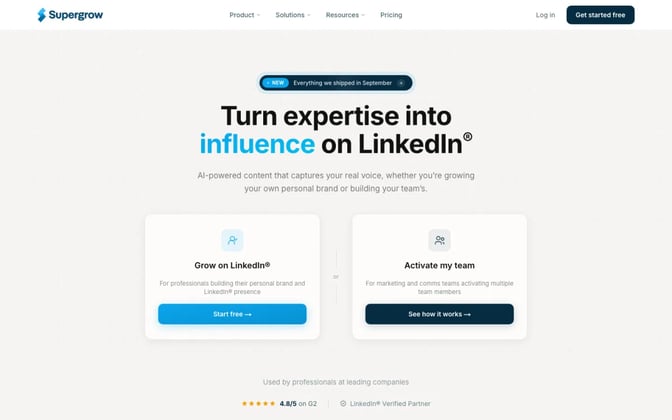
Its pricing page lists Pro at $39 a month for 1 LinkedIn account, with a carousel maker, scheduling with auto first comment and profile analytics. Teams is $199 a month for 5 accounts and adds approval workflows. Every plan starts with a 7-day trial.
Best suited for: consultants who think better out loud than on a blank page.
4. AuthoredUp, best for formatting and checking text posts
AuthoredUp is a Chrome extension that works inside LinkedIn. You write with bold, italic and lists, preview how the post looks on each device, save drafts, and schedule. It also keeps analytics on your posts and a library of hooks and post endings.
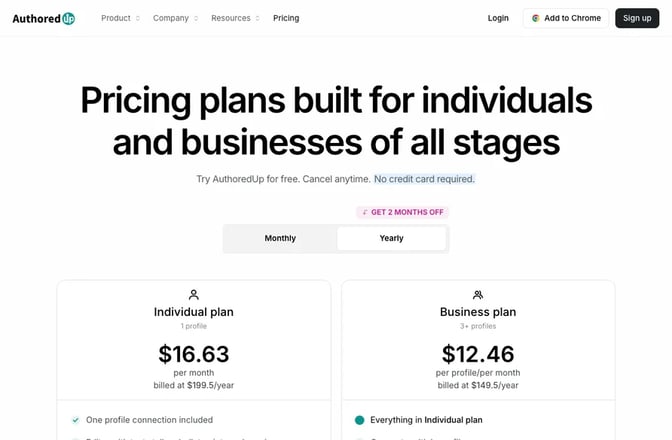
The pricing page lists Individual at $19.95 a month billed monthly, or $16.63 a month billed yearly, with a free trial that needs no card. Company Pages are included free. Its homepage doesn't list carousel or image creation, so pair it with a design tool if you post carousels.
Best suited for: consultants who write their own text posts and want them formatted and checked before they go out.
5. Canva, best for designing every slide by hand
Canva is a design tool, not a writing one. You start from a template or a blank page and place every heading and image yourself. The pricing page lists 1.6M+ templates and PDF, JPG and PNG export on the free plan, and 1 Brand Kit limited to 3 colours.
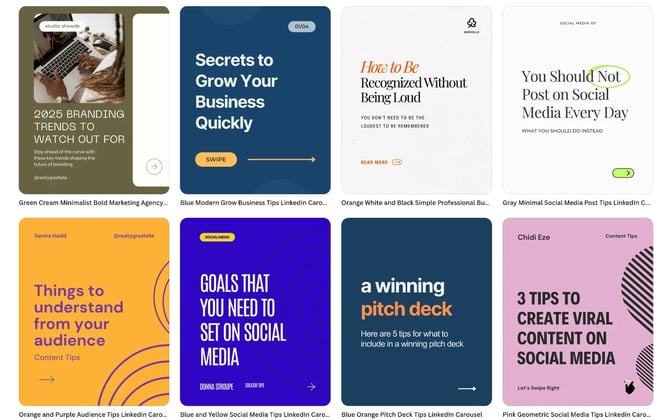
Pro adds 5 Brand Kits and social content scheduling, priced in your local currency. Canva suits consultants who enjoy design, or whose firm already keeps Canva brand templates. The cost is time: every carousel is laid out by hand. The Canva vs SlideDrift comparison covers the trade-off.
Best suited for: consultants who want full control of every slide and don't mind building each one.
6. Buffer, best for low-cost scheduling to several networks
Buffer is a scheduler first. It supports LinkedIn profiles and pages alongside other networks, with an AI Assistant for creating and refining posts and an ideas list. Its pages don't list a carousel designer, so you'd bring finished images or PDFs from another tool.
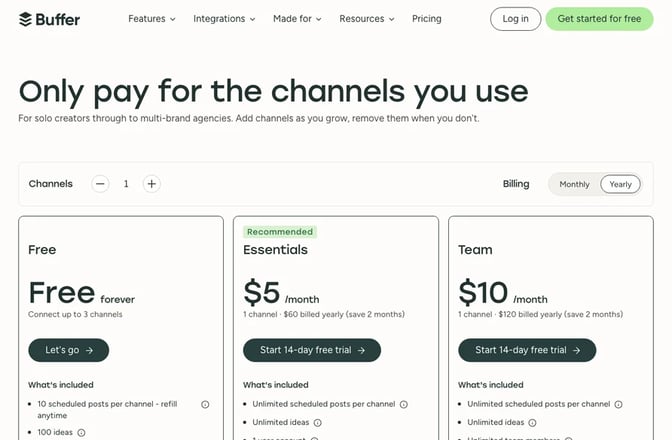
Its pricing page lists a free plan for up to 3 channels with 10 scheduled posts per channel. Essentials is $5 a month per channel billed yearly, with unlimited scheduled posts and first comment scheduling, and Team at $10 adds approvals.
Best suited for: consultants who already make their posts elsewhere and want them scheduled to LinkedIn and other networks for little money.
Start with what LinkedIn gives you free
Before you pay for anything, use LinkedIn's own tools. LinkedIn's help page says you can schedule a post from 10 minutes to 3 months ahead, on desktop or mobile, using the clock icon in the post box.
Post analytics show impressions, profile viewers from the post, followers gained, saves and sends, and LinkedIn notes the numbers are estimates. For a consultant, profile viewers and saves say more than likes: they're the readers weighing you up.
What LinkedIn doesn't do is draft or design the post. That's the gap the paid tools fill. If scheduling is all you need, the best LinkedIn scheduling tools compares more options.
Side by side: a template cover and a finished carousel
Design quality is easier to judge than to describe. On the left is a cover from Canva's public LinkedIn carousel templates. On the right is the first slide of a finished carousel we made in SlideDrift, on structuring a client case study.
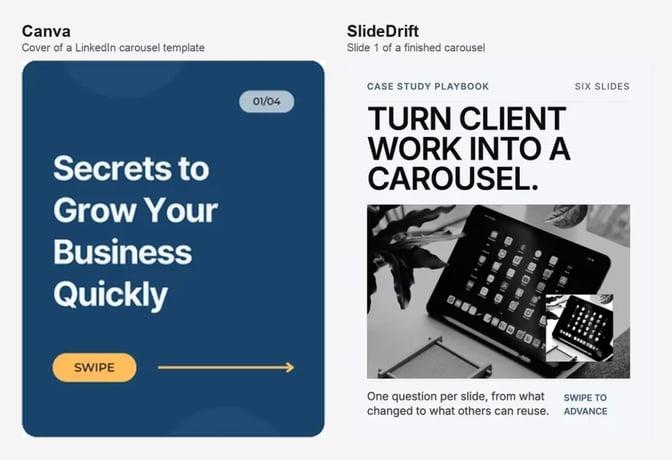
The Canva cover is a starting point you still need to rewrite and lay out. The SlideDrift slide is finished: a specific promise, an image and a line that tells the reader what's inside. See the rest of that carousel in the case study carousel templates guide.
LinkedIn content creation tools comparison
| Tool | Main job | Starts from | Free option | Posts to LinkedIn from |
|---|---|---|---|---|
| SlideDrift | Designed carousels, text posts and polls | Notes, a link, a template; PDF on paid plans | 200 credits; exports carry a banner | $29 a month; Company Pages $59 |
| Taplio | Text posts and LinkedIn growth | A description, a post, an article or YouTube link | 7-day trial | $39 a month |
| Supergrow | Text posts in your voice | AI interview, YouTube, articles, PDFs | 7-day trial | $39 a month |
| AuthoredUp | Formatting and checking text posts | Your own draft | Free trial, no card | $19.95 a month |
| Canva | Hand-built design | A template or blank page | Free plan; PDF, JPG, PNG | Scheduling on Pro, local currency |
| Buffer | Scheduling to several networks | Your finished post | 3 channels, 10 posts each | $5 a month per channel, billed yearly |
Feature matrix for consultant content tools
✓ means the tool's own pages list it, ✗ means they don't offer it, and "Not listed" means we couldn't find it.
| Feature | SlideDrift | Taplio | Supergrow | AuthoredUp | Canva | Buffer |
|---|---|---|---|---|---|---|
| Starts from your notes or a link | ✓ | ✓ | ✓ | Your own draft | Template or blank | Your ideas, AI Assistant |
| Designed carousels | ✓ Pro templates | ✓ | ✓ carousel maker | Not listed | ✓ by hand | Not listed |
| Text posts | ✓ | ✓ | ✓ | ✓ | Not listed | ✓ |
| Polls | ✓ | ✓ | Not listed | ✓ extension | Not listed | Not listed |
| Brand kit | ✓ from your website | ✓ | Not listed | Not listed | ✓ | Not listed |
| Schedules posts | ✓ paid plans | ✓ | ✓ | ✓ extension | ✓ Pro | ✓ |
| Company Pages | ✓ Pro | Not listed | Not listed | ✓ free | ✓ Pro | ✓ |
| Client approval | ✓ link, no account | Draft review with your team | ✓ Teams | Not listed | ✓ Business | ✓ Team |
| Analytics | ✓ | ✓ | ✓ profile | ✓ | Not listed | ✓ |
| Other networks | Exports PDF or PNG | Not listed | Not listed | Not listed | ✓ Pro | ✓ |
Which tool fits your consulting practice
| If you need | Pick | Why |
|---|---|---|
| Client lessons turned into designed carousels, text posts and polls, scheduled | SlideDrift | Pro templates, Brand Kit, Post ideas and scheduling in one place |
| A partner or client to approve posts first | SlideDrift | Approval links that need no account |
| Mostly text posts, plus engagement tools | Taplio | Writing, scheduling and analytics in one suite |
| Posts drafted from a conversation | Supergrow | Postcast AI interviews |
| Text posts you write yourself, formatted well | AuthoredUp | Editor, previews and scheduling inside LinkedIn |
| Full control of every slide | Canva | You design each one |
| Cheap scheduling to several networks | Buffer | Priced per channel, with a free plan |
Keep client details out of every tool
This matters more for consultants than for most people who post. Whatever tool you use, treat it as a place for anonymised lessons, not client records.
SlideDrift's privacy page says not to upload private customer data, confidential company documents, private messages or transcripts, or financial, legal or medical records. That's a sensible rule for every tool on this list, and your client contracts may set stricter ones.
A simple habit works. Keep a private file of raw notes. Before anything goes into a content tool, rewrite it as the pattern: the problem you've seen more than once, the decision that changed the outcome, and what a reader can try. Remove names, figures and anything a client could recognise. The carousel ideas for consultants guide has formats built for this.
What results look like: one consultant's month
Here's a made-up example. Dana is an independent operations consultant who wants one carousel a week and two short text posts a week, posted from her own profile.
On SlideDrift Starter at $29 a month, she pastes four anonymised client lessons into Post ideas. Each carousel from Post ideas costs 30 credits to make and 20 to publish without the banner. The text posts and a monthly poll cost nothing to publish.
That's 200 credits for the month's four carousels, a fifth of the plan's 1,000. Her month on SlideDrift looks like this:
| Week | Carousel | Text posts | Poll |
|---|---|---|---|
| One | The three questions she asks before any process review | Two | None |
| Two | Why handovers fail between teams | Two | One |
| Three | A checklist for a first week with a new client | Two | None |
| Four | The mistake buyers make before hiring help | Two | None |
Results won't be the same for every consultant, so judge by your own numbers. After a month, compare saves and profile viewers across the carousels and the text posts in LinkedIn's post analytics. Keep the format that brings the right readers to your profile.
To check how a post reads before it goes out, the free LinkedIn post preview shows it as it will look in the feed.
FAQ
What's the best LinkedIn content tool for a consultant?
SlideDrift, if you want client lessons turned into designed carousels, text posts and polls, approved and scheduled in one place. Taplio and Supergrow suit consultants who mainly write text posts, and AuthoredUp suits careful editing of posts you write yourself.
Do I need a separate tool for writing and for design?
Not always. SlideDrift drafts and designs the post, and Taplio and Supergrow both include a carousel maker. You need two tools if you write in AuthoredUp or schedule in Buffer, since neither lists a carousel designer.
Is there a free option?
Yes. LinkedIn itself lets you schedule a post up to 3 months ahead and shows analytics for each post. Canva and Buffer have free plans, and SlideDrift gives 200 credits that don't reset, with a banner on free exports. Taplio, Supergrow and AuthoredUp offer trials.
Can a client or partner approve posts before they go out?
In SlideDrift, yes: an approval link works for 14 days, holds up to 20 posts and needs no account. Supergrow Teams, Canva Business and Buffer Team also list approval workflows.
Is it safe to put client work into an AI tool?
Only in anonymised form. Don't paste client names, figures, documents or transcripts into any content tool. Write the general pattern instead, and check your client contracts for what you've agreed to keep private.
Can I post the same content outside LinkedIn?
Buffer and Canva schedule to several networks. SlideDrift schedules to LinkedIn accounts, and exports PDF or PNG in square 1:1, portrait 4:5 or stories 9:16 for other platforms.
How often should a consultant post on LinkedIn?
Post as often as you can keep up with good material. A weekly carousel and a couple of short text posts is a manageable place to start alongside client work. Writing a week's posts in one sitting and scheduling them makes it easier.
Turn your next client lesson into a post with SlideDrift
Paste your anonymised notes into SlideDrift, pick a consultant template and your Brand Kit, and edit the draft before you export it or schedule it to LinkedIn.
SlideDrift brief
Turn the notes below into a 7-slide LinkedIn carousel for my clients.
Slide one: a specific promise to the reader.
One point per slide. No client names or figures.
End with what the reader can try this week.

[Paste your anonymised client lesson here]Turn a client lesson into a post
Paste your notes or a link. SlideDrift drafts the post in your brand, you edit it, then export a PDF or schedule it to LinkedIn on a paid plan.


Brief for this carousel
Make a 6-slide LinkedIn carousel for consultants choosing a content tool. A cover (pick the tool that turns client lessons into posts), then one question per slide: does it start from your own notes, do the finished slides look designed, can you keep client details out, does it publish and get client sign-off, and what does a working month cost. End with: test your top two on one real client lesson.