What Is a LinkedIn Carousel?
A LinkedIn carousel is a post people swipe through page by page, usually a PDF uploaded as a document post. What it is, when to use one, and how to make one.
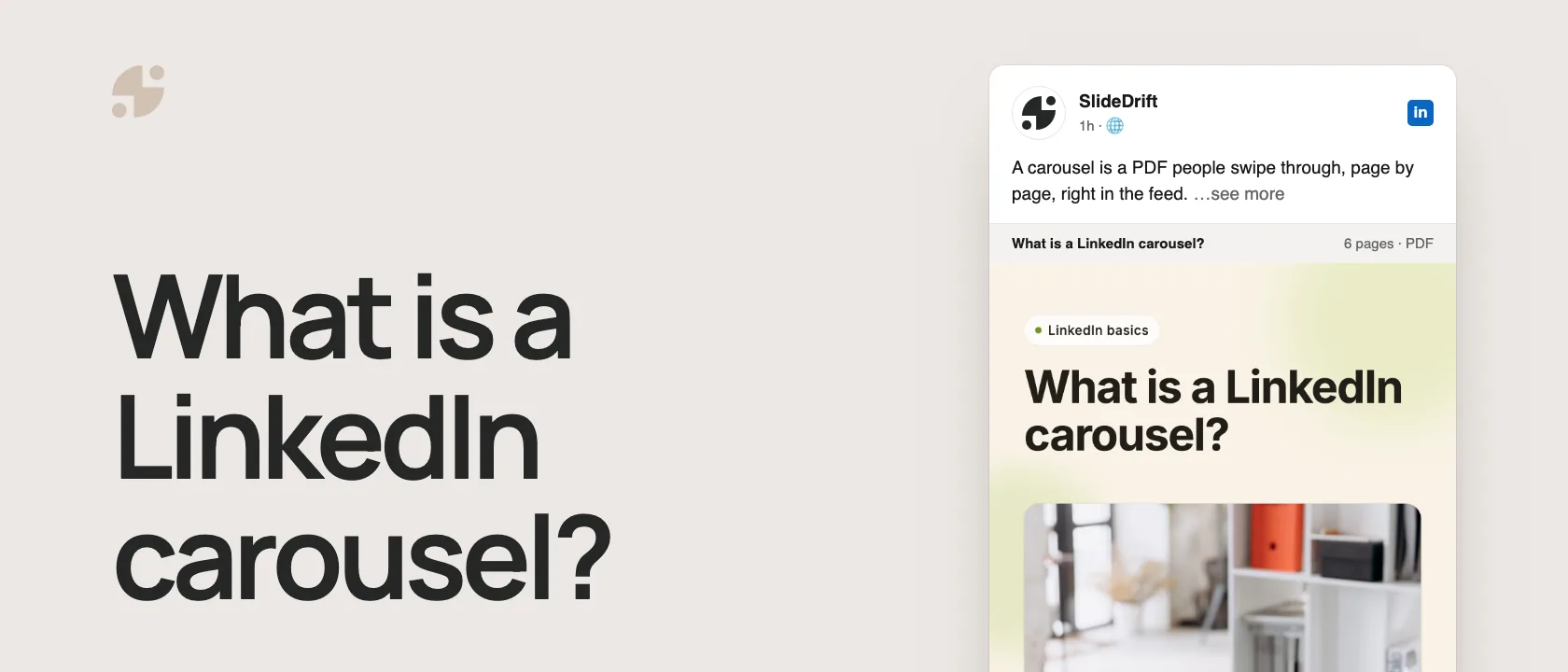
A LinkedIn carousel is a post people swipe through page by page. Most are PDFs uploaded as a document post, with each page designed as one slide; creators call them carousels because readers move through them like a short slide deck.
- What you upload: a PDF, PowerPoint or Word file of up to 100 MB and 300 pages. PDF gives the best quality.
- When to use one: ideas with an order, such as frameworks, checklists, step-by-step guides and case studies.
- What makes one work: one job per slide, a first slide that makes a promise, and an ending with a next step.
What LinkedIn calls it
LinkedIn's help page calls the format a document upload. From your homepage, a Group or a LinkedIn Page, you attach a PDF, PPT, PPTX, DOC or DOCX file of up to 100 MB and 300 pages, and LinkedIn recommends converting to PDF for the best quality. The terms people use all describe the same post:
| Term | What it means | Who usually says it |
|---|---|---|
| LinkedIn carousel | A swipeable multi-slide LinkedIn post | Creators, marketers, founders |
| LinkedIn document post | LinkedIn's name for an uploaded document | LinkedIn Help |
| PDF carousel | A carousel exported as a PDF before upload | Designers and carousel tools |
| Slide deck post | A carousel that looks like a short presentation | Consultants, agencies, B2B teams |
The carousel vs document post guide covers the naming in more detail.
Here's this guide as a carousel, made in SlideDrift.
SlideDriftCreate your ownCarousel transcriptShowHide


- 01What is a LinkedIn carousel? A post people swipe through, page by page. What it is, and how to make one.
- 02Step 01, the format. It's a PDF posted as a document. LinkedIn calls it a document post: you upload a PDF, PowerPoint or Word file, and readers swipe its pages. Up to 100 MB and 300 pages. PDF gives the best quality.
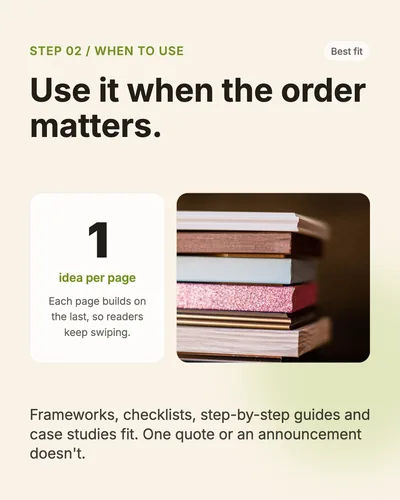
- 03Step 02, when to use. Use it when the order matters: one idea per page, and each page builds on the last, so readers keep swiping. Frameworks, checklists, step-by-step guides and case studies fit. One quote or an announcement doesn't.
- 04Step 03, the structure. Give every slide one job: cover, context, three to five points, proof, recap and one next step. Plan the jobs first. The first slide: a specific promise that earns the first swipe. The last slide: a recap or one next step, like saving the post.
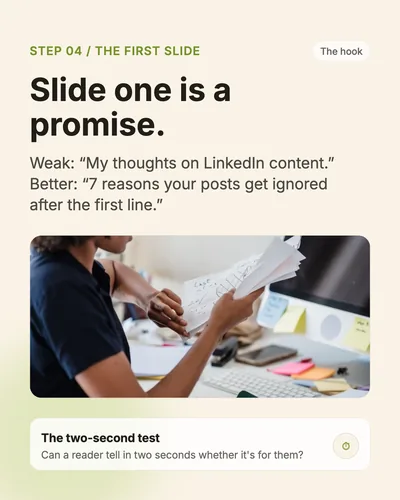
- 05Step 04, the first slide. Slide one is a promise. Weak: “My thoughts on LinkedIn content.” Better: “7 reasons your posts get ignored after the first line.” The two-second test: can a reader tell in two seconds whether it's for them?
- 06How to make one: one idea, a few slides, one PDF, then post. Open the PDF once before you upload. You can edit the caption later, but not the document.
What LinkedIn carousels are good for
Carousels work best when the idea benefits from sequence. A good carousel doesn't just split one paragraph across ten slides; it moves the reader through a small argument.
Use a carousel for:
- a checklist readers can save;
- a framework they can apply later;
- a before-and-after transformation;
- a mistake list with fixes;
- a case study with lessons;
- a comparison between options;
- a step-by-step process.
Skip it when the idea is a quick observation, a simple announcement, or a post where the discussion matters more than the structure. Those usually work better as text or image posts.
For performance context, Socialinsider's 2026 LinkedIn benchmark, based on 1.3 million posts from 16,645 business Pages, found native documents had the highest average engagement rate of any format in 2025: 7.00% by impressions. In its Q2 2026 figures, multi-image posts edged ahead, 6.90% to 6.60%. Treat that as context, not a promise for any single post.
What makes a carousel different from a normal post
A text post asks the reader to keep scrolling. A carousel asks them to move through the content, one page at a time. That small action changes how the post feels: the reader isn't skimming an update, they're working through a mini resource.
That's why the strongest carousels share three things:
- A specific promise on slide one. The reader should know exactly why to swipe.
- One job per slide. Each slide carries one point, not a paragraph.
- A useful ending. The last slide sums up, gives a checklist or offers one next step.
Example LinkedIn carousel structure
A simple educational carousel might look like this:
| Slide | Job |
|---|---|
| 1 | Hook: "5 mistakes that make your onboarding emails fail" |
| 2 | Context: why onboarding emails matter |
| 3 | Mistake 1: sending too much too soon |
| 4 | Mistake 2: hiding the first action |
| 5 | Mistake 3: writing for everyone |
| 6 | Mistake 4: no behavior-based follow-up |
| 7 | Mistake 5: no clear success metric |
| 8 | Checklist: what to fix this week |
| 9 | Next step: save this or try the workflow |
Most carousels land between 6 and 10 slides; the slide count guide shows how to choose.
Plan a carousel before you design it
A short brief stops a useful idea from turning into nine disconnected slides. Fill in these six fields before you write the cover.
The six-part carousel brief
| Field | What to write |
|---|---|
| Source | The article, notes, transcript, experience, or example you can support. |
| Reader | One person with one recognizable problem. |
| Promise | What the reader will understand or be able to do after the final slide. |
| Proof | The source, screenshot, example, or reasoning that supports the main claim. |
| Slide jobs | The job of each slide, written before the finished copy. |
| Close | A recap, checklist, question, or useful next action. |
Completed example: explain PDF export to a first-time creator
This example uses SlideDrift's public PDF export guide as the source, so the carousel stays grounded in a workflow the reader can check.
- Source: The PDF export guide.
- Reader: Someone preparing their first LinkedIn carousel upload.
- Promise: Export a carousel PDF and catch layout problems before uploading it.
- Proof: The guide recommends PDF for LinkedIn and tells readers to open the downloaded file before upload.
- Slide jobs: 1) promise, 2) why PDF fits, 3) finish edits, 4) open Export, 5) choose PDF, 6) inspect every page, 7) upload as a document post.
- Close: Keep the exported file and run the same inspection before every upload.
Notice what the brief leaves out: unsupported performance claims, filler slides and a vague "learn more" ending. It gives the deck one reader, one outcome and one evidence trail.
What should be on the first slide?
The first slide isn't a title page. It's a promise: specific, useful and narrow.
Weak: "My thoughts on LinkedIn content."
Better: "7 reasons your LinkedIn posts get ignored after the first line."
Weak: "A guide to client onboarding."
Better: "The onboarding checklist I wish every agency used before kickoff."
A reader should be able to decide in two seconds whether the carousel is for them. The carousel hook examples have 36 more.
How to make one
The manual way is to write the slides, design them in Canva, PowerPoint or Figma, export a PDF and upload it to LinkedIn as a document. The faster way is to start from what you already have. Paste your notes, an article or a link into SlideDrift with a brief like this:
SlideDrift brief
Turn the notes below into a 7-slide LinkedIn carousel.
One idea per slide, with a first slide that makes a specific promise.
End with a short recap and one next step.

[Paste your notes, article or link here]Edit the draft, apply your brand, export the PDF, and open it once before you upload: you can edit the caption later, but not the document.
Make your first carousel
Paste notes, an article or a link. SlideDrift drafts the slides, you edit them, then export the PDF for LinkedIn.
Brief for this carousel
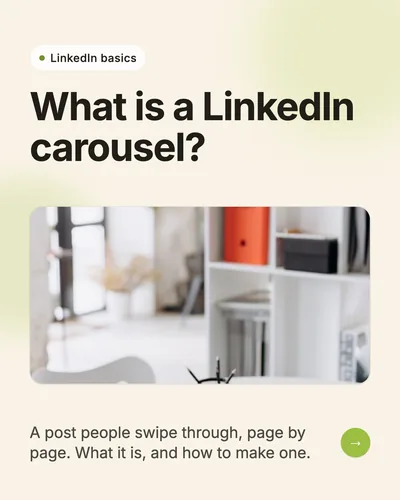
Make a 6-slide LinkedIn carousel explaining what a LinkedIn carousel is. A cover, then one point per slide: it's a PDF posted as a document (a PDF, PowerPoint or Word file up to 100 MB and 300 pages), use it when the order matters, give every slide one job, and make slide one a promise. End with how to make one: one idea, a few slides, one PDF, then post.
Before you publish, run the LinkedIn carousel checklist and confirm the dimensions with the size guide.
FAQ
What is a LinkedIn carousel?
A post people swipe through page by page, usually a multi-page PDF uploaded as a LinkedIn document post, with each page designed as one slide.
Is a LinkedIn carousel the same as a document post?
Yes. Document post is LinkedIn's name for the upload; carousel is what most people call the swipeable result.
How many slides should a LinkedIn carousel have?
Usually 6 to 10: enough for a hook, a few points and an ending. LinkedIn allows up to 300 pages, but the shortest version that teaches the idea works best.
Do I need design skills to make one?
No. You can design slides in Canva, PowerPoint or Figma, or start from notes or a link in a carousel tool and edit the draft before exporting the PDF.