Connect an AI assistant with MCP
Connect SlideDrift to Claude, ChatGPT, Codex, Cursor, or another compatible MCP client.
Create editable LinkedIn carousels from your AI assistant. MCP is included on every plan: Free accounts can have 1 active connection, and Starter, Pro, and Agency allow more.
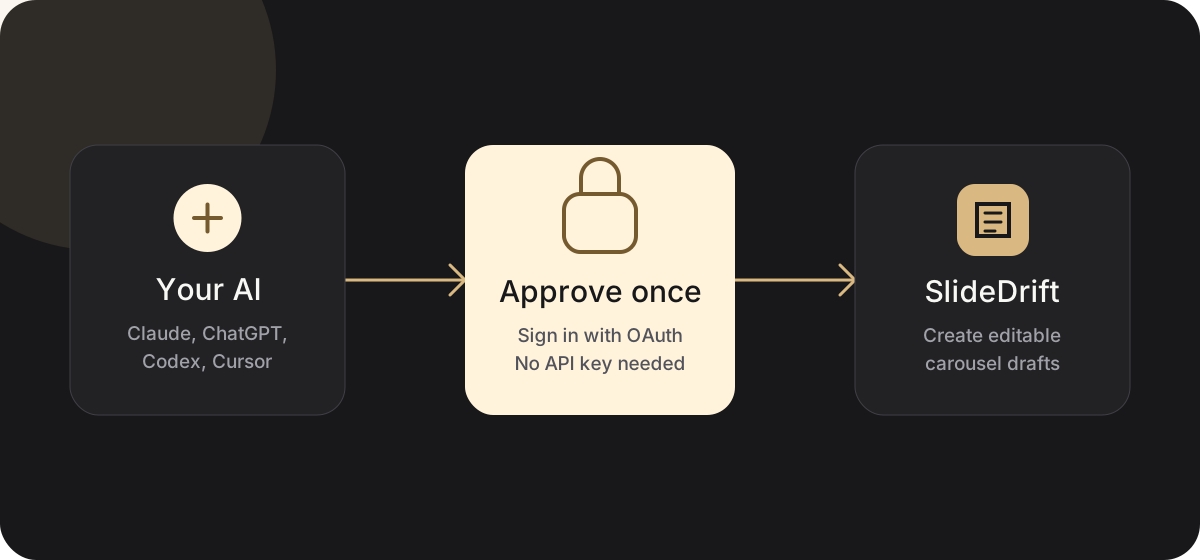
Connect in three steps
-
Open the MCP or integrations settings in your AI assistant.
-
Add this remote server:
https://slidedrift.com/mcp -
Sign in to SlideDrift, or create a free account, and choose Allow connection.
That is it. No API key is needed. Test the connection with:
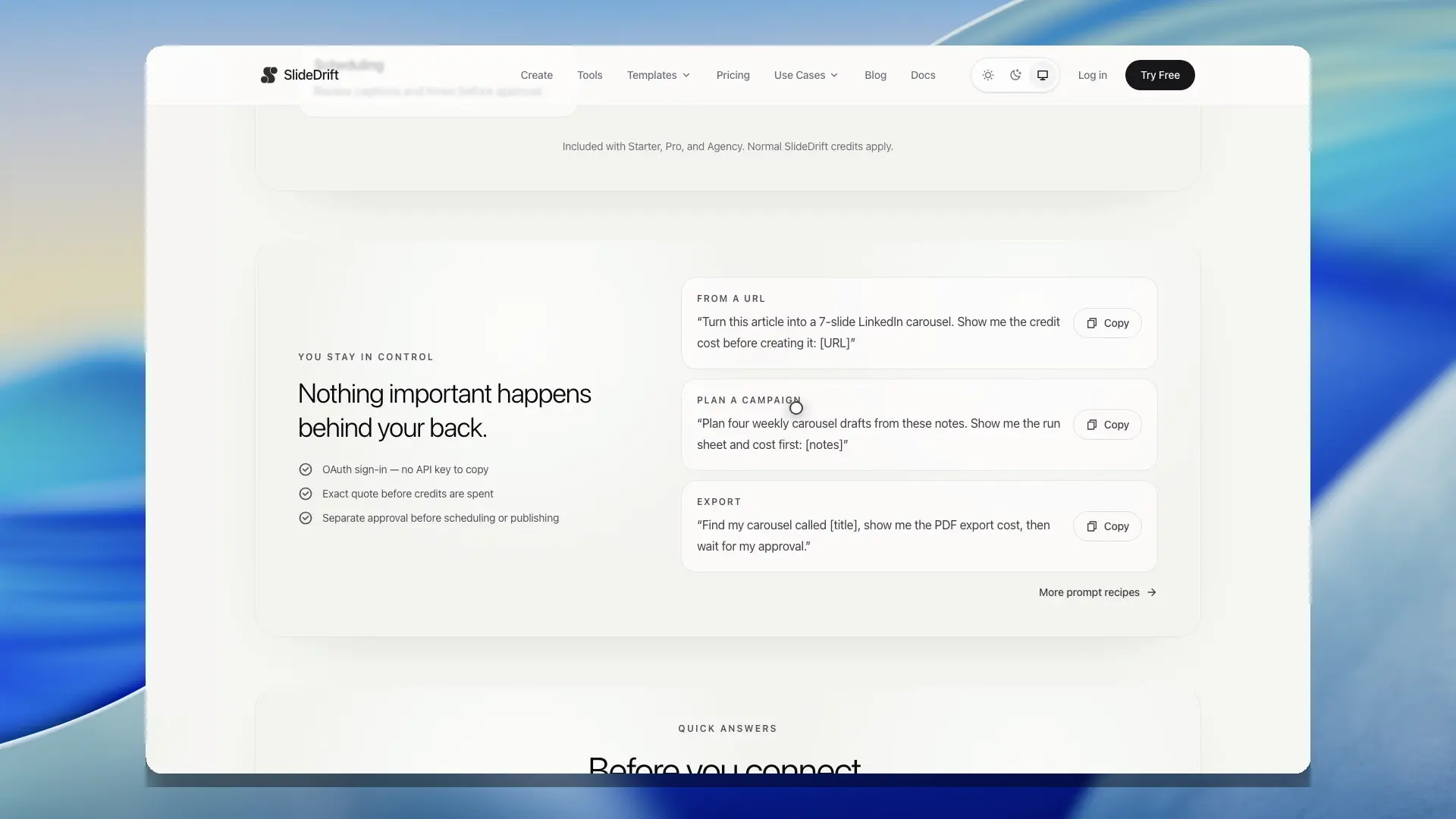
List my SlideDrift templates.Then try one of these:
Turn this article into a LinkedIn carousel: <link>
Make a 7-slide carousel from these notes
Export my newest carousel as a PDF
Your assistant shows the credit cost and waits for your approval before it creates or exports anything, then gives you a link to open the carousel in the SlideDrift editor.
What you can ask it to do
| Create | Manage | Deliver |
|---|---|---|
| Create from a URL or text | Find your carousels and covers | Export PDF, PNG, or image links |
| Use your images and brand kits | Remix a cover or create one from your image | Create or disable share links |
| Plan before creating | Check credits and jobs | Draft or schedule LinkedIn posts |
SlideDrift can create a draft directly from a URL or text; a separate outline is not required. If you want to inspect the story first, ask it to plan before creating.
For background creation, the assistant can use execution: "async" and check progress with get_job.
How approvals work
- You see the exact cost before generation or export.
- Cover generation shows its exact cost and requires its own confirmation.
- Existing-carousel edits show an exact preview, create a recovery checkpoint, and cost zero generation credits.
- Campaign posts start as drafts.
- Scheduling or publishing requires a separate approval.
- If you ask for something SlideDrift can't do yet, the assistant can offer to send the request to the SlideDrift team. You approve the exact text first. It is sent without your name, email, or account details unless you choose to let the team follow up, in which case they can see your account email. It uses no credits.
- The assistant can only access SlideDrift work you own.
For a focused editing task, you can approve a 5–30 minute session limited to one carousel and the named edit types. After the first approved edit, the assistant can make further edits you request within that scope without another SlideDrift confirmation prompt. Your AI client may still apply its own approval policy. The session cannot export, share, schedule, publish, use credits, or edit another carousel, and it stops when it expires or you revoke the connection.
Before showing a generation quote, SlideDrift checks that the selected template is either your own private template or a public template that is ready to use. If a previously saved prompt refers to an unavailable template, the assistant stops before generation or credits are approved and asks you to choose another template.
Saving a social draft and scheduling a post are free. A scheduled carousel uses 20 credits when it publishes, or none with the SlideDrift banner, and its latest saved slides are what go out. SlideDrift refuses to schedule a carousel when your remaining credits cannot cover it together with your other carousels due before your credits renew.
Edit an existing carousel
Ask your assistant to open the carousel and describe the change you want. It can replace or remove text, update supported text styling including border colors, replace or restyle images you own, adjust supported slide layout and background settings, or reorder elements on native SlideDrift slides.
The assistant first reads the current slide and element targets. Before an individually confirmed edit, or the first edit that opens a bounded session, it previews the exact changes for approval. Each applied edit request saves one restore point before updating the carousel. Open Version history in the editor if you want to return to that earlier version.
Edits stop safely if the carousel changed after the assistant read it, is still generating, or is linked to a post that is scheduled or publishing. HTML and Pro template slides are not editable through MCP yet. A multi-edit session also requires a private carousel; keep the public share link disabled or confirm each edit separately.
Tool reference
SlideDrift exposes 34 tools when existing-carousel editing is enabled. Your assistant chooses them automatically.
- Create:
search_templates,plan_carousel,create_carousel,create_carousel_batch,get_job - Brand and images:
list_brand_kits,import_brand_kit,list_source_images,prepare_source_image_upload,finalize_source_image_upload - Covers:
search_covers,list_my_covers,generate_cover - Carousels:
get_carousel,edit_carousel,list_carousels,get_credit_balance,export_carousel,create_share_link,disable_share_link - Campaigns:
plan_campaign,create_campaign,get_campaign,retry_campaign_items,promote_campaign_posts,cancel_campaign - Scheduling:
list_social_accounts,schedule_social_post,list_scheduled_posts,update_scheduled_post,cancel_scheduled_post,add_first_comment - Feedback:
suggest_feature
plan_campaign prepares the full run sheet and quote. promote_campaign_posts requires a new approval before drafts enter the publishing queue. Promoting is free; each carousel is charged when it publishes.
import_brand_kit reads the colors, fonts, logo, and tone from a public website and saves them as a new brand kit after you approve the preview. It uses zero credits and counts toward your plan's brand-kit limit. If you already have a brand kit for that website, the assistant gets that kit back instead of a copy. You can review or edit the new kit in Brand Kits.
For a Cover that may take longer to render, call generate_cover with execution: "async". SlideDrift returns a durable job ID immediately; use get_job until it reports completed with the private Cover result. Retrying the same confirmed request with its idempotency key does not create a second paid generation.
Reconnect for Covers or scheduling
Covers use the covers:read and covers:write permissions. Scheduling uses social:write. Connections created before these permissions shipped must be removed and reconnected before those tools can run.
When you connect or reconnect, choose the task-based permission bundles the assistant needs. For example, you can allow Cover generation without also allowing LinkedIn scheduling. You can change the selection later by revoking and reconnecting.
Revoke access
Open AI Connections in SlideDrift, find the assistant, and choose Revoke. Access stops immediately.
Need a prompt?
Open the MCP prompt recipes, or see the simpler MCP overview.
Prefer a JSON API?
Use the SlideDrift API v1 guide when your integration needs normal HTTPS requests instead of an MCP client. API v1 uses OAuth bearer tokens rather than static API keys, exposes the same operation catalog as MCP, and keeps the same confirmation, ownership, credit, and durable Cover-job safeguards. The guide links to the live API metadata and OpenAPI 3.1 contract.
Quick fixes
- Upgrade required: the action needs a paid plan, for example a Pro template on a Free account.
- Connection limit reached: revoke an unused connection or upgrade. Adding the same app again, such as ChatGPT or Claude, replaces that app's older connection automatically.
- Confirmation required: review the action and explicitly approve it.
- Template unavailable: ask the assistant to search templates again, then choose one from the current results.
- Job still running: ask the assistant to check the job again.
- Authorization expired: restart the connection from your assistant.
- Tool error with a reference: include the reference when reporting the problem so the failed request can be traced without exposing private details.